How to Edit Existing Email Account Information on an iPhone
Open your iPhone's Settings.. Tap Mail.. Tap Accounts at the top of the screen.
Steps
1
Open your iPhone's Settings.
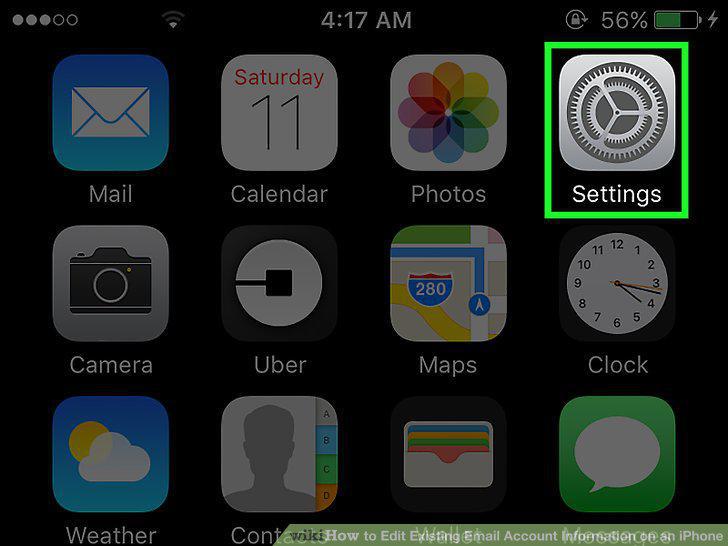
Open your iPhone's Settings.
2
Tap Mail.
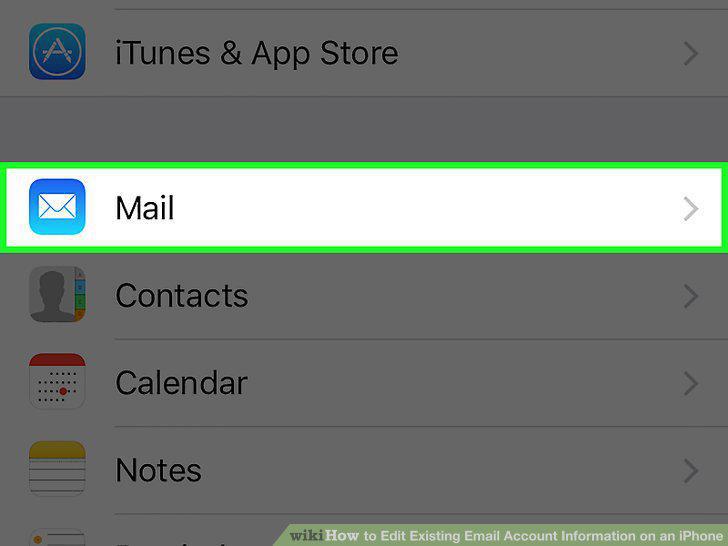
Tap Mail.
3
Tap Accounts at the top of the screen.
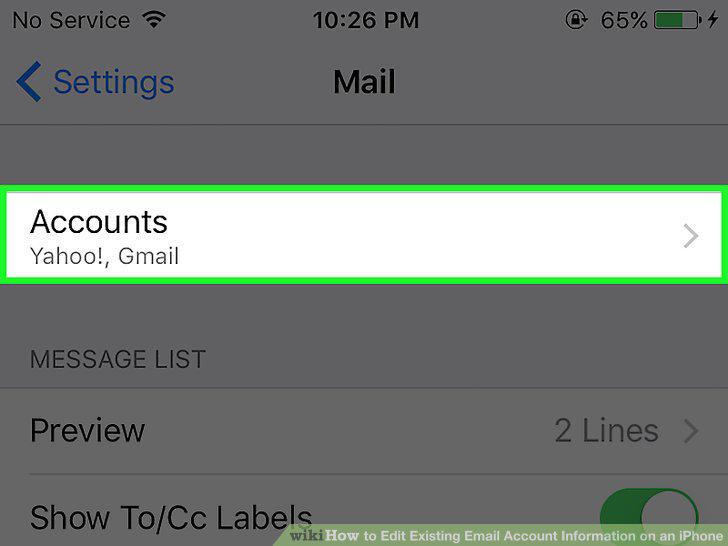
Tap Accounts at the top of the screen.
4
Tap on an account from the list to edit it.
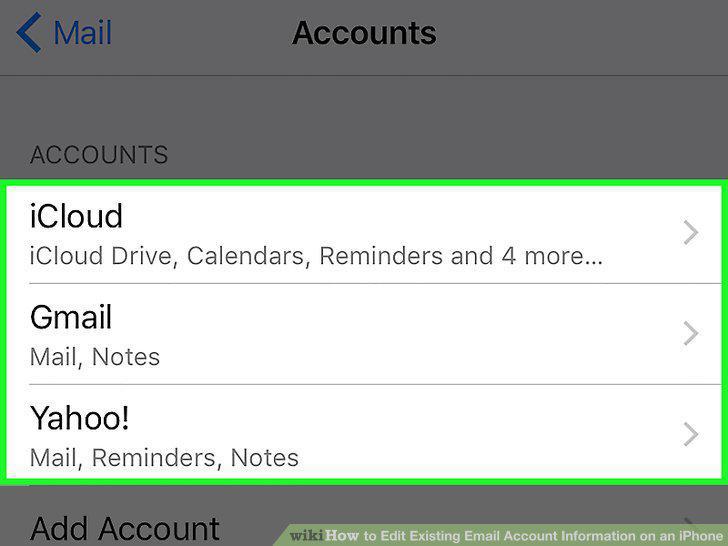
Tap on an account from the list to edit it.
5
Tap Account.
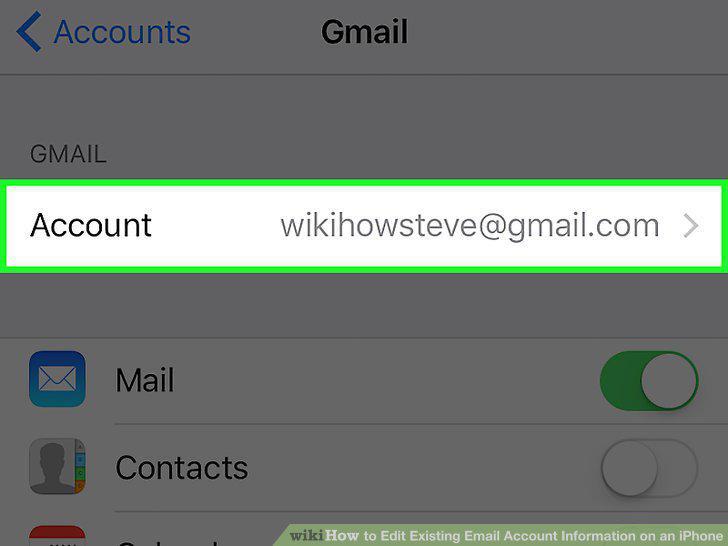
Tap Account.
6
Tap Name to edit the account name.
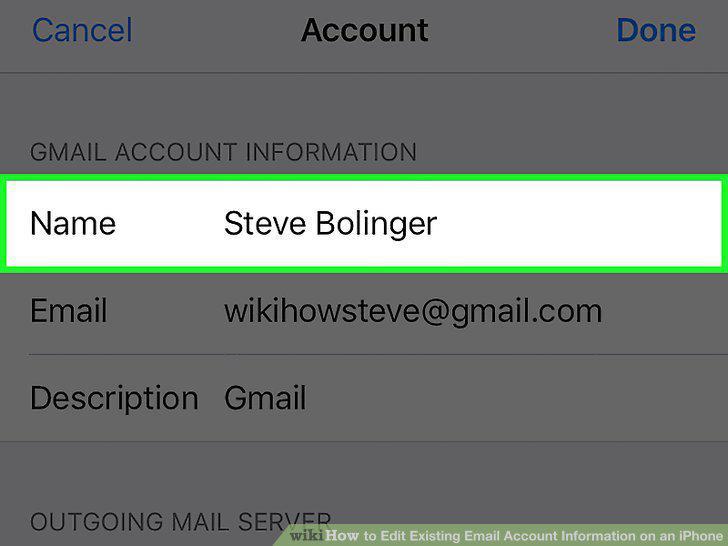
Tap Name to edit the account name.
7
Tap Email to change the email address.
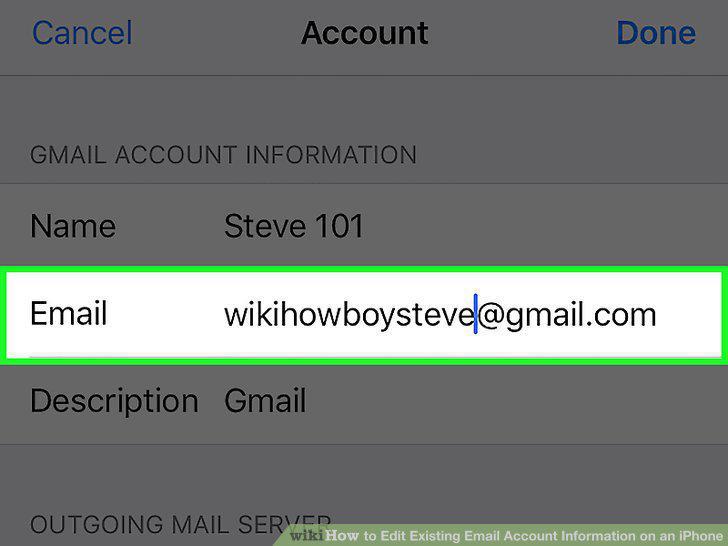
Tap Email to change the email address.
8
Tap Description to change it.
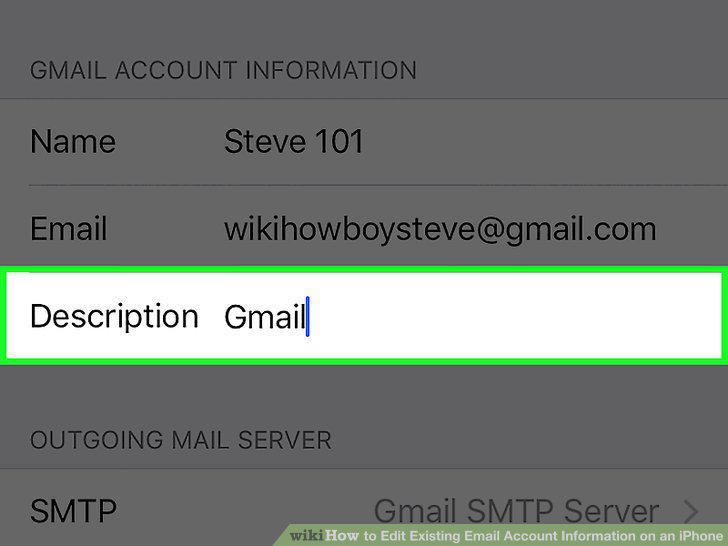
Tap Description to change it.
9
Tap SMPT to edit the outgoing mail server.
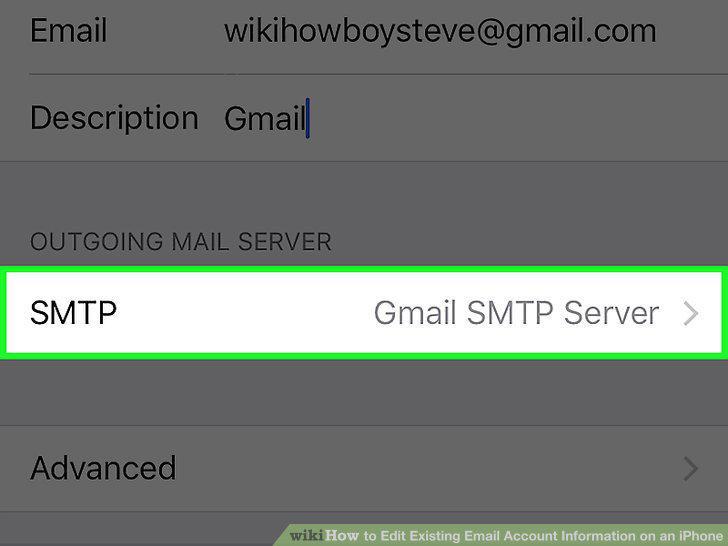
Tap SMPT to edit the outgoing mail server.
10
Tap Advanced to see more settings.
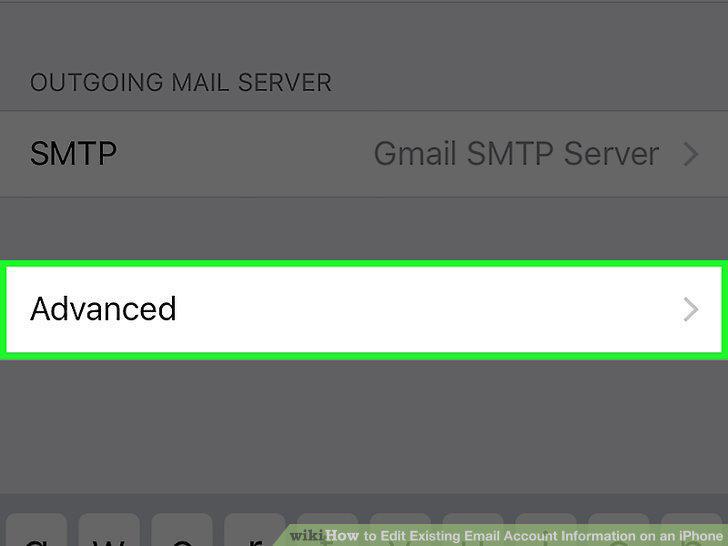
Tap Advanced to see more settings.
Comments (0)
No comments yet. Be the first to share your thoughts!