How to Delete Cell Phone Memory
Back up your contacts.. Back up your iPhone in with iCloud.. Back up the important data on your Android phone.
Steps
1
Back up your contacts.
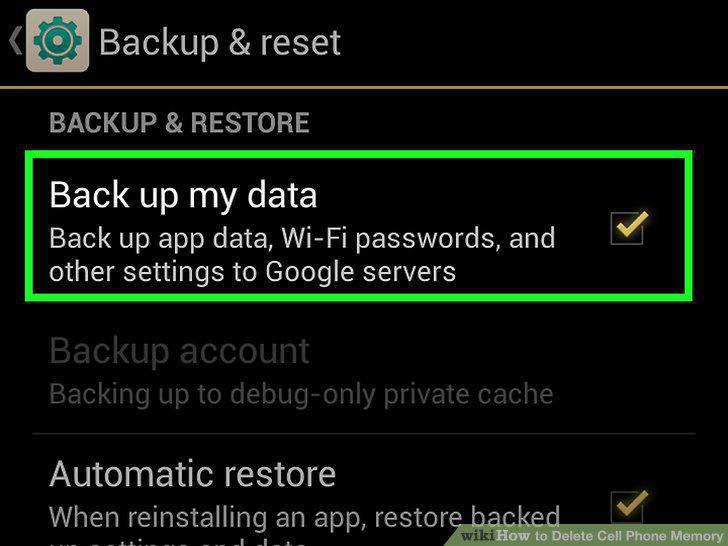
Back up your contacts.
2
Back up your iPhone in with iCloud.
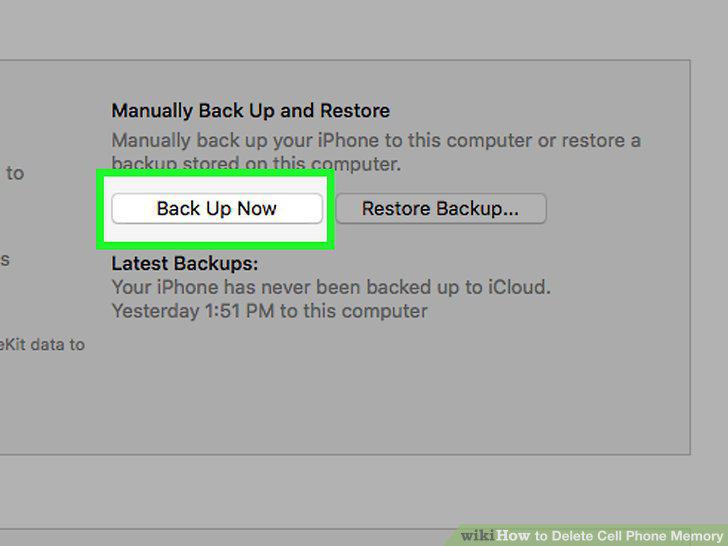
Back up your iPhone in with iCloud.
3
Back up the important data on your Android phone.
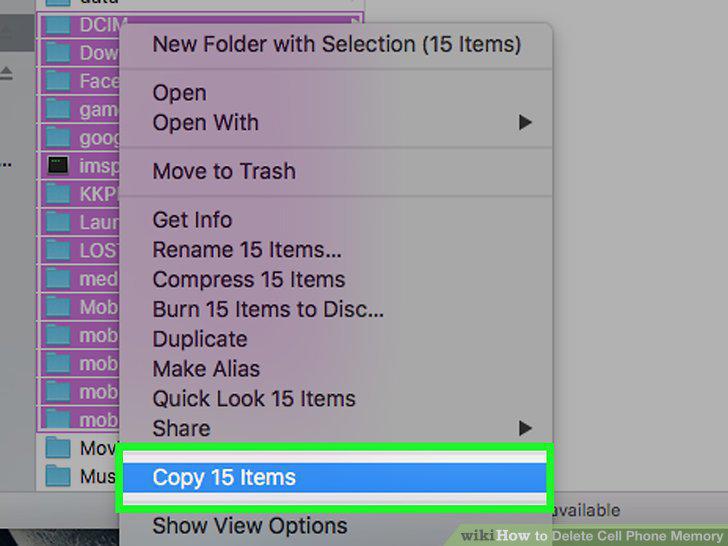
Back up the important data on your Android phone.
4
Save your pictures.
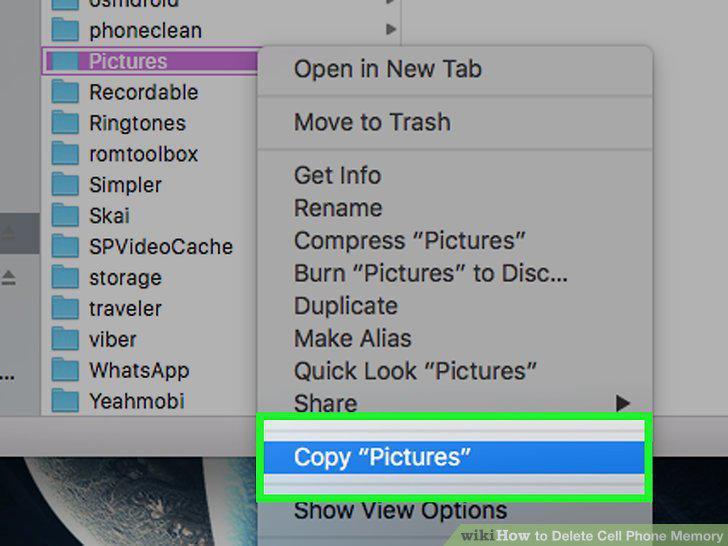
Save your pictures.
5
Back up your SMS (text) messages.
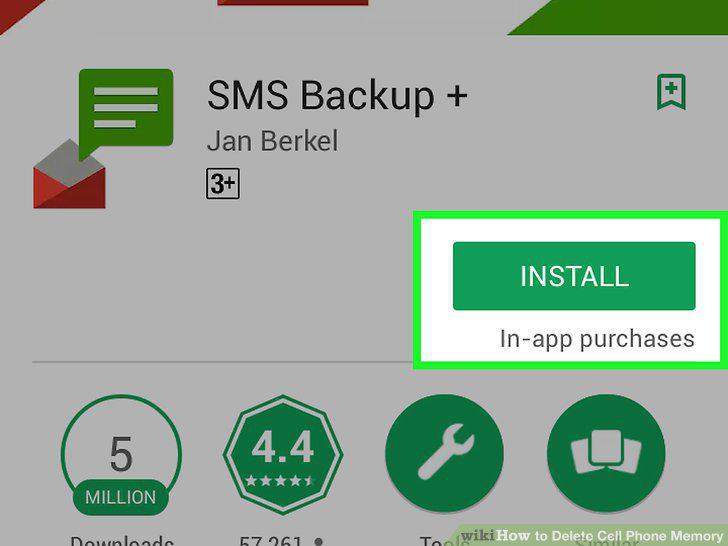
Back up your SMS (text) messages.
6
Plug your phone into a power source.
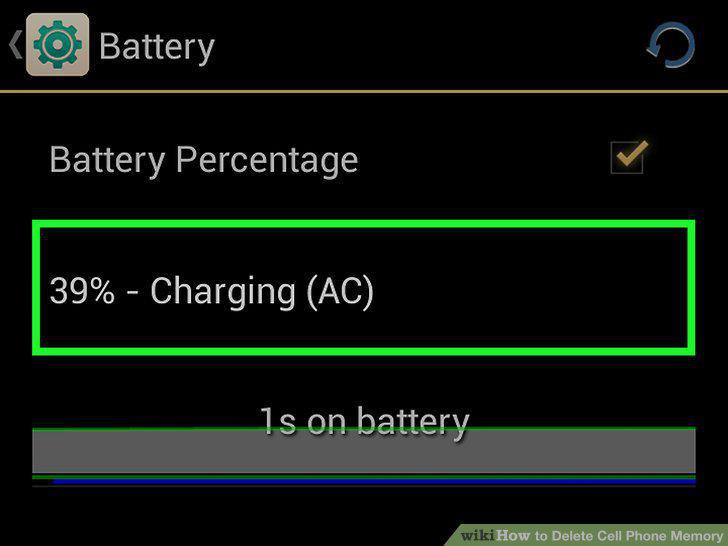
Plug your phone into a power source.
7
Open the Settings app.
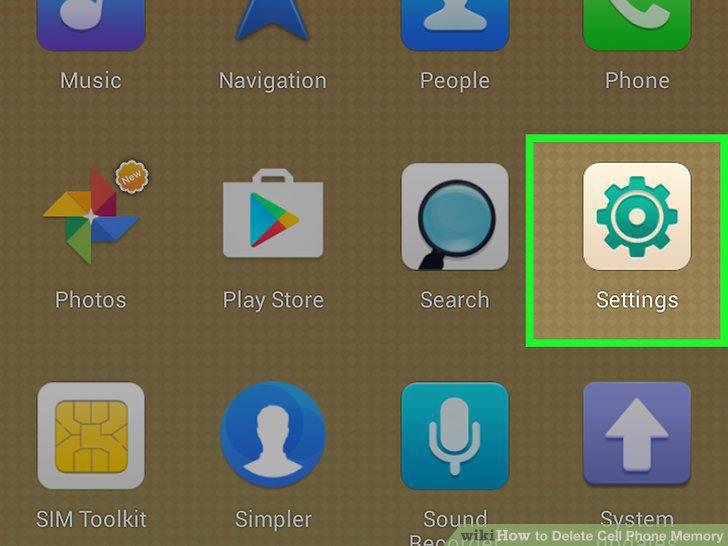
Open the Settings app.
8
Tap "Backup & reset."
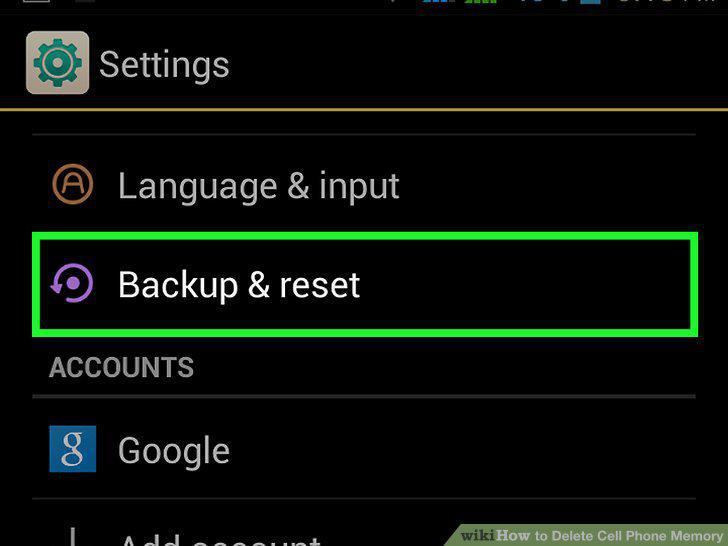
Tap "Backup & reset."
9
Tap "Factory data reset" or "Reset phone.
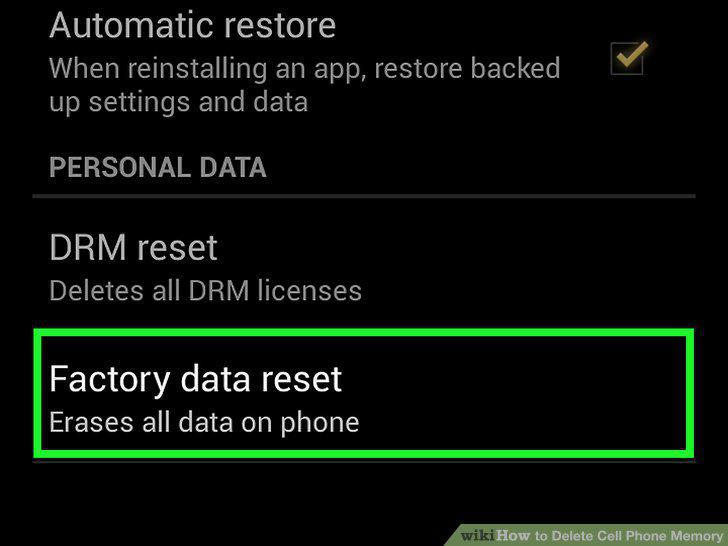
Tap "Factory data reset" or "Reset phone.
10
Wait while your phone resets.
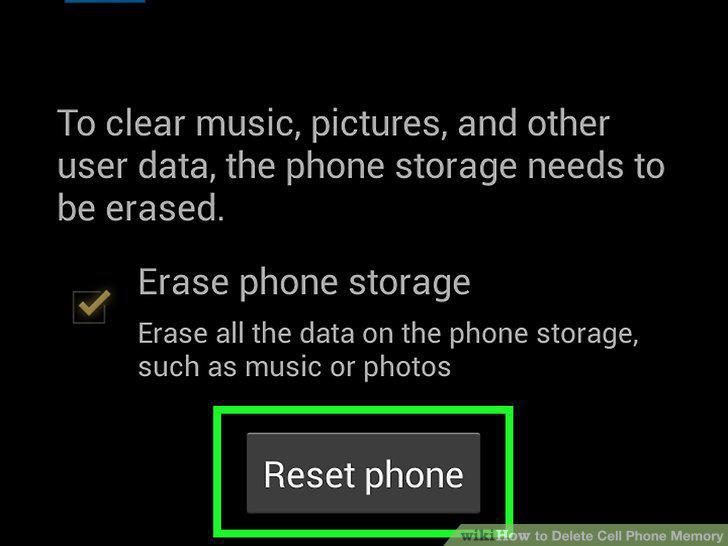
Wait while your phone resets.
11
Either set up the newly-reset phone or sell/trade it.
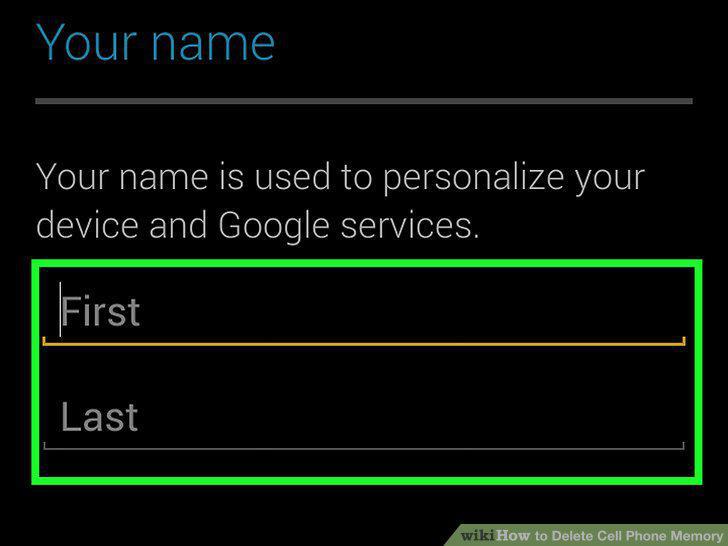
Either set up the newly-reset phone or sell/trade it.
12
Plug your iPhone into the wall charger.
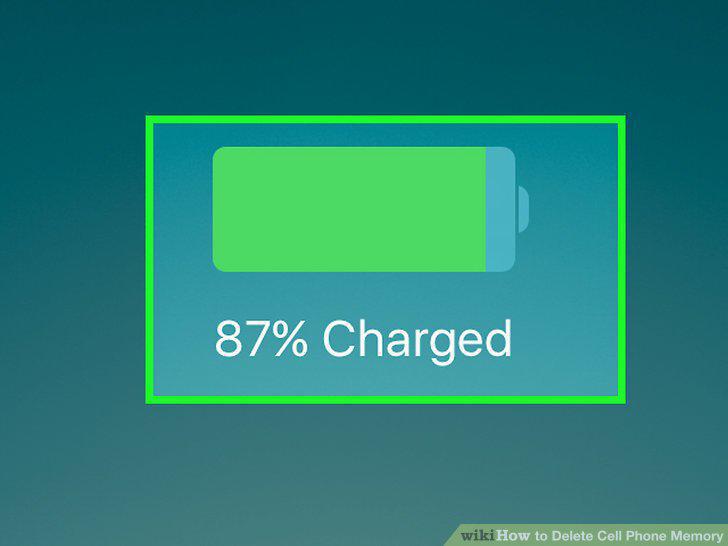
Plug your iPhone into the wall charger.
13
Open the Settings app.
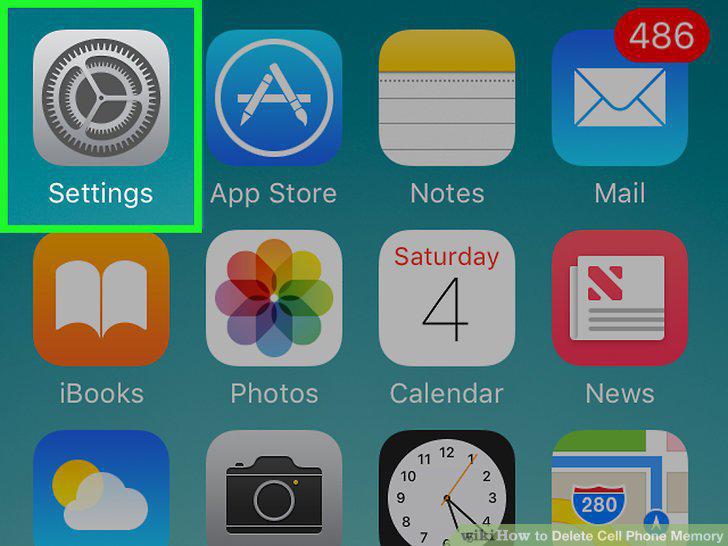
Open the Settings app.
14
Tap "General" and then scroll all the way down.
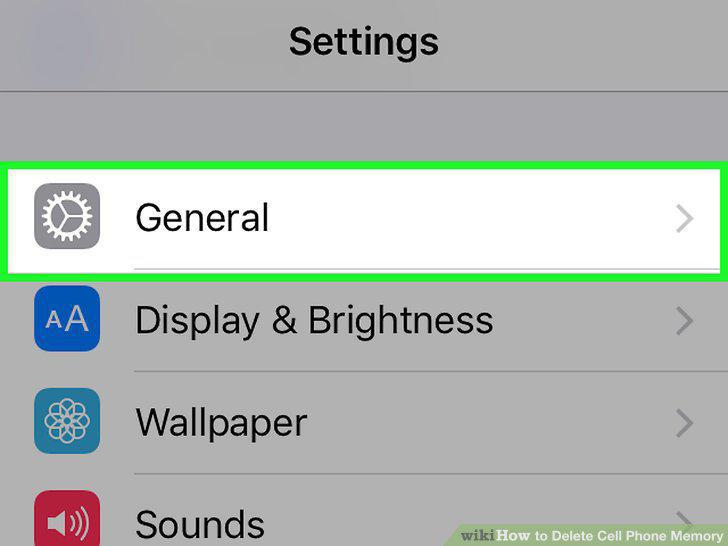
Tap "General" and then scroll all the way down.
15
Tap "Reset" and then "Erase All Content and Settings."
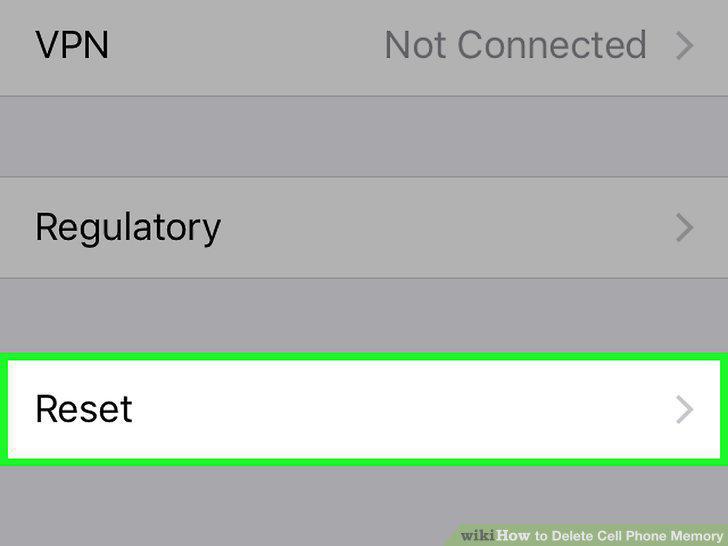
Tap "Reset" and then "Erase All Content and Settings."
16
Wait while your iPhone resets.
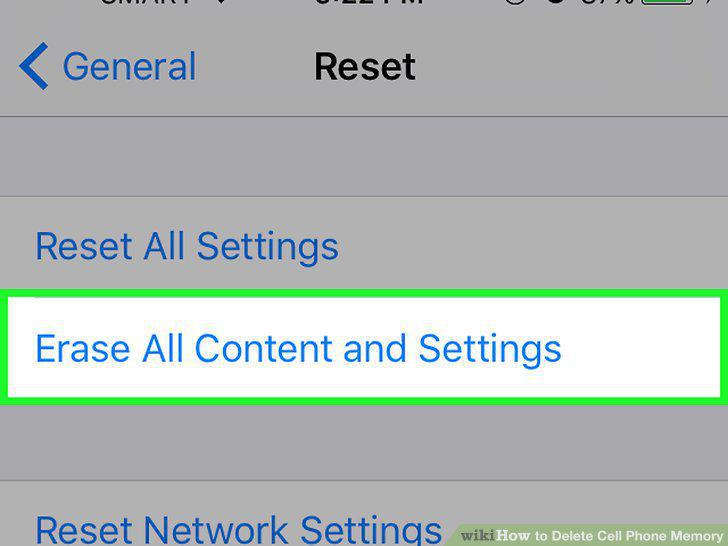
Wait while your iPhone resets.
17
Set up or get rid of your iPhone after resetting.
Set up or get rid of your iPhone after resetting.
Comments (0)
No comments yet. Be the first to share your thoughts!