How to Enable Developer Mode on an iPhone
Open your internet browser on your computer.. Go to Apple's Developer Downloads page.. Sign in with your Apple ID.
Steps
1
Open your internet browser on your computer.
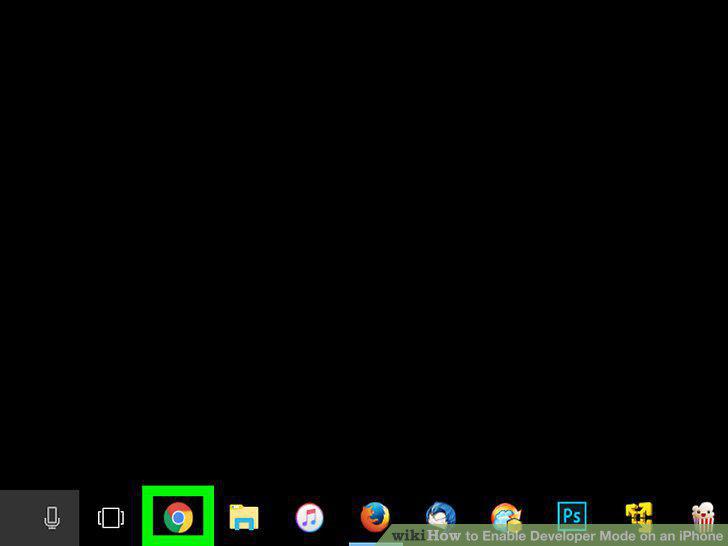
Open your internet browser on your computer.
2
Go to Apple's Developer Downloads page.
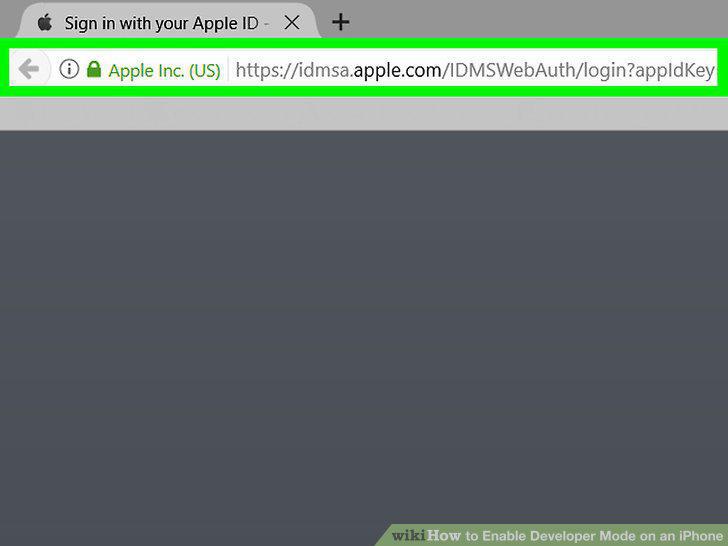
Go to Apple's Developer Downloads page.
3
Sign in with your Apple ID.
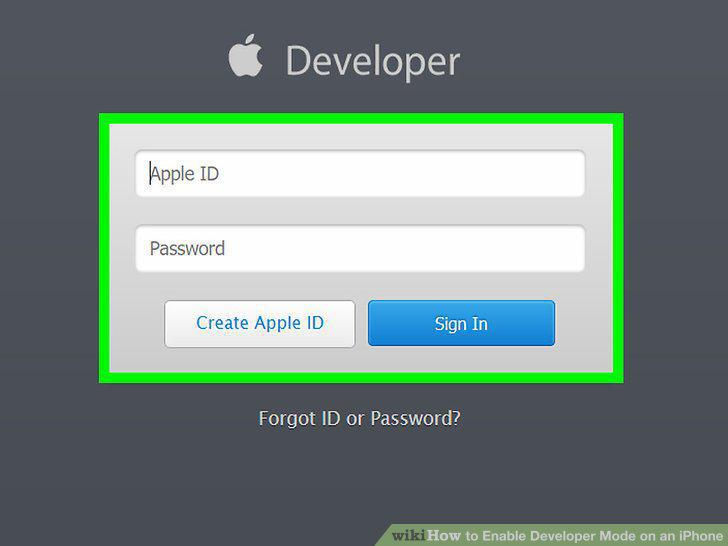
Sign in with your Apple ID.
4
Click Download next to Xcode.
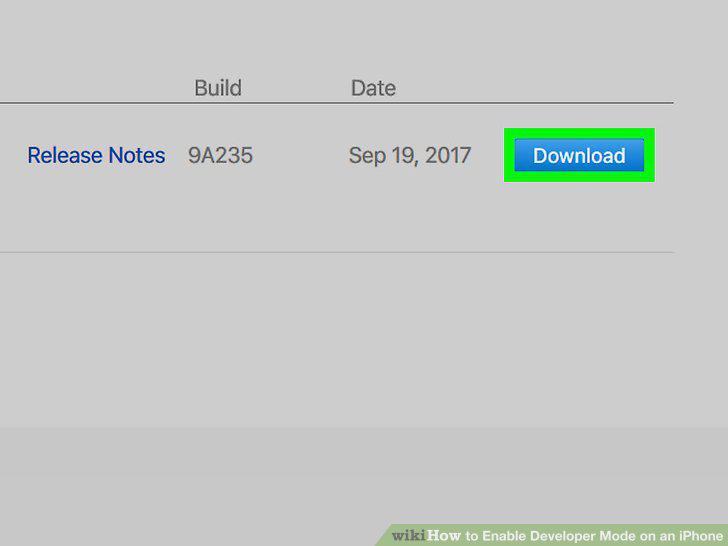
Click Download next to Xcode.
5
Click View in Mac App Store.
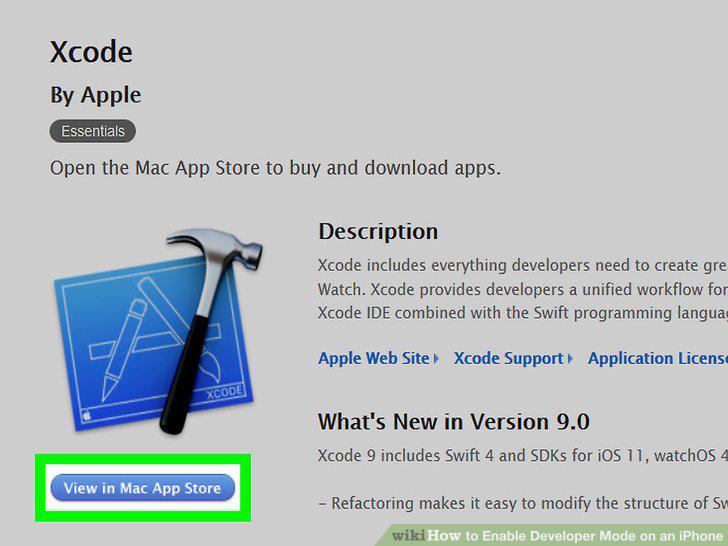
Click View in Mac App Store.
6
Click Open App Store in the pop-up box.
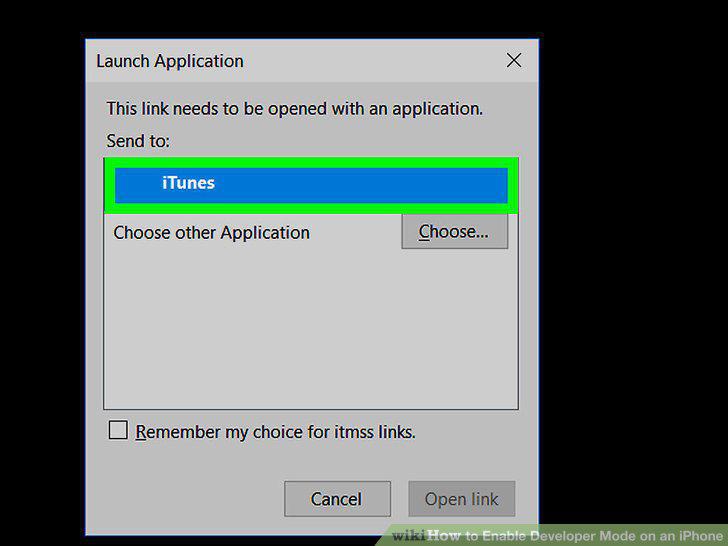
Click Open App Store in the pop-up box.
7
Click Get.
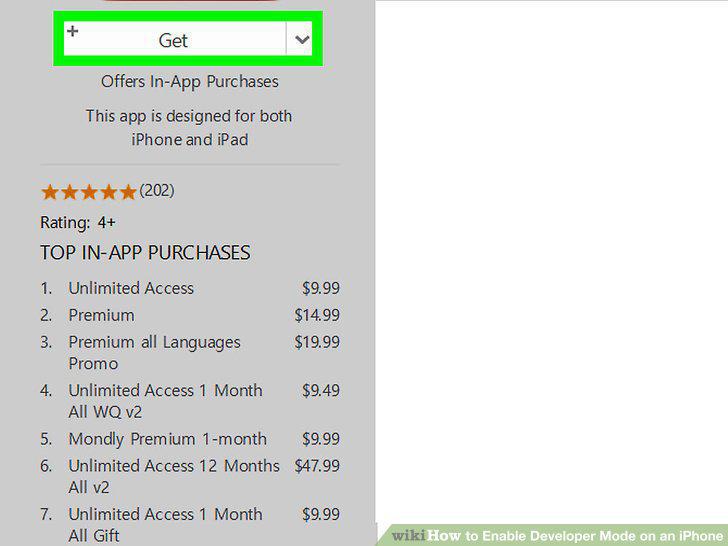
Click Get.
8
Click the green Install App button.
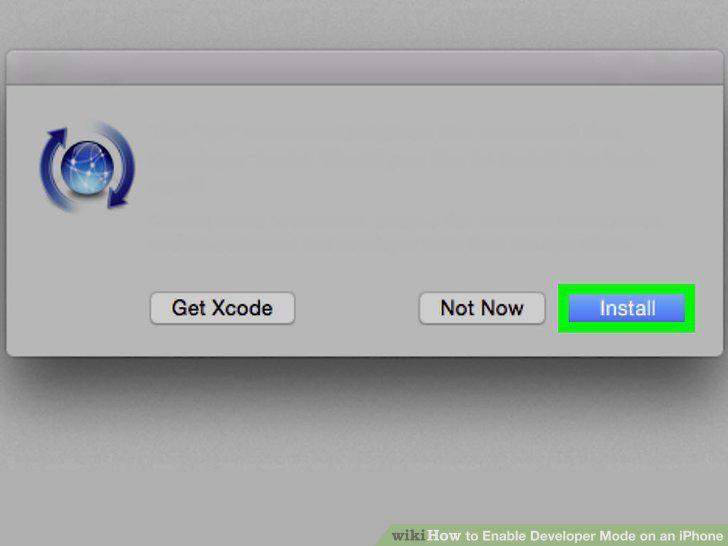
Click the green Install App button.
9
Open the Xcode app on your Mac.
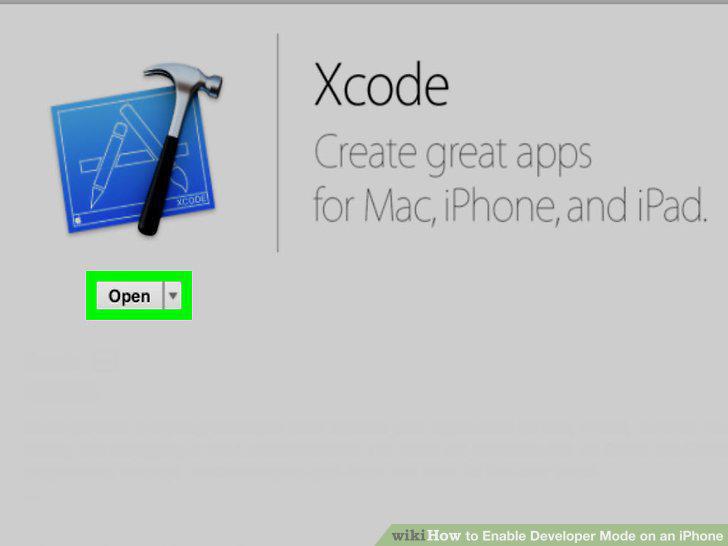
Open the Xcode app on your Mac.
10
Plug your iPhone into your Mac.
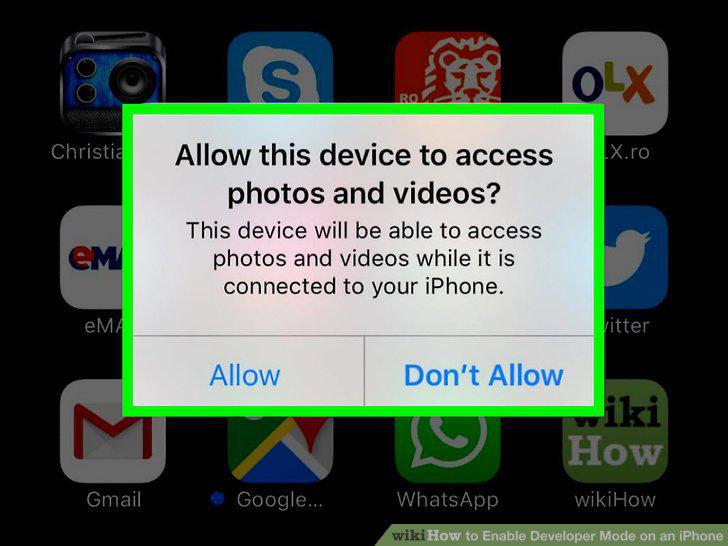
Plug your iPhone into your Mac.
11
Open the Settings app on your iPhone.
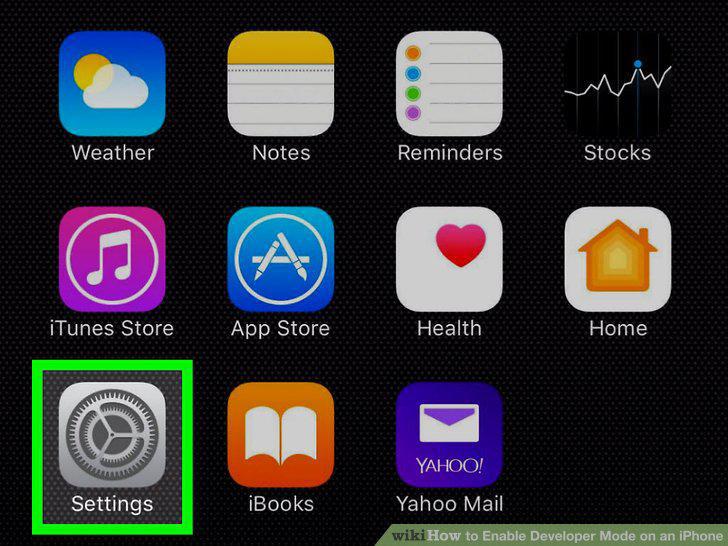
Open the Settings app on your iPhone.
12
Scroll down and tap Developer.
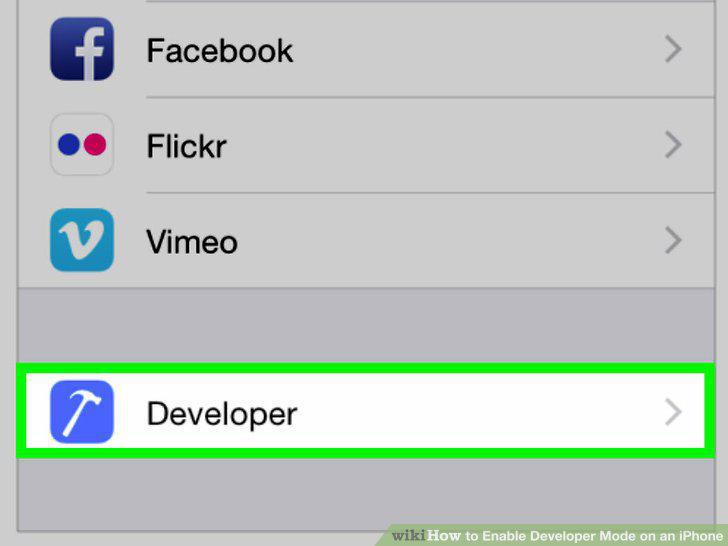
Scroll down and tap Developer.
Comments (0)
No comments yet. Be the first to share your thoughts!