How to Open an MPP File on PC or Mac
Go to Seavus Project Viewer Online in a web browser.. Click Choose File.. Navigate to your file.
Steps
1
Go to Seavus Project Viewer Online in a web browser.
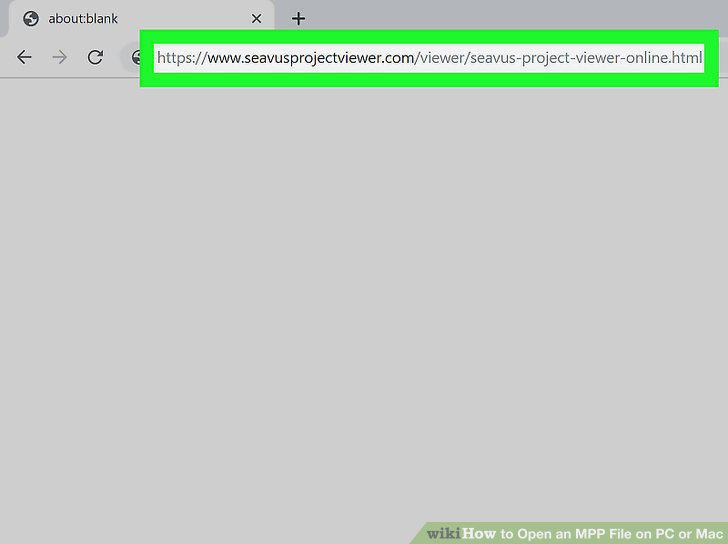
Go to Seavus Project Viewer Online in a web browser.
2
Click Choose File.
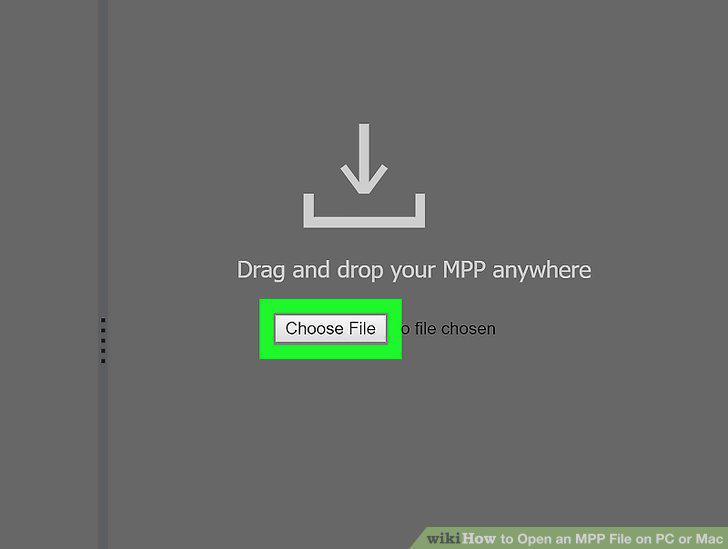
Click Choose File.
3
Navigate to your file.
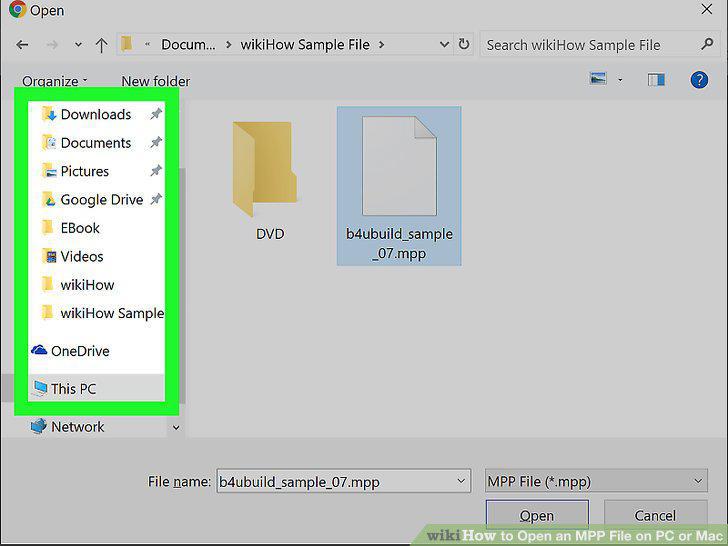
Navigate to your file.
4
Double-click to open your file.
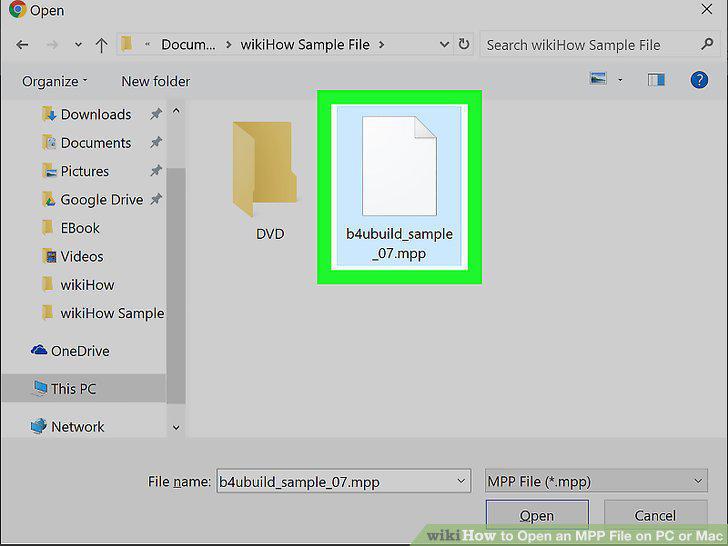
Double-click to open your file.
5
Navigate to https://www.projectplan365.com/download/.
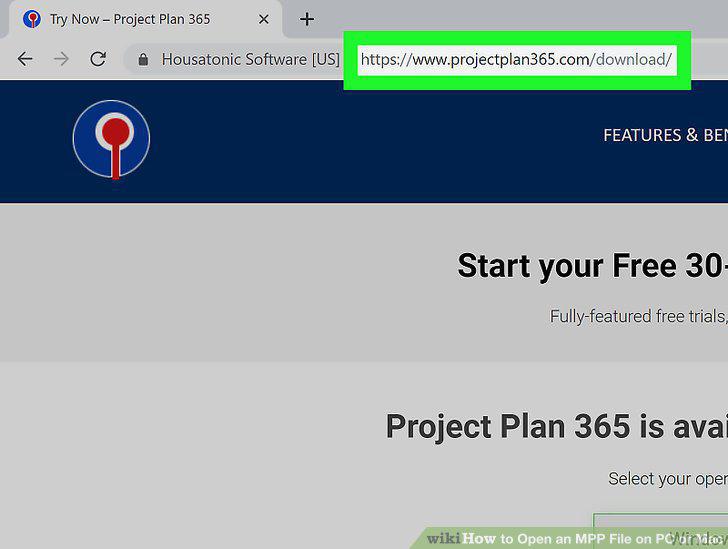
Navigate to https://www.projectplan365.com/download/.
6
Click Windows or MacOS from the drop-down menu.
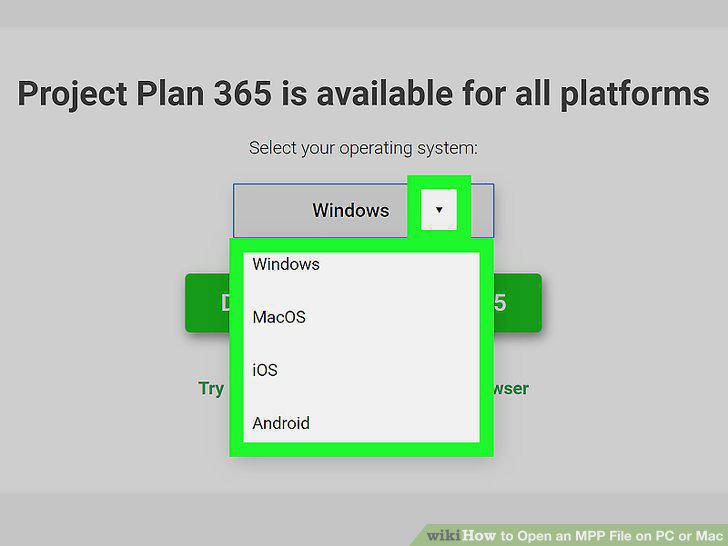
Click Windows or MacOS from the drop-down menu.
7
Click the green Download Project Plan 365 button.
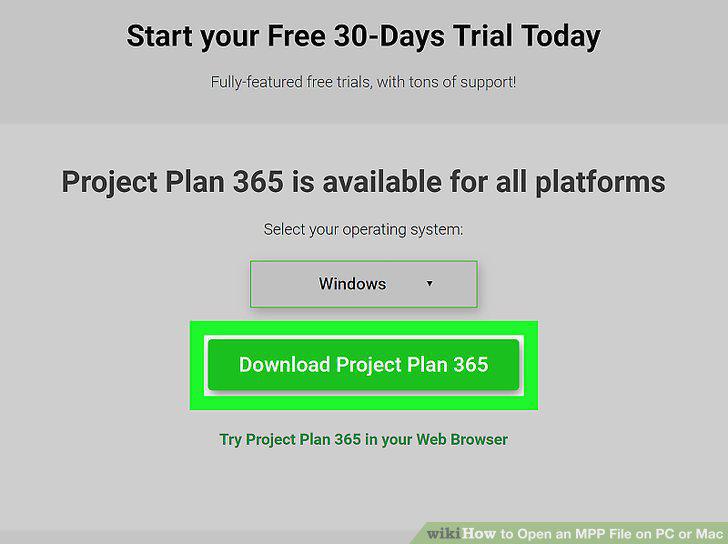
Click the green Download Project Plan 365 button.
8
Click Ok.
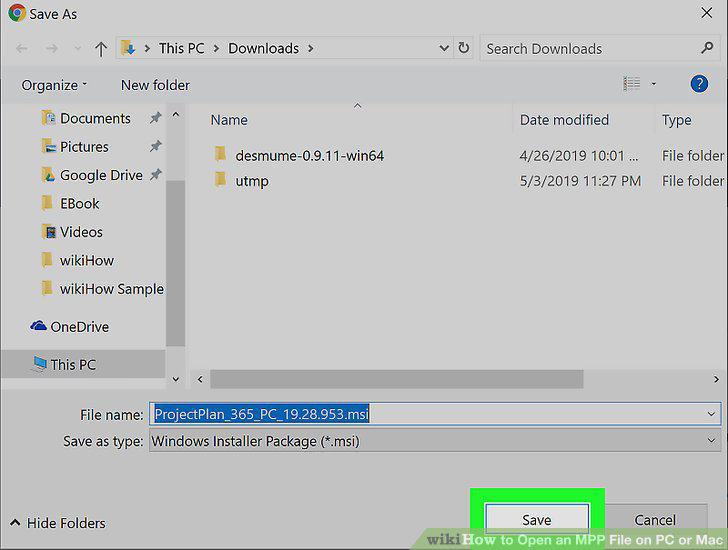
Click Ok.
9
Follow the Installer Setup Wizard.
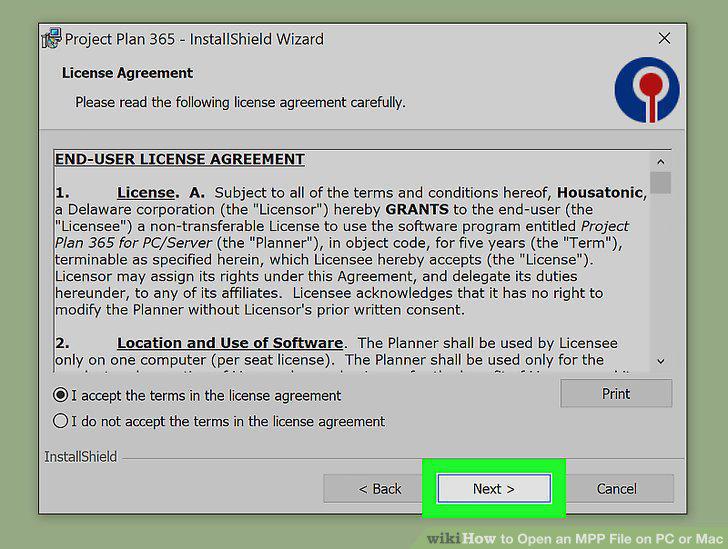
Follow the Installer Setup Wizard.
10
Click Install.
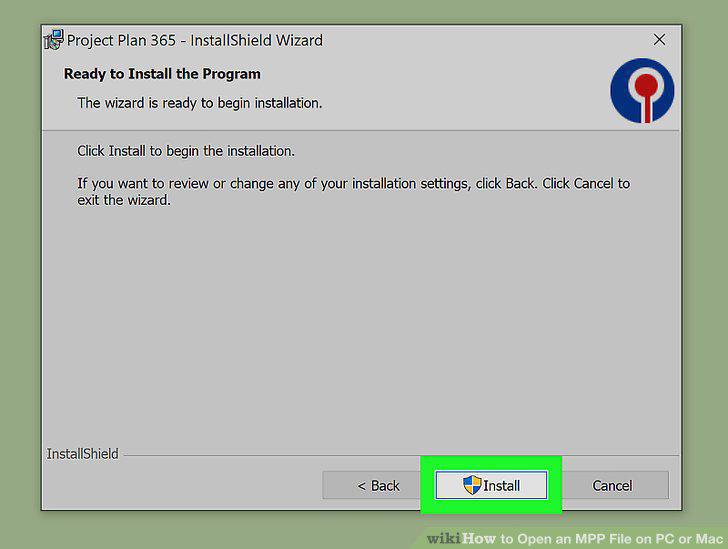
Click Install.
11
Click File.
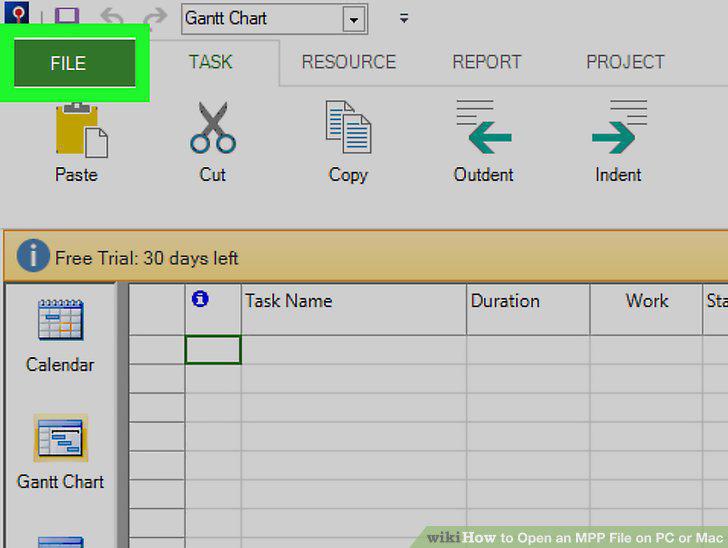
Click File.
12
Click Open.
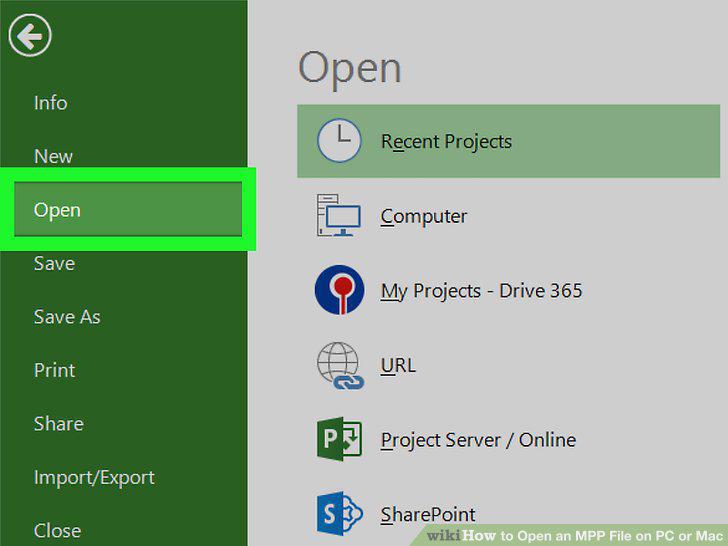
Click Open.
13
Select a location.
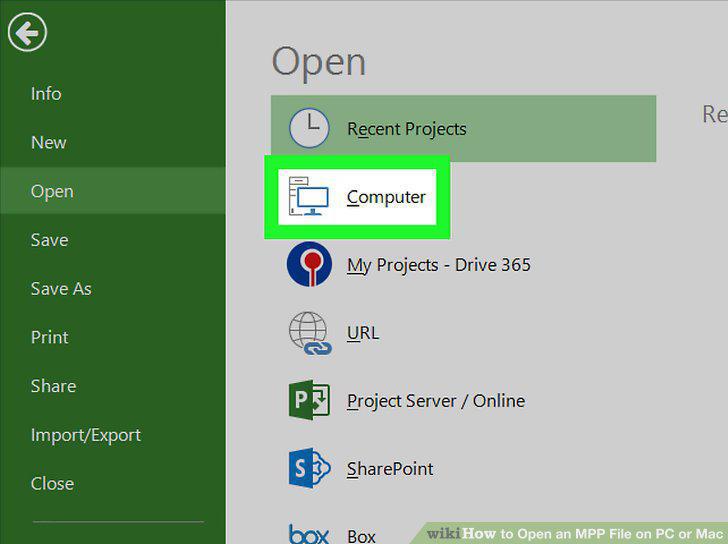
Select a location.
14
Navigate to your file and open it.
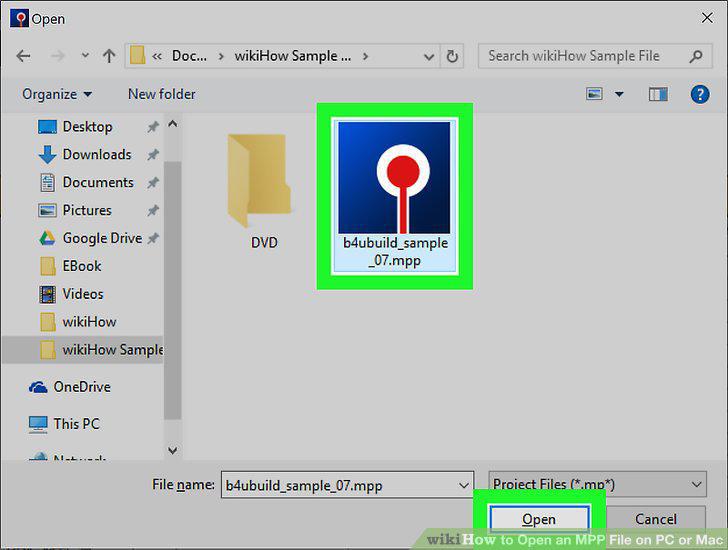
Navigate to your file and open it.
Comments (0)
No comments yet. Be the first to share your thoughts!