How to Use the NumLock Feature on Lenovo Thinkpads
Determine if your laptop should have a NumLock key.. Open the Start menu or Start screen on your computer.. Type "keyboard" in the Start menu.
Steps
1
Determine if your laptop should have a NumLock key.
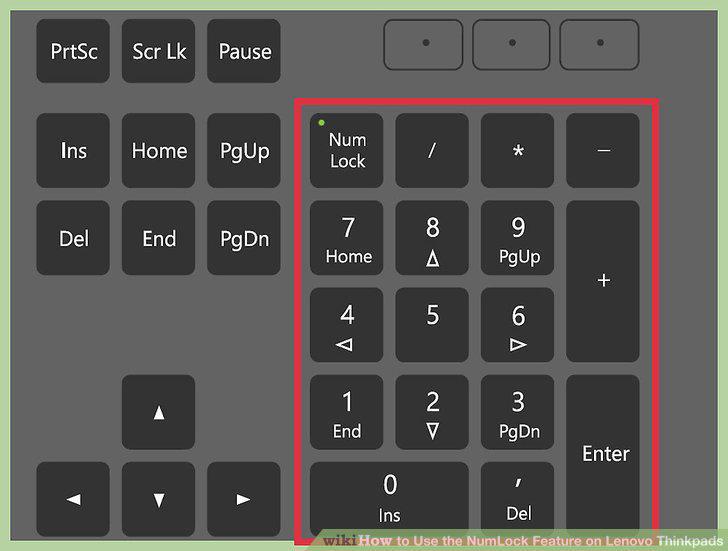
Determine if your laptop should have a NumLock key.
2
Open the Start menu or Start screen on your computer.
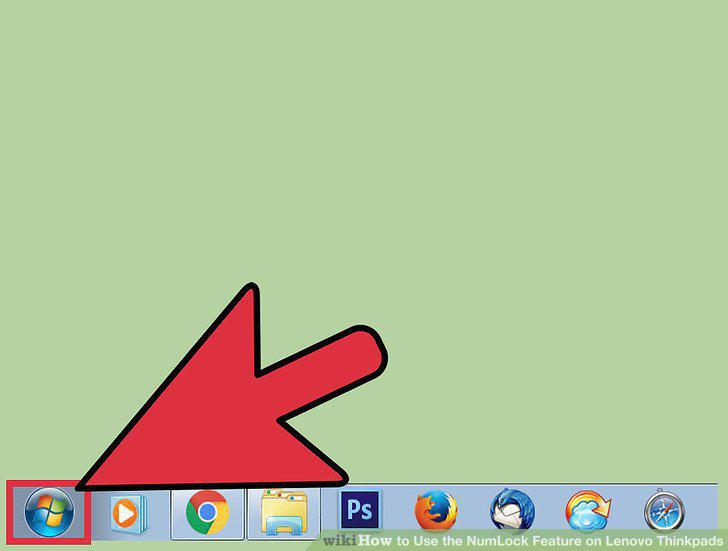
Open the Start menu or Start screen on your computer.
3
Type "keyboard" in the Start menu.
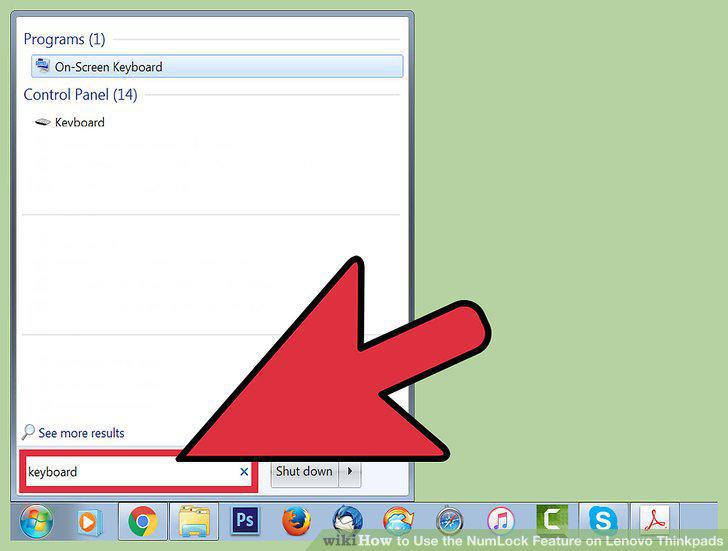
Type "keyboard" in the Start menu.
4
Open the On-Screen Keyboard.
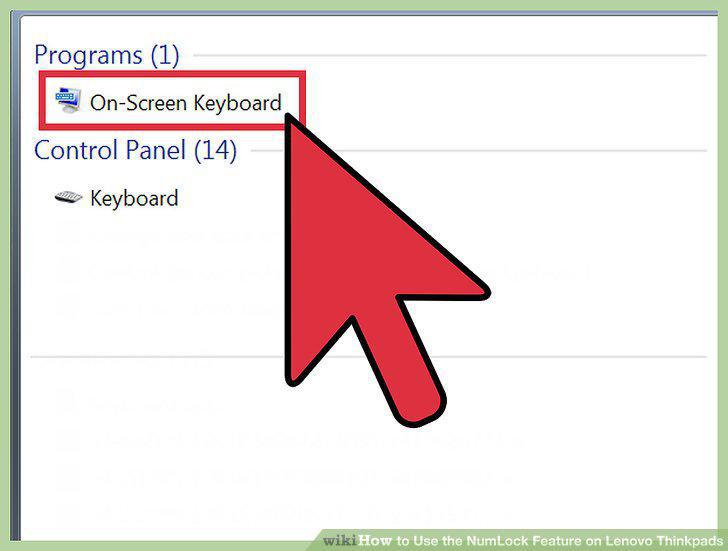
Open the On-Screen Keyboard.
5
Click the "Options" button in the On-Screen Keyboard.
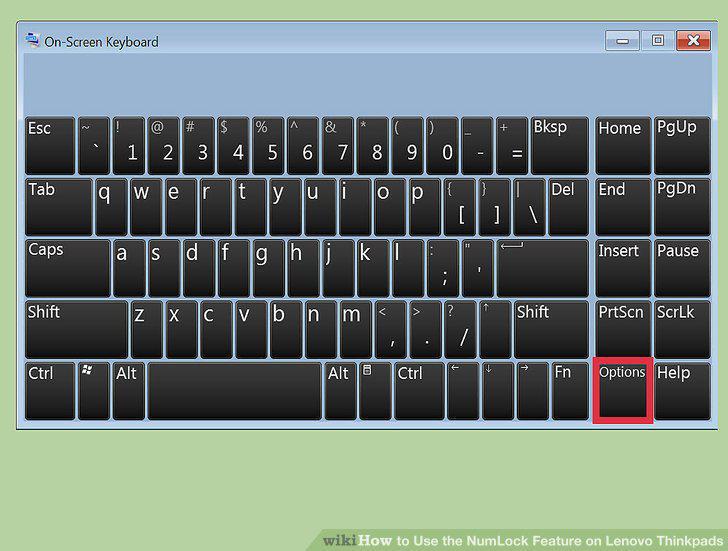
Click the "Options" button in the On-Screen Keyboard.
6
Check the "Turn on numeric keypad" box.
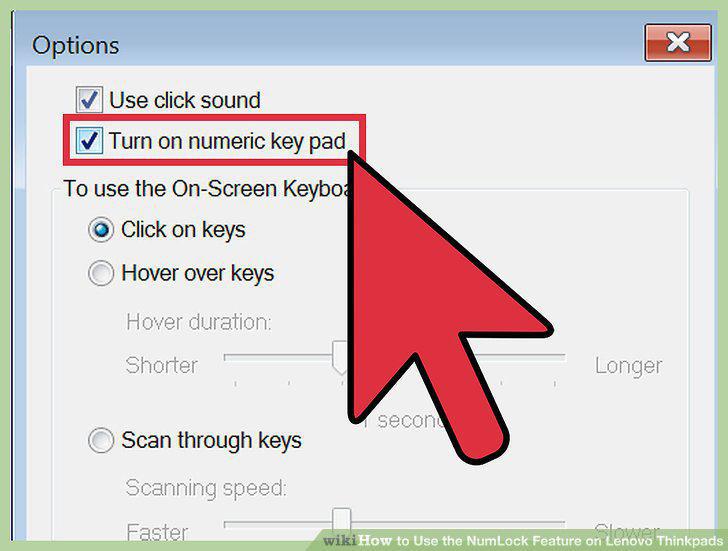
Check the "Turn on numeric keypad" box.
7
Click the keys in the on-screen numeric keypad to enter numbers.
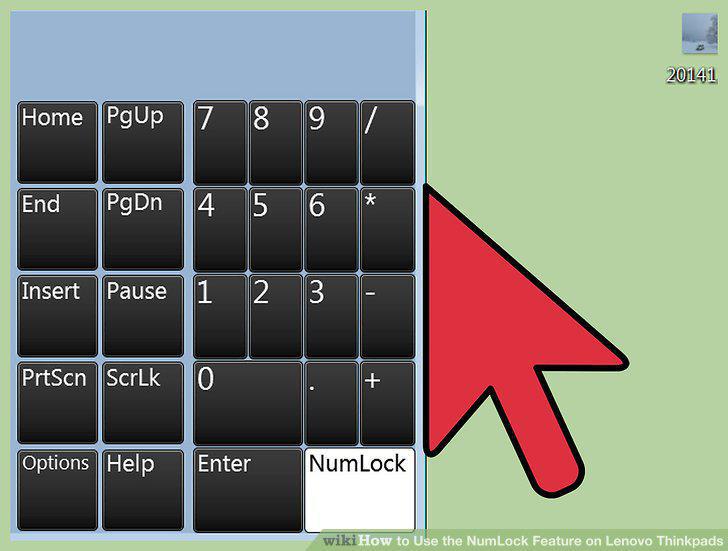
Click the keys in the on-screen numeric keypad to enter numbers.
8
Find the NumLock key on your keyboard.
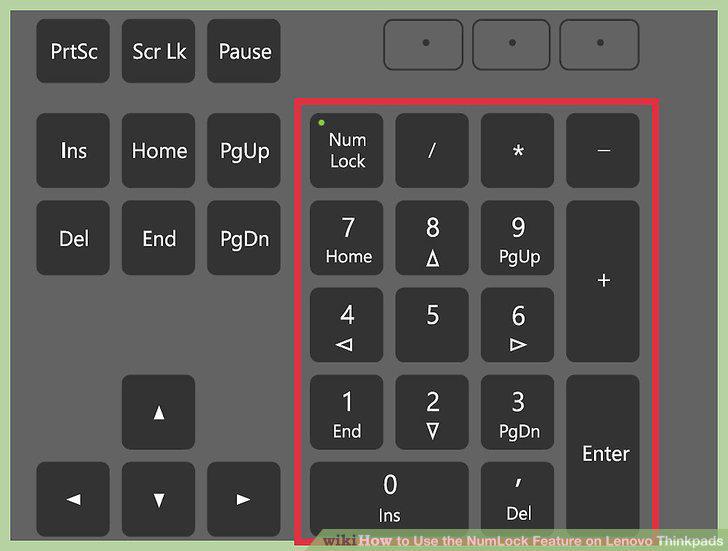
Find the NumLock key on your keyboard.
9
Hold the .
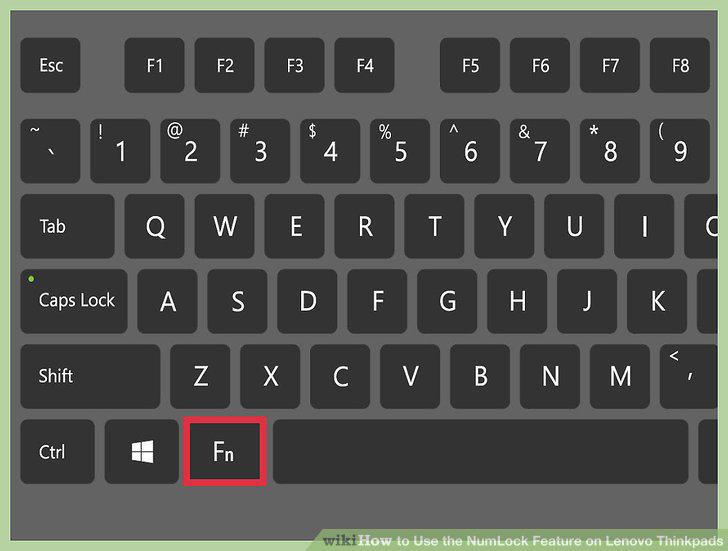
Hold the .
10
Use the numeric keypad keys on your keyboard.
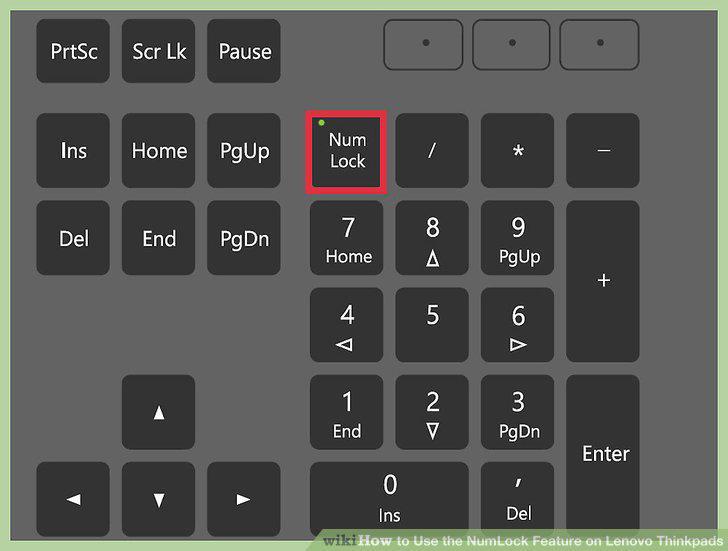
Use the numeric keypad keys on your keyboard.
11
Turn NumLock off when you're finished with the numeric pad.
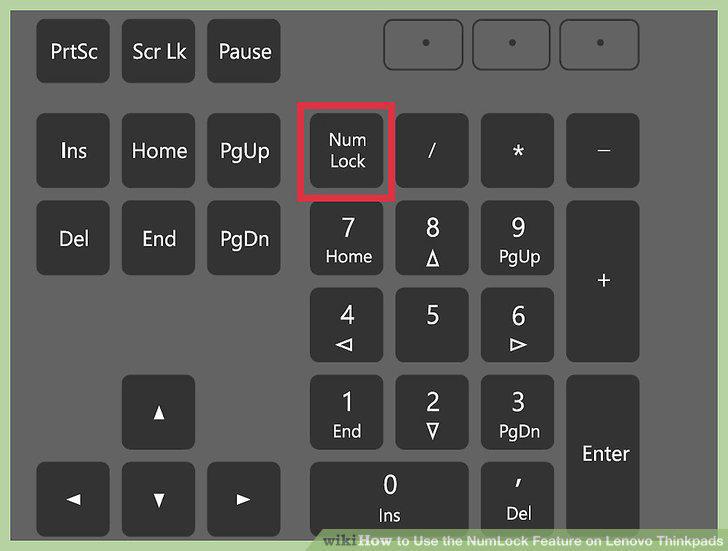
Turn NumLock off when you're finished with the numeric pad.
Comments (0)
No comments yet. Be the first to share your thoughts!