How to Reset Your Microsoft Password
Navigate to Microsoft's Recover Your Account page.. Enter the email, phone number, or Skype username for your Microsoft account.. Choose how to receive the security code.
Steps
1
Navigate to Microsoft's Recover Your Account page.
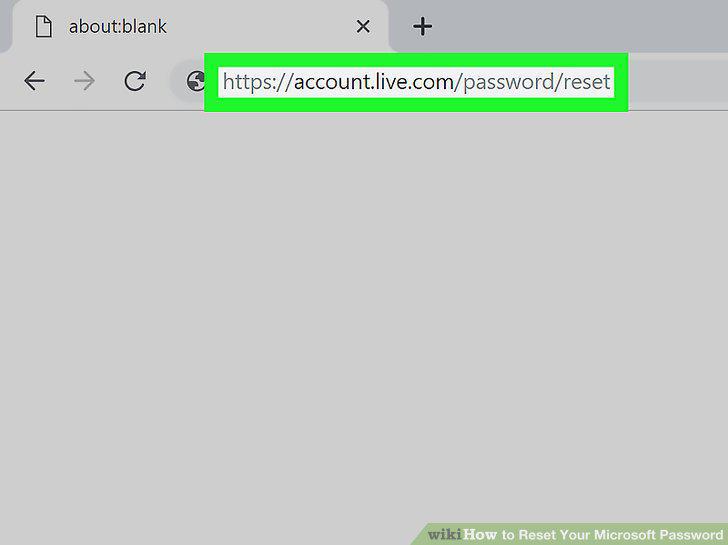
Navigate to Microsoft's Recover Your Account page.
2
Enter the email, phone number, or Skype username for your Microsoft account.
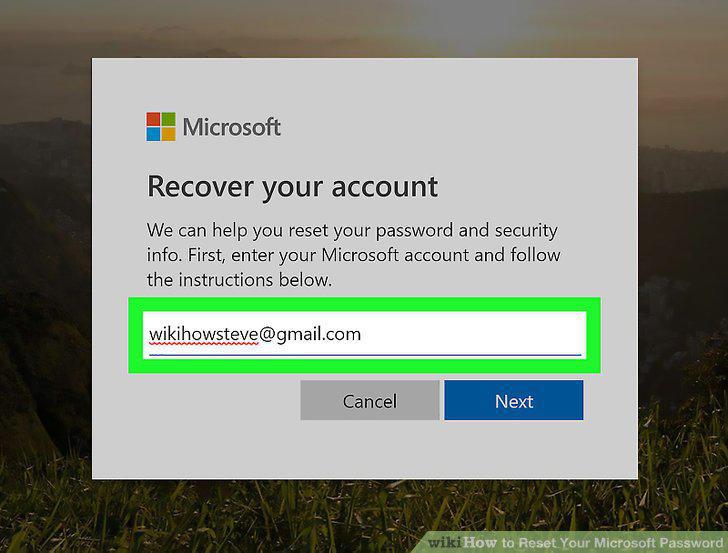
Enter the email, phone number, or Skype username for your Microsoft account.
3
Choose how to receive the security code.
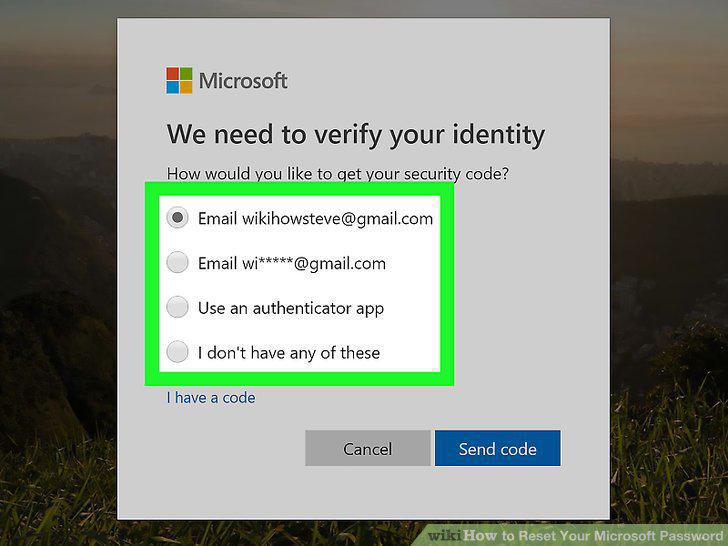
Choose how to receive the security code.
4
Locate the security code on your trusted device or email.
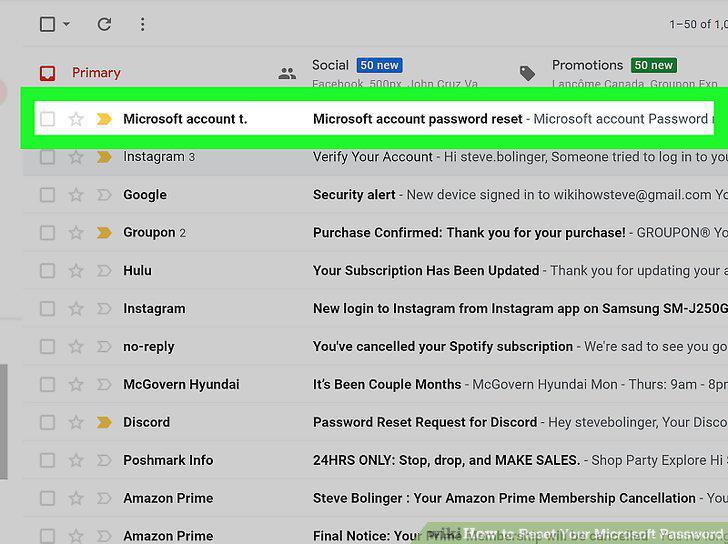
Locate the security code on your trusted device or email.
5
Type in the security code and click Next.
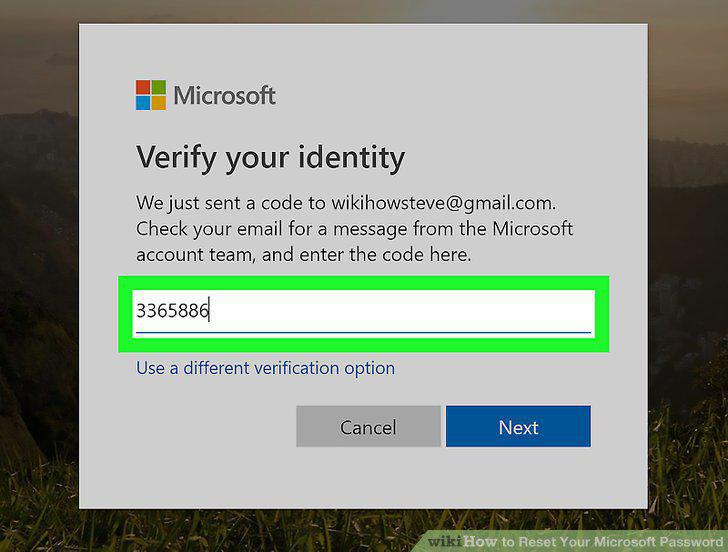
Type in the security code and click Next.
6
Create your new password.
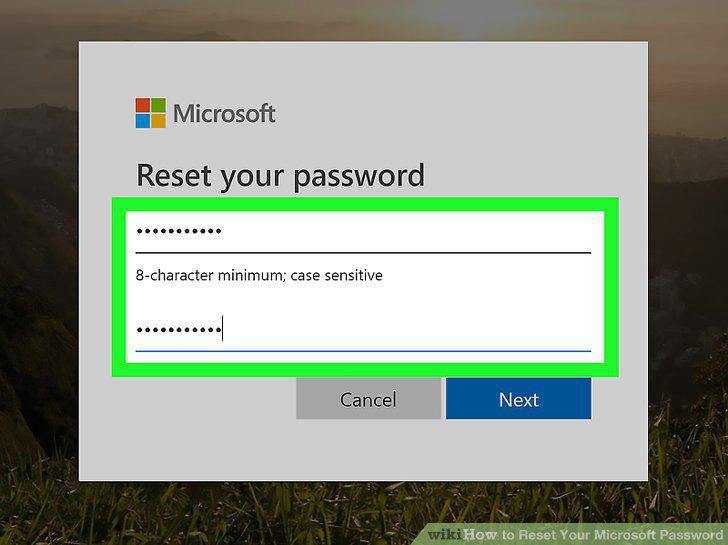
Create your new password.
7
Log in to your Microsoft account.
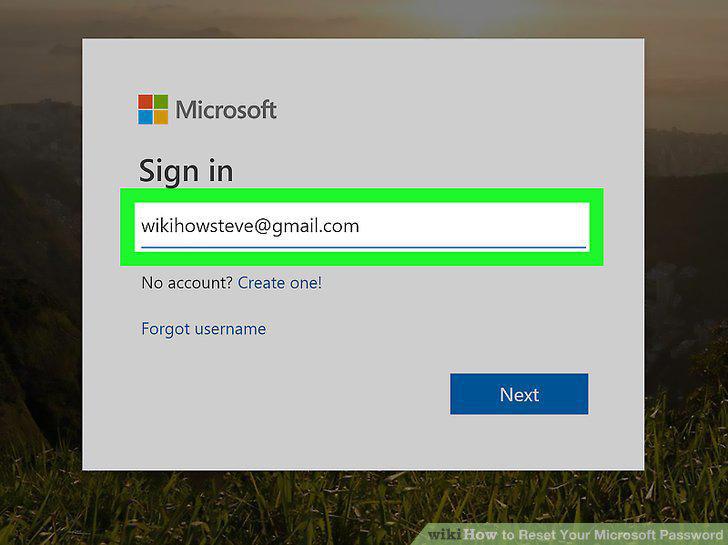
Log in to your Microsoft account.
Comments (0)
No comments yet. Be the first to share your thoughts!