How to Use QR Codes on Facebook on Android
Open the Facebook app on your Android.. Tap the search icon .. Type QR Code in the search bar and tap the search icon.
Steps
1
Open the Facebook app on your Android.
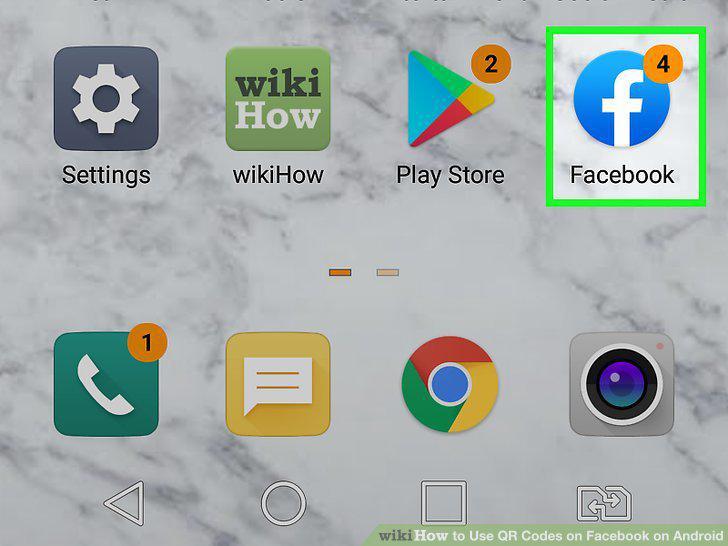
Open the Facebook app on your Android.
2
Tap the search icon .
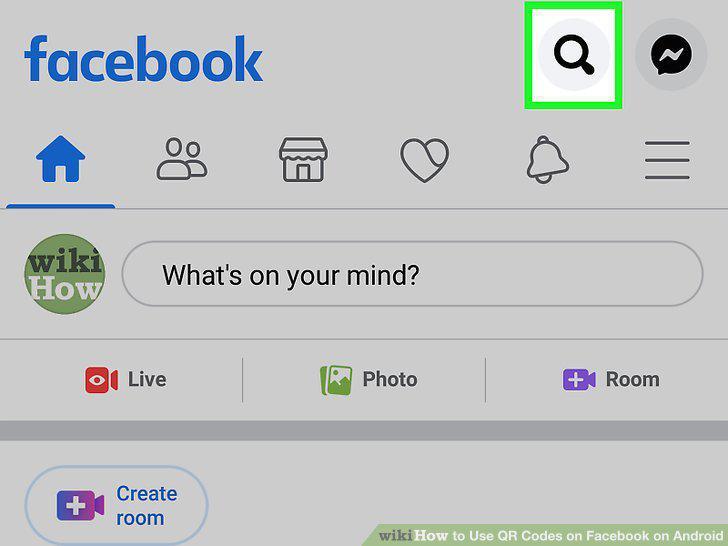
Tap the search icon .
3
Type QR Code in the search bar and tap the search icon.
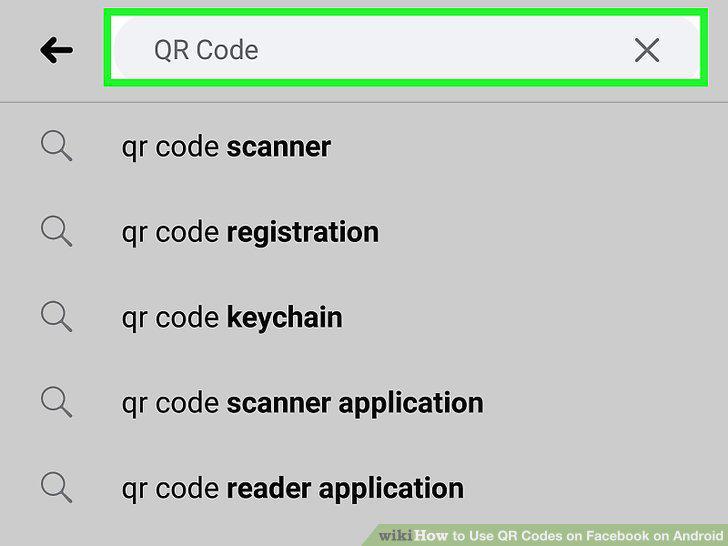
Type QR Code in the search bar and tap the search icon.
4
Tap QR Code in the search results.
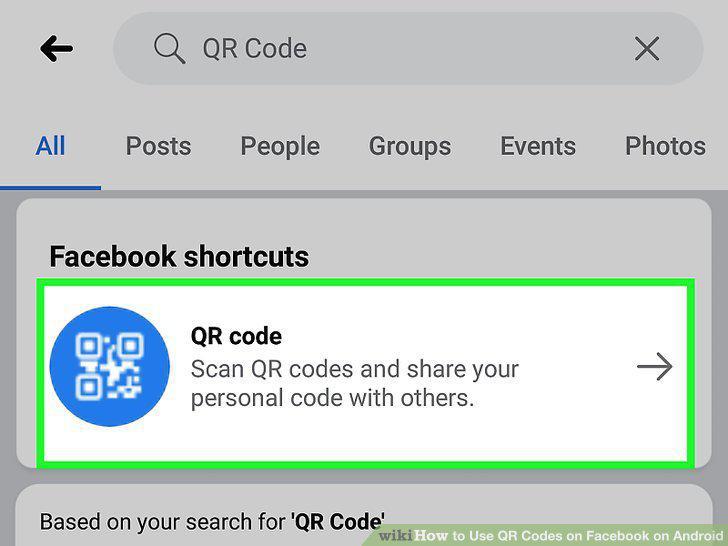
Tap QR Code in the search results.
5
Scan a QR code with your Android's camera.
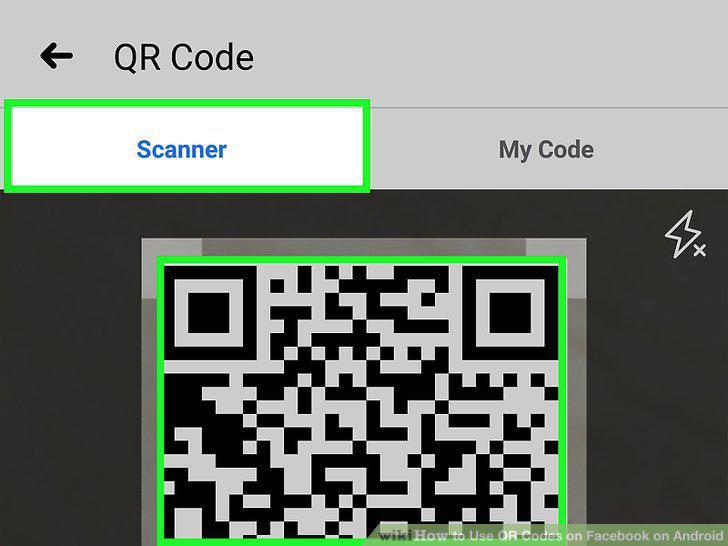
Scan a QR code with your Android's camera.
6
Tap the icon that resembles a person with a plus (+) sign next to their head.
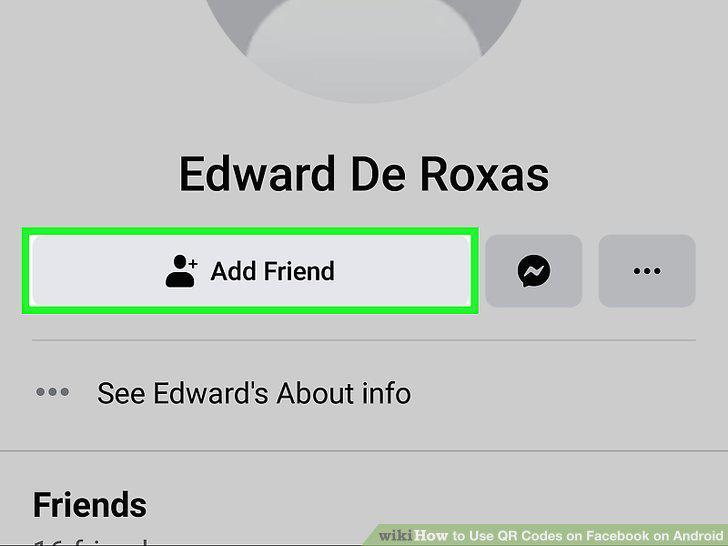
Tap the icon that resembles a person with a plus (+) sign next to their head.
7
Open the Facebook app on your Android.
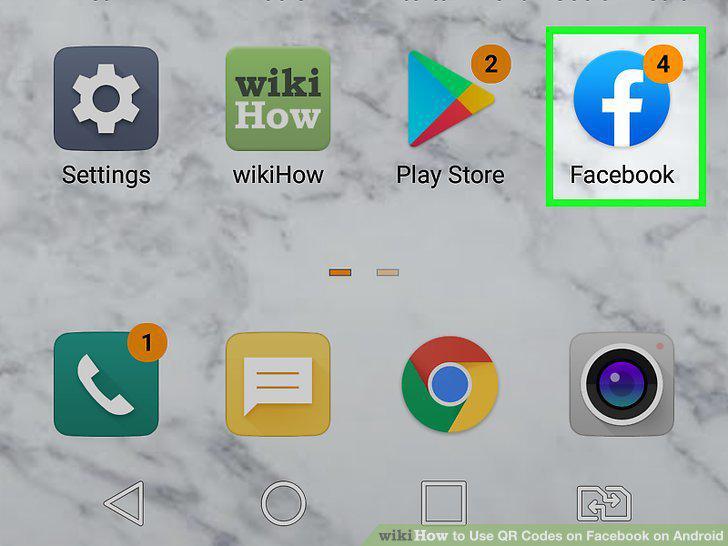
Open the Facebook app on your Android.
8
Tap the search icon .
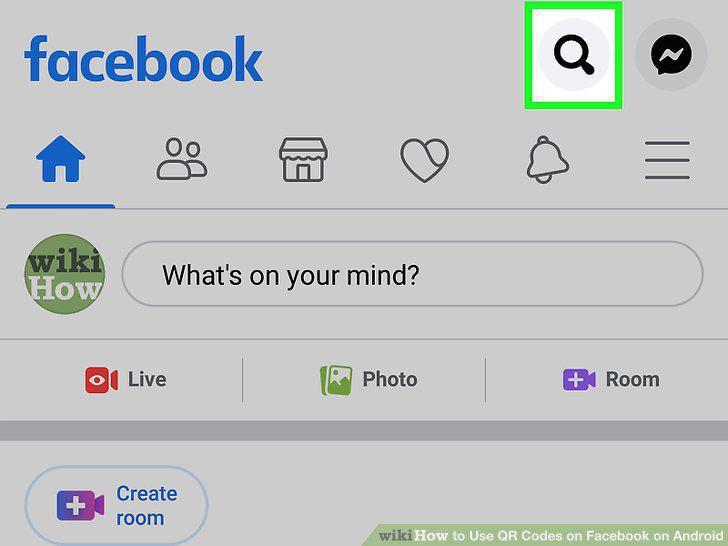
Tap the search icon .
9
Type QR Code in the search bar and tap the search icon.
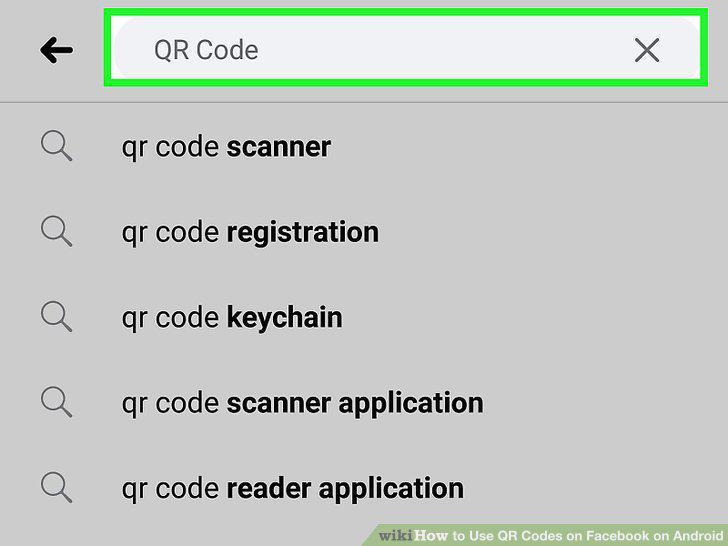
Type QR Code in the search bar and tap the search icon.
10
Tap QR Code in the search results.
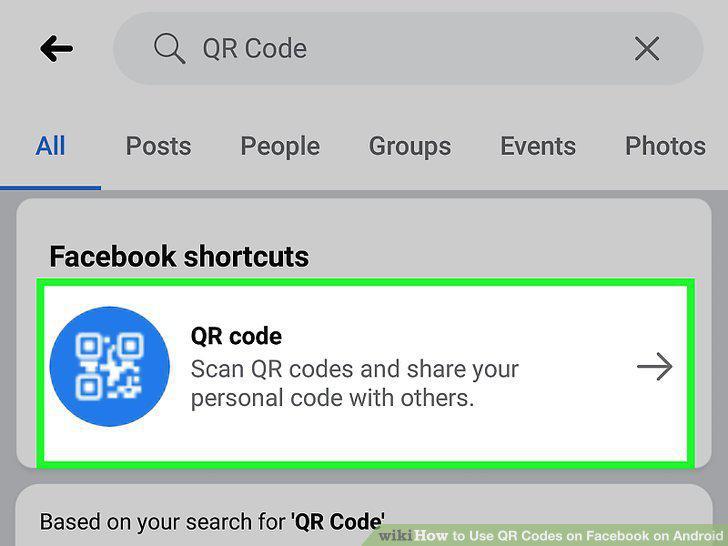
Tap QR Code in the search results.
11
Tap the My Code tab at the top.
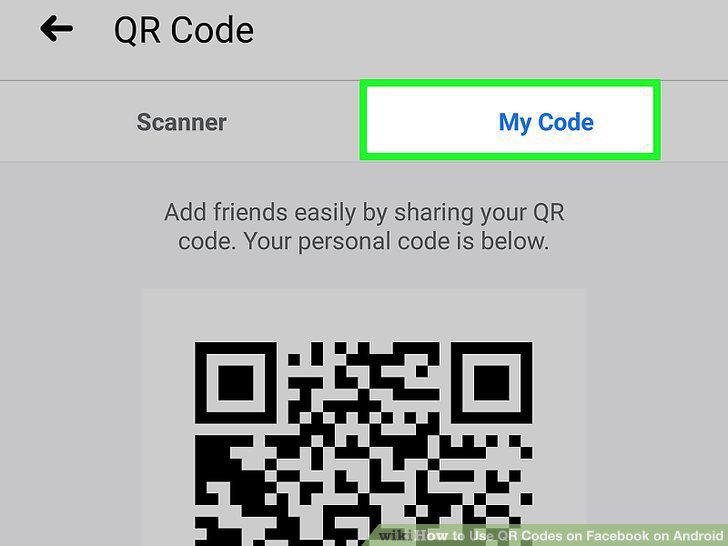
Tap the My Code tab at the top.
12
Tap the Save to Phone button.
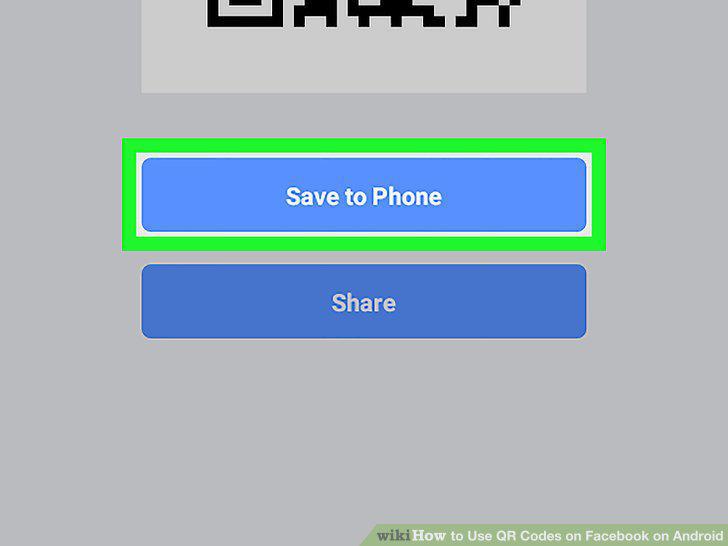
Tap the Save to Phone button.
13
Tap the Share button.
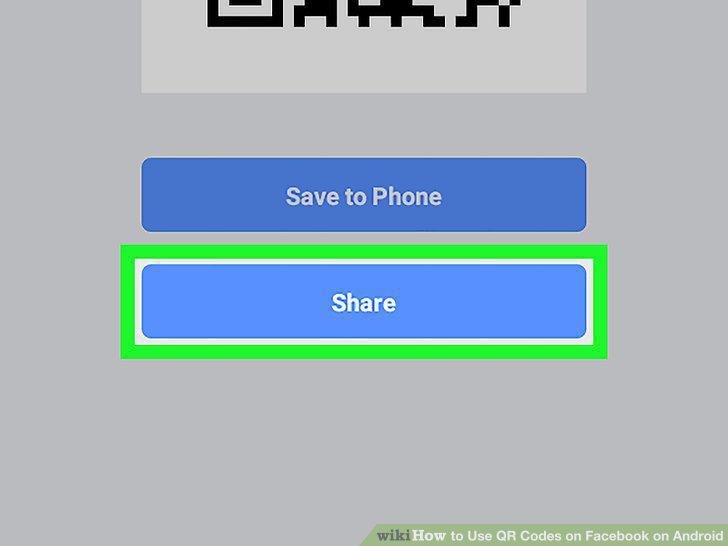
Tap the Share button.
14
Select an app to share your QR code.
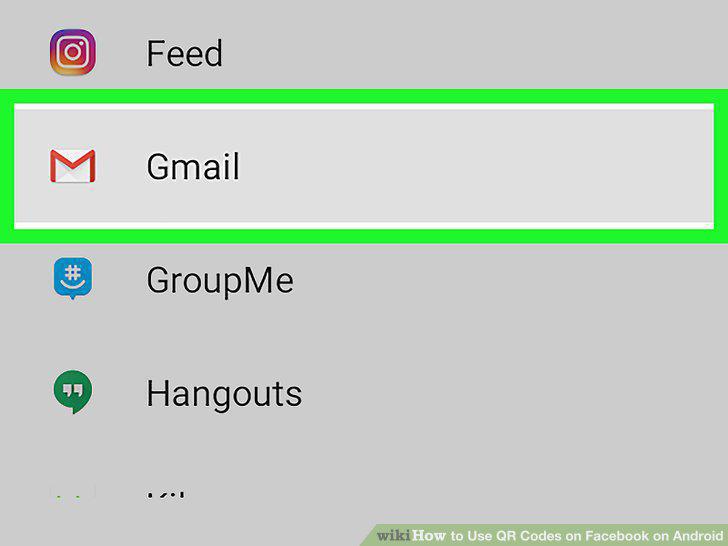
Select an app to share your QR code.
Comments (0)
No comments yet. Be the first to share your thoughts!