How to Delete a Private Slack Channel on iPhone or iPad
Open Safari web browser and enter slack workspace URL in the address bar.. Log in with your email address and password.. Tap the share icon.
Steps
1
Open Safari web browser and enter slack workspace URL in the address bar.
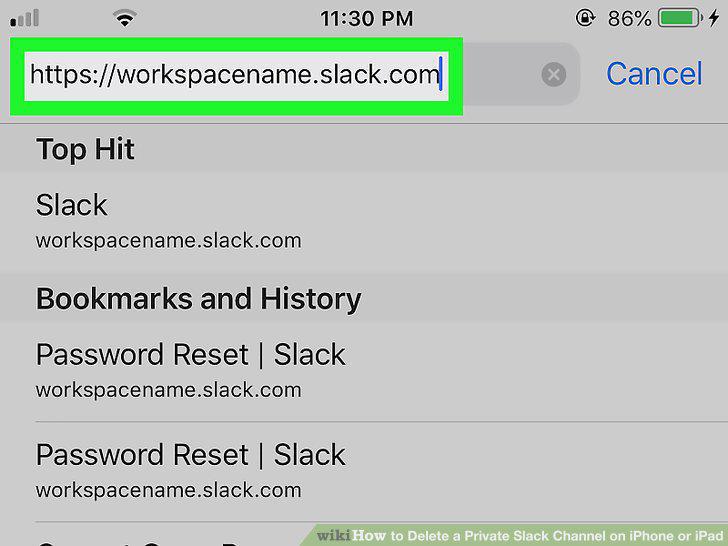
Open Safari web browser and enter slack workspace URL in the address bar.
2
Log in with your email address and password.
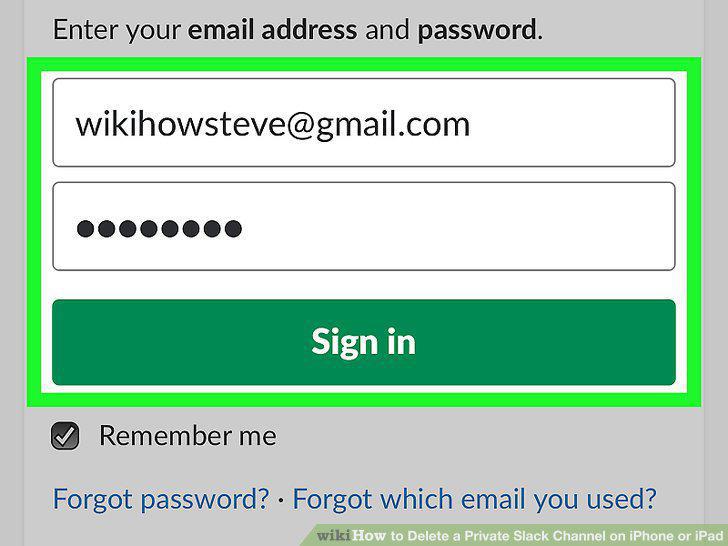
Log in with your email address and password.
3
Tap the share icon.
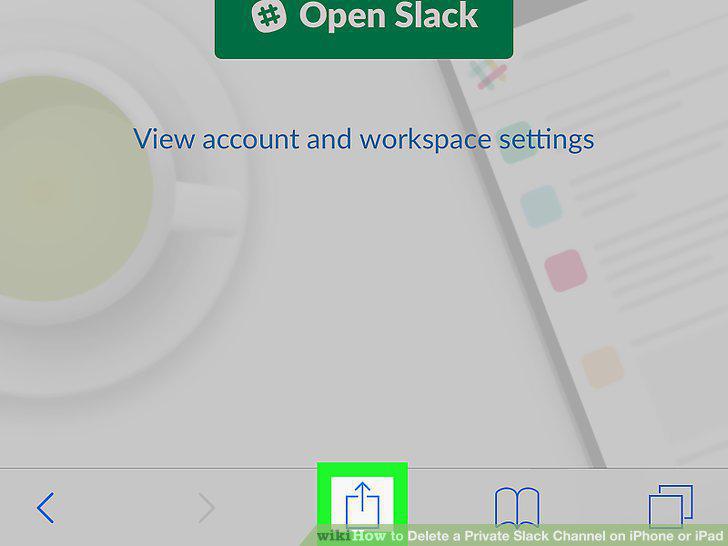
Tap the share icon.
4
Tap the Request Desktop Site icon.
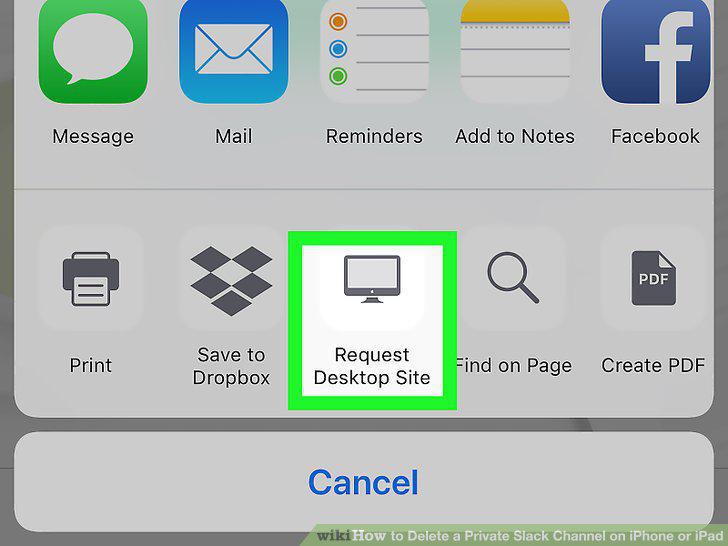
Tap the Request Desktop Site icon.
5
Tap the channel you want to delete in the left column.
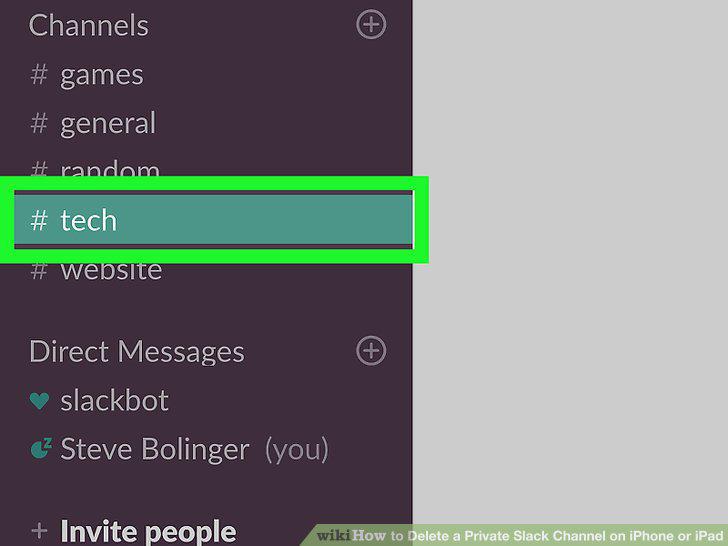
Tap the channel you want to delete in the left column.
6
Tap the settings icon.
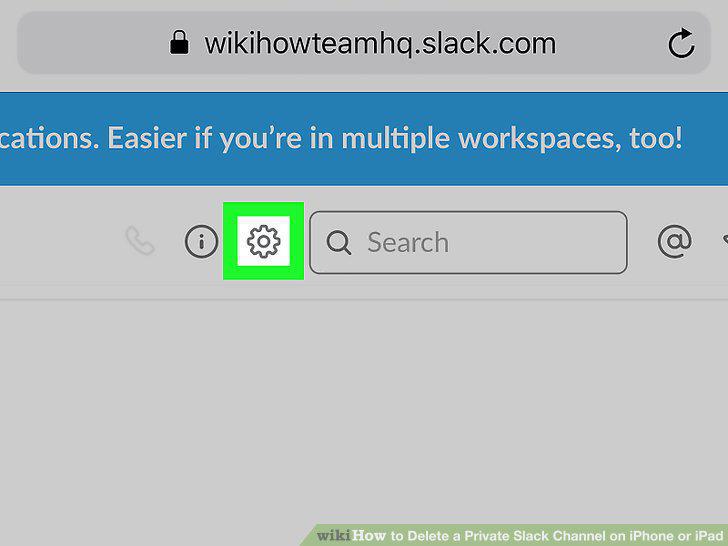
Tap the settings icon.
7
Tap Additional Options.
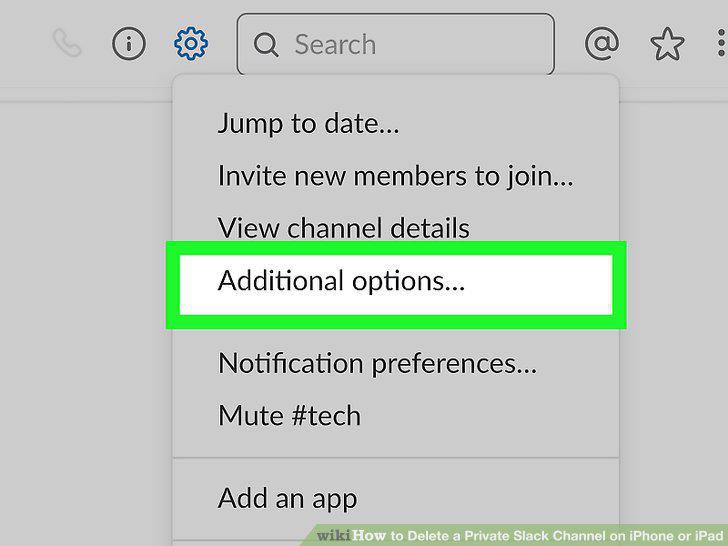
Tap Additional Options.
8
Tap Delete this Channel.
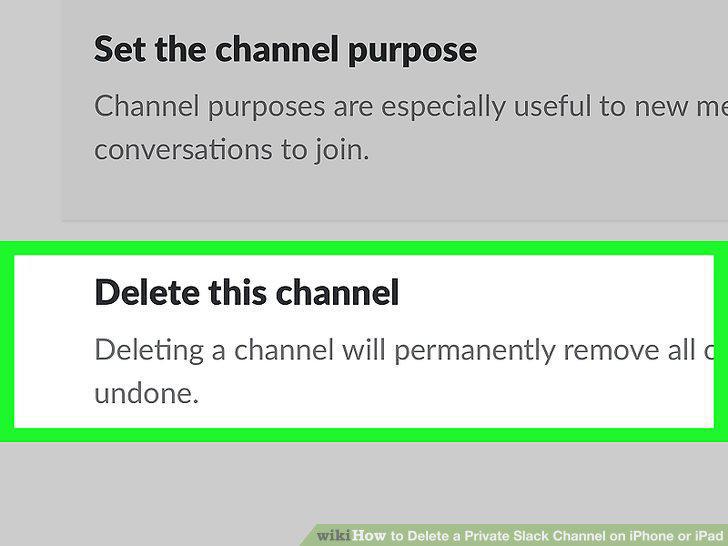
Tap Delete this Channel.
9
Tap the checkbox next to "Yes, permanently delete this channel".
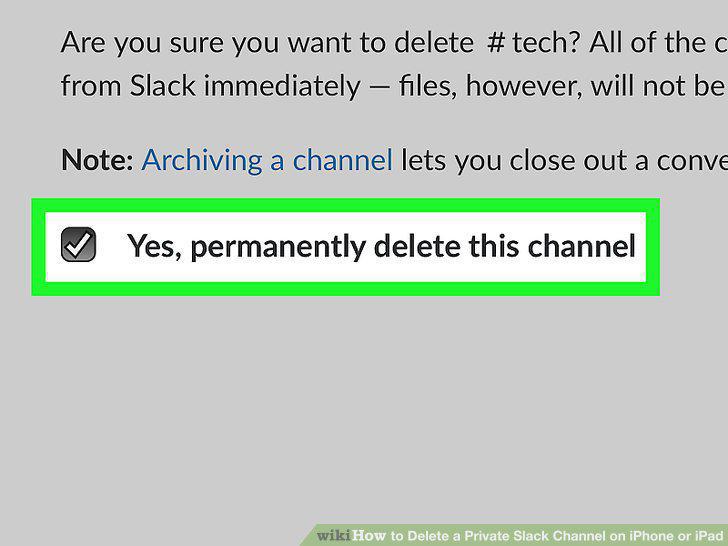
Tap the checkbox next to "Yes, permanently delete this channel".
10
Tap the red Delete Channel button.
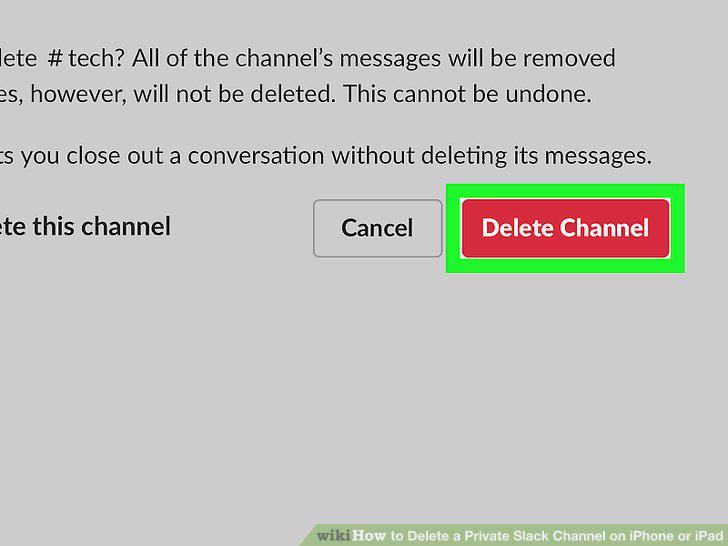
Tap the red Delete Channel button.
Comments (0)
No comments yet. Be the first to share your thoughts!