How to Make an Image Bigger in Photoshop
Open Photoshop on your PC or Mac.. Click the File menu.. Click Open.
Steps
1
Open Photoshop on your PC or Mac.
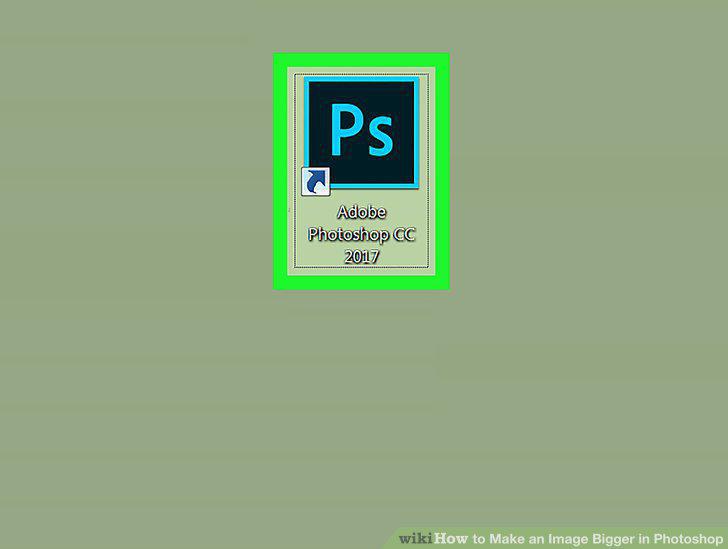
Open Photoshop on your PC or Mac.
2
Click the File menu.
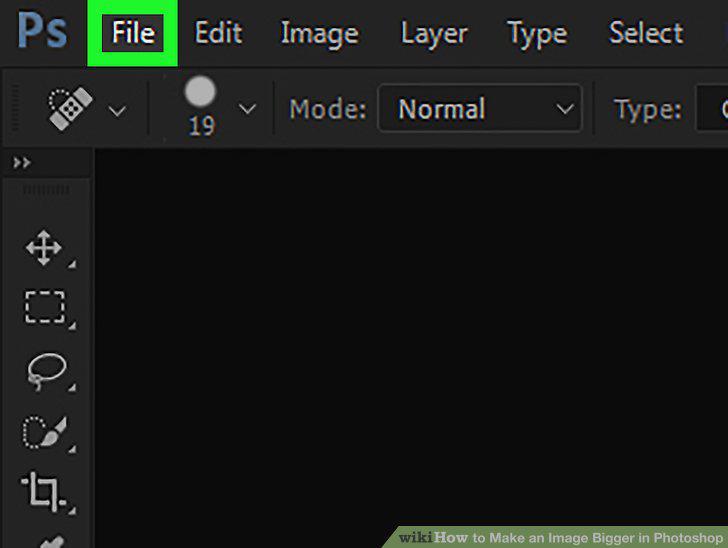
Click the File menu.
3
Click Open.
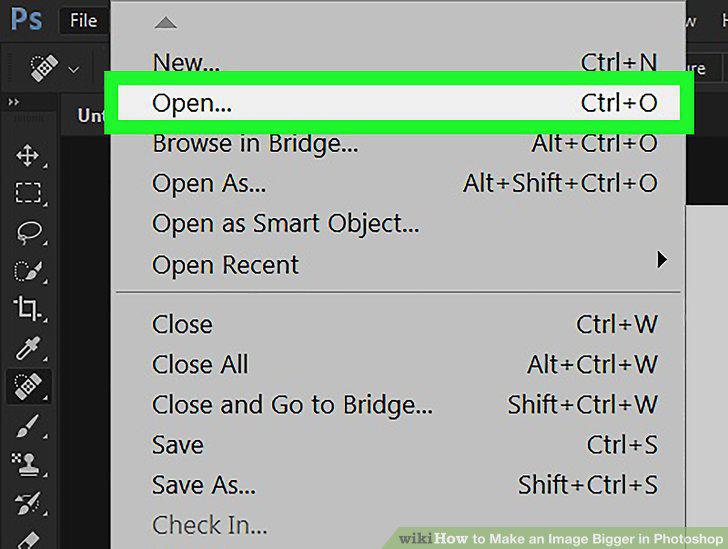
Click Open.
4
Browse to the image you want to resize.
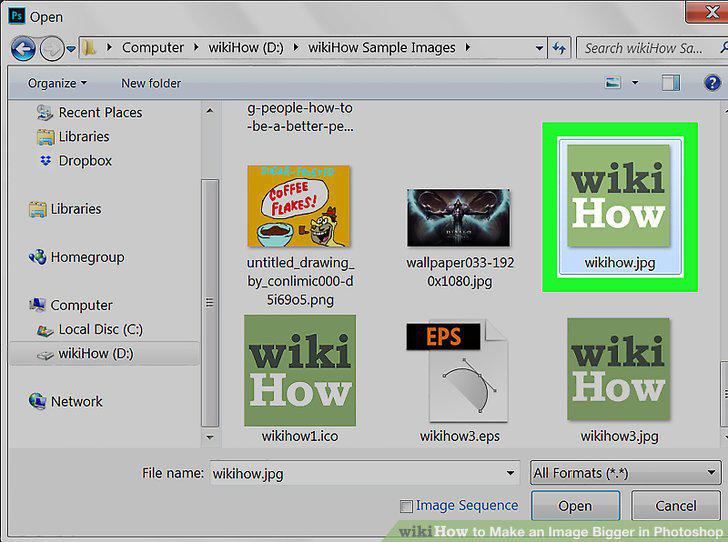
Browse to the image you want to resize.
5
Select the image and click Open.
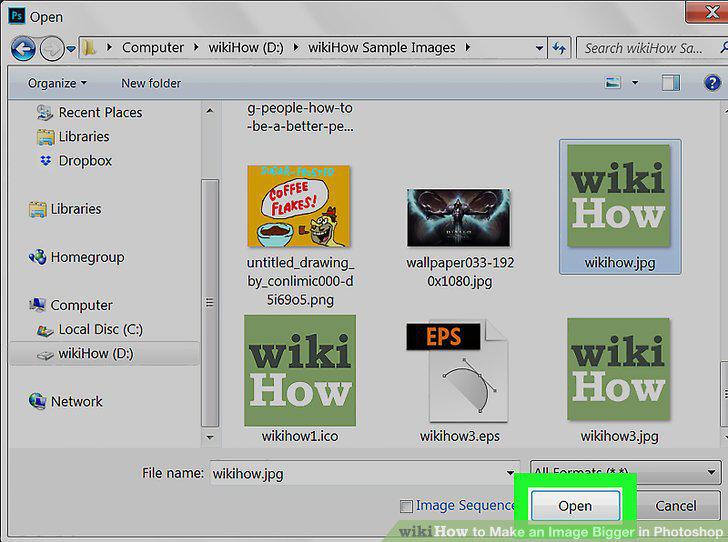
Select the image and click Open.
6
Click the Image menu.
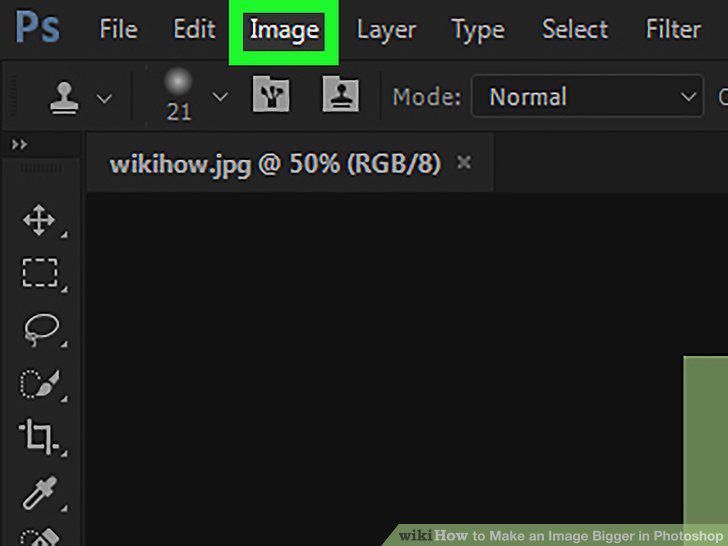
Click the Image menu.
7
Click Image Size.
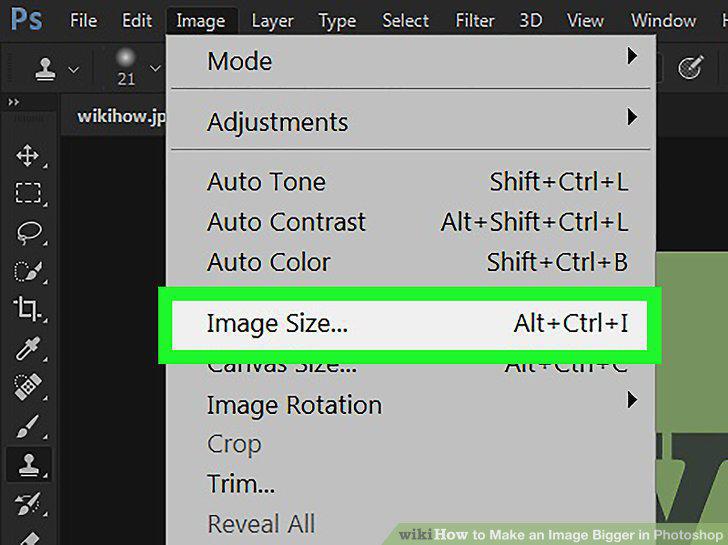
Click Image Size.
8
Check the box next to "Constrain Proportions.
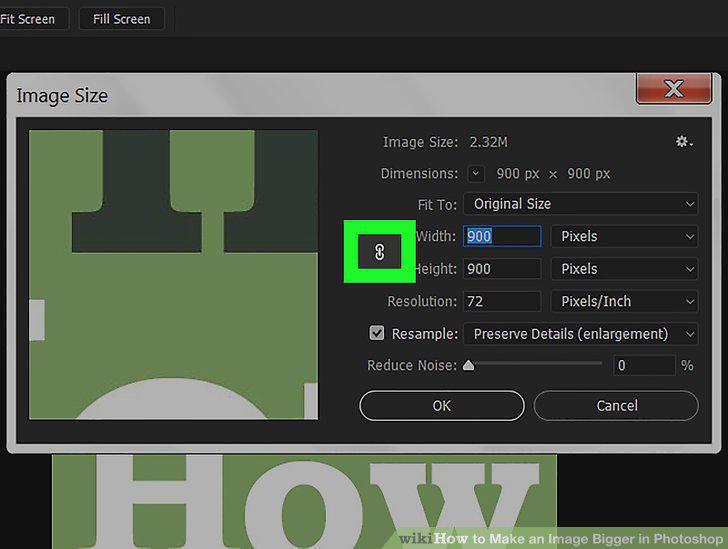
Check the box next to "Constrain Proportions.
9
Enter the desired width and height for the image.
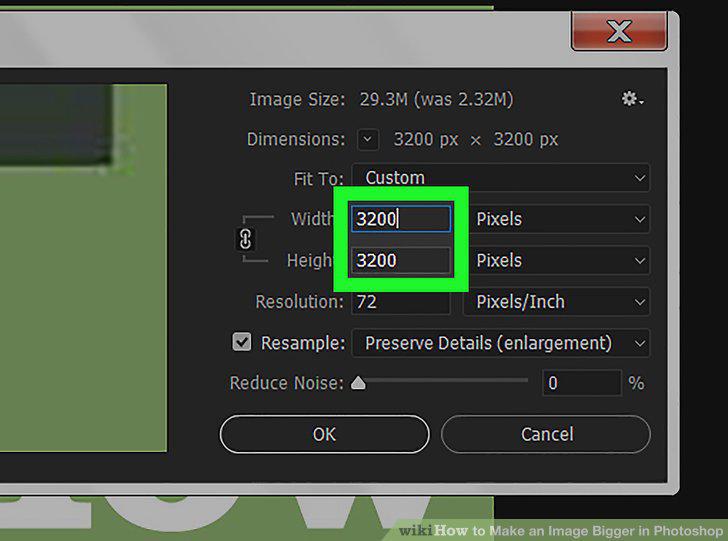
Enter the desired width and height for the image.
10
Click OK.
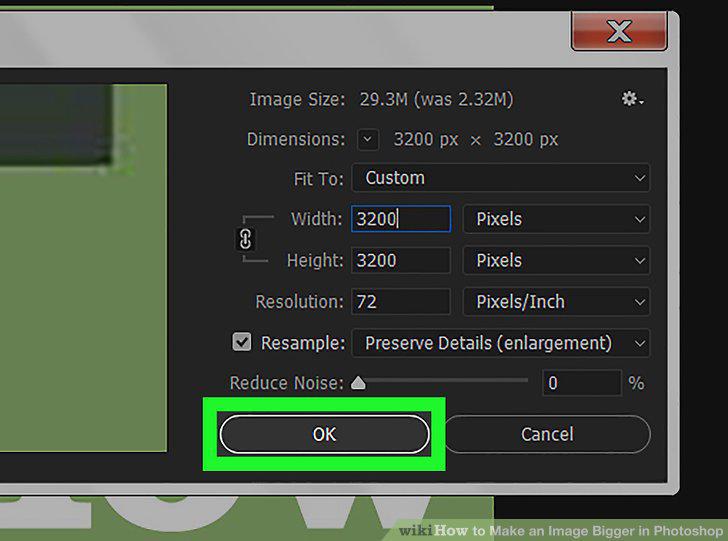
Click OK.
Comments (0)
No comments yet. Be the first to share your thoughts!