How to Use the Augmented Reality Monocle on the Yelp for iPhone App
Open the Yelp app.. Tap the "More" button from the bottom right corner of the app and open the Monocle feature you'll find listed in that list near the top to middle of the options.. Wait for the Monocle to begin.
Steps
1
Open the Yelp app.
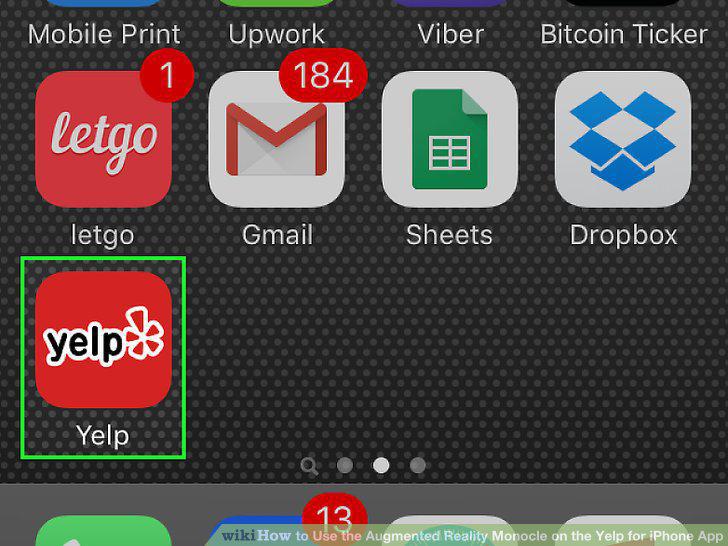
Open the Yelp app.
2
Tap the "More" button from the bottom right corner of the app and open the Monoc
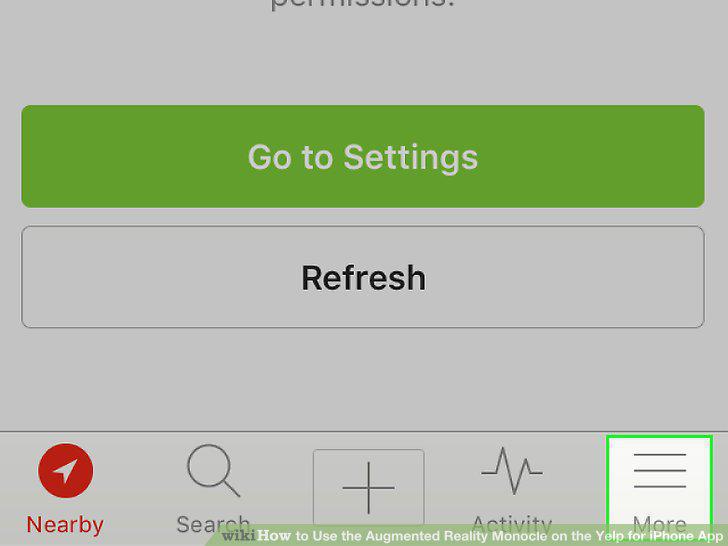
Tap the "More" button from the bottom right corner of the app and open the Monocle feature you'll find listed in that list near the top to middle of the options.
3
Wait for the Monocle to begin.
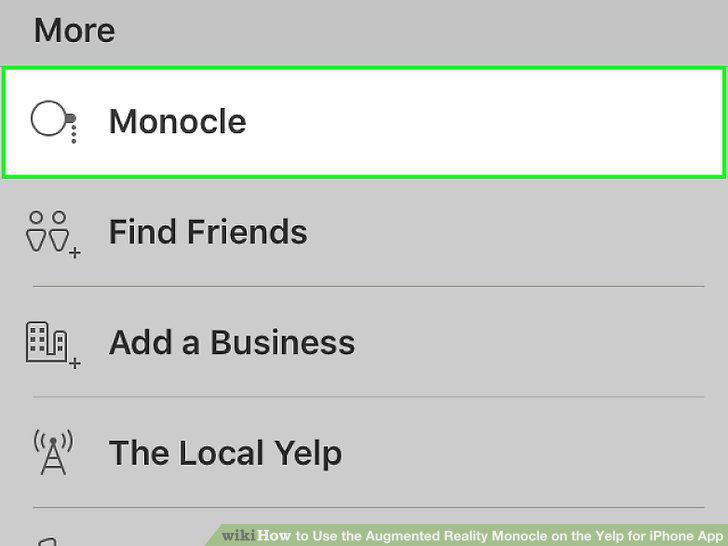
Wait for the Monocle to begin.
4
Pan slowly around the area.
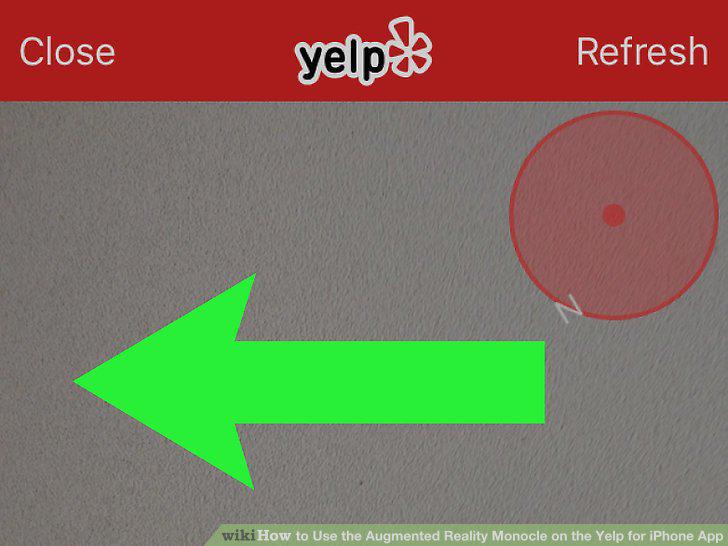
Pan slowly around the area.
5
Tap the "Restaurants" to find only the restaurants in the area.
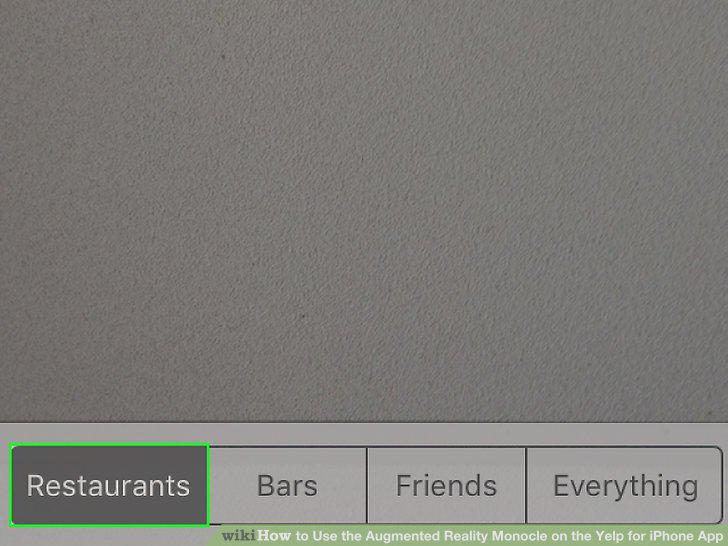
Tap the "Restaurants" to find only the restaurants in the area.
6
Tap the "Bars" to find only the bars in the area.
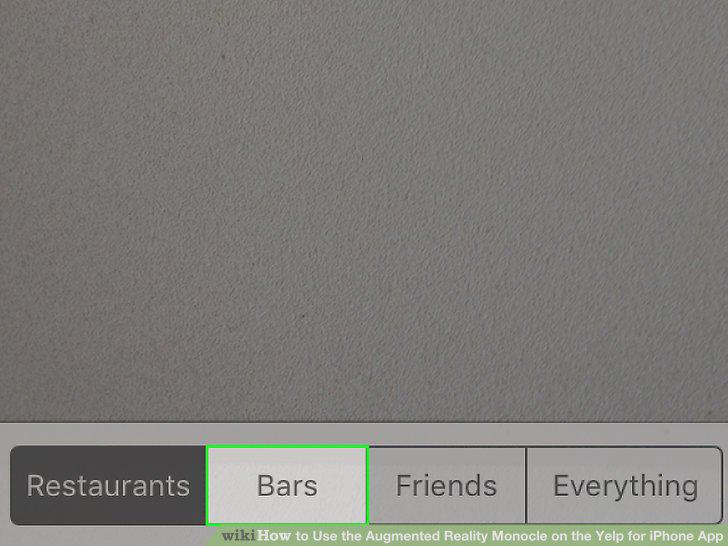
Tap the "Bars" to find only the bars in the area.
7
Tap the "Everything" button to list any open businesses in the area.
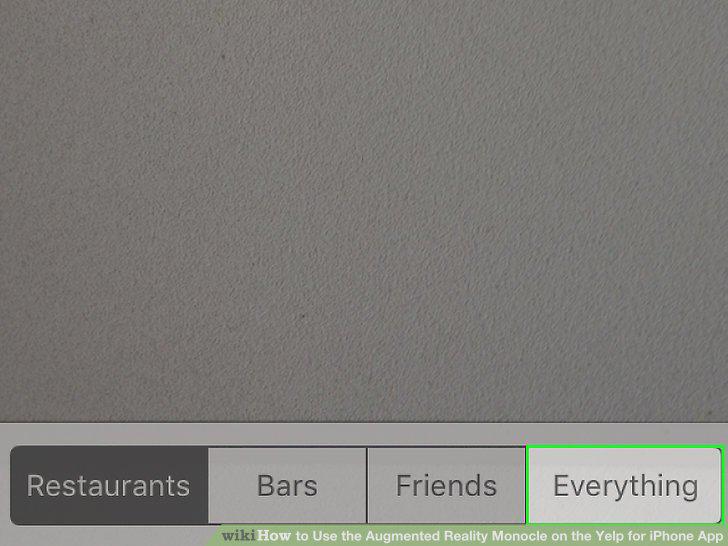
Tap the "Everything" button to list any open businesses in the area.
8
Tap the business' button to view it's business page on the app itself.
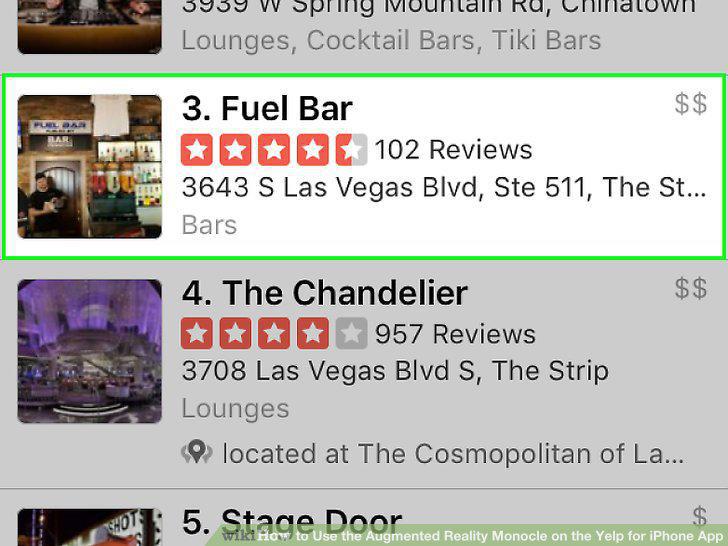
Tap the business' button to view it's business page on the app itself.
Comments (0)
No comments yet. Be the first to share your thoughts!