How to Monitor Internet Speed over Time on iPhone or iPad
Download the Traffic Monitor app to your iPhone or iPad.. Open Traffic Monitor on your iPhone or iPad.. Review the terms and tap Accept.
Steps
1
Download the Traffic Monitor app to your iPhone or iPad.
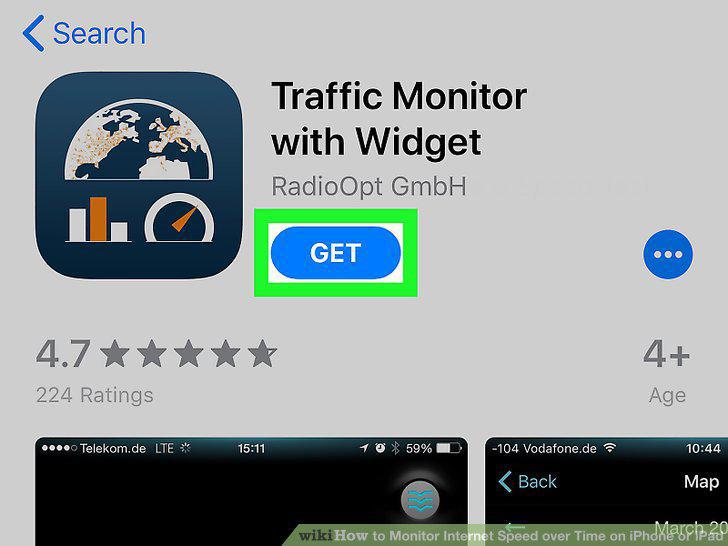
Download the Traffic Monitor app to your iPhone or iPad.
2
Open Traffic Monitor on your iPhone or iPad.
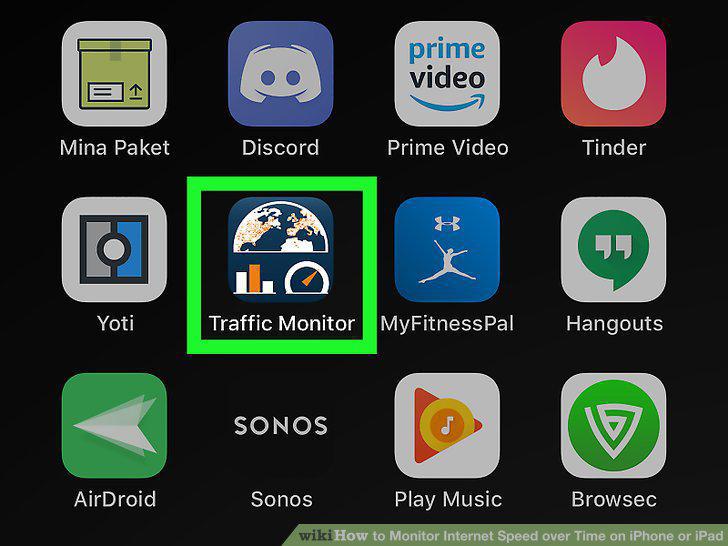
Open Traffic Monitor on your iPhone or iPad.
3
Review the terms and tap Accept.
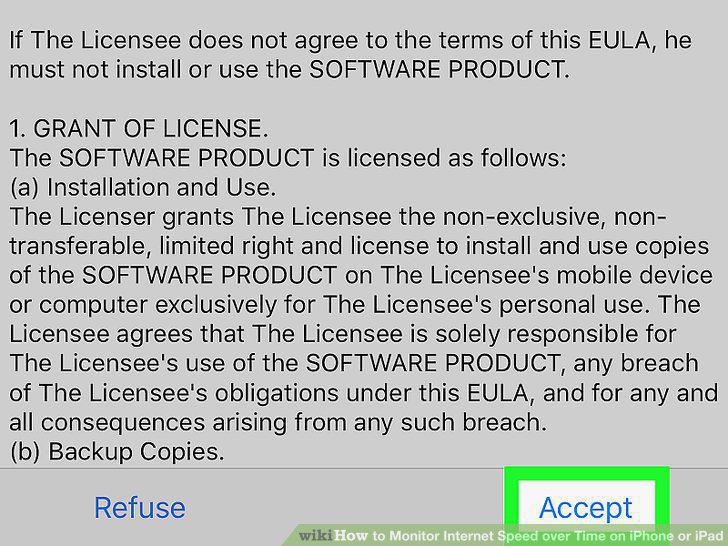
Review the terms and tap Accept.
4
Tap the speed meter on your screen.
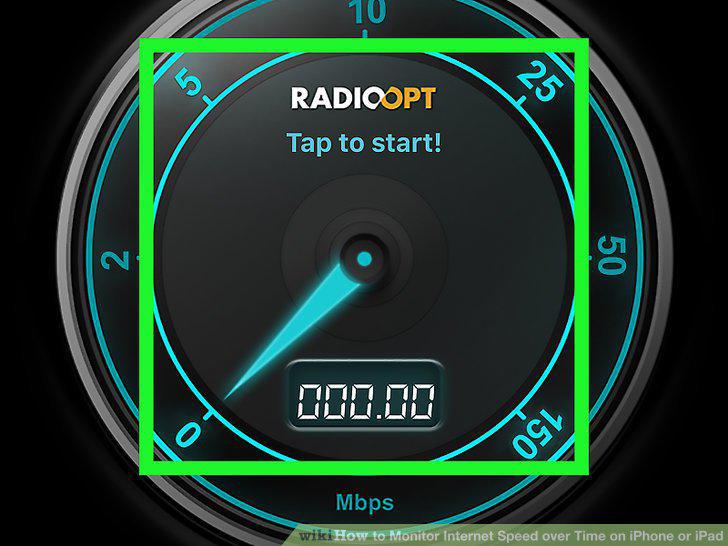
Tap the speed meter on your screen.
5
Tap Ok in the pop-up.
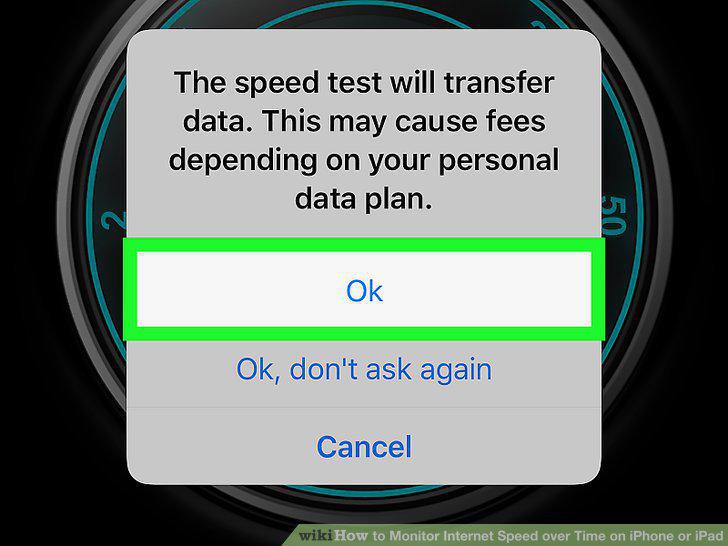
Tap Ok in the pop-up.
6
Tap the Data Usage tab.
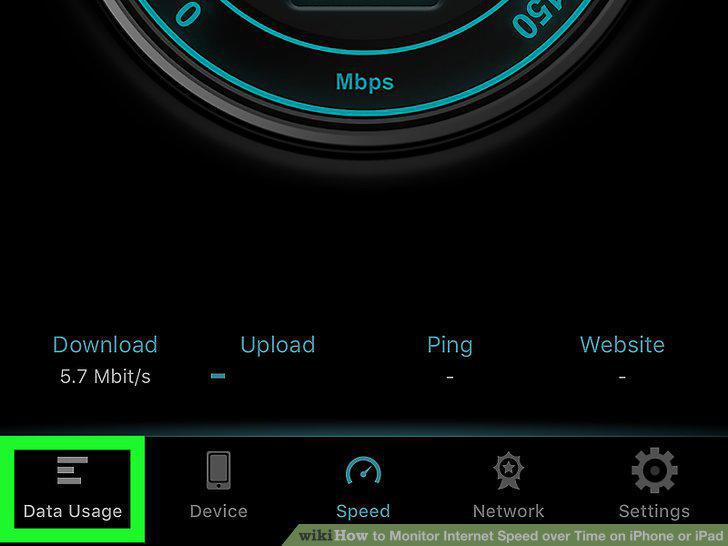
Tap the Data Usage tab.
7
Tap the time period you want to view.
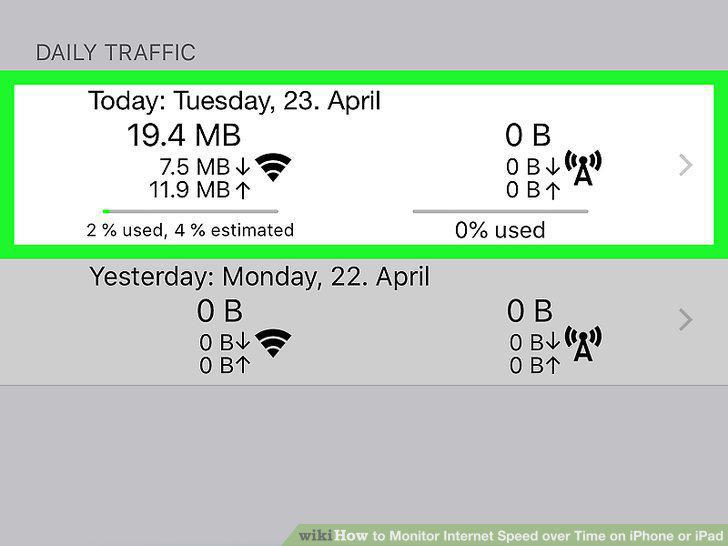
Tap the time period you want to view.
8
Download the Speed Test SpeedSmart app to your iPhone or iPad.
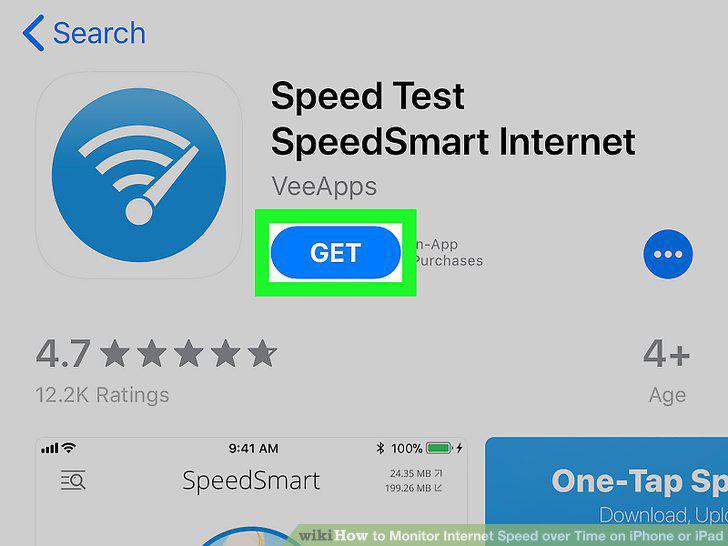
Download the Speed Test SpeedSmart app to your iPhone or iPad.
9
Open SpeedSmart on your iPhone or iPad.
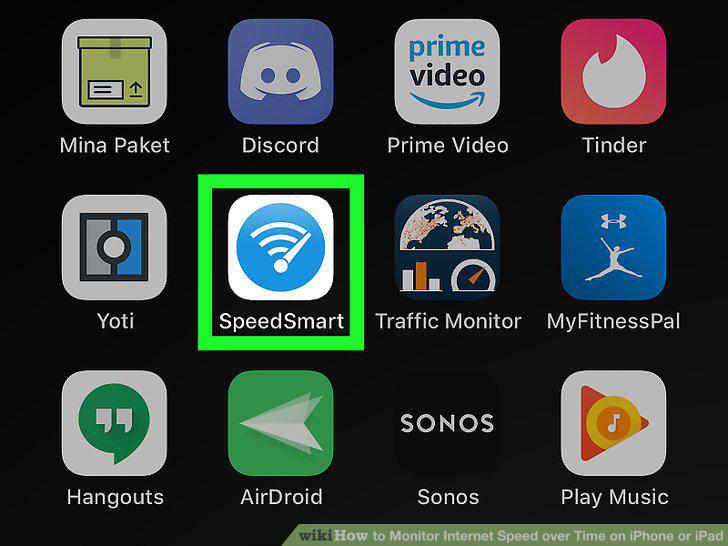
Open SpeedSmart on your iPhone or iPad.
10
Tap Allow in the pop-up.
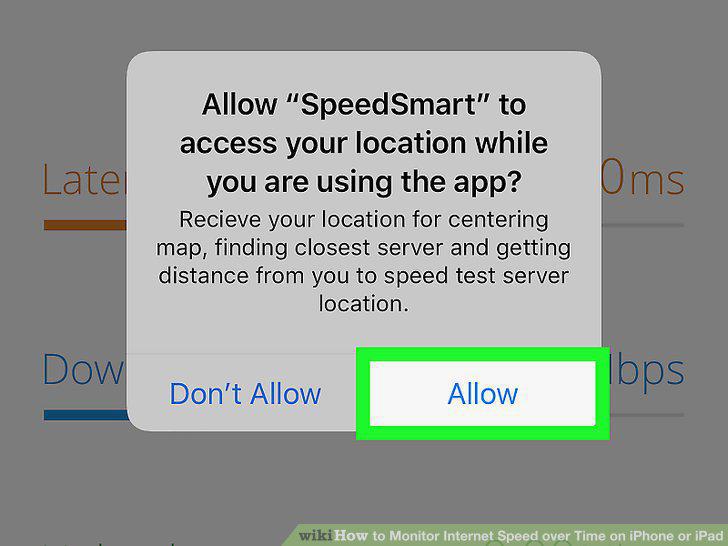
Tap Allow in the pop-up.
11
Tap the blue Start Speedtest button.

Tap the blue Start Speedtest button.
12
Tap bar chart icon to view historical data.

Tap bar chart icon to view historical data.
Comments (0)
No comments yet. Be the first to share your thoughts!