How to Uninstall Firefox Addons
Open your Firefox browser.. Click the "Firefox" button from the top-left corner of the browser screen.. Click "Add-ons" option.
Steps
1
Open your Firefox browser.
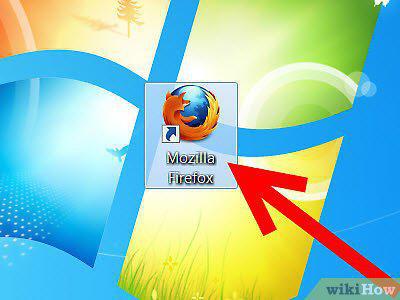
Open your Firefox browser.
2
Click the "Firefox" button from the top-left corner of the browser screen.
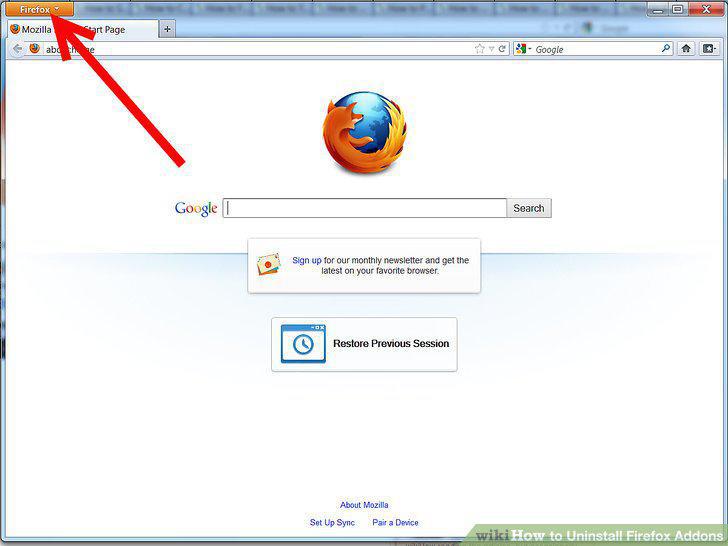
Click the "Firefox" button from the top-left corner of the browser screen.
3
Click "Add-ons" option.
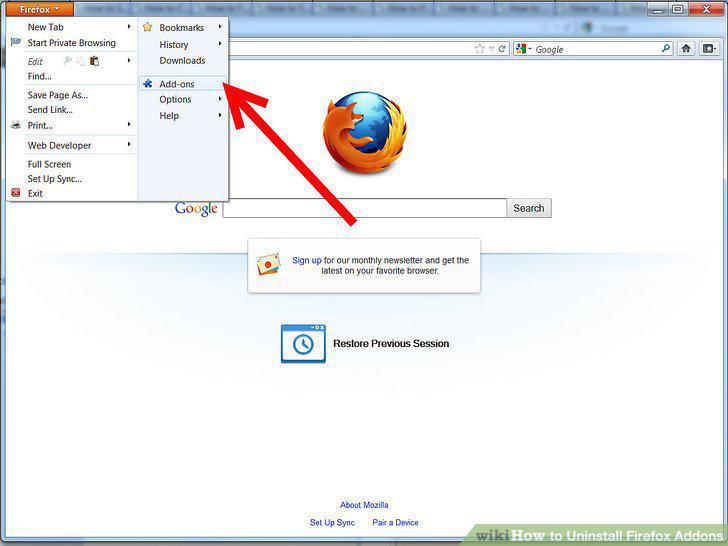
Click "Add-ons" option.
4
Click the "Extensions" tab.
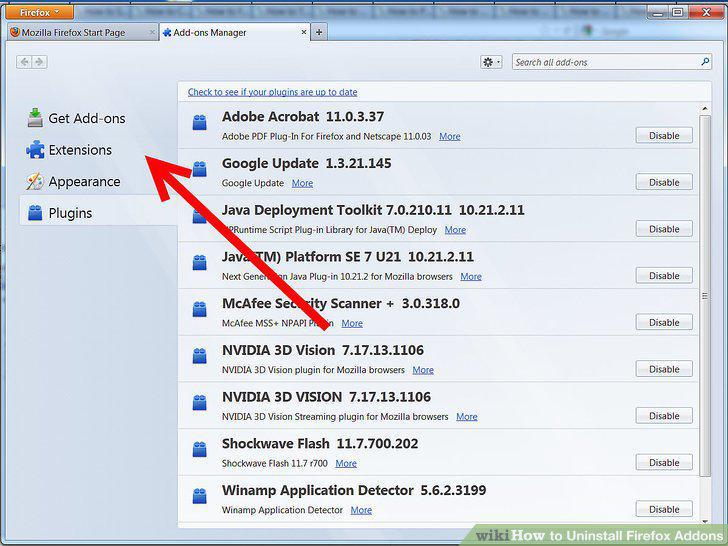
Click the "Extensions" tab.
5
Locate the add-on you'd like to remove.
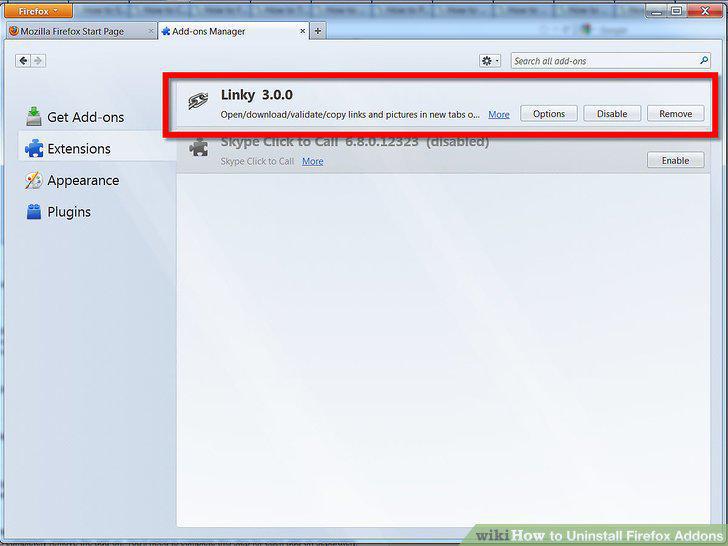
Locate the add-on you'd like to remove.
6
Click on the center area of the listing you'd like to remove.
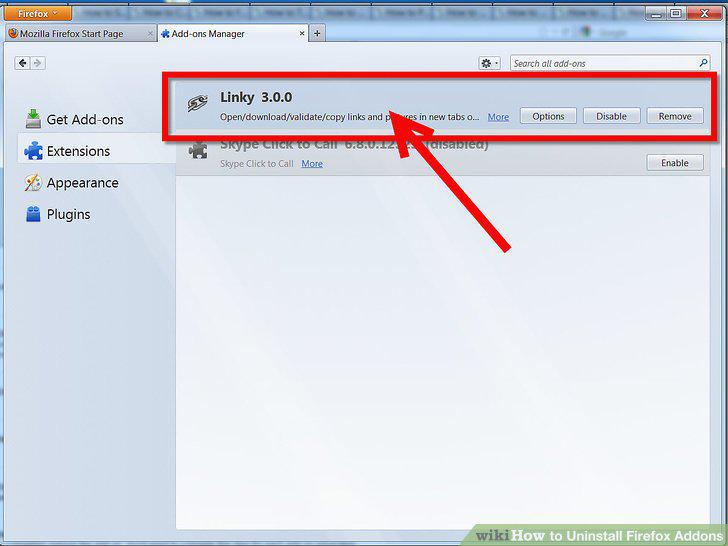
Click on the center area of the listing you'd like to remove.
7
Click the "Disable" button.
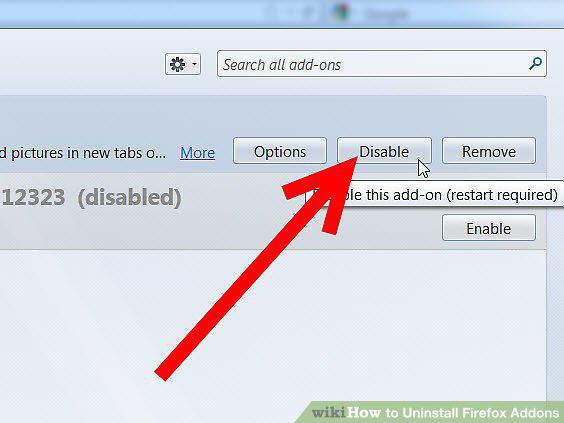
Click the "Disable" button.
8
Wait for the add-on to be disabled.
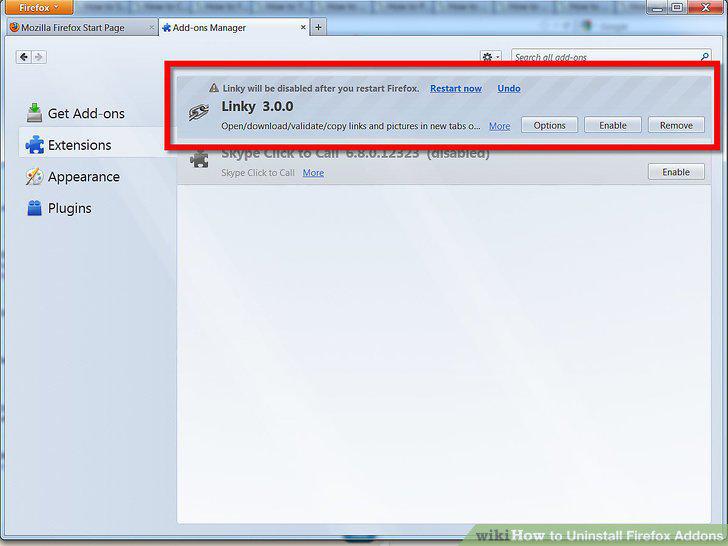
Wait for the add-on to be disabled.
9
Click the "Remove" button, if the item has a removal tool, or has not been pre-i
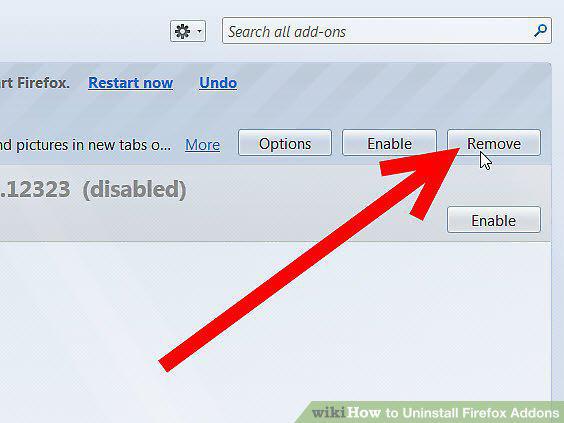
Click the "Remove" button, if the item has a removal tool, or has not been pre-installed with the browser itself at Firefox installation time.
10
Wait for the Firefox browser to remove the add-on.
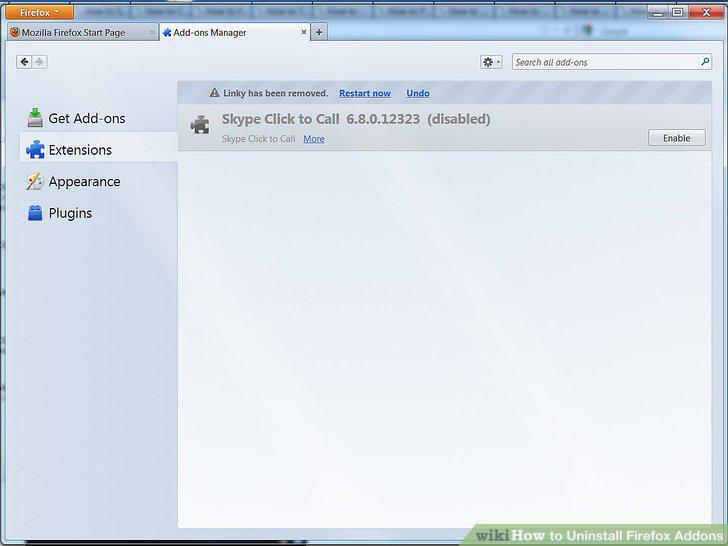
Wait for the Firefox browser to remove the add-on.
Comments (0)
No comments yet. Be the first to share your thoughts!