How to Show the Zoom Controller on an iPhone
Open your iPhone's Settings.. Tap General.. Tap Accessibility.
Steps
1
Open your iPhone's Settings.
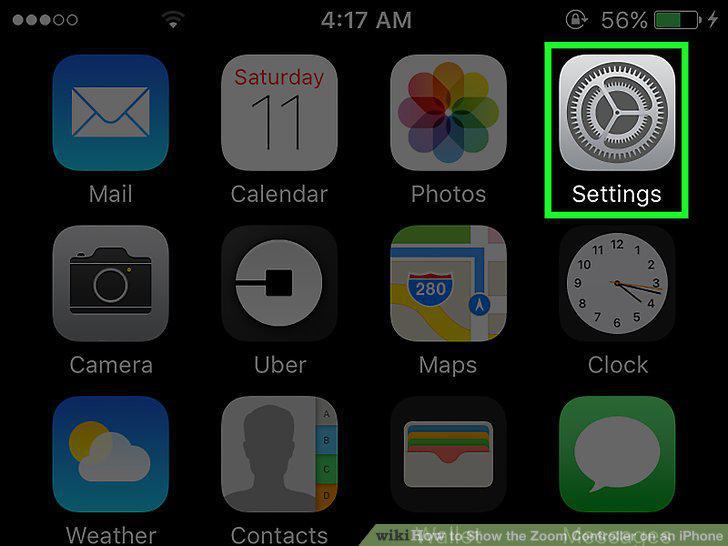
Open your iPhone's Settings.
2
Tap General.
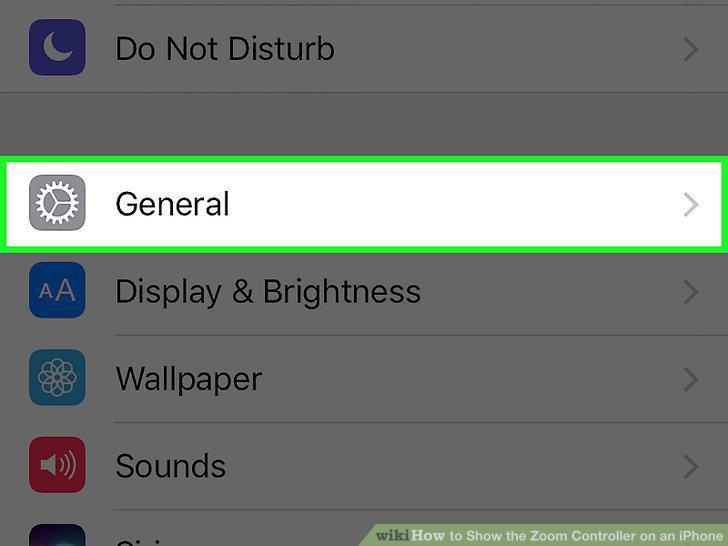
Tap General.
3
Tap Accessibility.
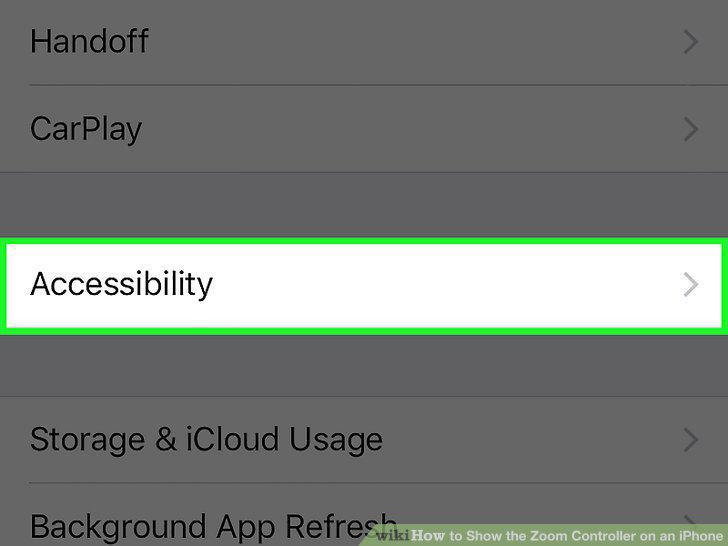
Tap Accessibility.
4
Tap Zoom.
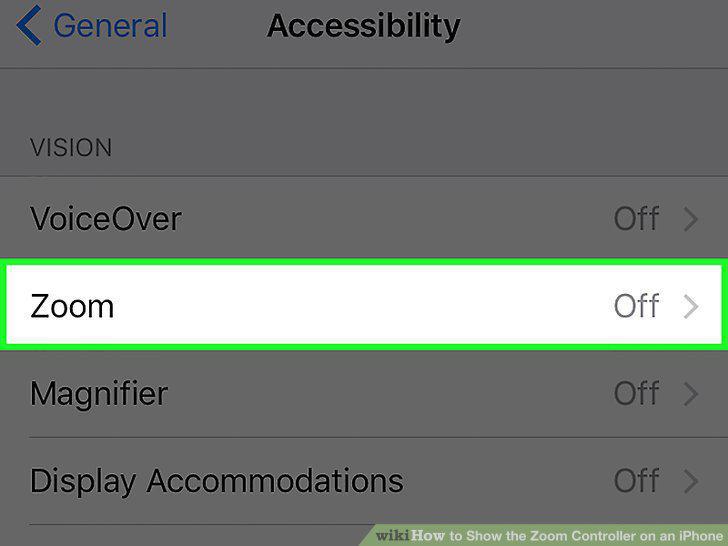
Tap Zoom.
5
Slide the "Show Controller" toggle button to the "on" position.
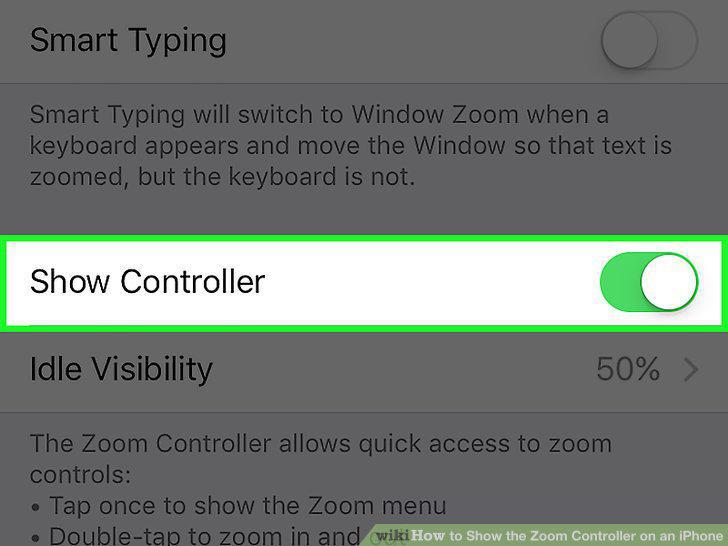
Slide the "Show Controller" toggle button to the "on" position.
6
Tap once on the Zoom Controller to show the zoom menu.
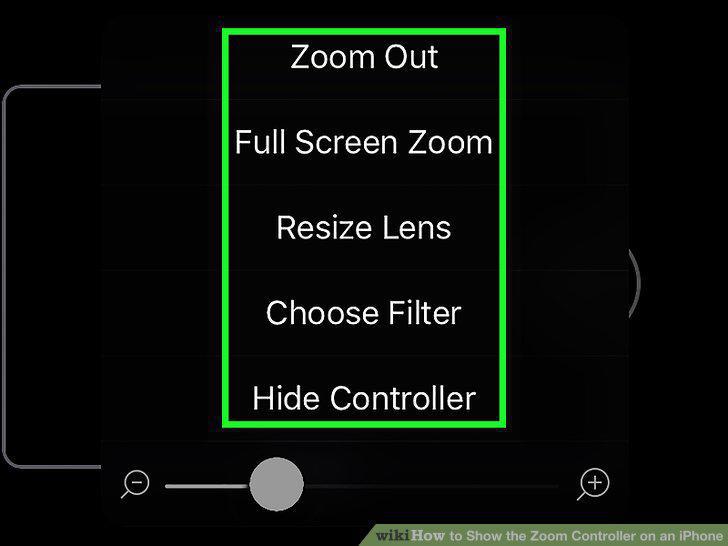
Tap once on the Zoom Controller to show the zoom menu.
7
Tap twice on the Zoom Controller to switch between zoom and regular view.
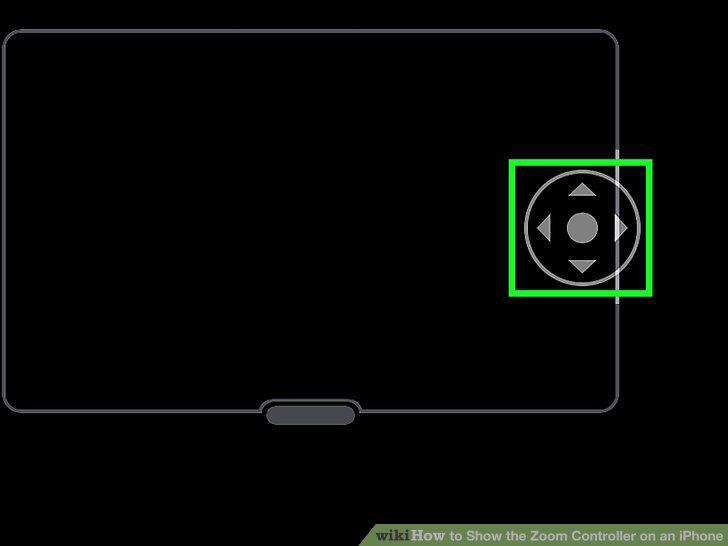
Tap twice on the Zoom Controller to switch between zoom and regular view.
8
Drag your finger around the Zoom Controller to pan while zoomed in.
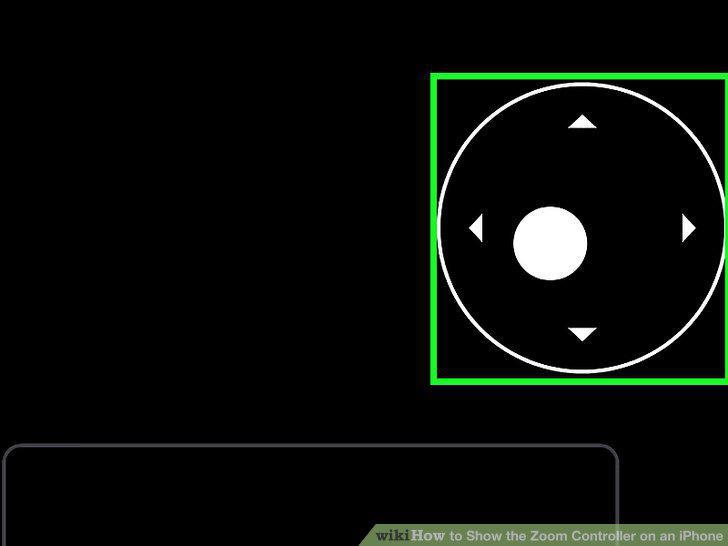
Drag your finger around the Zoom Controller to pan while zoomed in.
Comments (0)
No comments yet. Be the first to share your thoughts!