How to Add a Picture to a Folder on Mac
Double-click the picture you want to use as your folder icon.. Click the Edit menu and select Copy.. Open Finder on your Mac .
Steps
1
Double-click the picture you want to use as your folder icon.
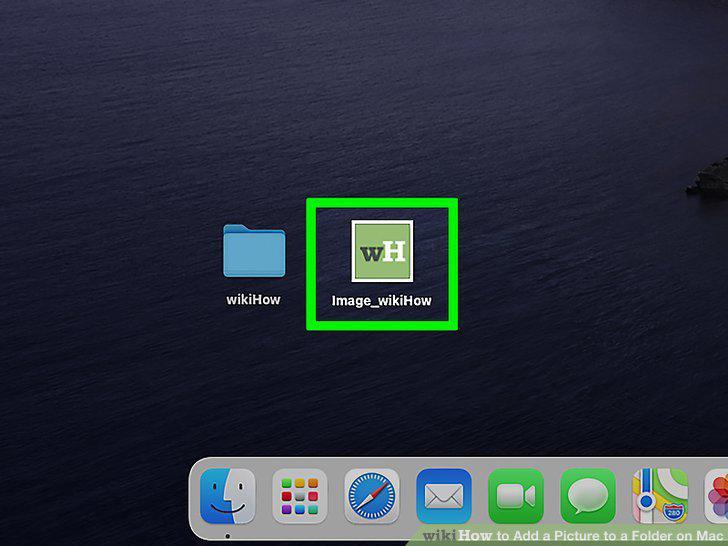
Double-click the picture you want to use as your folder icon.
2
Click the Edit menu and select Copy.
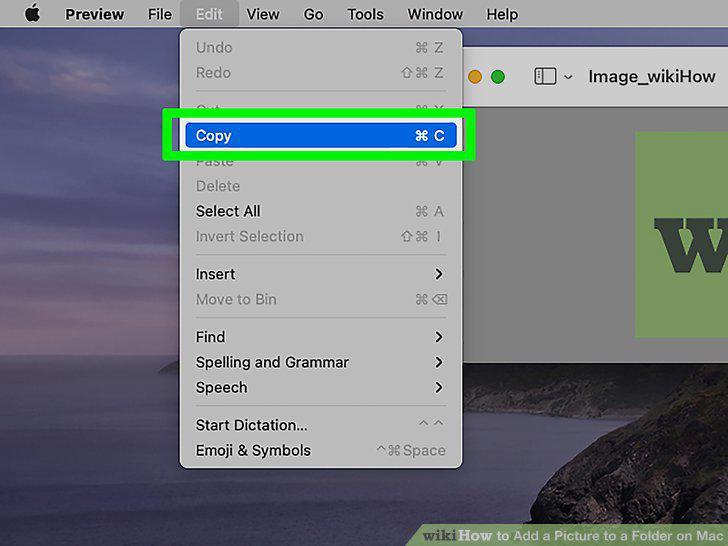
Click the Edit menu and select Copy.
3
Open Finder on your Mac .
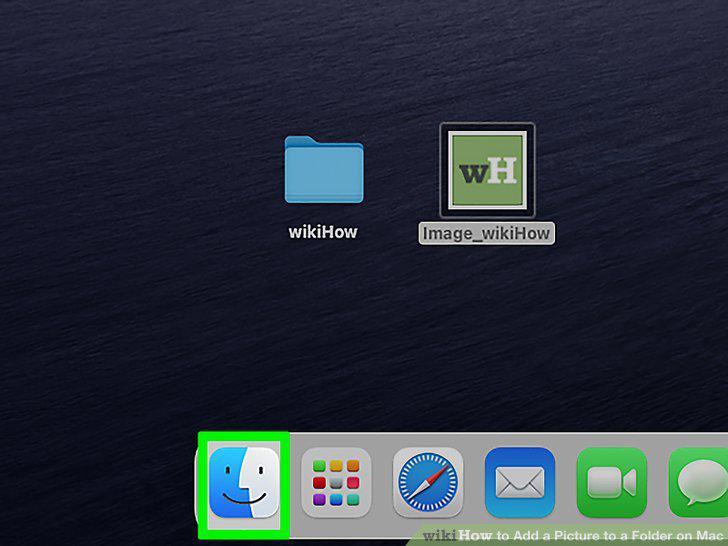
Open Finder on your Mac .
4
Click the folder you want to change.
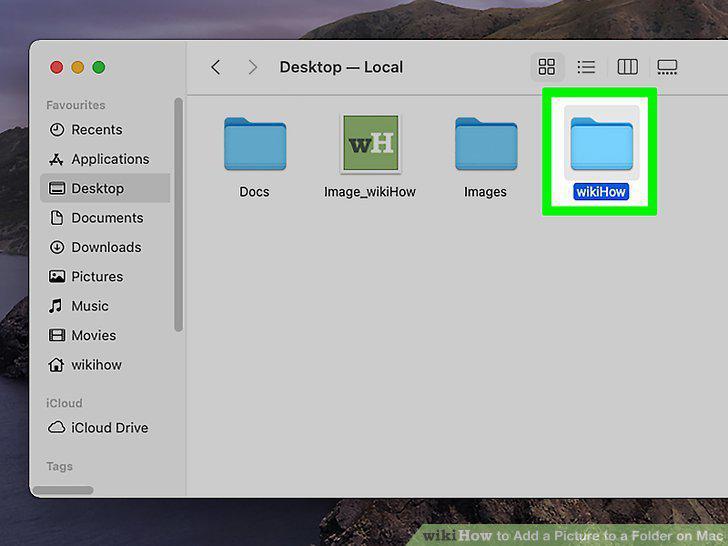
Click the folder you want to change.
5
Click the File menu and select Get Info.
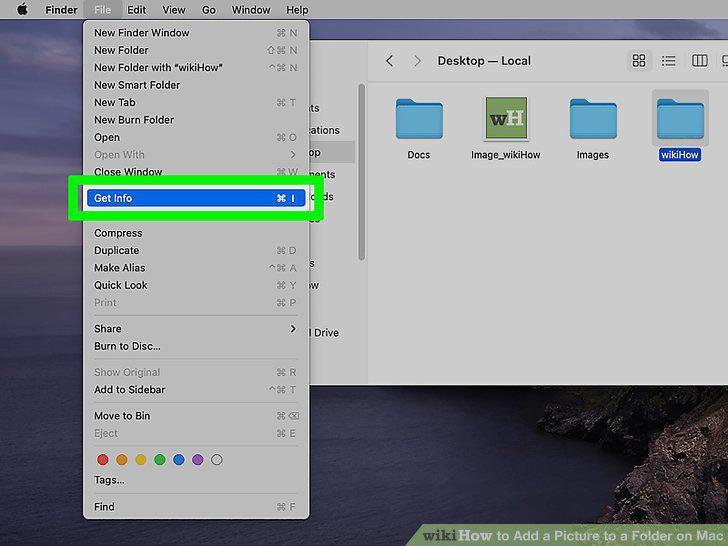
Click the File menu and select Get Info.
6
Click the folder's current icon.
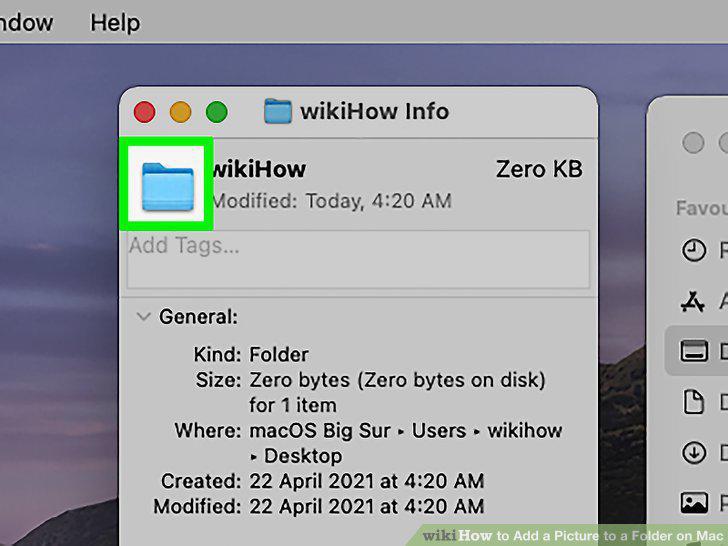
Click the folder's current icon.
7
Click the Edit menu and select Paste.
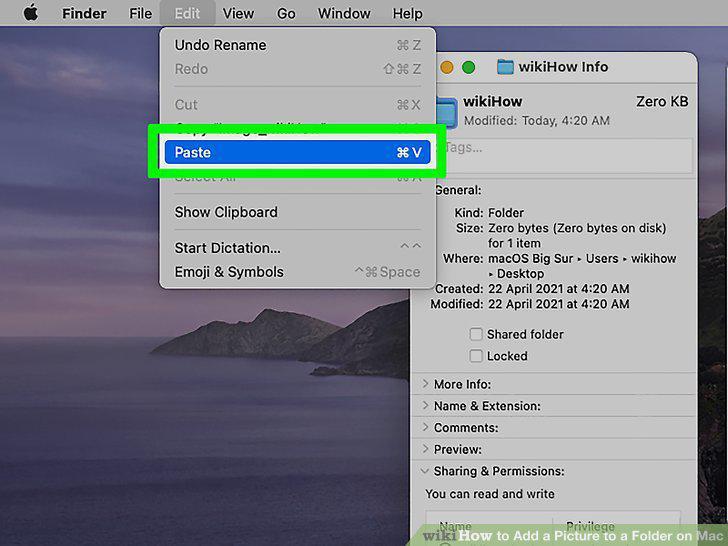
Click the Edit menu and select Paste.
Comments (0)
No comments yet. Be the first to share your thoughts!