How to Use AppCake
Open AppCake on your iPhone or iPad.. Enable "Automatically Install.. Search for an app.
Steps
1
Open AppCake on your iPhone or iPad.
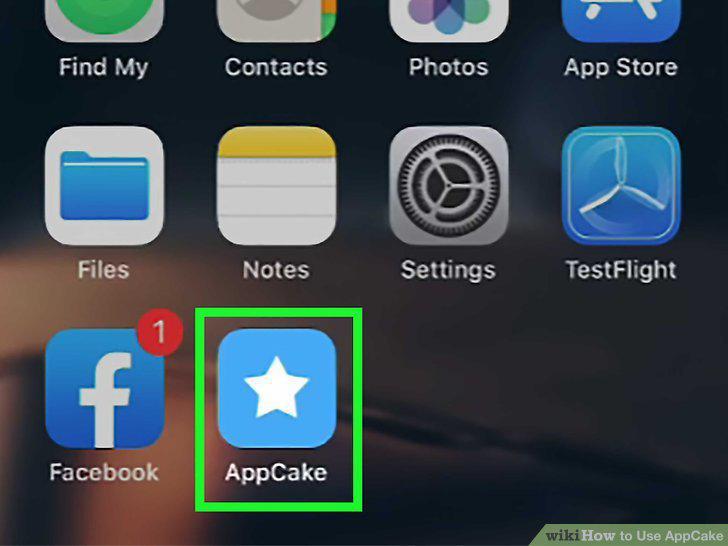
Open AppCake on your iPhone or iPad.
2
Enable "Automatically Install.
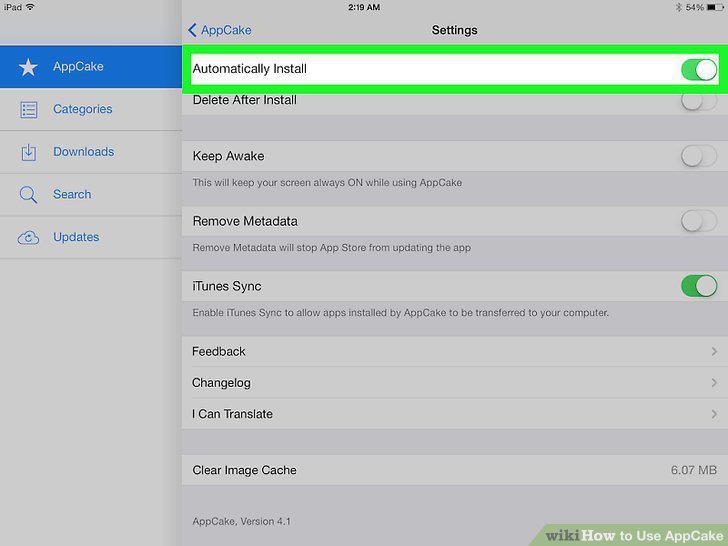
Enable "Automatically Install.
3
Search for an app.

Search for an app.
4
Tap an app that interests you.
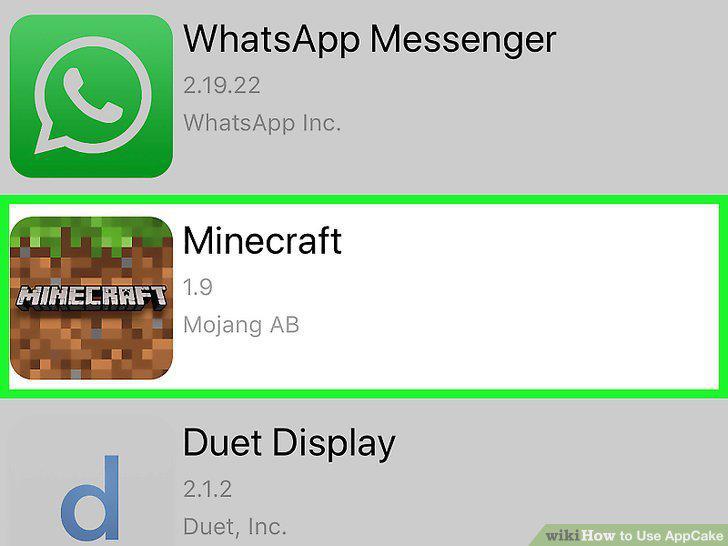
Tap an app that interests you.
5
Tap Install to get the app.

Tap Install to get the app.
6
Visit a reliable IPA download site in Safari.
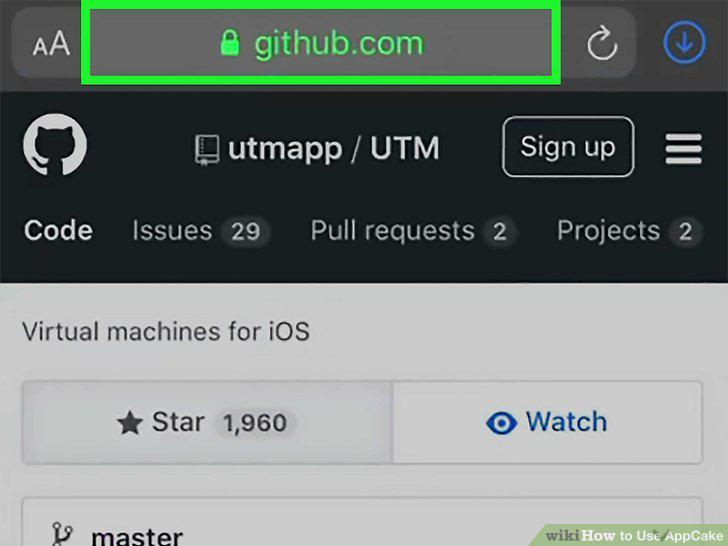
Visit a reliable IPA download site in Safari.
7
Tap the app to download the IPA file.
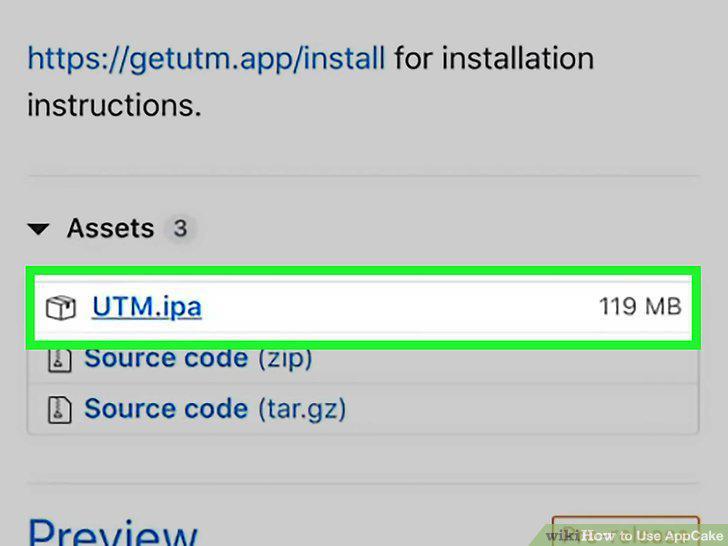
Tap the app to download the IPA file.
8
Tap Download to confirm.
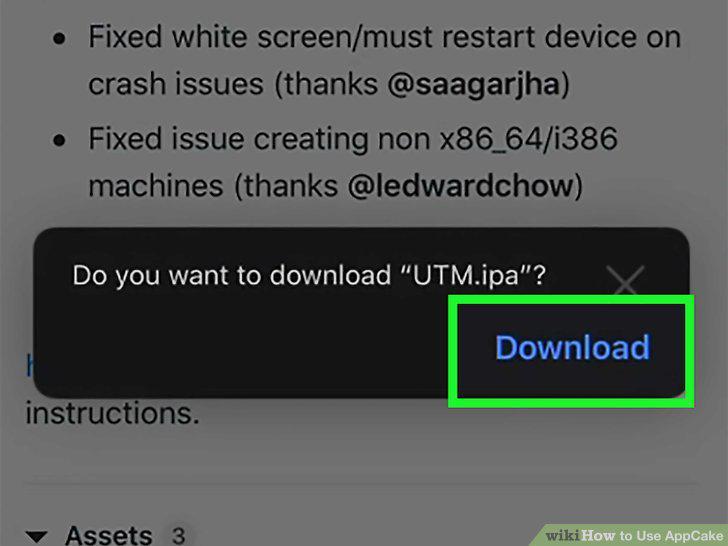
Tap Download to confirm.
9
Tap the downloaded file in Safari.
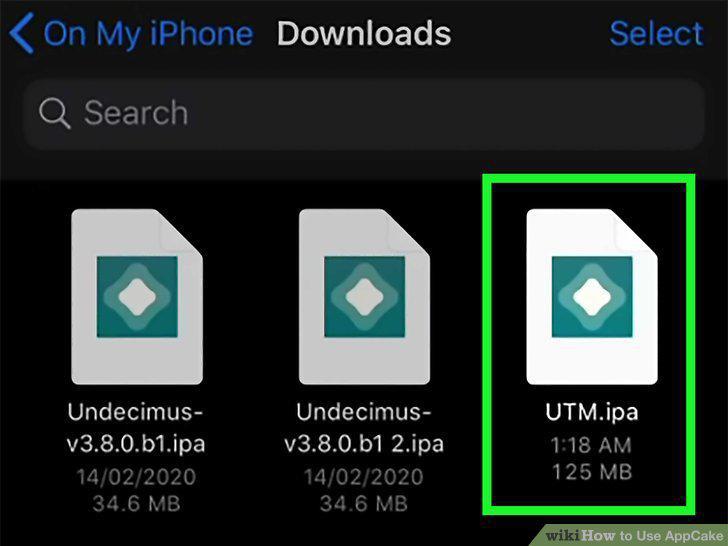
Tap the downloaded file in Safari.
10
Tap and hold the IPA file.
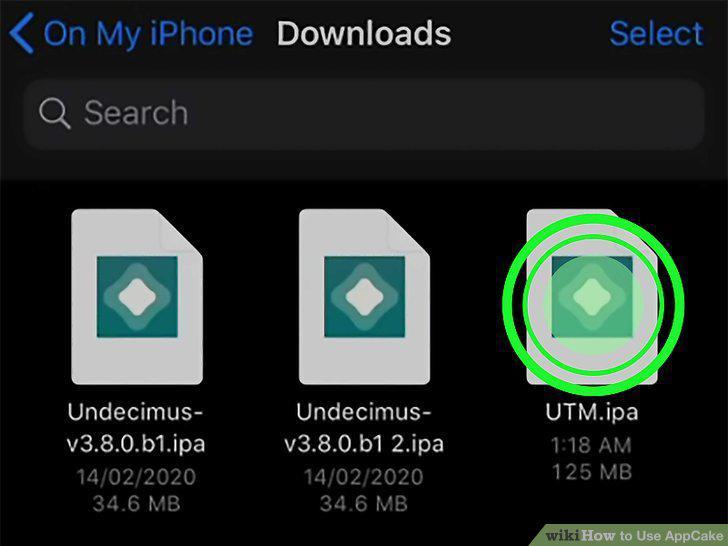
Tap and hold the IPA file.
11
Tap Share.
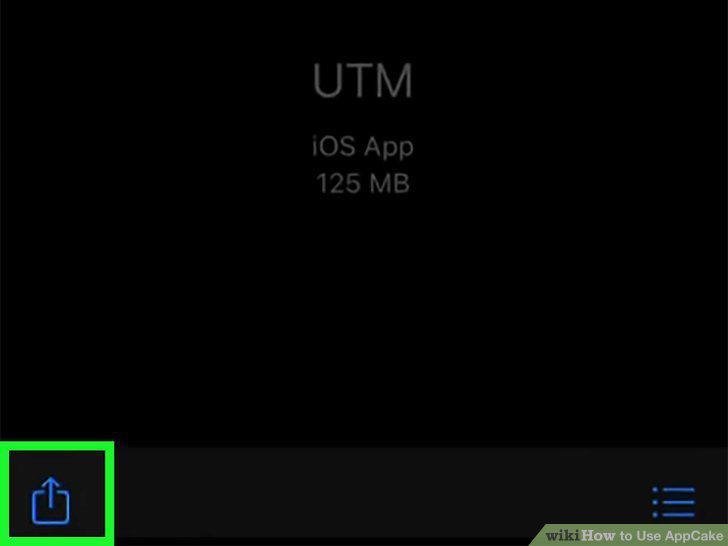
Tap Share.
12
Swipe to the end of the icon list and tap More.
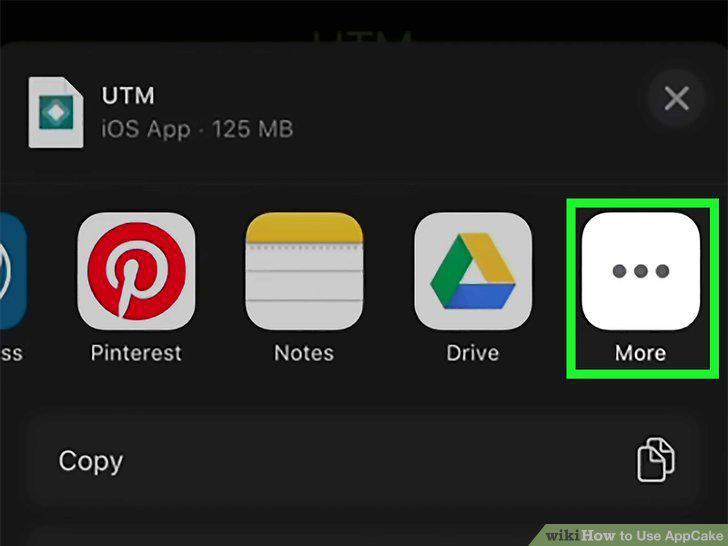
Swipe to the end of the icon list and tap More.
13
Tap Copy to AppCake under the "Suggestions" heading.
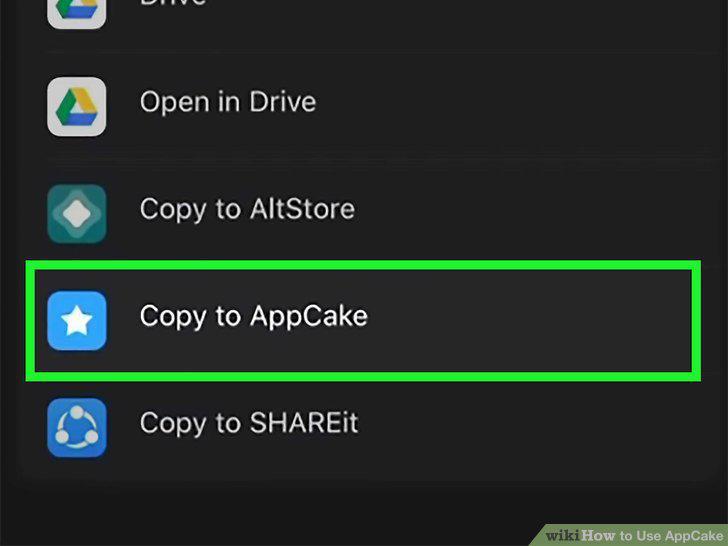
Tap Copy to AppCake under the "Suggestions" heading.
14
Tap Yes to import the file.
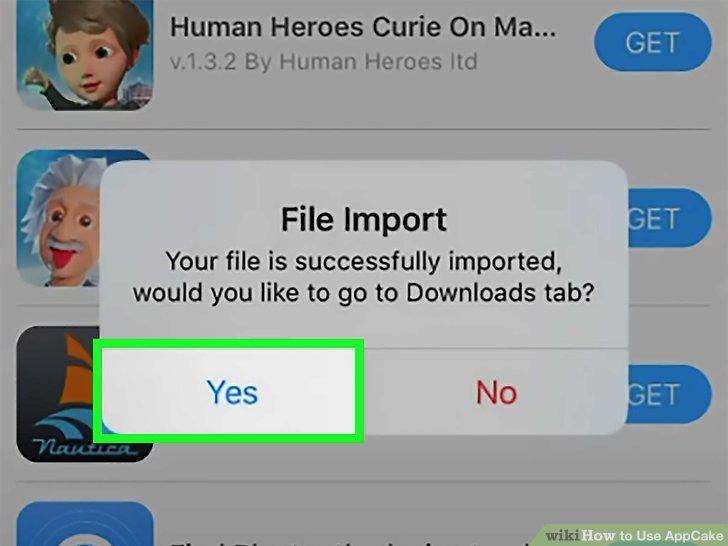
Tap Yes to import the file.
15
Tap the IPA file and select Install.
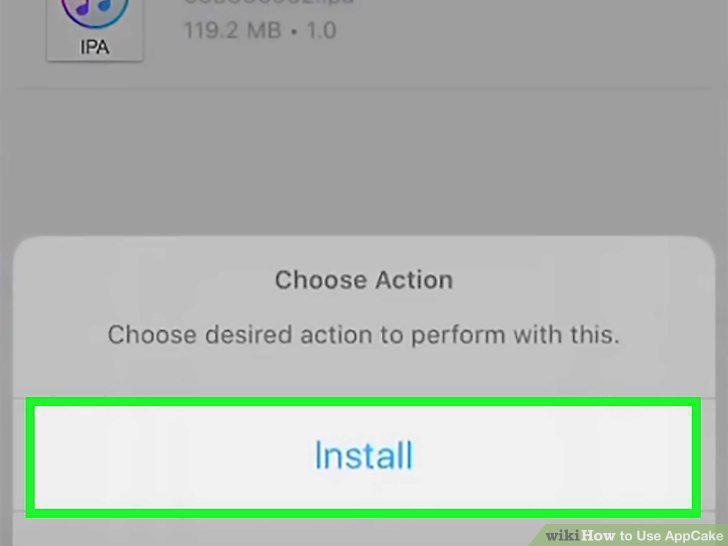
Tap the IPA file and select Install.
Comments (0)
No comments yet. Be the first to share your thoughts!