How to Share Your Screen in Teams
Join a meeting. Click the share icon that looks like a rectangle with an arrow.. Click a screen to share.
Steps
1
Join a meeting
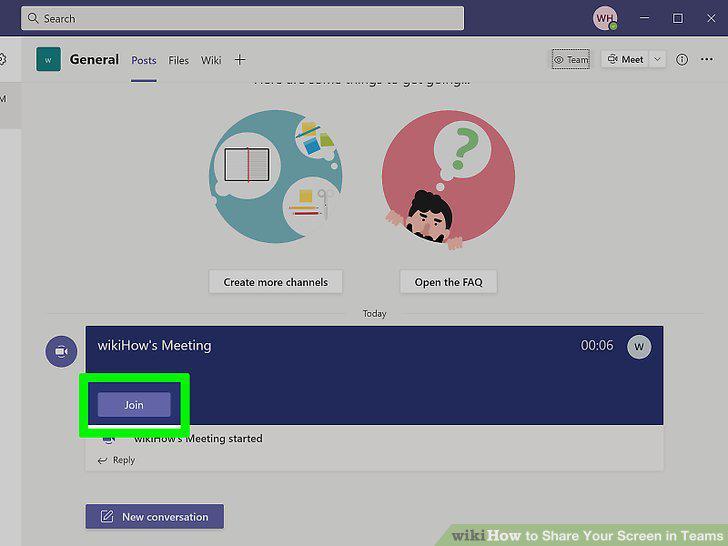
Join a meeting
2
Click the share icon that looks like a rectangle with an arrow.
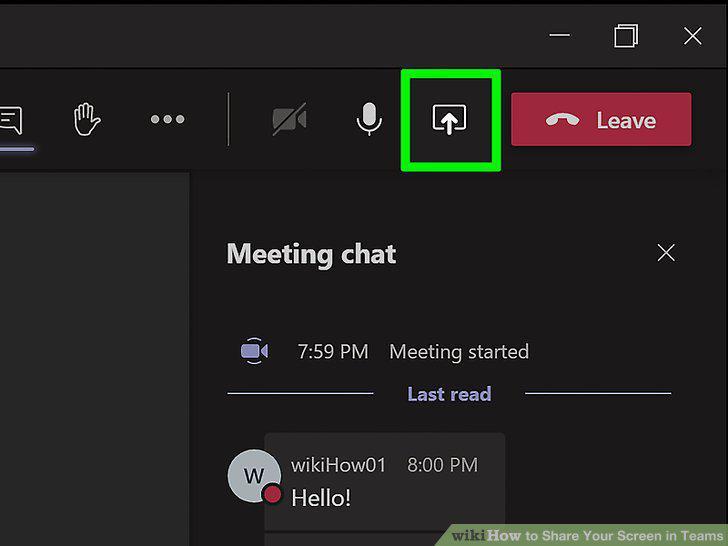
Click the share icon that looks like a rectangle with an arrow.
3
Click a screen to share.
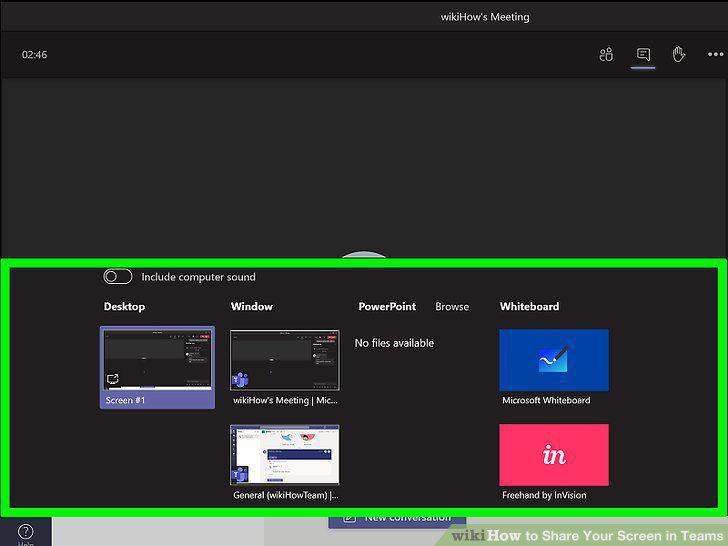
Click a screen to share.
4
Open the Microsoft Teams computer client.
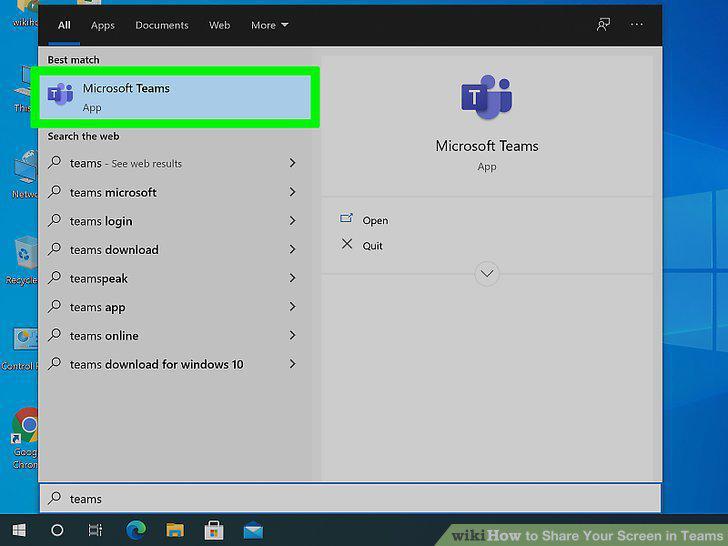
Open the Microsoft Teams computer client.
5
Navigate to the chat where you want to screen share.
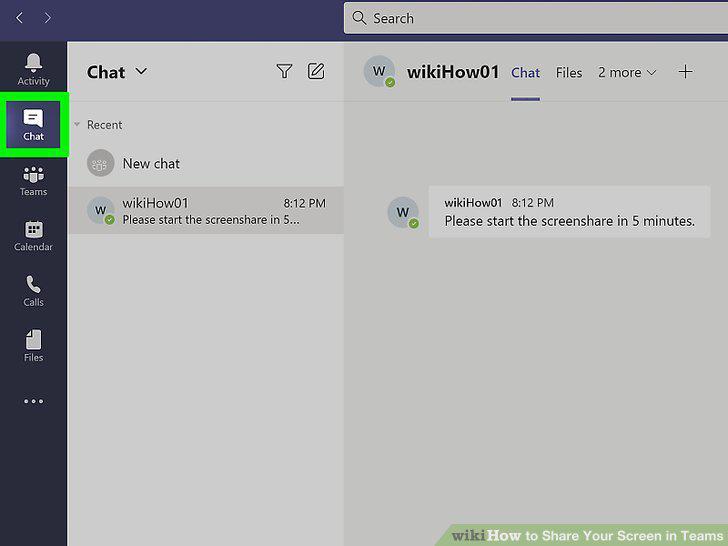
Navigate to the chat where you want to screen share.
6
Click the share icon that looks like a rectangle with an arrow.
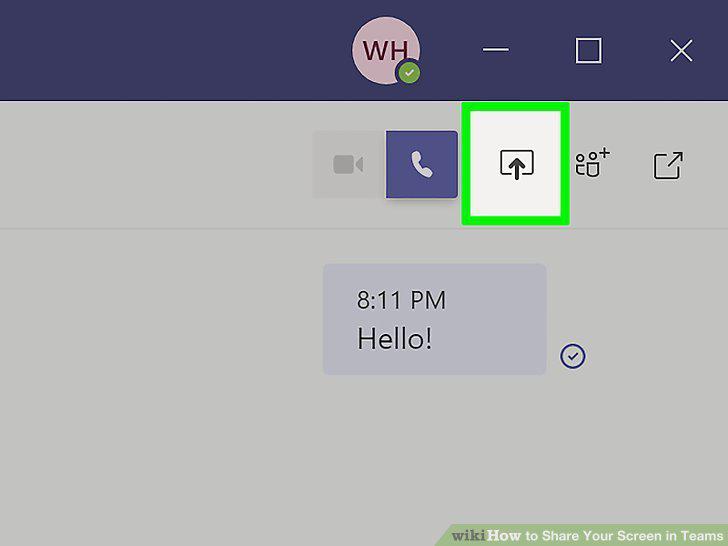
Click the share icon that looks like a rectangle with an arrow.
7
Click a screen to share.
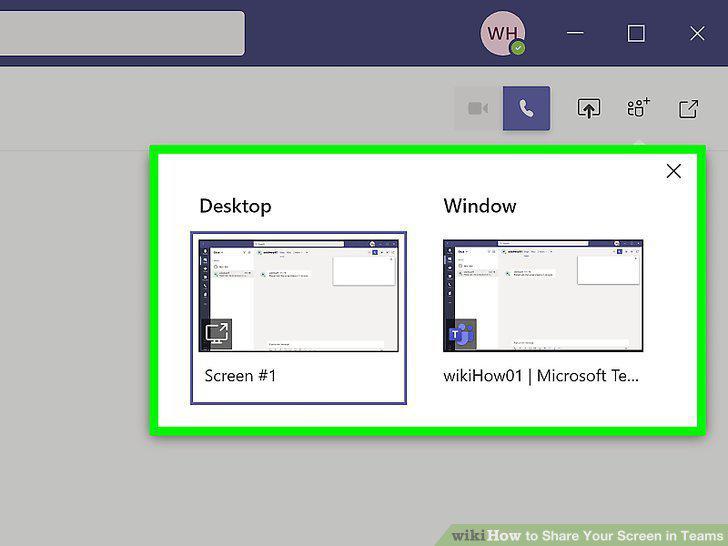
Click a screen to share.
Comments (0)
No comments yet. Be the first to share your thoughts!