How to Change Your Mac Password
Click .. Click System Preferences.. Click Users & Groups.
Steps
1
Click .
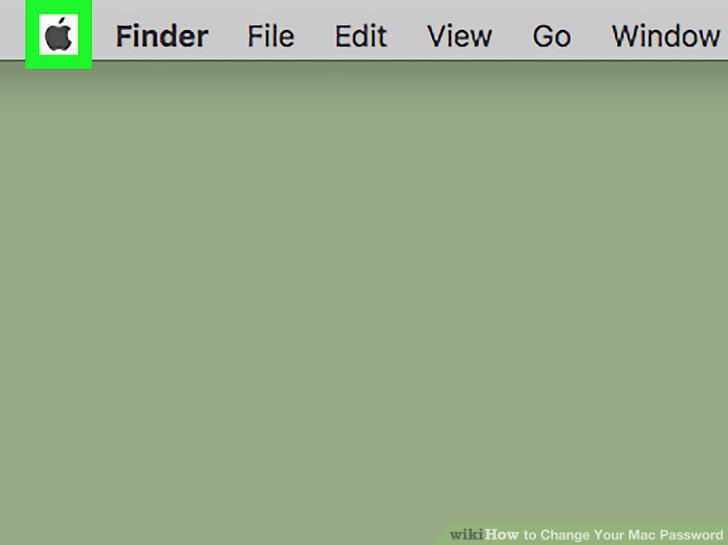
Click .
2
Click System Preferences.
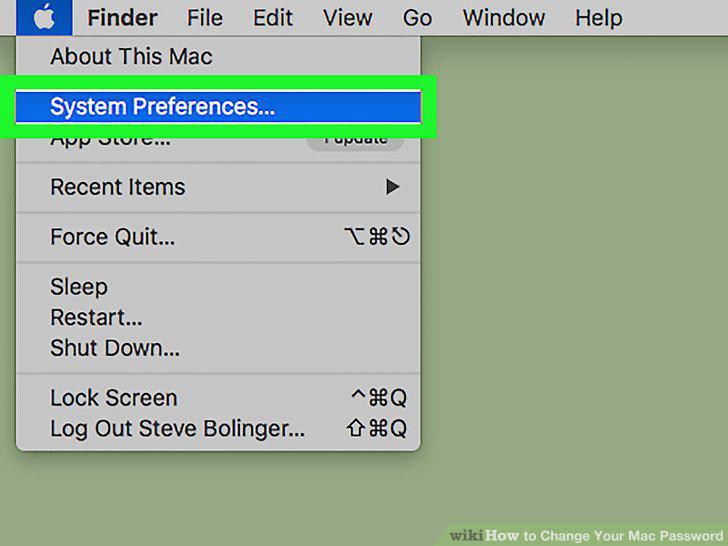
Click System Preferences.
3
Click Users & Groups.
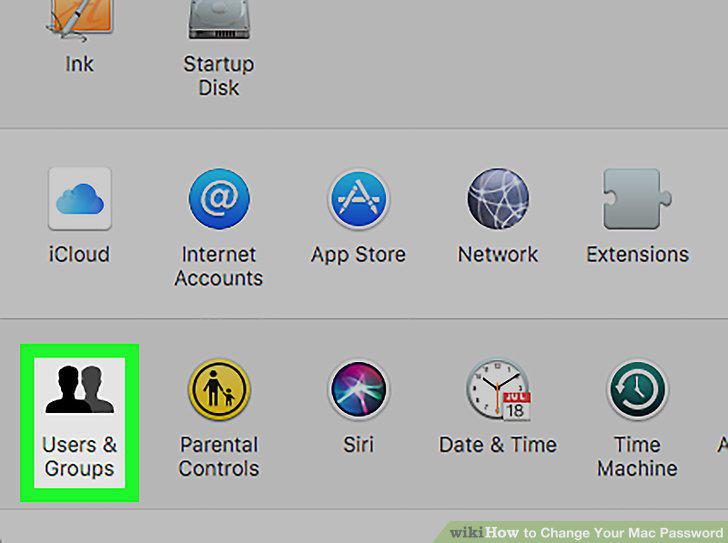
Click Users & Groups.
4
Click Change Password.
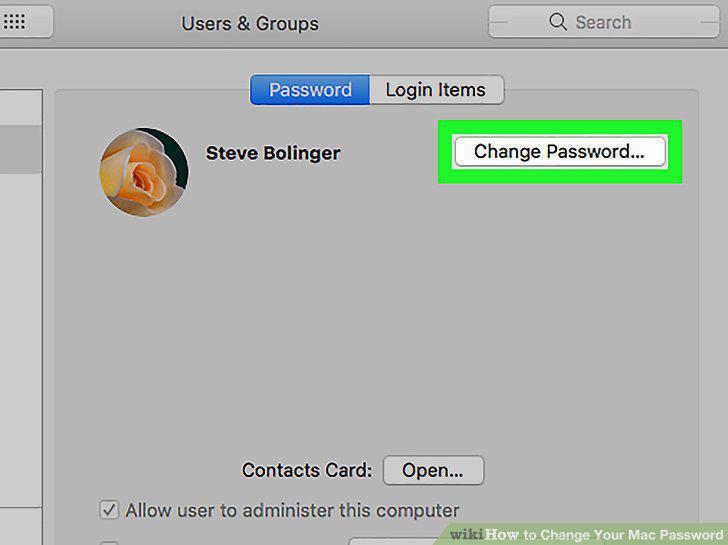
Click Change Password.
5
Enter your current password.
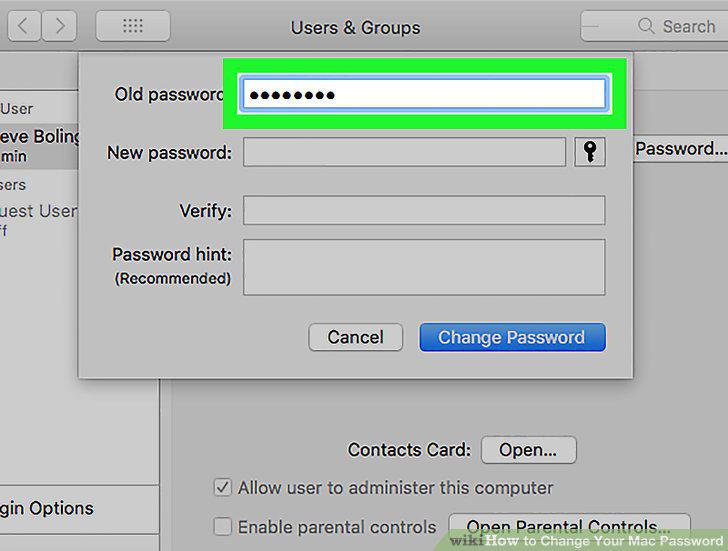
Enter your current password.
6
Type your new password and verify it.
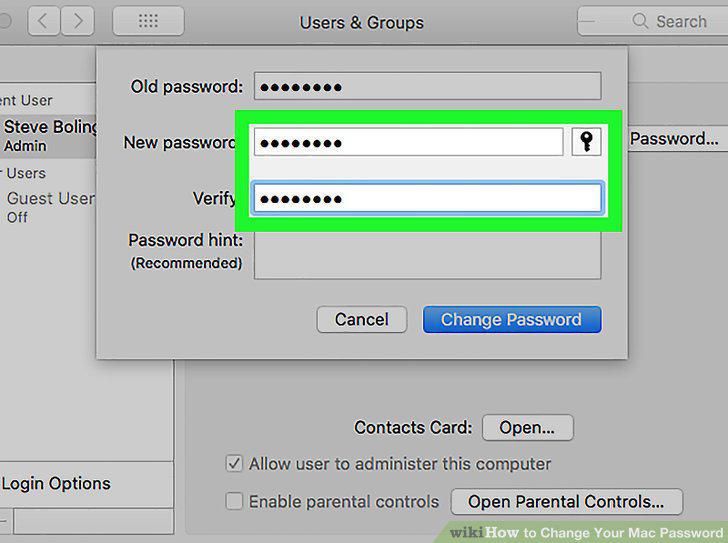
Type your new password and verify it.
7
Type a password hint (optional).
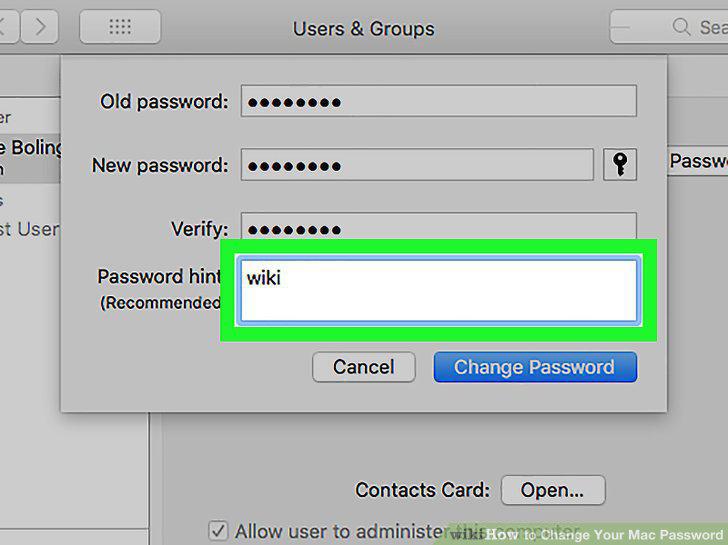
Type a password hint (optional).
8
Click Change Password.
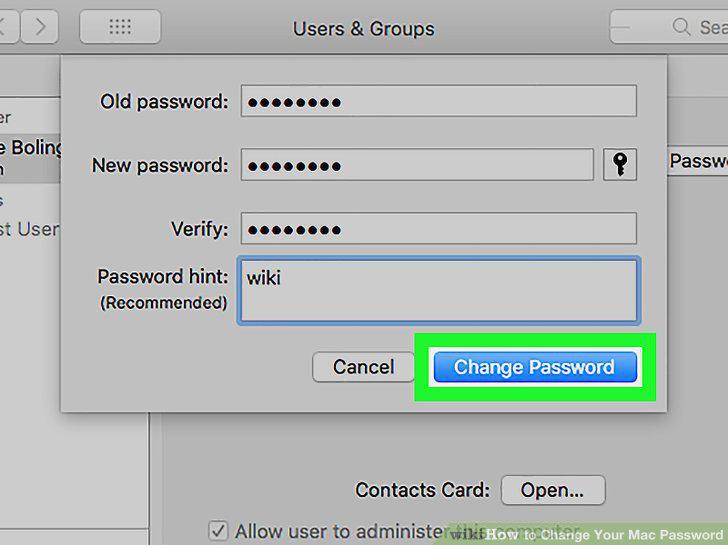
Click Change Password.
Comments (0)
No comments yet. Be the first to share your thoughts!