How to Calculate Age on Excel
Create a "Name" column.. Create a "Birthday" column.. Enter the birthdays using a common format.
Steps
1
Create a "Name" column.
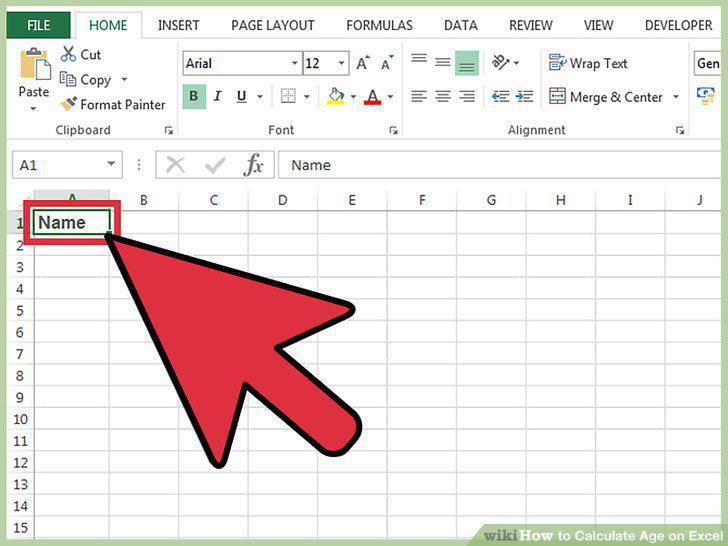
Create a "Name" column.
2
Create a "Birthday" column.
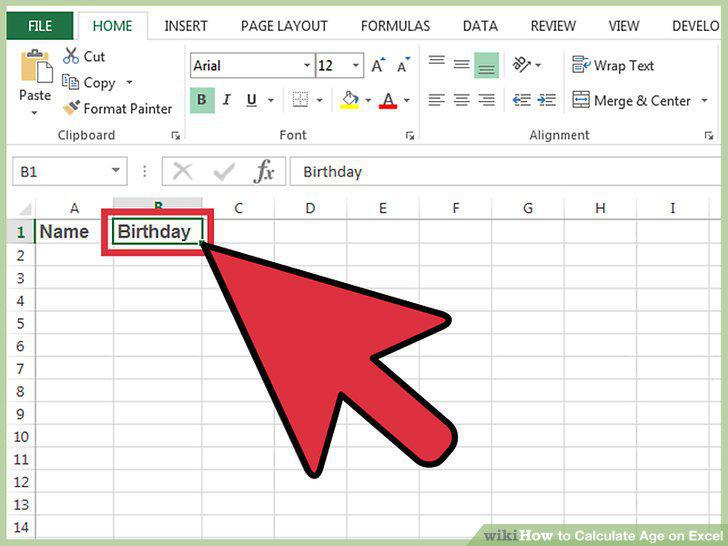
Create a "Birthday" column.
3
Enter the birthdays using a common format.
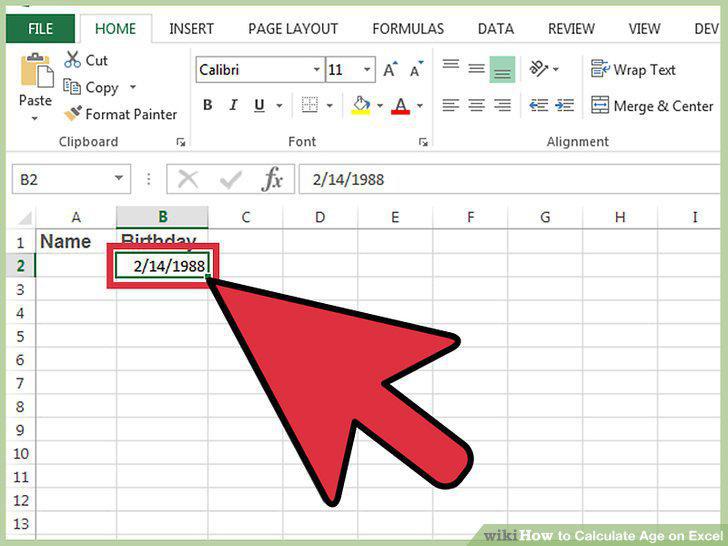
Enter the birthdays using a common format.
4
Create an "Age" column.
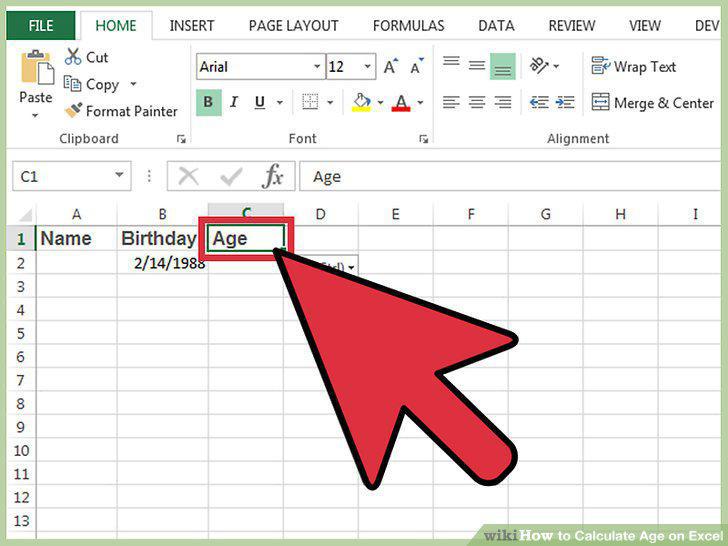
Create an "Age" column.
5
Select the first empty cell in the "Age" column.
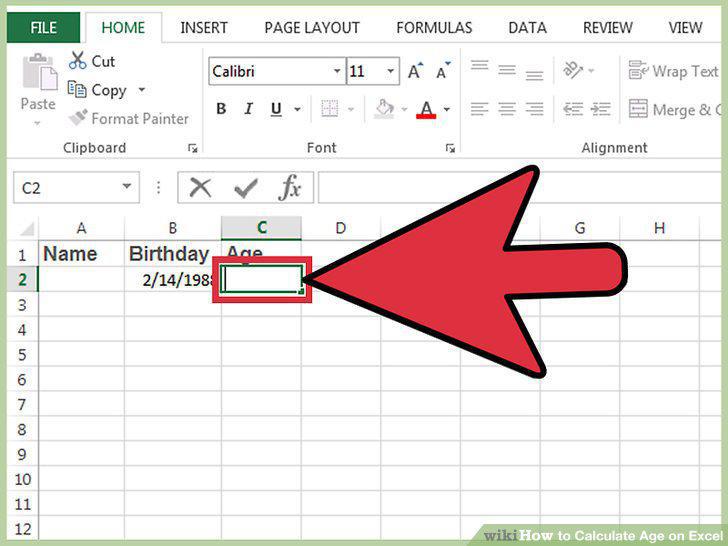
Select the first empty cell in the "Age" column.
6
Enter the formula for calculating the age in years.
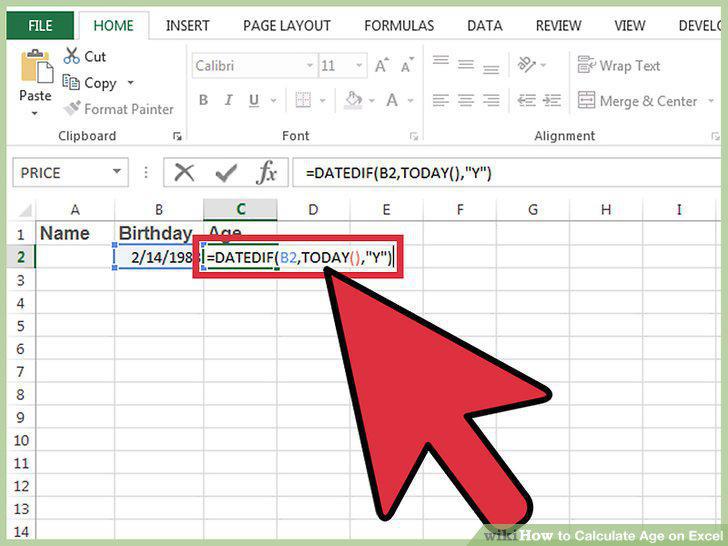
Enter the formula for calculating the age in years.
7
Click and drag the square in the bottom-right corner of the cell down.
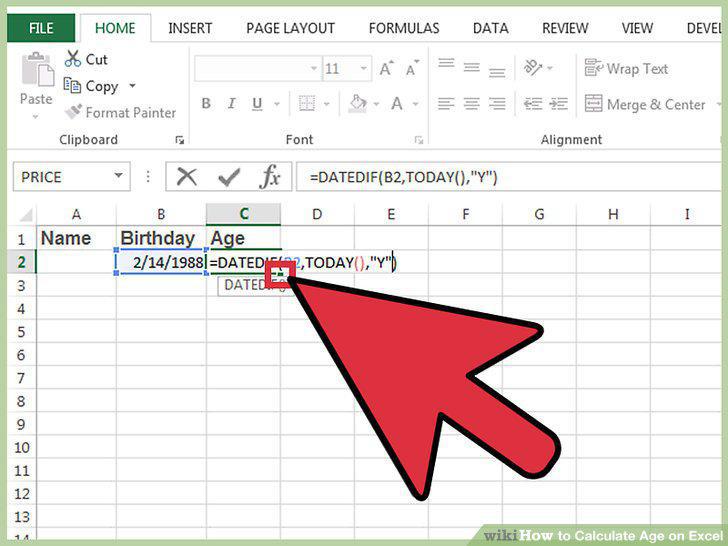
Click and drag the square in the bottom-right corner of the cell down.
8
Troubleshoot a formula that isn't working.
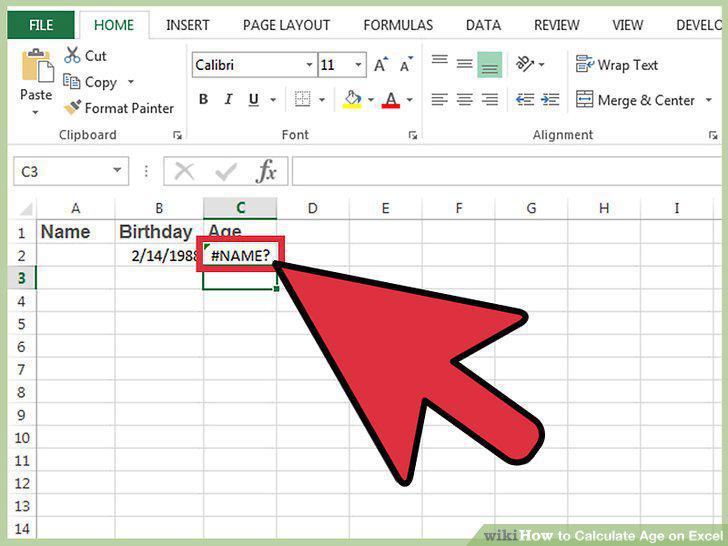
Troubleshoot a formula that isn't working.
9
Modify the formula to calculate exact age in years, months, and days.
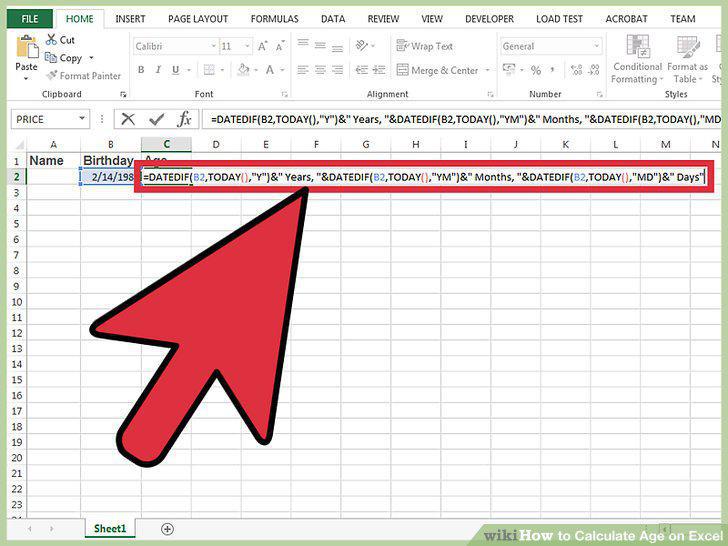
Modify the formula to calculate exact age in years, months, and days.
Comments (0)
No comments yet. Be the first to share your thoughts!