How to Find Your Phone Number on a Samsung Galaxy Device
Tap the Apps button .. Open the Settings menu .. Scroll down and tap About phone.
Steps
1
Tap the Apps button .
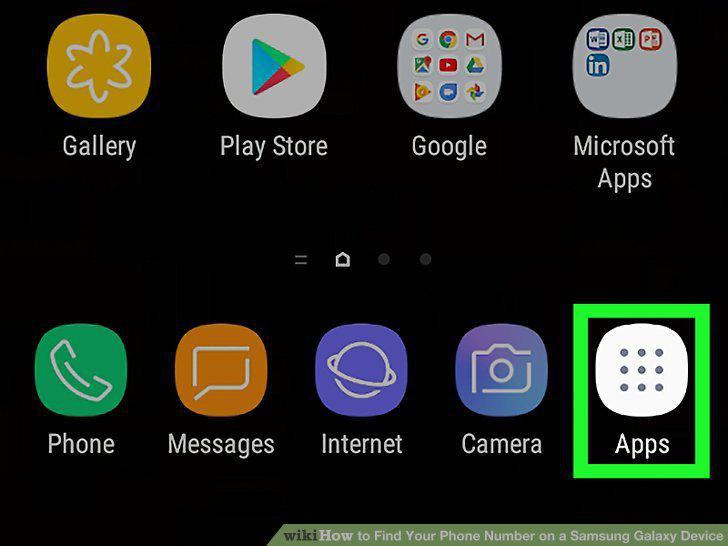
Tap the Apps button .
2
Open the Settings menu .
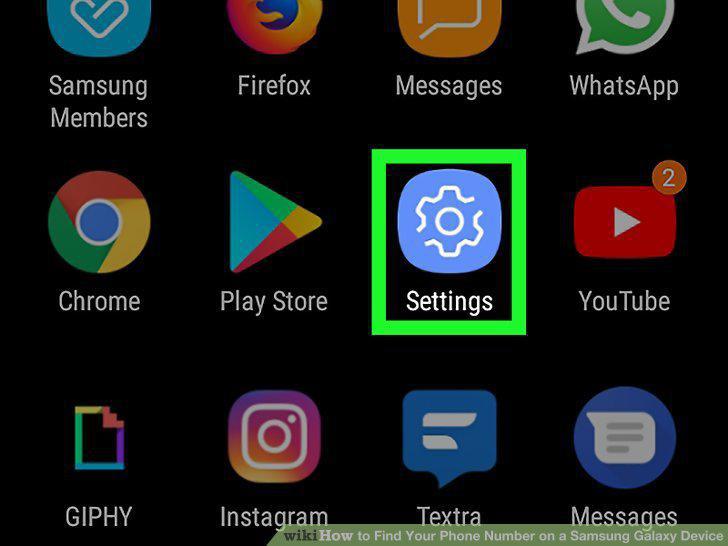
Open the Settings menu .
3
Scroll down and tap About phone.
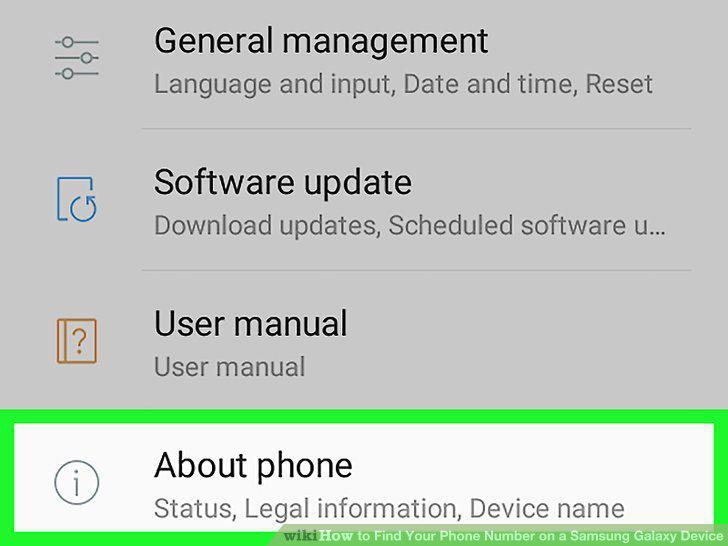
Scroll down and tap About phone.
4
Check your phone number.
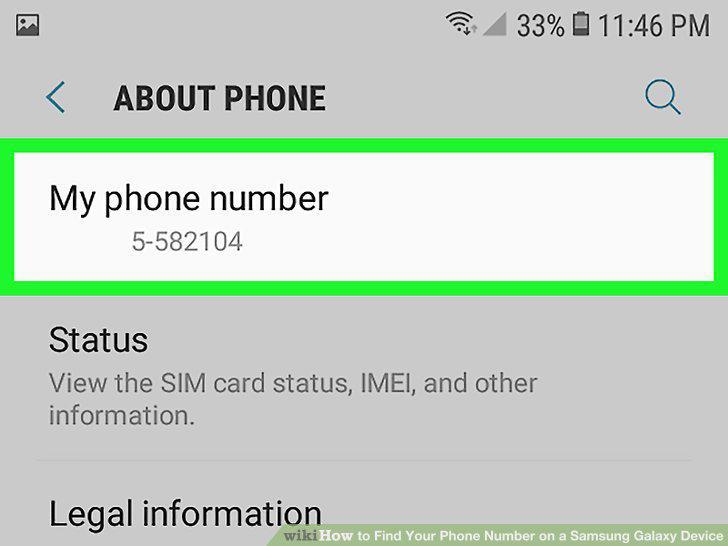
Check your phone number.
5
Tap the Apps button .
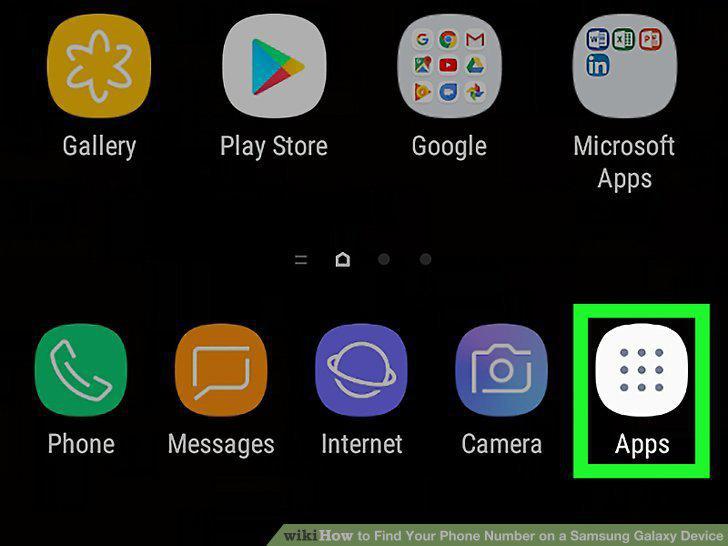
Tap the Apps button .
6
Open the Contacts app.
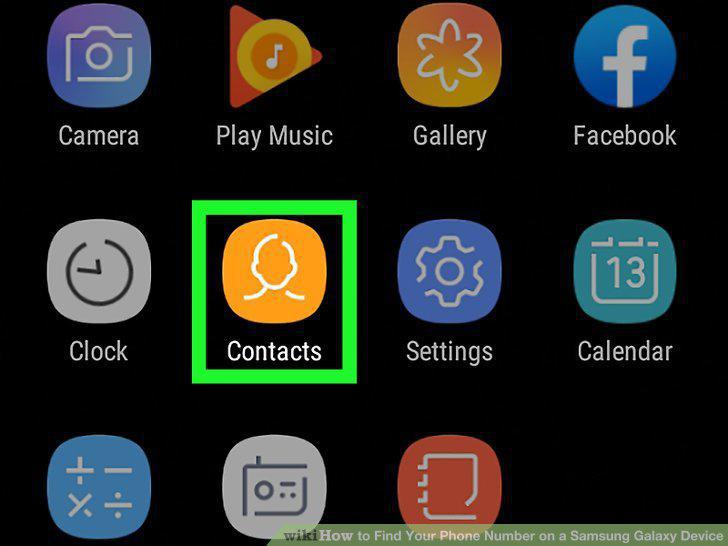
Open the Contacts app.
7
Tap your name.
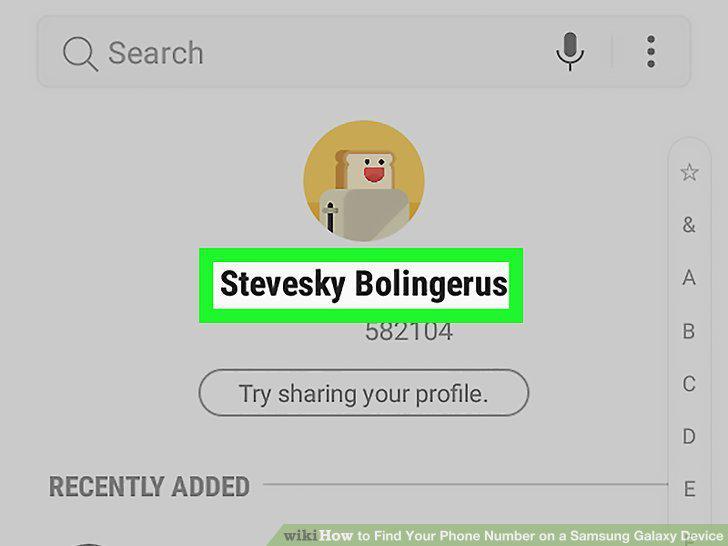
Tap your name.
8
Scroll down and view your number.
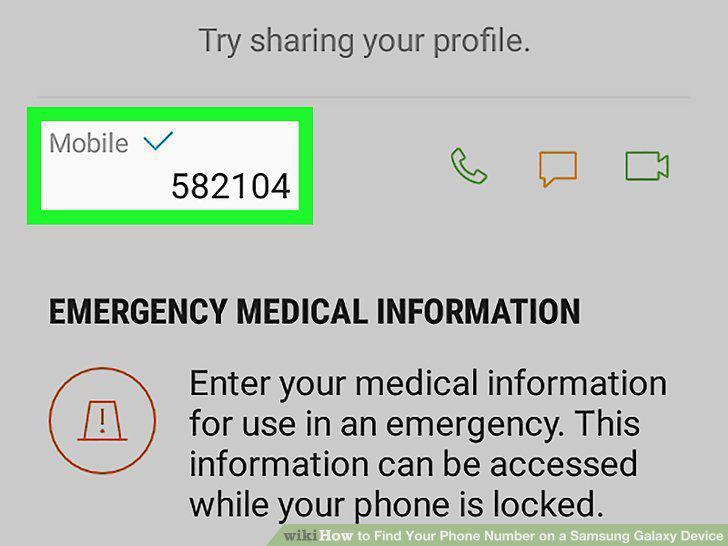
Scroll down and view your number.
9
Tap the Apps button .
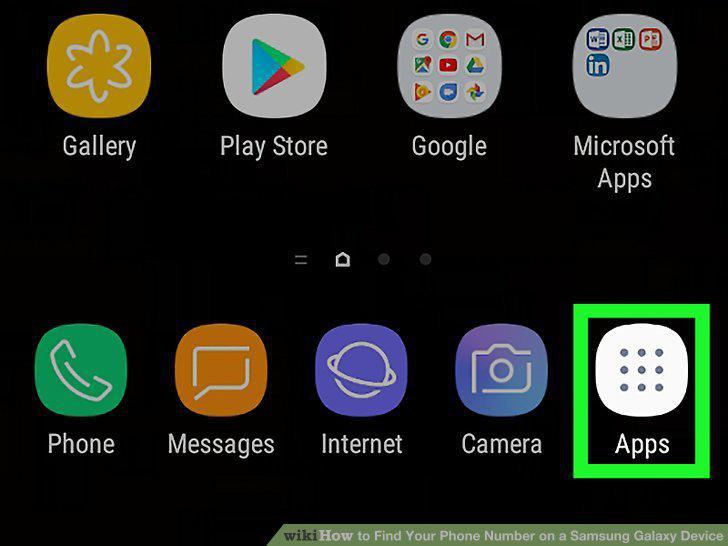
Tap the Apps button .
10
Open the Contacts app.
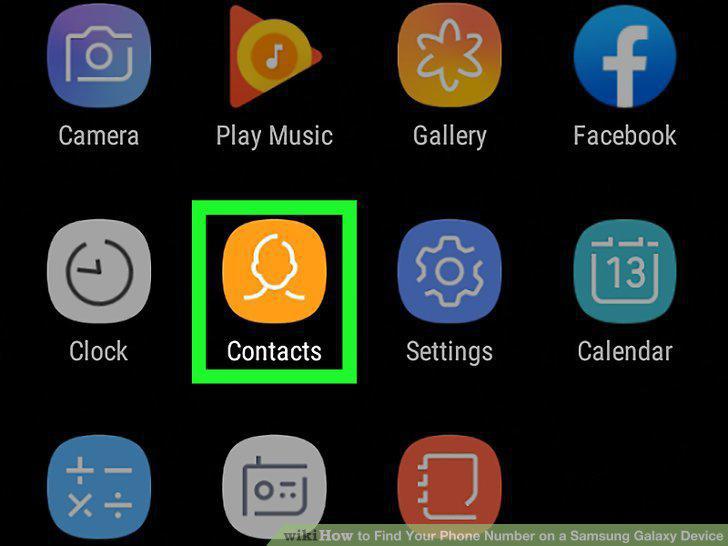
Open the Contacts app.
11
Tap your name.
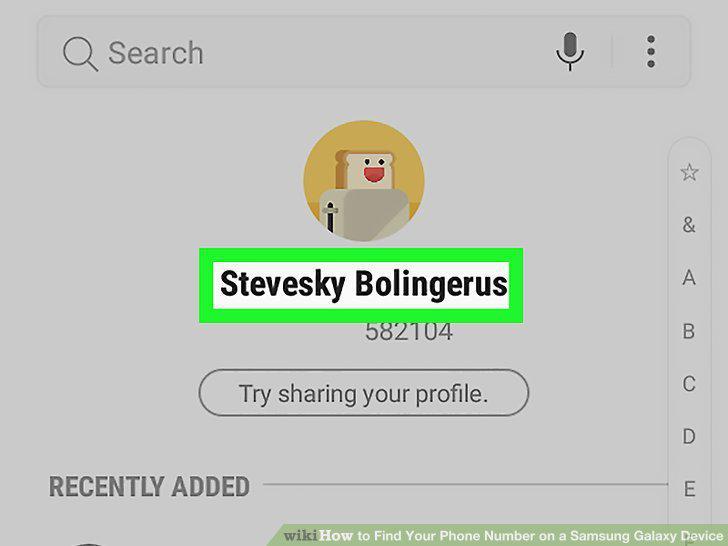
Tap your name.
12
Tap Edit .
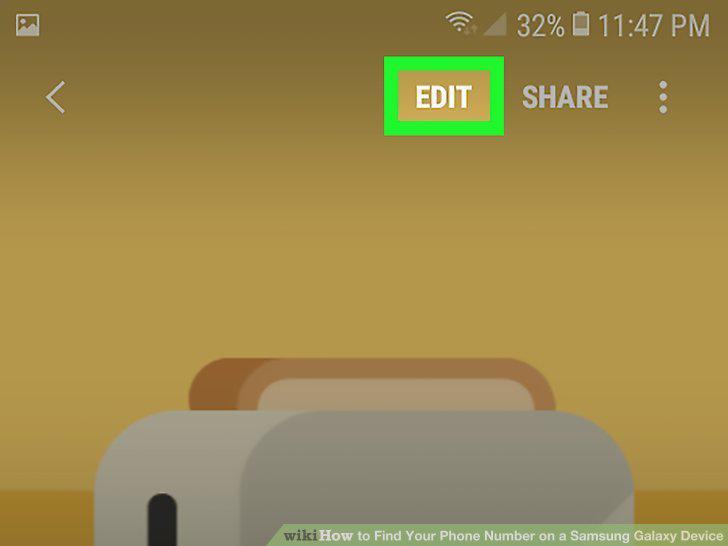
Tap Edit .
13
Scroll down and tap the green plus + button next to "Phone".
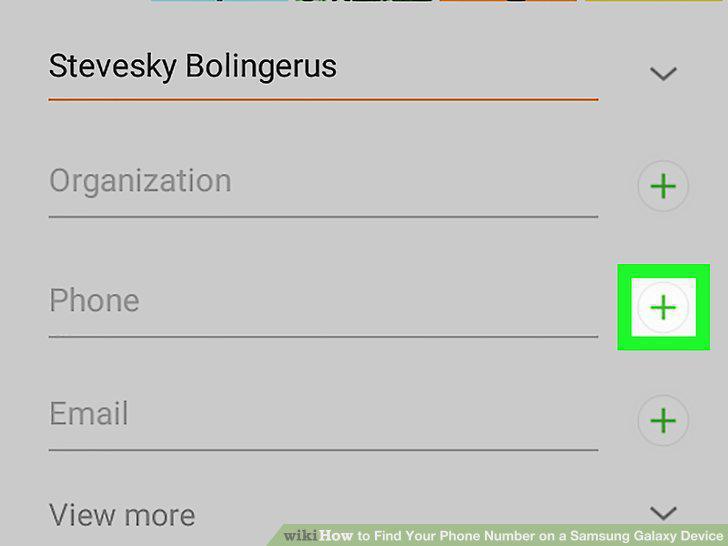
Scroll down and tap the green plus + button next to "Phone".
14
Enter your full phone number.
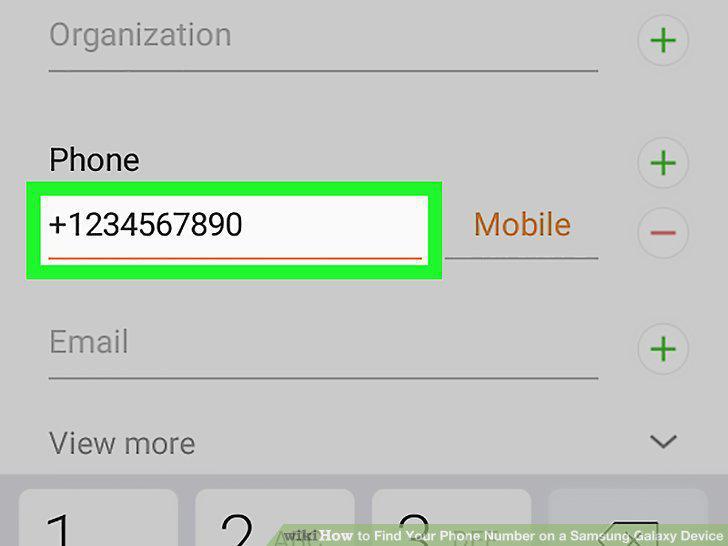
Enter your full phone number.
15
Tap Save.
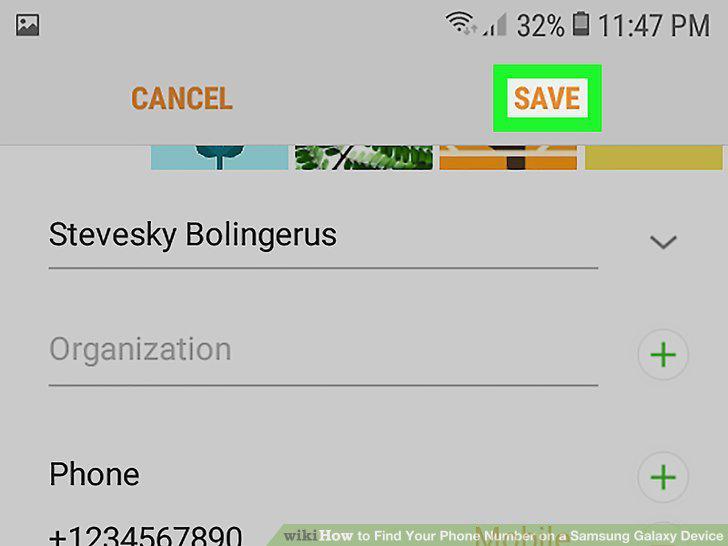
Tap Save.
Comments (0)
No comments yet. Be the first to share your thoughts!