How to Convert Text to Speech on iPhone or iPad
Open your iPhone or iPad's Settings app.. Tap General in Settings.. Tap Accessibility on the General menu.
Steps
1
Open your iPhone or iPad's Settings app.
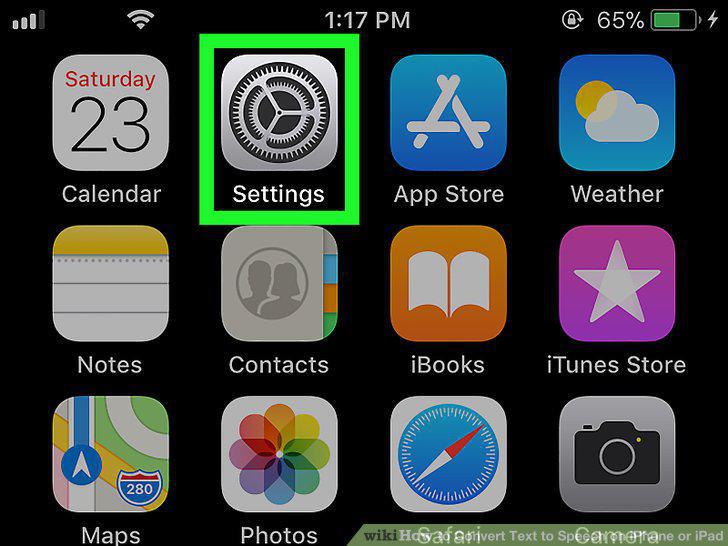
Open your iPhone or iPad's Settings app.
2
Tap General in Settings.
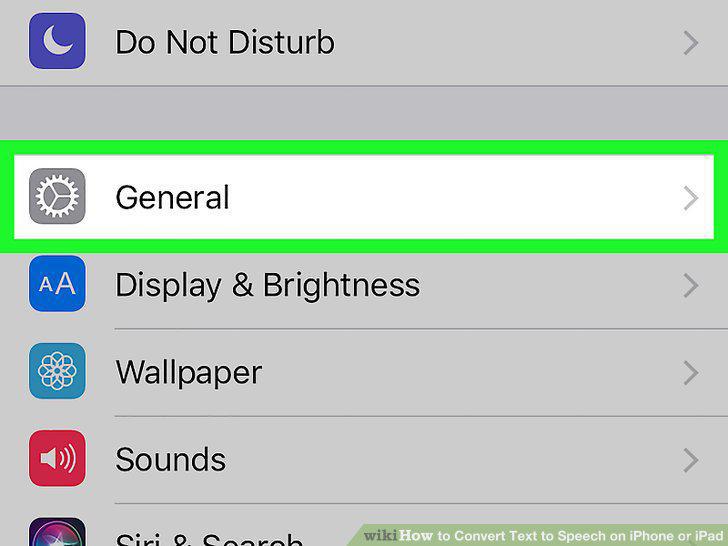
Tap General in Settings.
3
Tap Accessibility on the General menu.
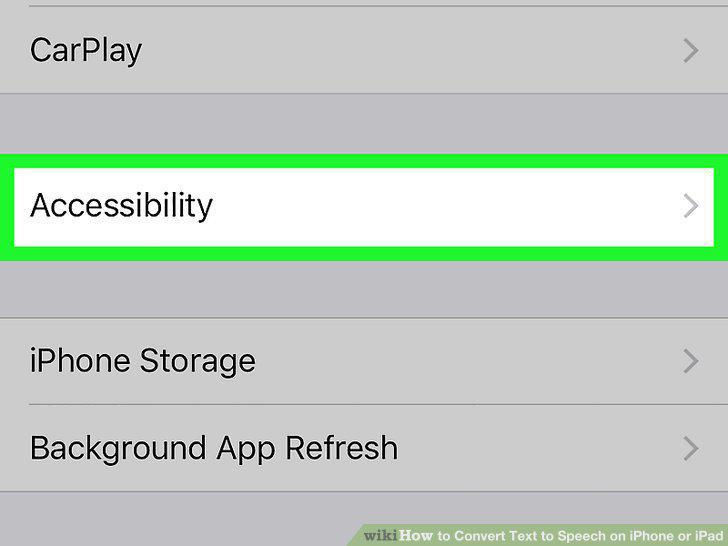
Tap Accessibility on the General menu.
4
Tap Speech under the VISION heading.
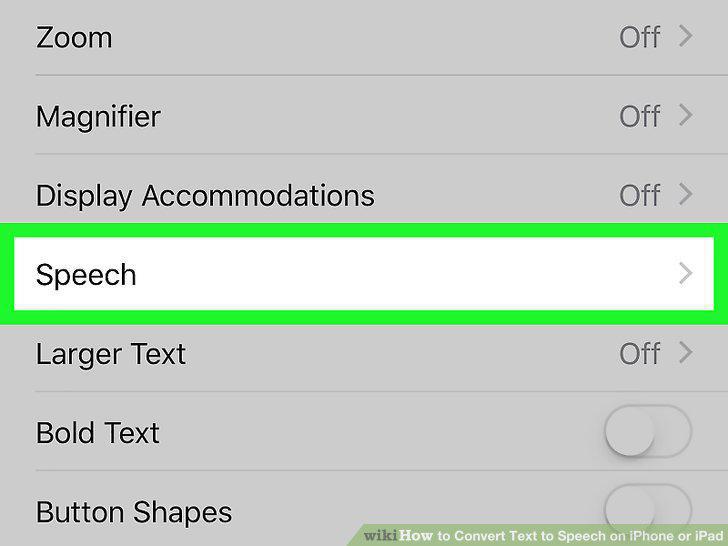
Tap Speech under the VISION heading.
5
Slide the Speak Selection switch to .
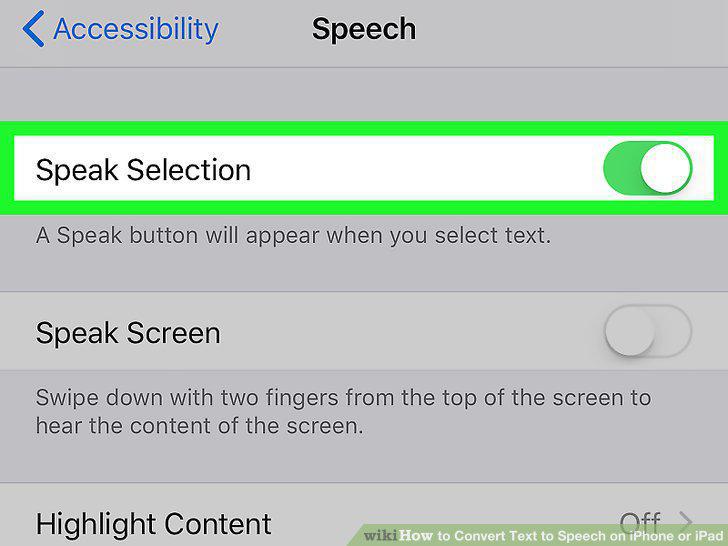
Slide the Speak Selection switch to .
6
Slide the Speak Screen switch to .
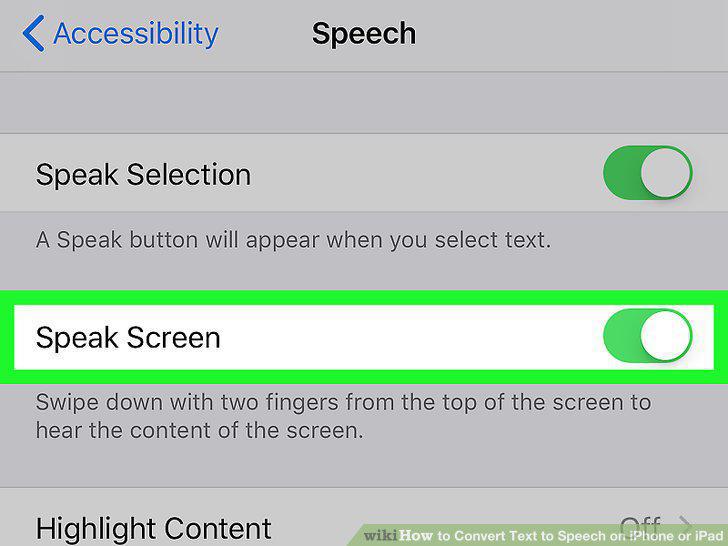
Slide the Speak Screen switch to .
7
Open the text you want to convert to speech.
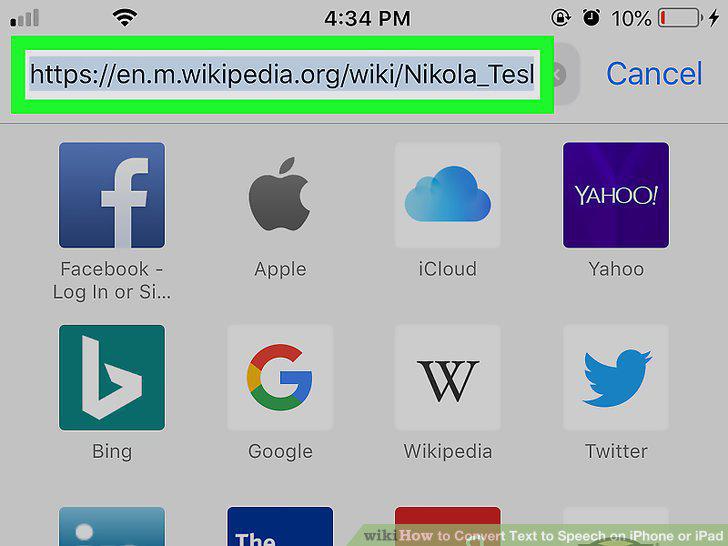
Open the text you want to convert to speech.
8
Double-tap the text you want read aloud.

Double-tap the text you want read aloud.
9
Tap and drag the highlight to select all the text you want to convert.
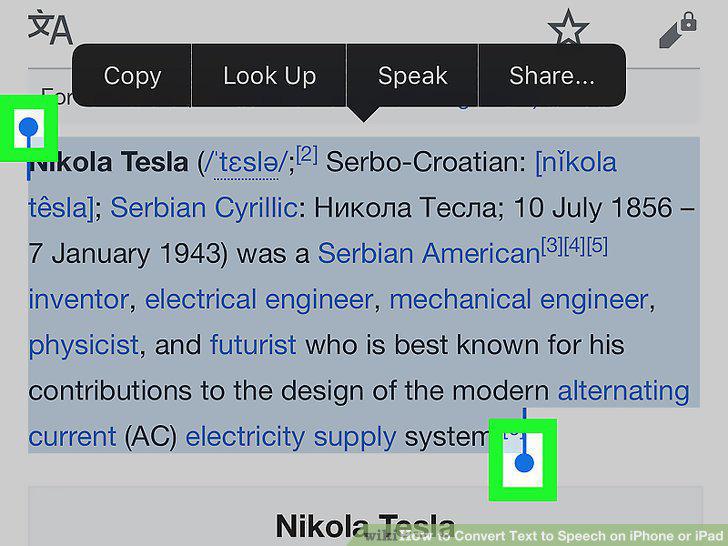
Tap and drag the highlight to select all the text you want to convert.
10
Tap Speak on the black toolbar.
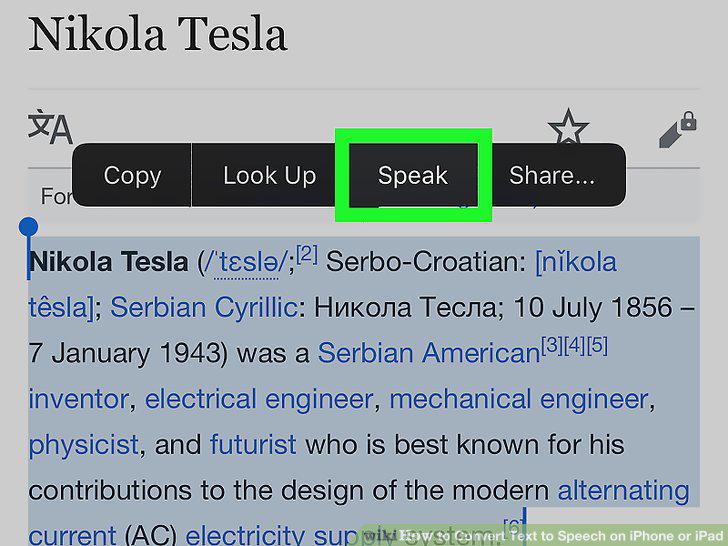
Tap Speak on the black toolbar.
11
Swipe down from the top of your screen with two fingers.
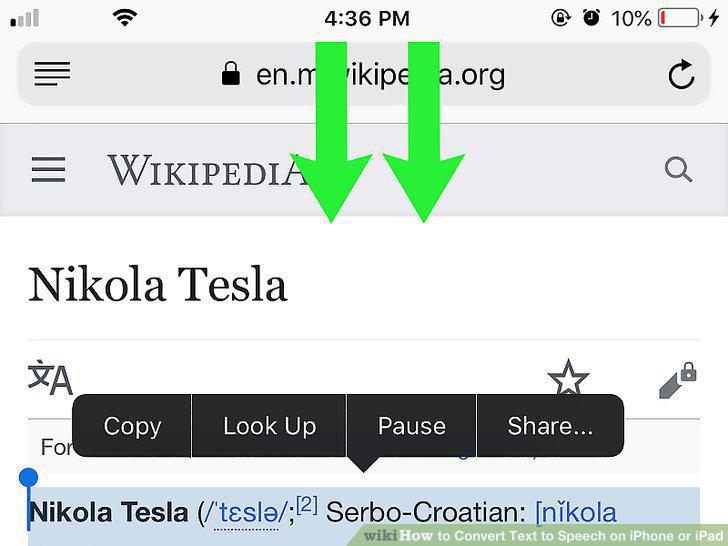
Swipe down from the top of your screen with two fingers.
Comments (0)
No comments yet. Be the first to share your thoughts!