How to Prevent Excel from Removing Leading & Trailing Zeros
Add an apostrophe before the number.. Save a large database in text format.. Create a new Excel workbook.
Steps
1
Add an apostrophe before the number.
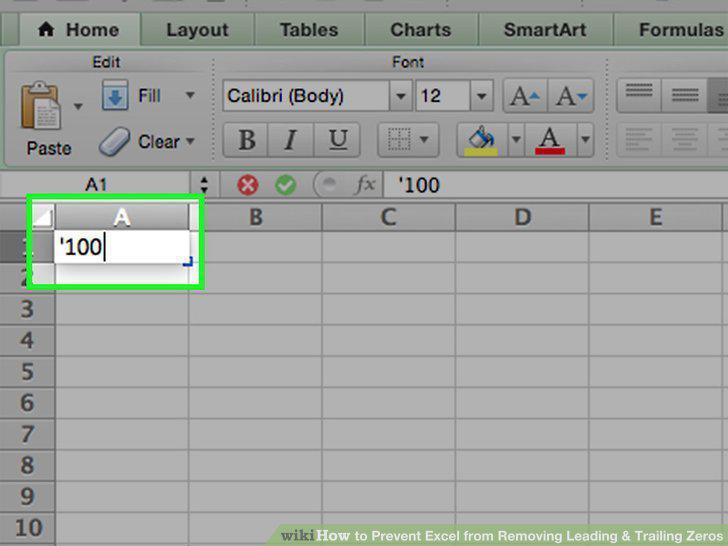
Add an apostrophe before the number.
2
Save a large database in text format.
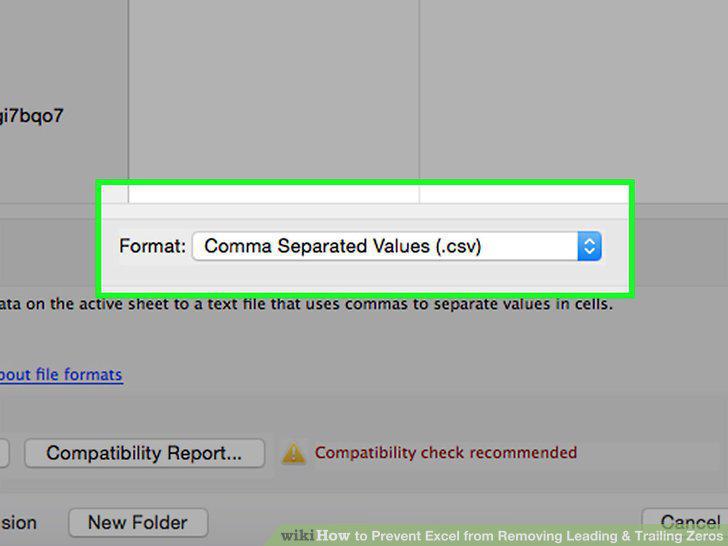
Save a large database in text format.
3
Create a new Excel workbook.
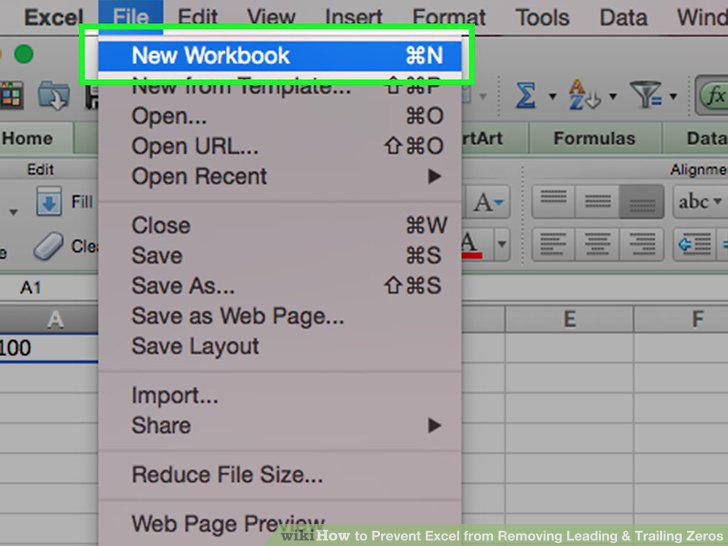
Create a new Excel workbook.
4
Open the Text Import Wizard.
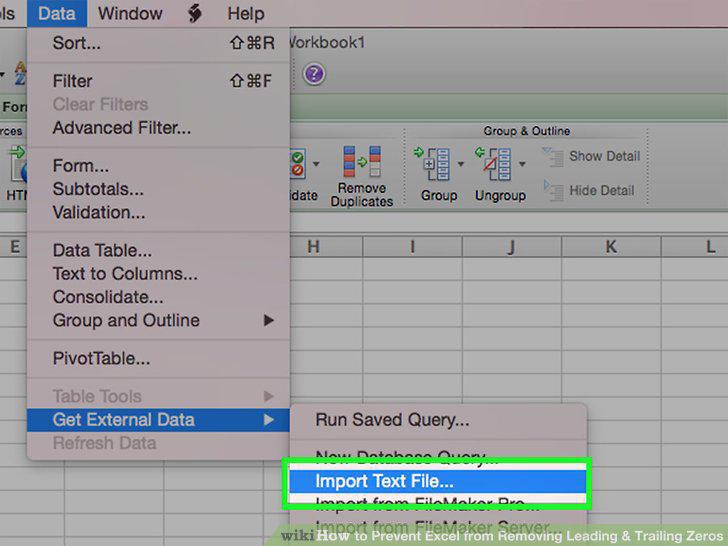
Open the Text Import Wizard.
5
Import data from the text document.
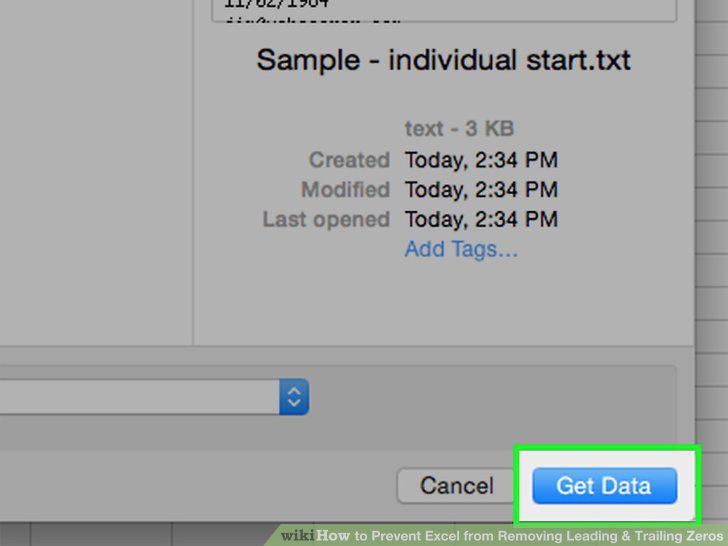
Import data from the text document.
6
Set columns to text format.
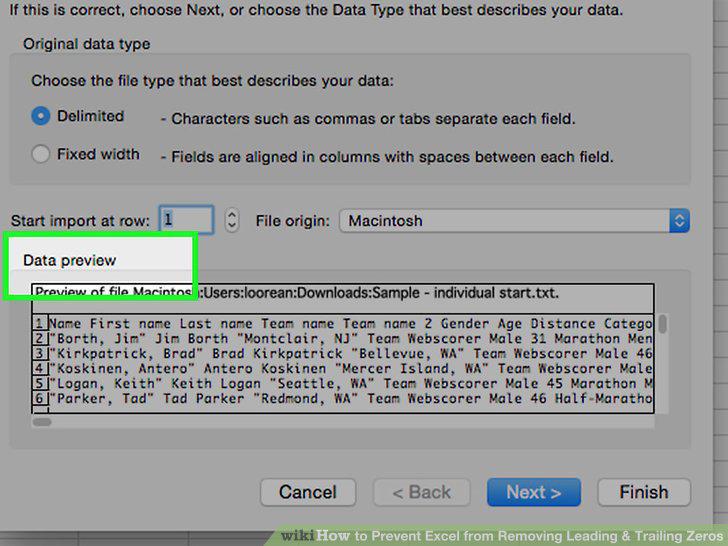
Set columns to text format.
7
Select the cells you need to change.
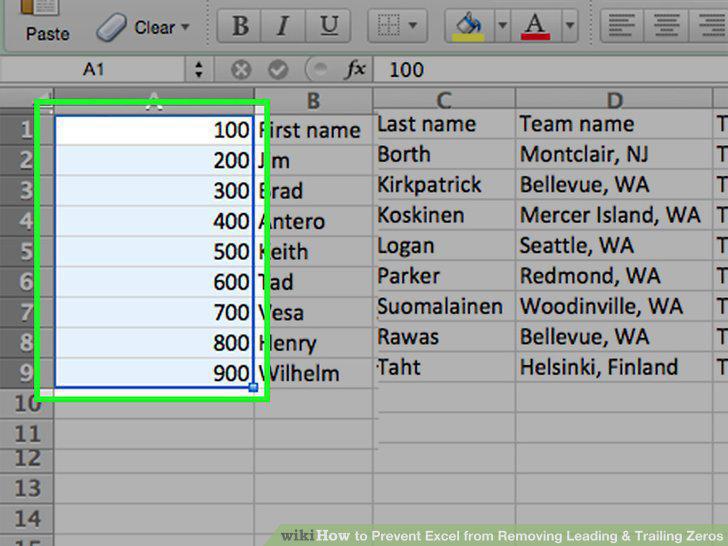
Select the cells you need to change.
8
Open the Format window.
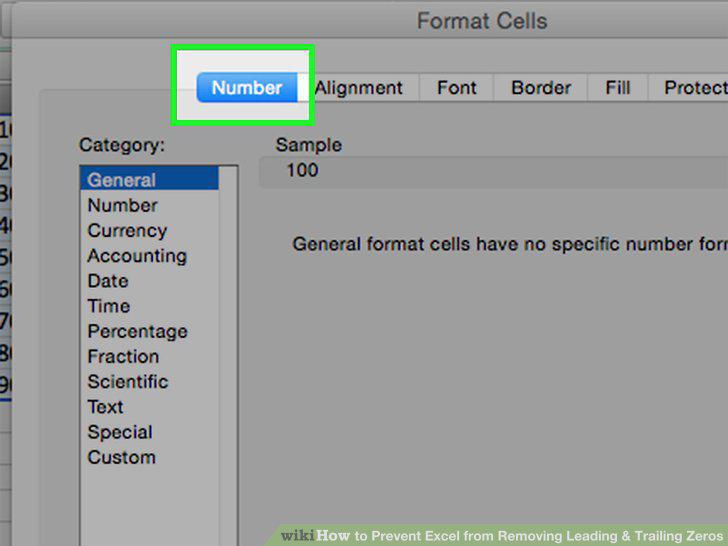
Open the Format window.
9
Create a custom format.
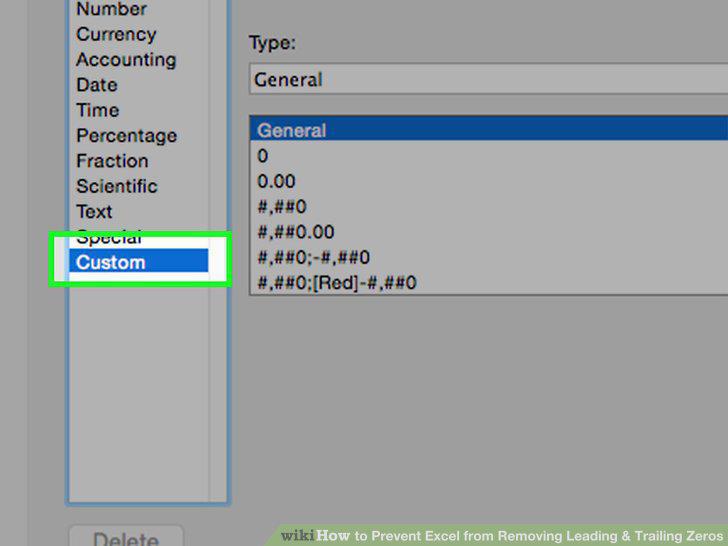
Create a custom format.
10
Add leading zeroes.
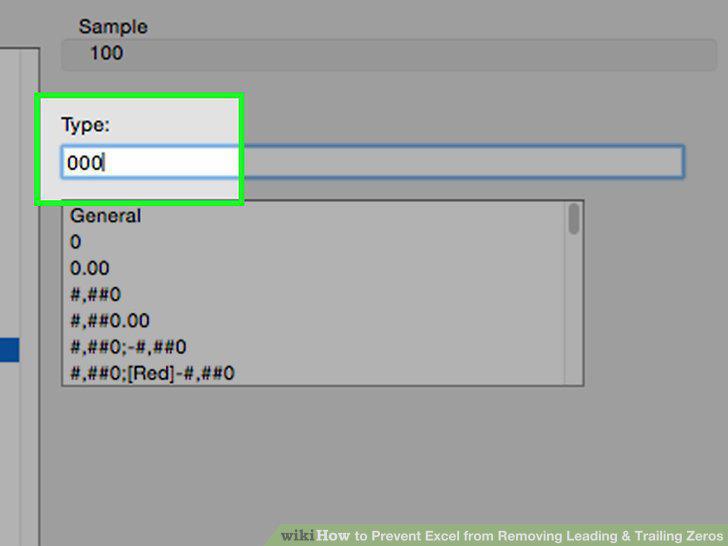
Add leading zeroes.
11
Specify decimal places and trailing zeroes.
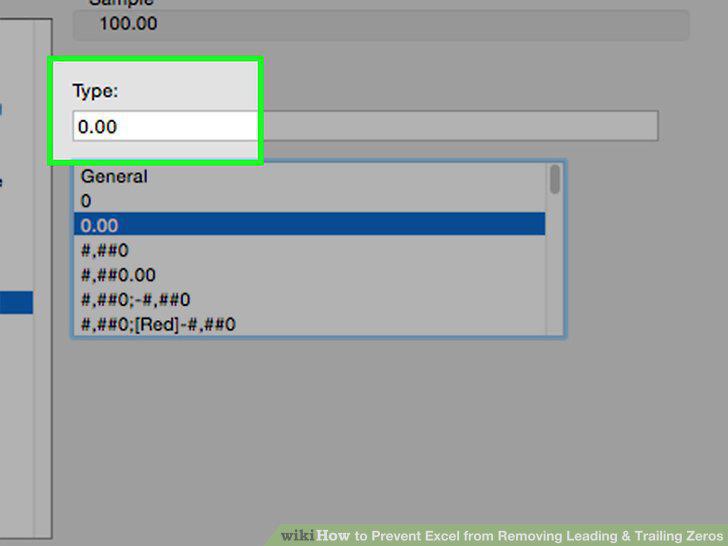
Specify decimal places and trailing zeroes.
12
Use the pound sign to prevent extra zeroes.
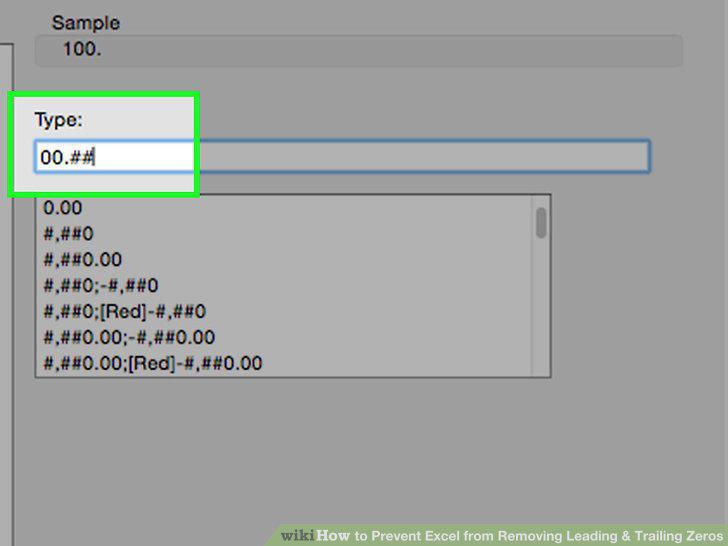
Use the pound sign to prevent extra zeroes.
13
Add leading zeros as text.
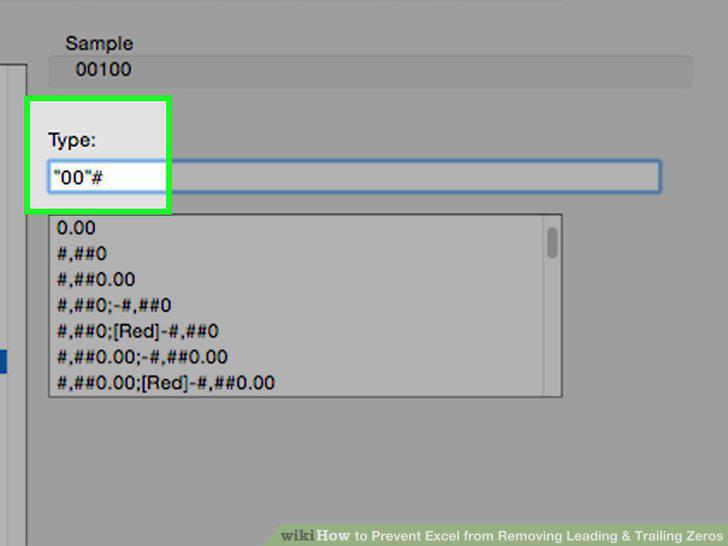
Add leading zeros as text.
14
Align decimal points with a question mark.
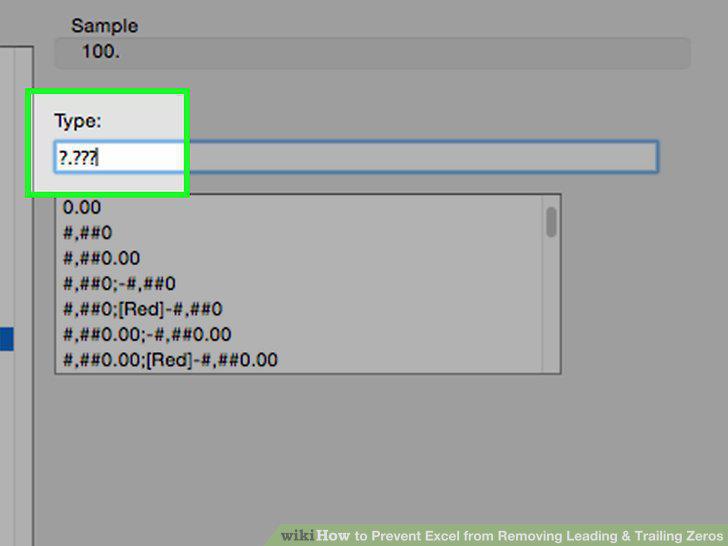
Align decimal points with a question mark.
Comments (0)
No comments yet. Be the first to share your thoughts!