How to Sync Audio and Video
Open VLC Media Player on your computer.. Open your audio file.. Click Play to start the video.
Steps
Open VLC Media Player on your computer.
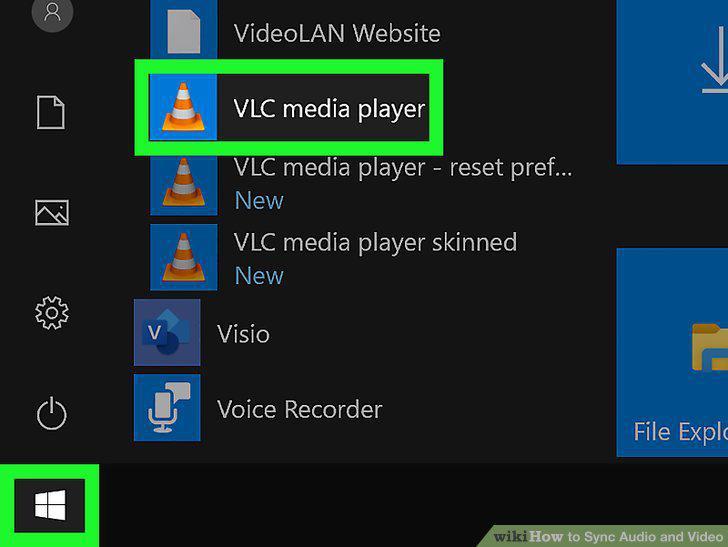
Open VLC Media Player on your computer.
Open your audio file.
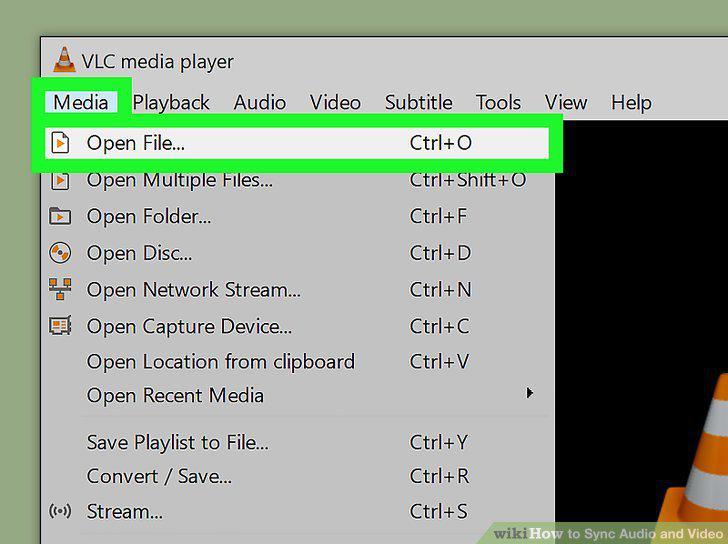
Open your audio file.
Click Play to start the video.
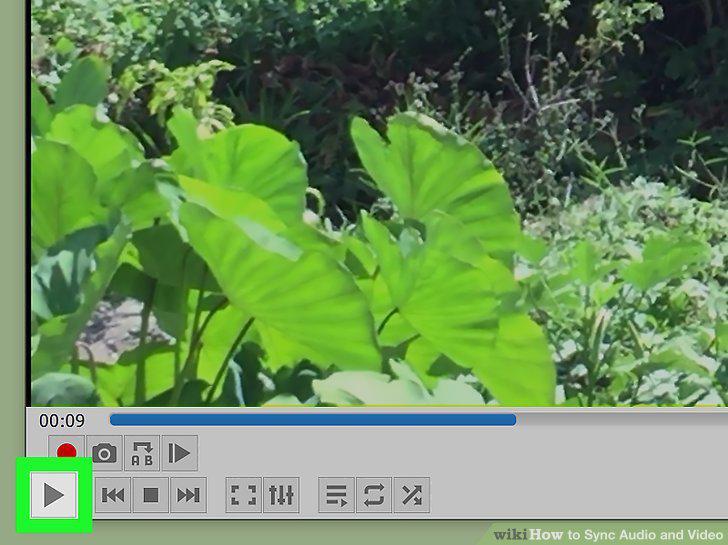
Click Play to start the video.
Use keyboard shortcuts to speed up or slow down the audio.
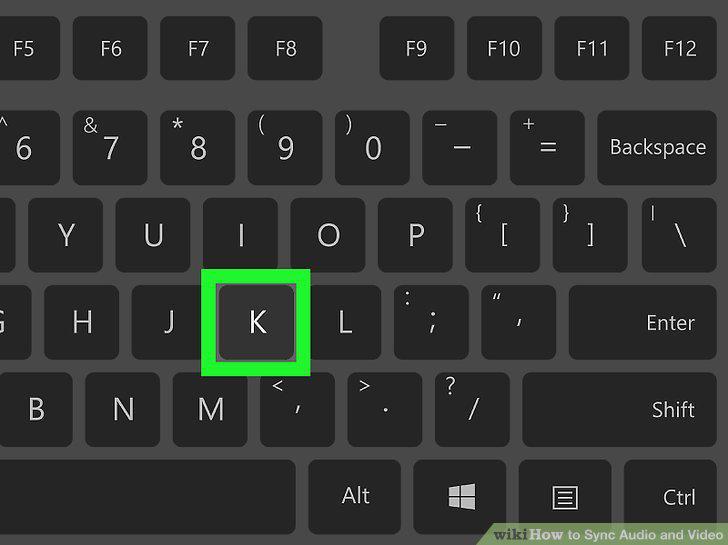
Use keyboard shortcuts to speed up or slow down the audio.
Open VLC Media Player on your phone or tablet.
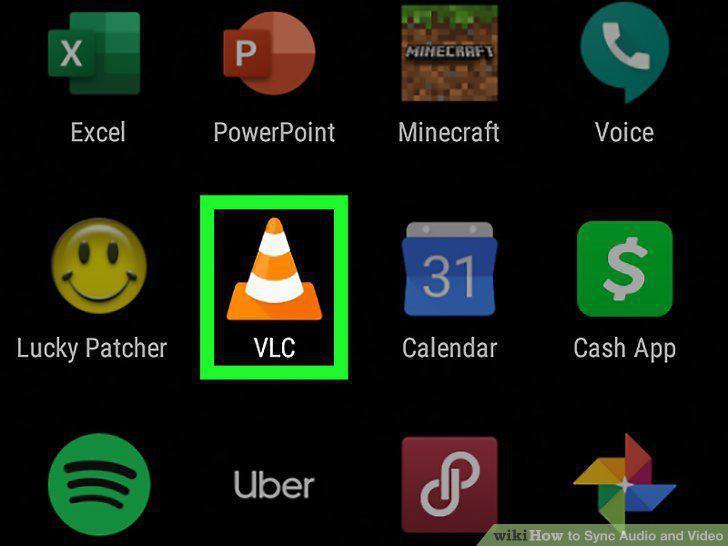
Open VLC Media Player on your phone or tablet.
Tap the video you want to fix.
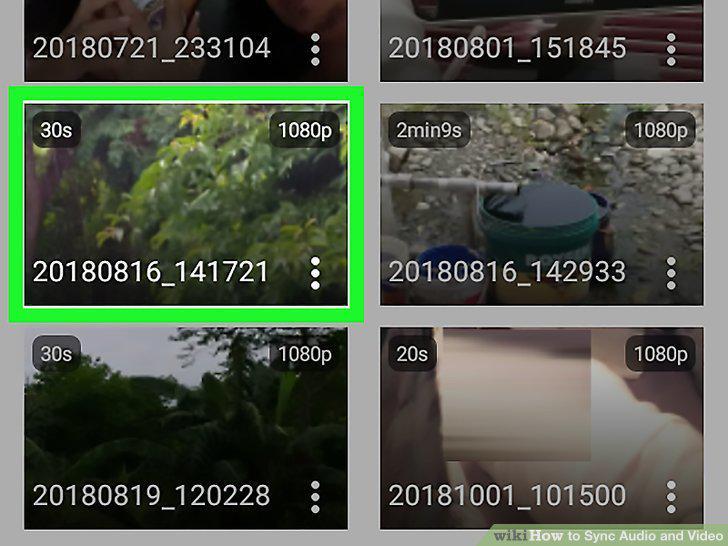
Tap the video you want to fix.
Tap the screen to display the controls.
Tap the screen to display the controls.
Open the Audio Delay controls.
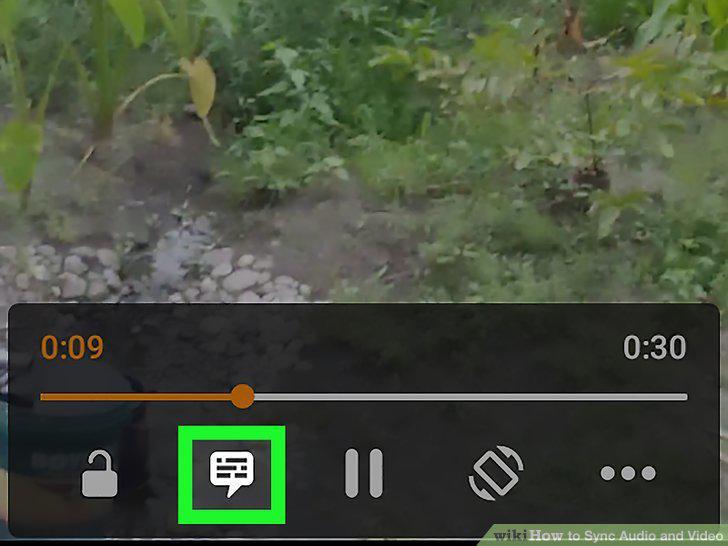
Open the Audio Delay controls.
Use the slider or +/- buttons to increase or decrease the delay.
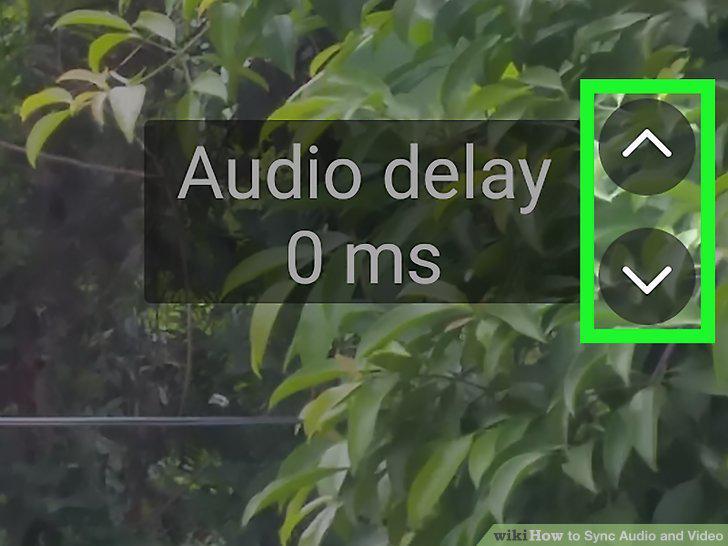
Use the slider or +/- buttons to increase or decrease the delay.
Save the delay settings for this video.
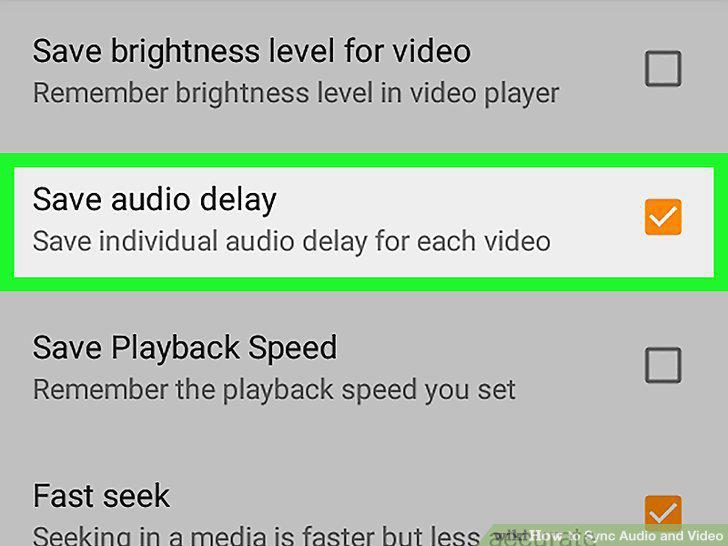
Save the delay settings for this video.
Open Adobe Premiere Pro on your computer.
Open Adobe Premiere Pro on your computer.
Select the audio and video clips on the Project panel.
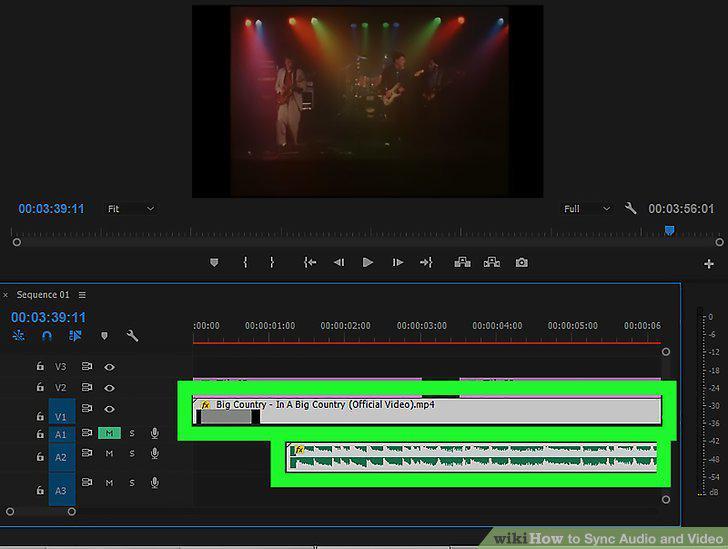
Select the audio and video clips on the Project panel.
Right-click the selected clips.
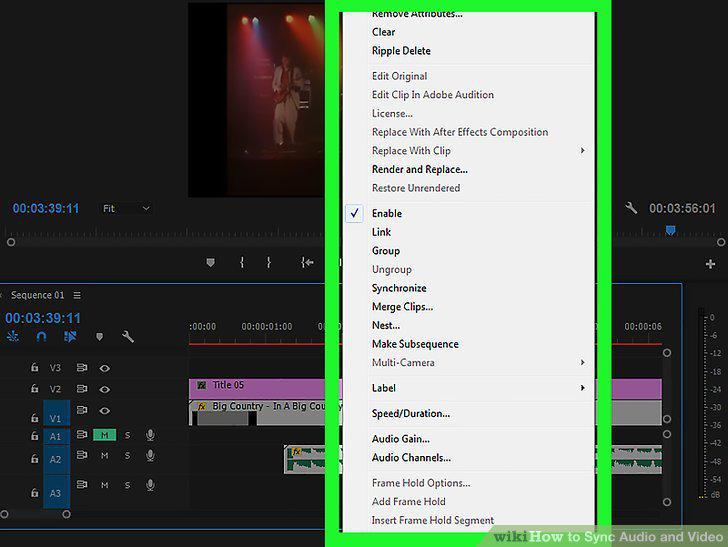
Right-click the selected clips.
Click Merge Clips on the menu.
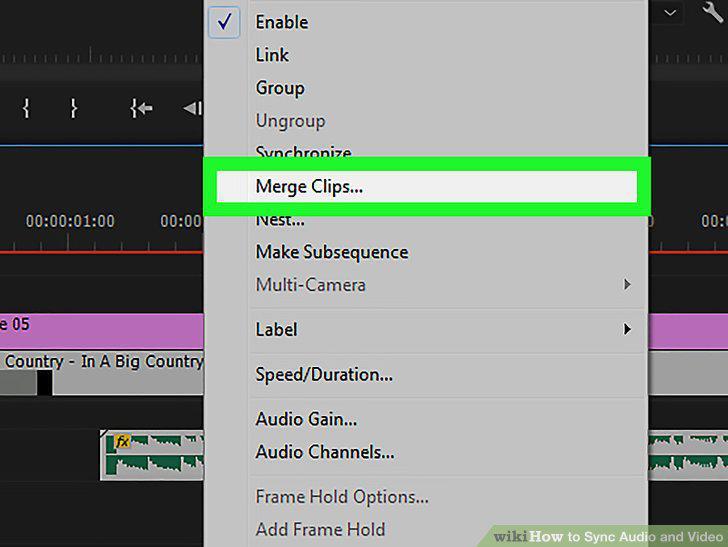
Click Merge Clips on the menu.
Select a starting point.
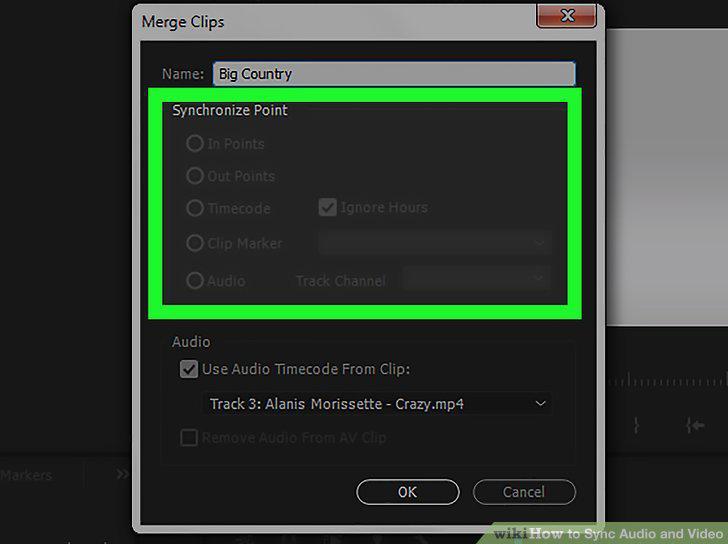
Select a starting point.
Click OK to sync.
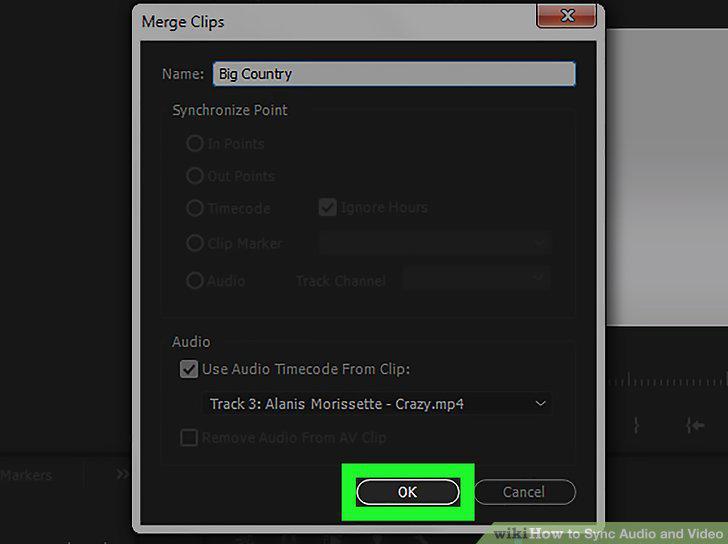
Click OK to sync.
Open Final Cut Pro X on your Mac.
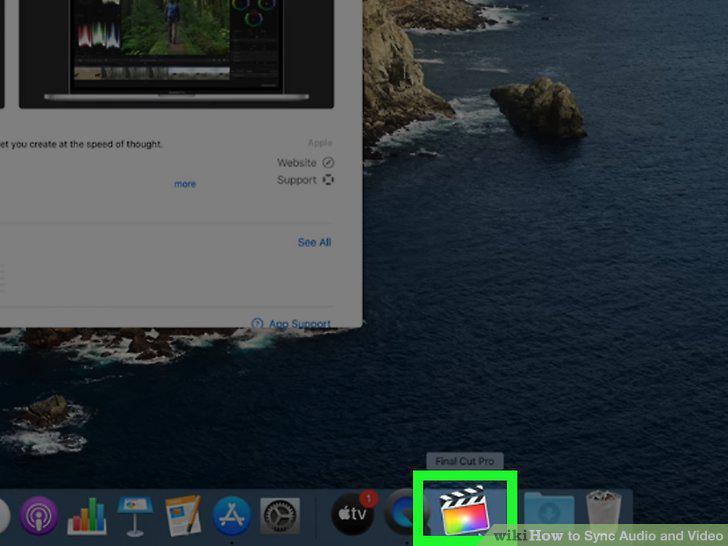
Open Final Cut Pro X on your Mac.
Select the audio and video clips you want to sync.
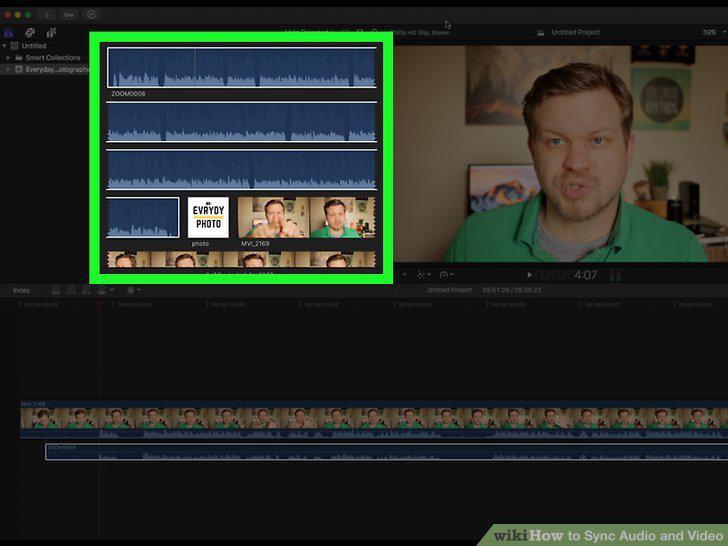
Select the audio and video clips you want to sync.
Click the Clip menu.
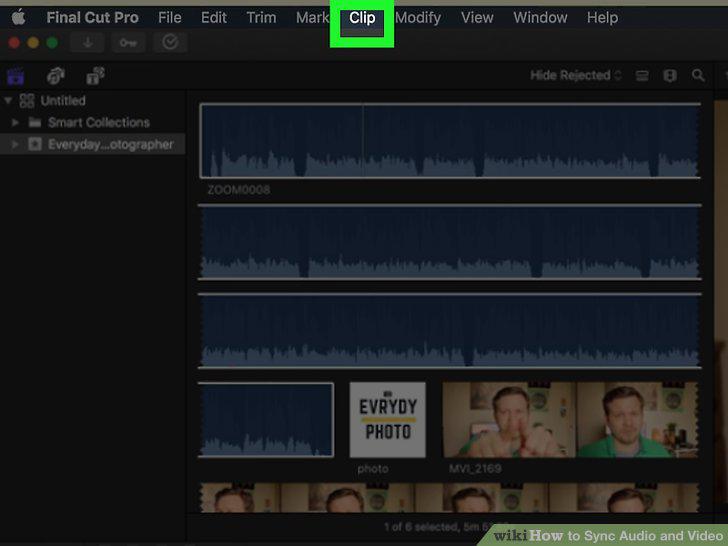
Click the Clip menu.
Click Synchronize Clips on the menu.
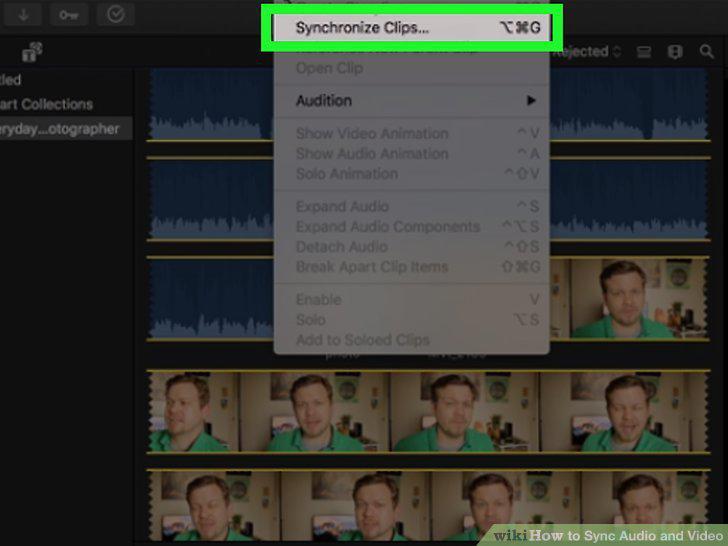
Click Synchronize Clips on the menu.
Enter your preferences.
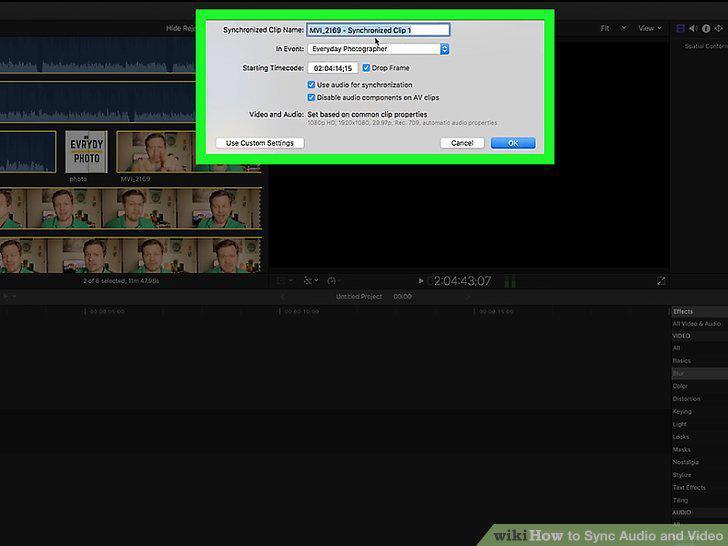
Enter your preferences.
Click OK to start syncing.
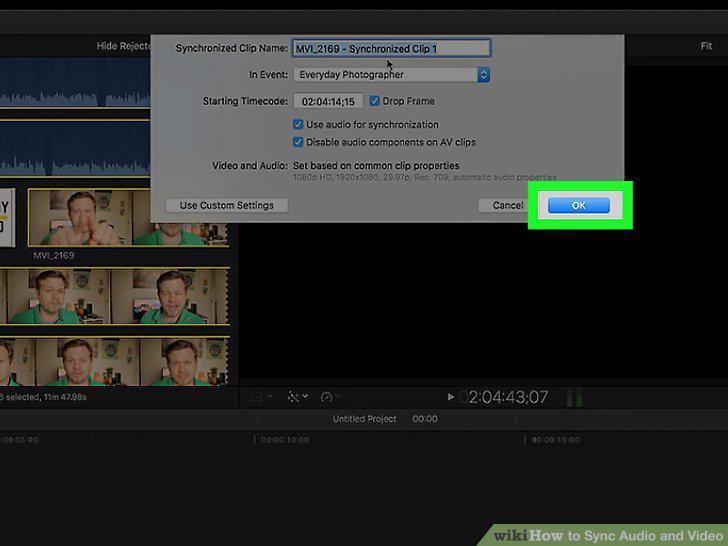
Click OK to start syncing.
Comments (0)
No comments yet. Be the first to share your thoughts!