How to Check Your Cell Phone Minutes (Sprint or Nextel)
Open your phone's Dialer app.. Tap the "Keypad" button.. Type *4 into the dialer, then tap the "Call" button.
Steps
1
Open your phone's Dialer app.
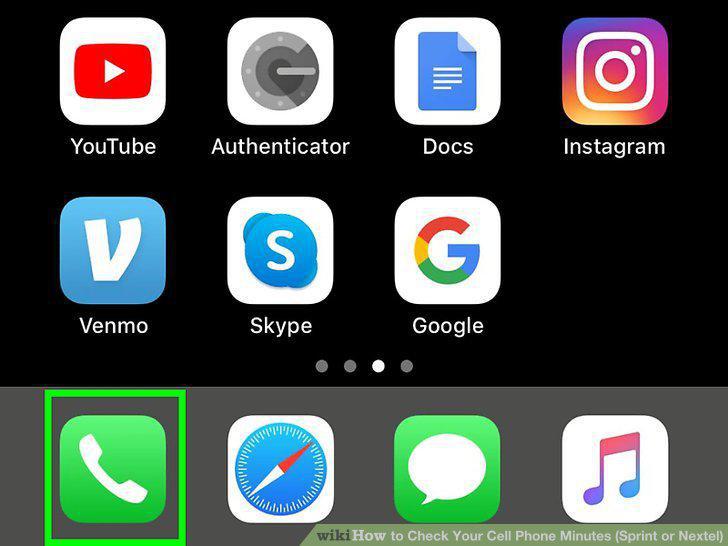
Open your phone's Dialer app.
2
Tap the "Keypad" button.
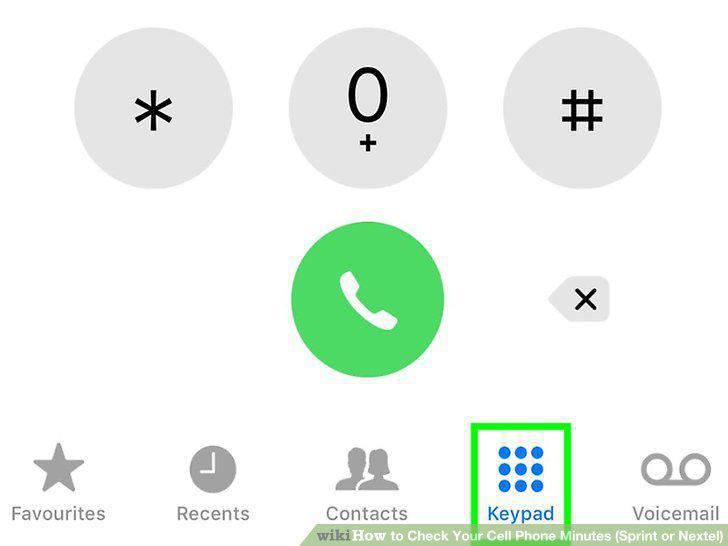
Tap the "Keypad" button.
3
Type *4 into the dialer, then tap the "Call" button.
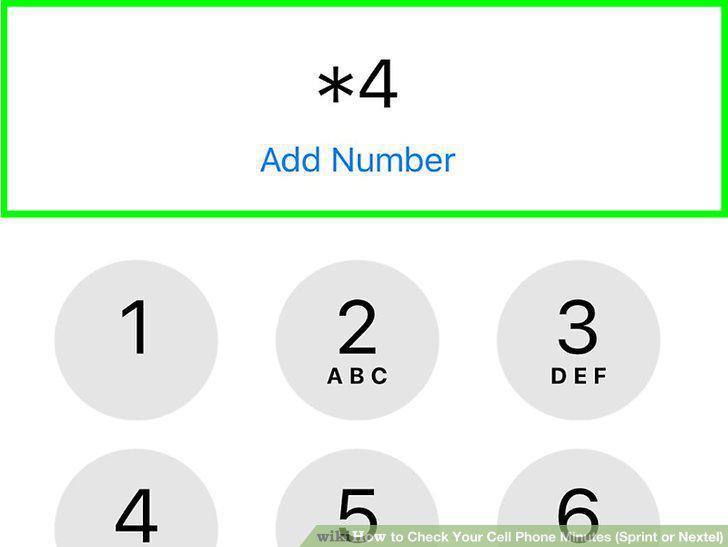
Type *4 into the dialer, then tap the "Call" button.
4
Press 4 when prompted.
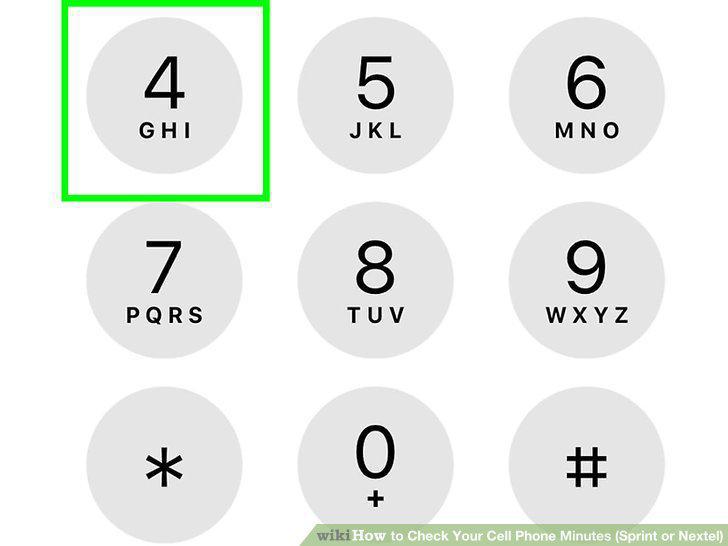
Press 4 when prompted.
5
Listen for the "Minutes" value.

Listen for the "Minutes" value.
6
Open My Sprint.
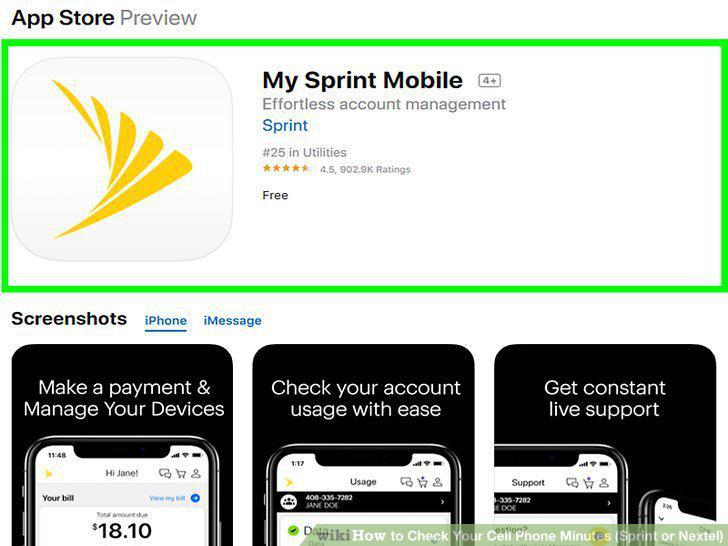
Open My Sprint.
7
Tap the dial icon.
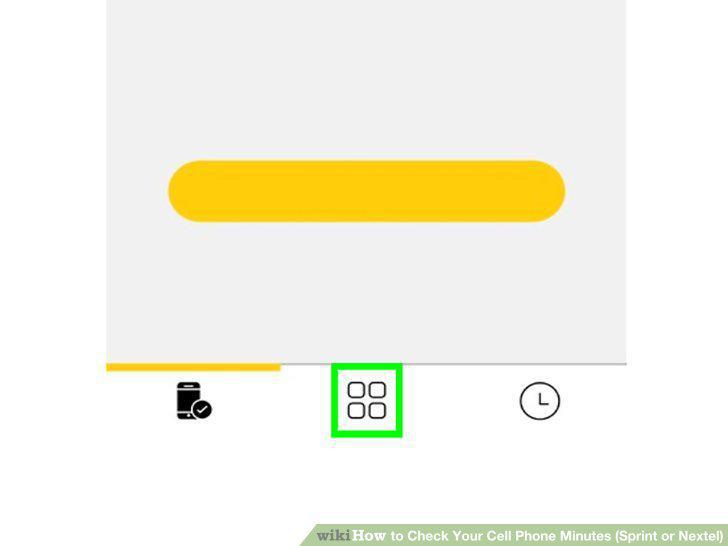
Tap the dial icon.
8
Tap the Talk option.
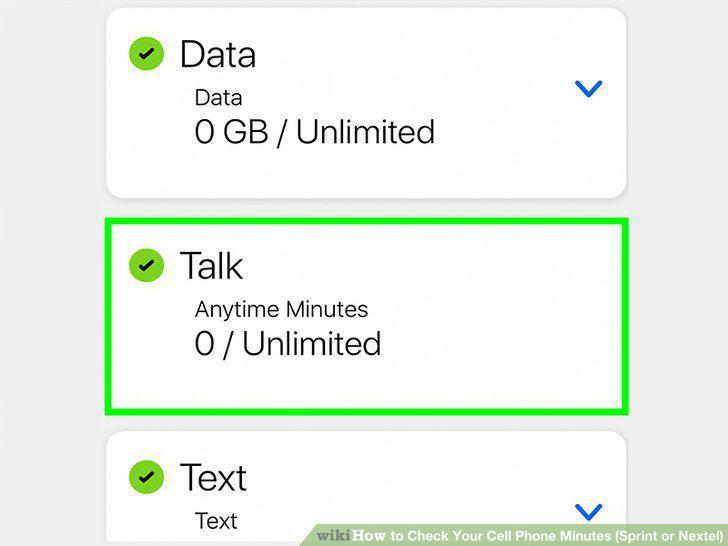
Tap the Talk option.
9
Review your remaining minutes.
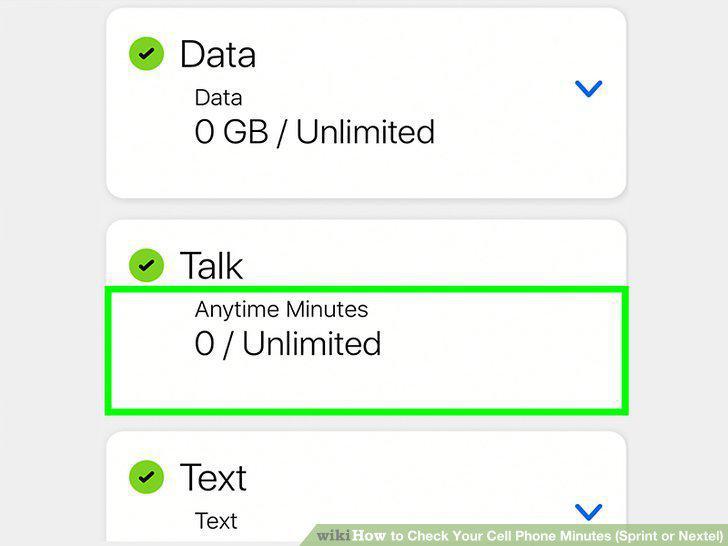
Review your remaining minutes.
10
Go to the Sprint website.

Go to the Sprint website.
11
Click Sign in.
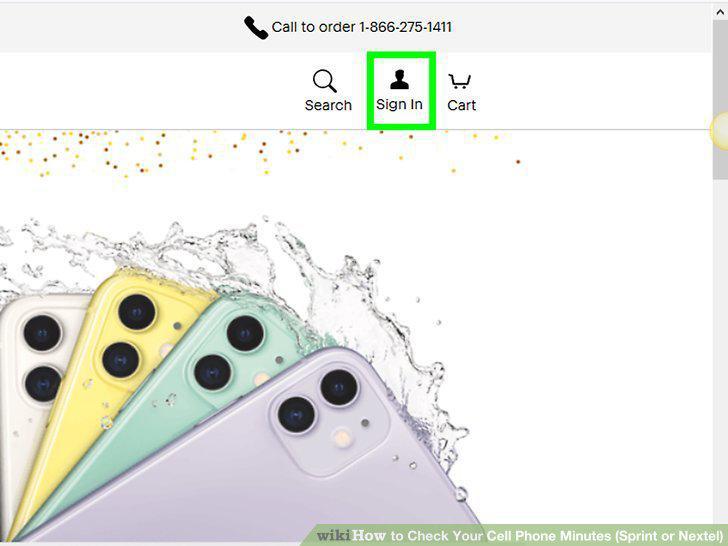
Click Sign in.
12
Enter your username and password.
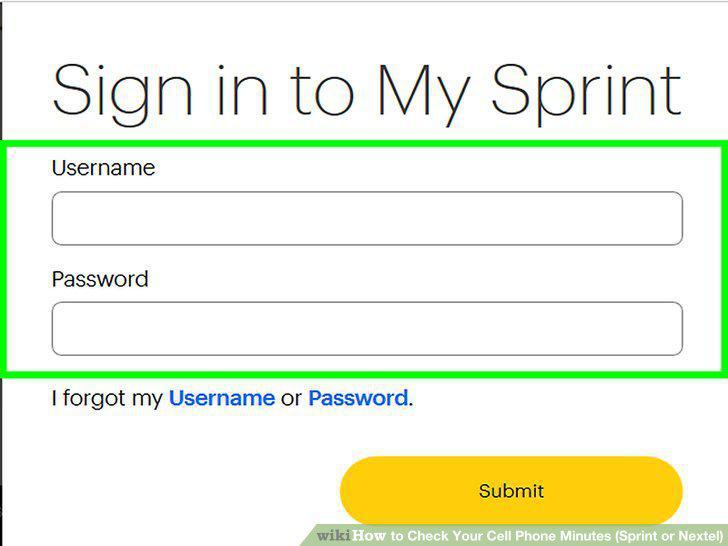
Enter your username and password.
13
Click Sign in.
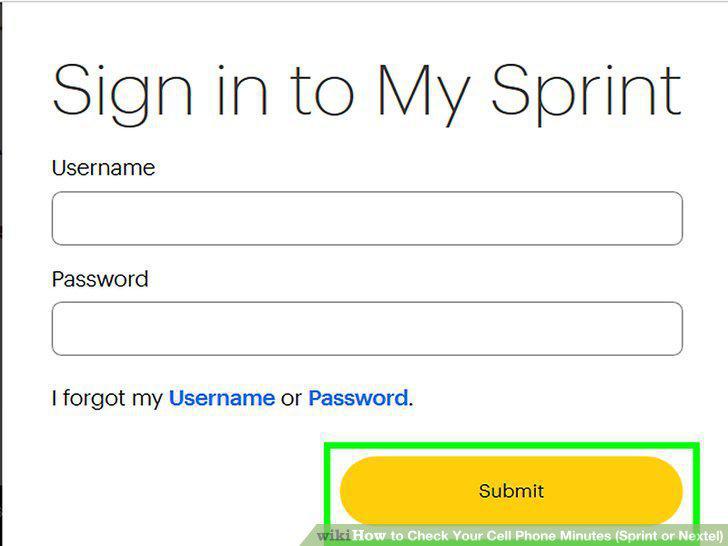
Click Sign in.
14
Click My Sprint.
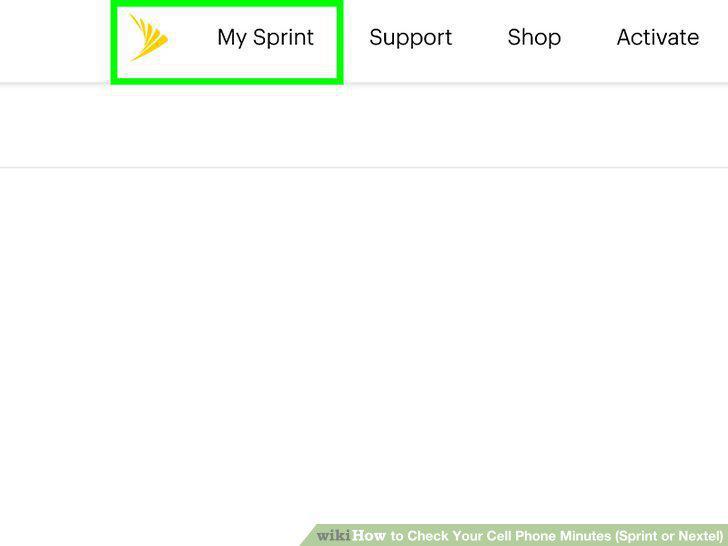
Click My Sprint.
15
Scroll down and click See all usage.
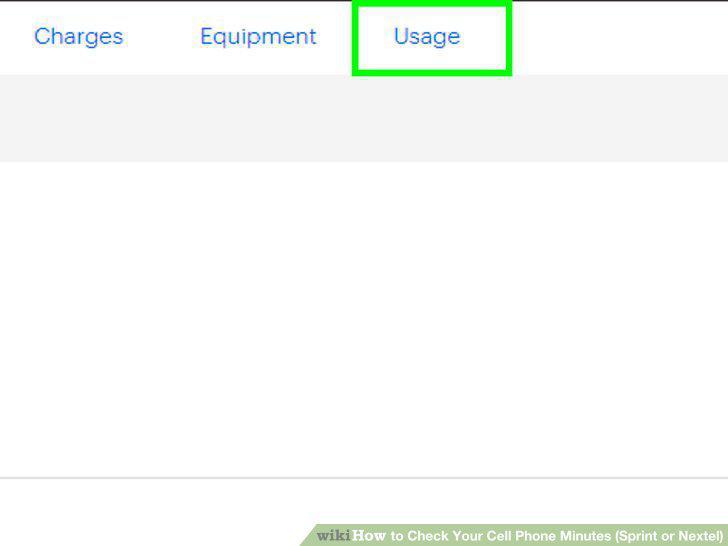
Scroll down and click See all usage.
16
View the "Minutes" value.
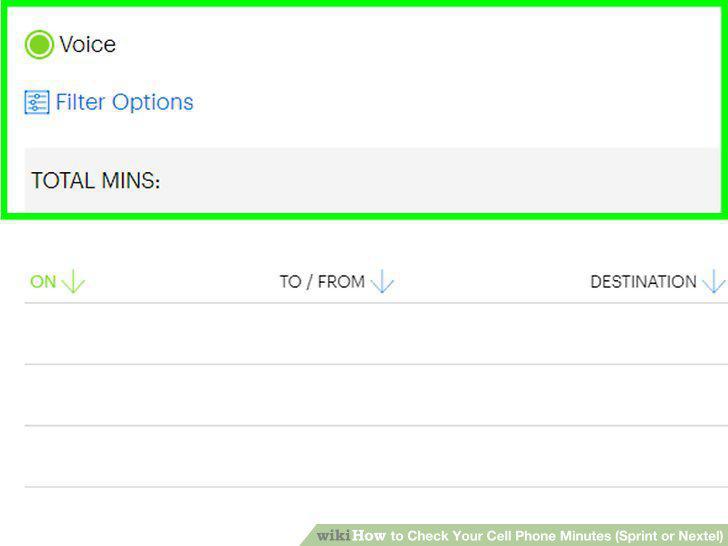
View the "Minutes" value.
Comments (0)
No comments yet. Be the first to share your thoughts!