How to Add Cells in Google Sheets
Open your document in Google Sheets.. Navigate to where you want to add the cell.. Right-click the cell next to where you want to add cell(s) (desktop only).
Steps
1
Open your document in Google Sheets.
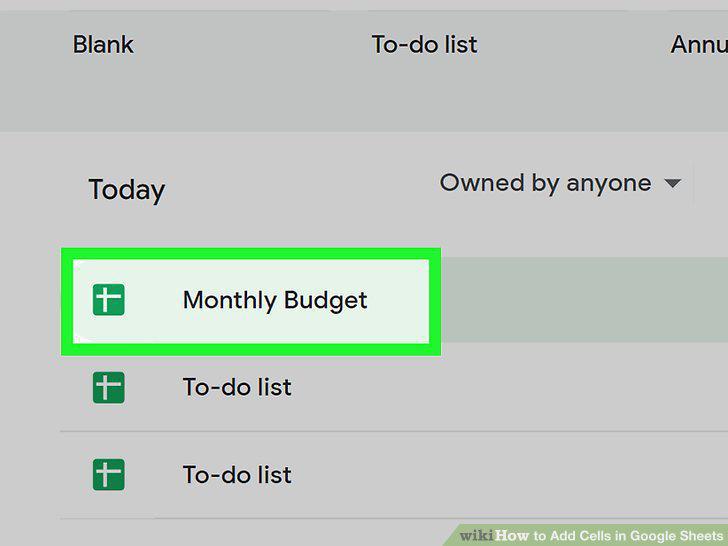
Open your document in Google Sheets.
2
Navigate to where you want to add the cell.
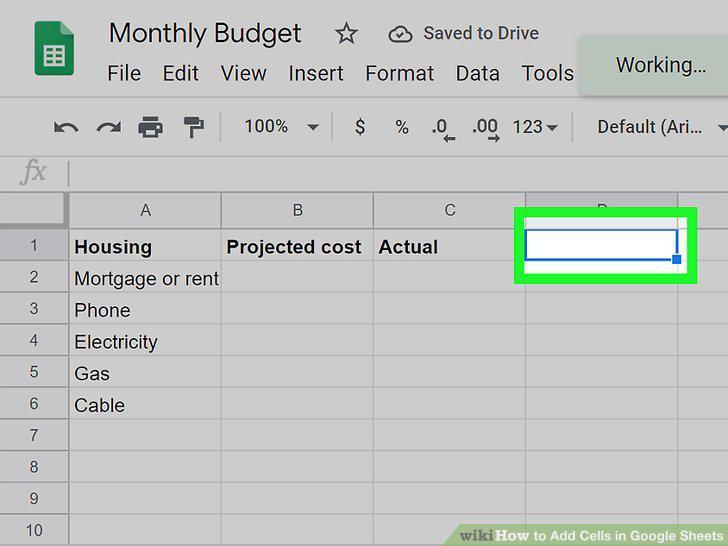
Navigate to where you want to add the cell.
3
Right-click the cell next to where you want to add cell(s) (desktop only).
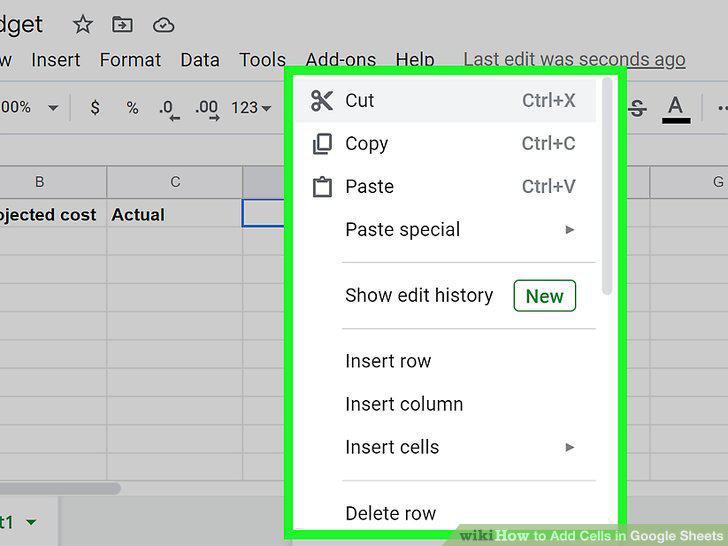
Right-click the cell next to where you want to add cell(s) (desktop only).
4
Hover your cursor over Insert cells and select Shift right or Shift down.
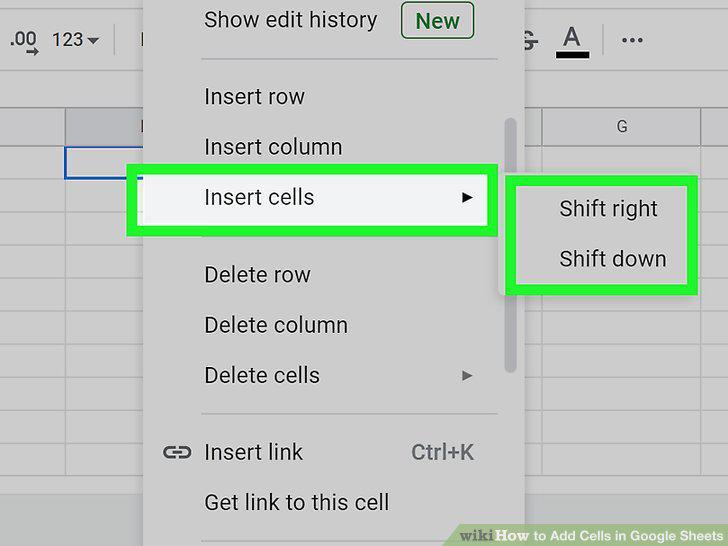
Hover your cursor over Insert cells and select Shift right or Shift down.
5
Open your document in Google Sheets.
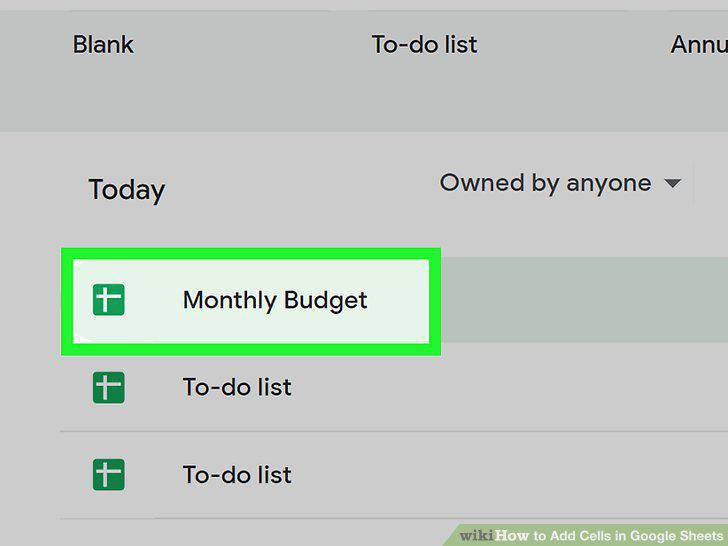
Open your document in Google Sheets.
6
Highlight the number of cells, rows, or columns you want to add.
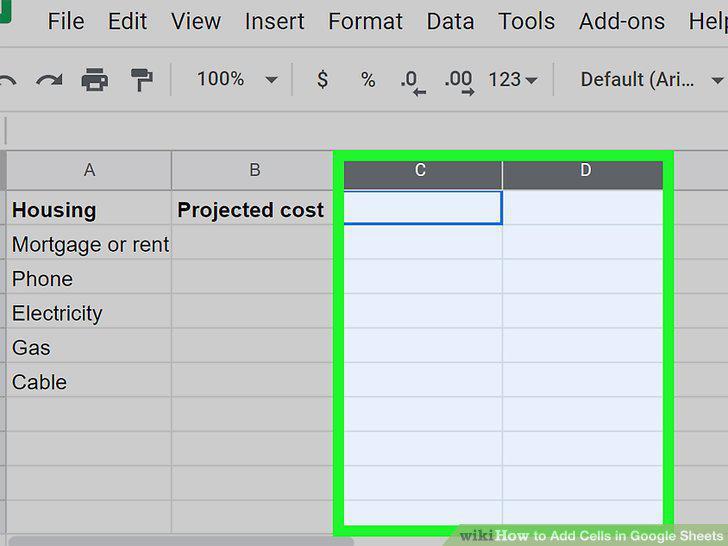
Highlight the number of cells, rows, or columns you want to add.
7
Right-click the highlighted area.
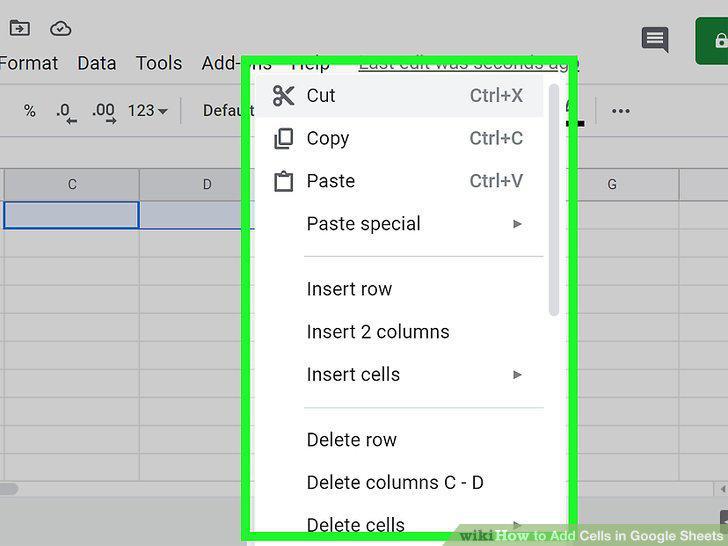
Right-click the highlighted area.
8
Click Insert [NUMBER] cells/rows/columns.
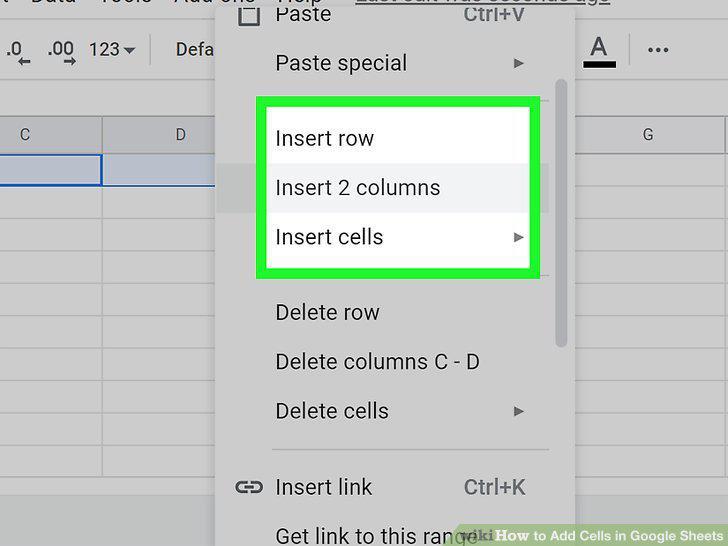
Click Insert [NUMBER] cells/rows/columns.
Comments (0)
No comments yet. Be the first to share your thoughts!