How to Remove an Undeletable Stuck Document from the Windows Printer Queue
Turn off your printer from the printer itself and make sure the power cords are properly inserted into the printer and into the printer/USB port on your computer.. Right-click the Computer/My Computer box, from your Windows operating system and select the "Manage" option from the context menu that r
Steps
Turn off your printer from the printer itself and make sure the power cords are
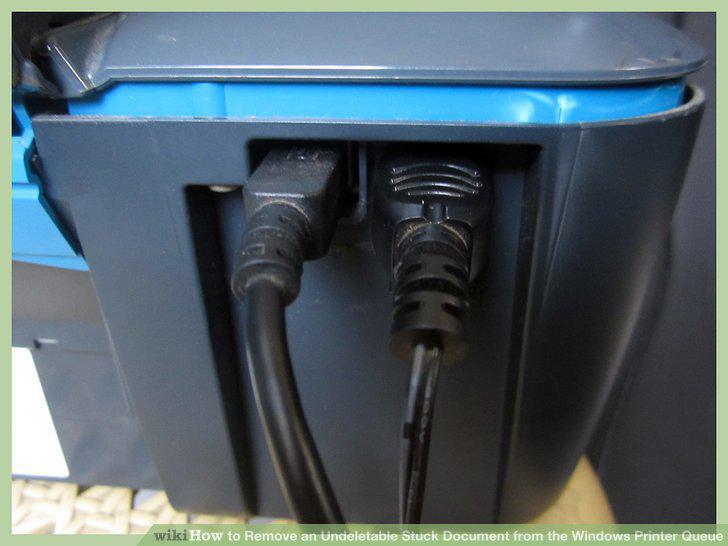
Turn off your printer from the printer itself and make sure the power cords are properly inserted into the printer and into the printer/USB port on your computer.
Right-click the Computer/My Computer box, from your Windows operating system and
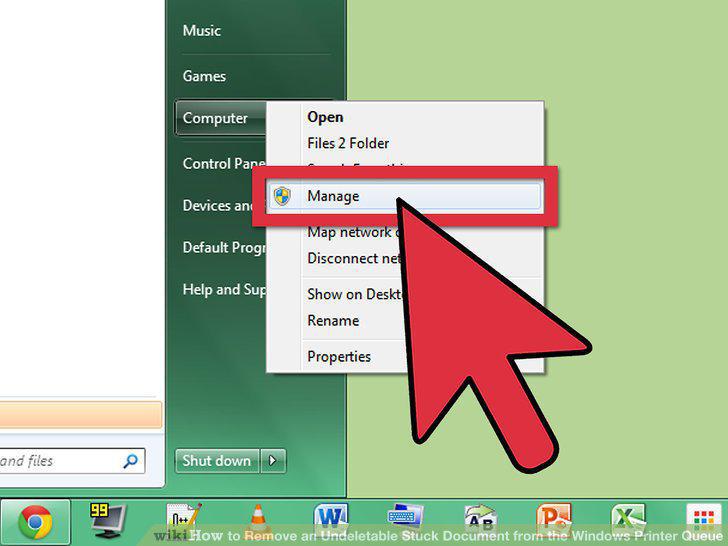
Right-click the Computer/My Computer box, from your Windows operating system and select the "Manage" option from the context menu that results.
Grant your computer access to the "Computer Management Snapin Launcher" tool fro
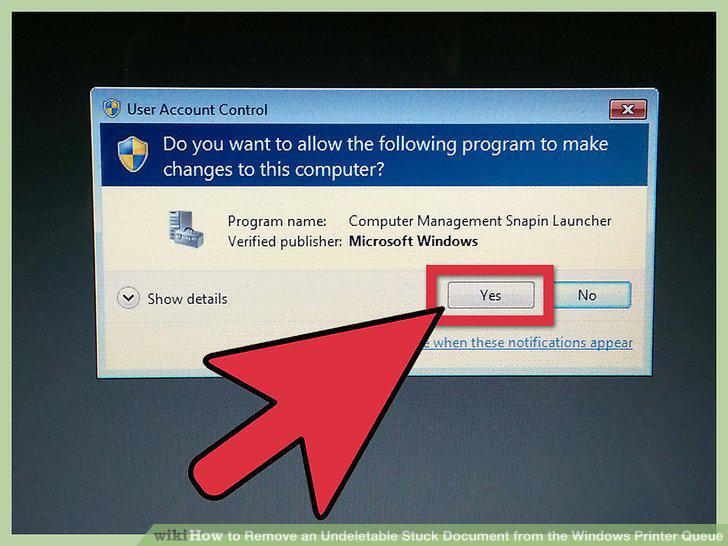
Grant your computer access to the "Computer Management Snapin Launcher" tool from the User Account Control box that displays if your computer is Windows Vista or newer.
Double-click the Services and Applications selection from the Name column follow
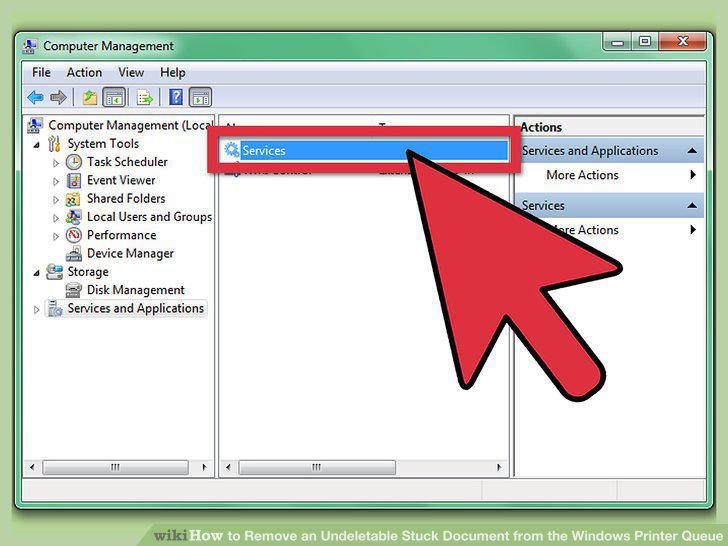
Double-click the Services and Applications selection from the Name column followed by the "Services" item.
Scroll and click on the Print Spooler item in the list of services your computer
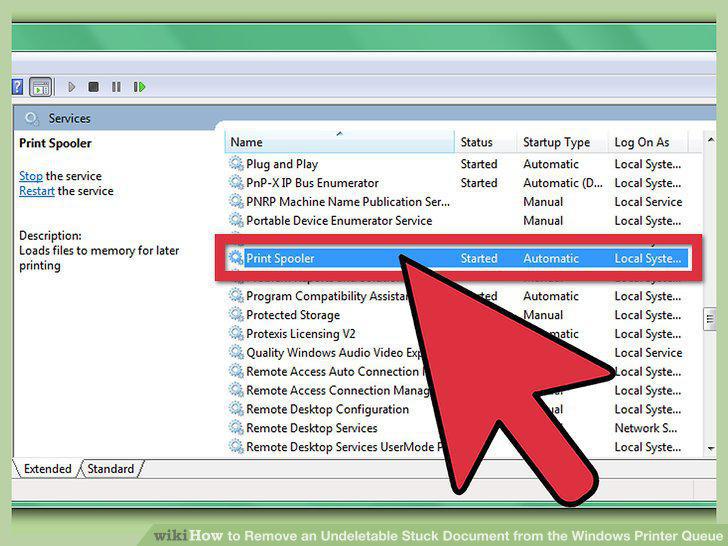
Scroll and click on the Print Spooler item in the list of services your computer is using.
Right-click the "Properties" option and click the "Stop" button.
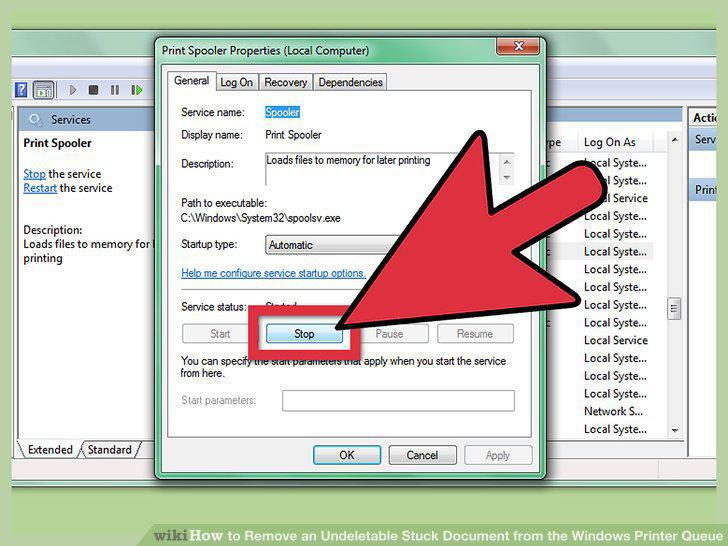
Right-click the "Properties" option and click the "Stop" button.
Delete all documents that exist in the C:\Windows|System32\spool\PRINTERS folder
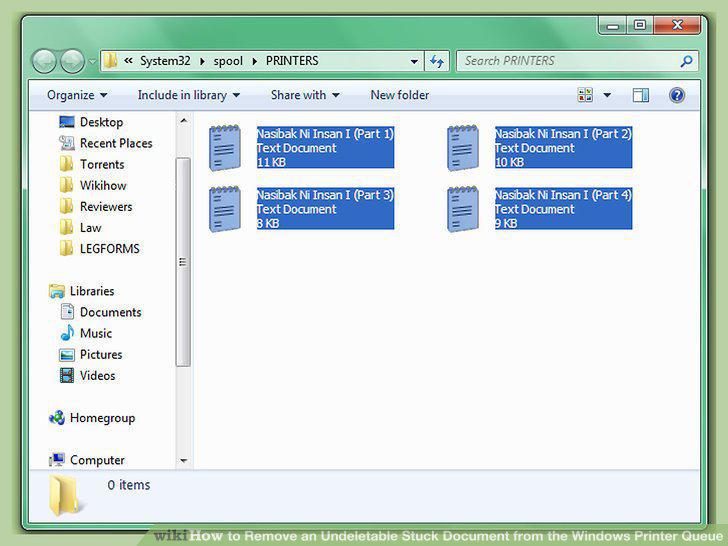
Delete all documents that exist in the C:\Windows|System32\spool\PRINTERS folder using your computer's Windows Explorer (folder tree) list folder.
Restart the Print Spooler service from the Print Spooler Properties box and clic
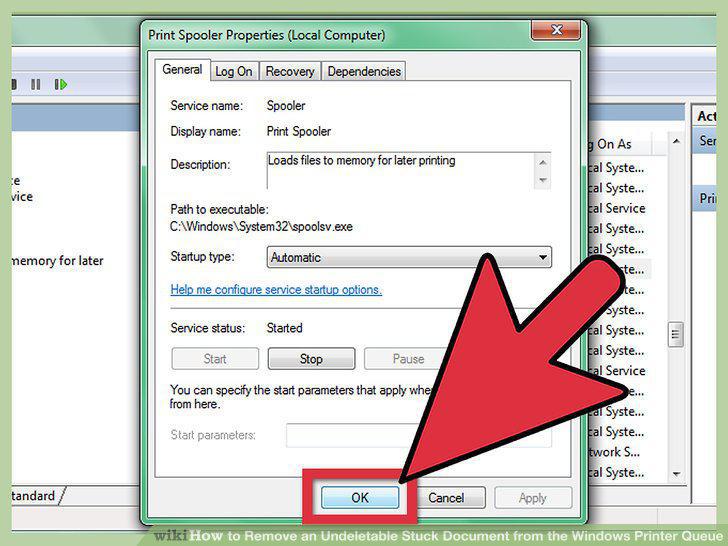
Restart the Print Spooler service from the Print Spooler Properties box and click the "OK" button to confirm you'd like to restart the service.
Close the "Computer Management" dialog box.
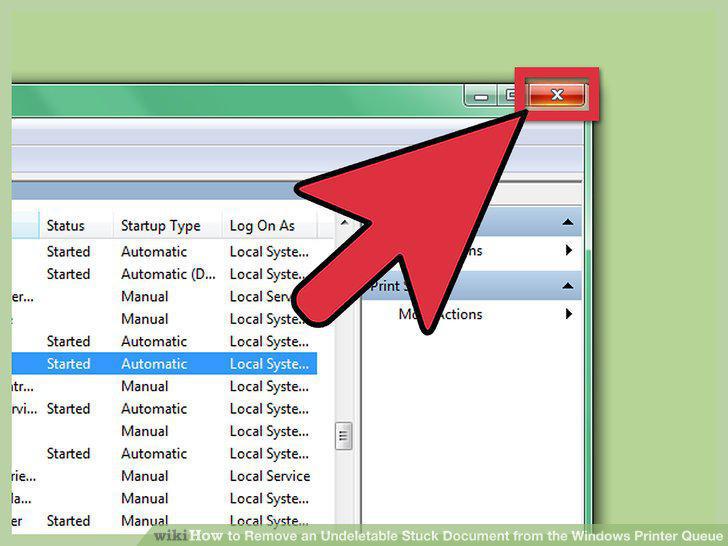
Close the "Computer Management" dialog box.
Re-run a test printable document.
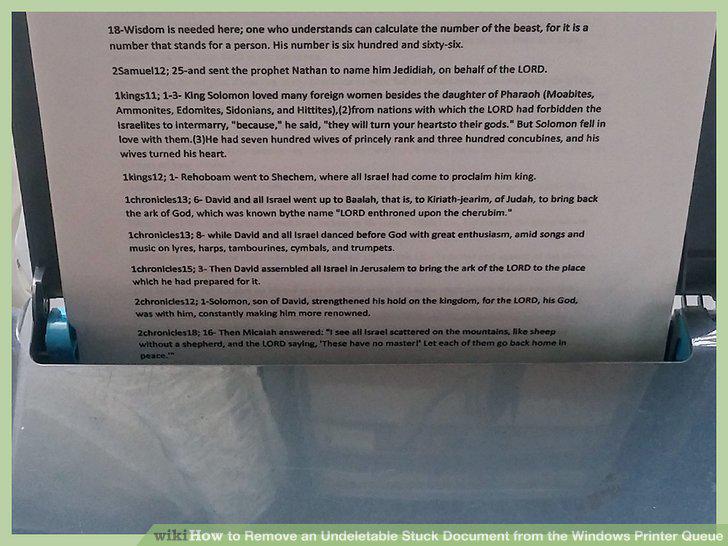
Re-run a test printable document.
Comments (0)
No comments yet. Be the first to share your thoughts!