How to Fix a Hyperlink in Excel
Open the workbook with the broken hyperlink(s).. Right-click the hyperlink and select Edit Hyperlink.. Verify the link location.
Steps
1
Open the workbook with the broken hyperlink(s).
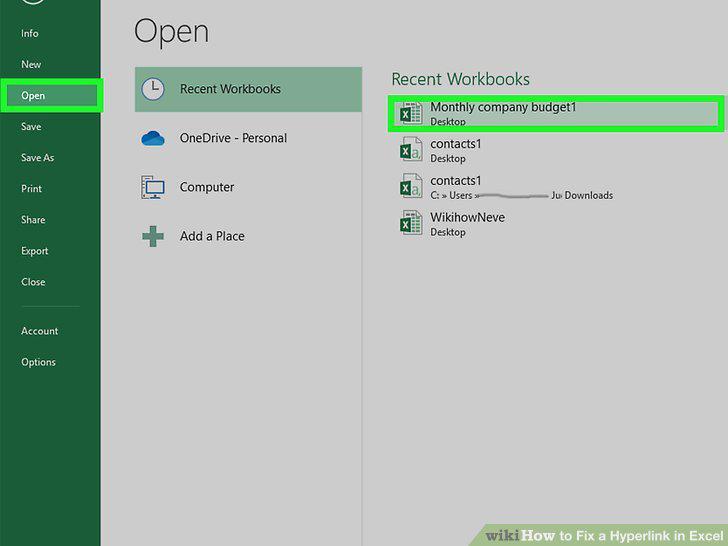
Open the workbook with the broken hyperlink(s).
2
Right-click the hyperlink and select Edit Hyperlink.
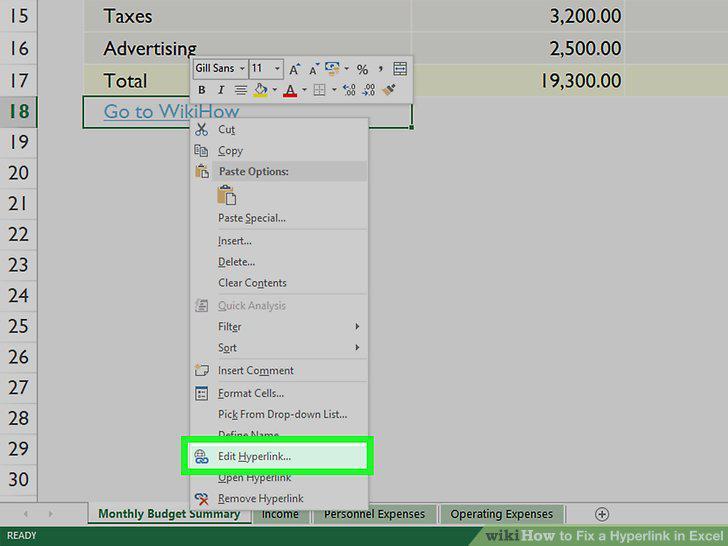
Right-click the hyperlink and select Edit Hyperlink.
3
Verify the link location.
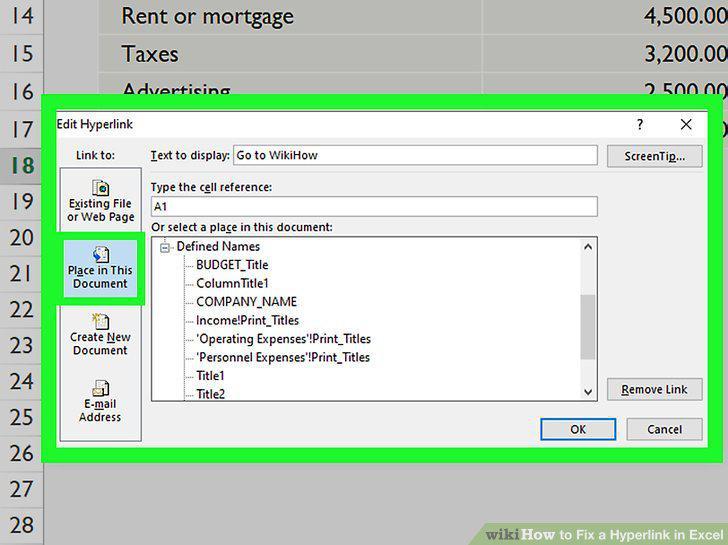
Verify the link location.
4
Double-check the syntax if you're using the HYPERLINK function.
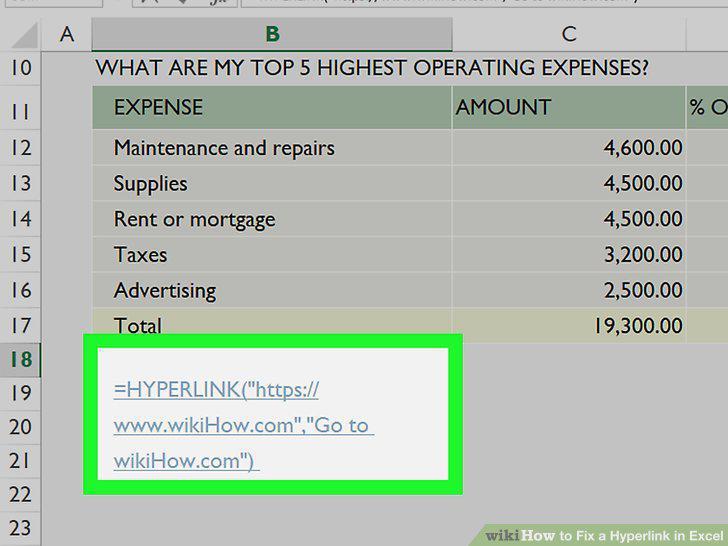
Double-check the syntax if you're using the HYPERLINK function.
5
Open the workbook with the broken hyperlink(s).
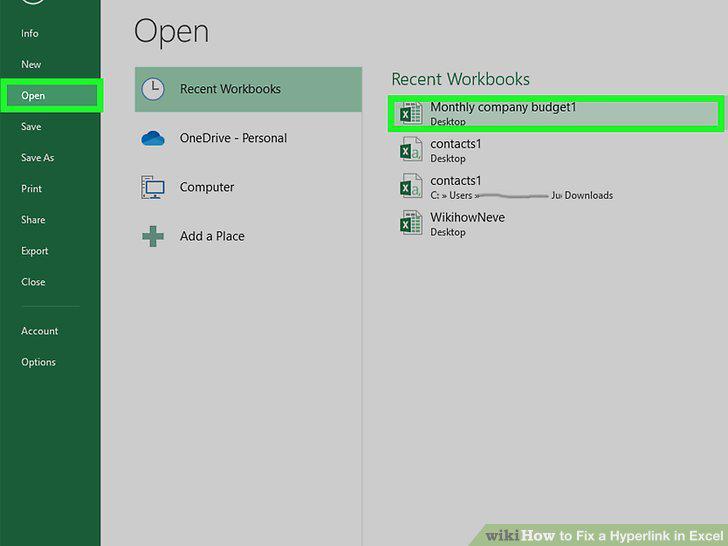
Open the workbook with the broken hyperlink(s).
6
Click the File menu.
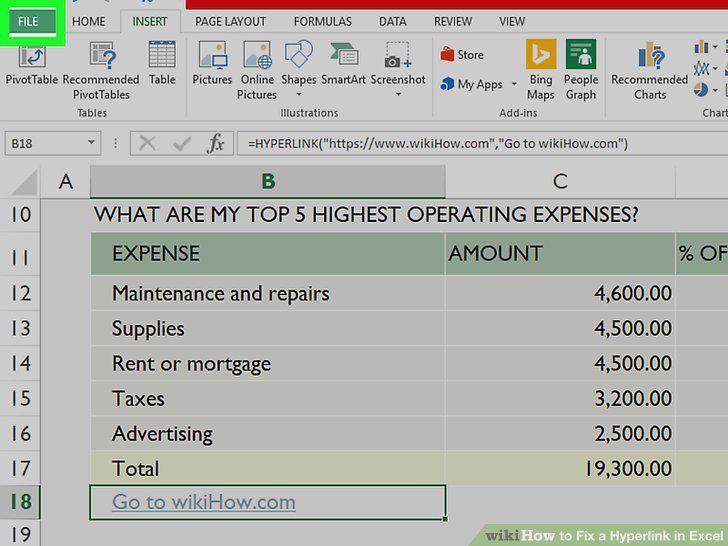
Click the File menu.
7
Click Options on the menu.
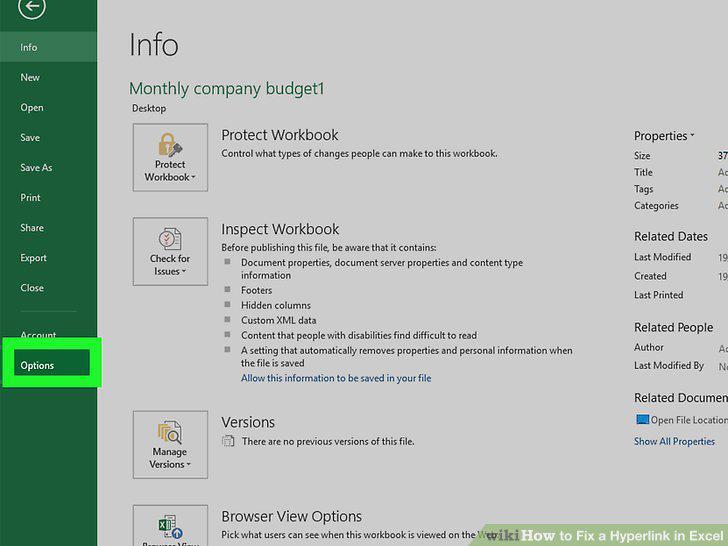
Click Options on the menu.
8
Click the Advanced tab.
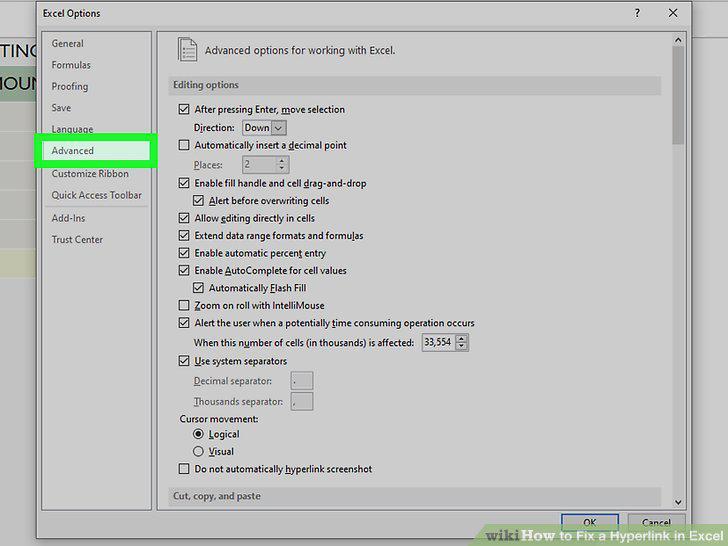
Click the Advanced tab.
9
Scroll down and click the Web Options button.
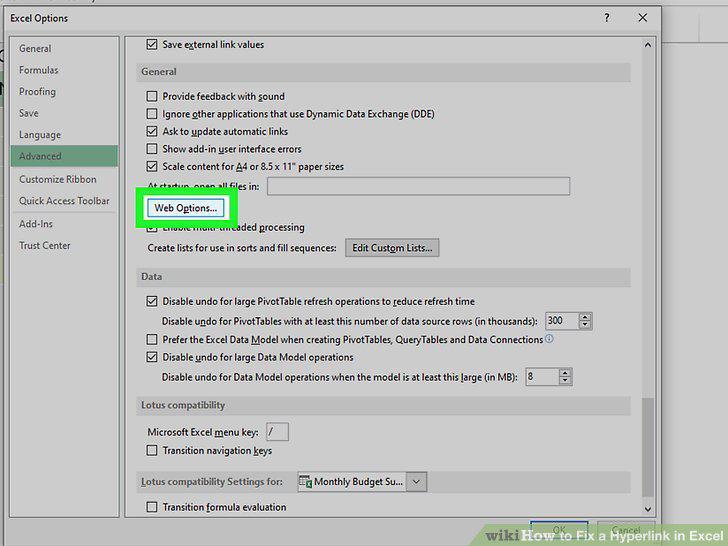
Scroll down and click the Web Options button.
10
Click the Files tab.
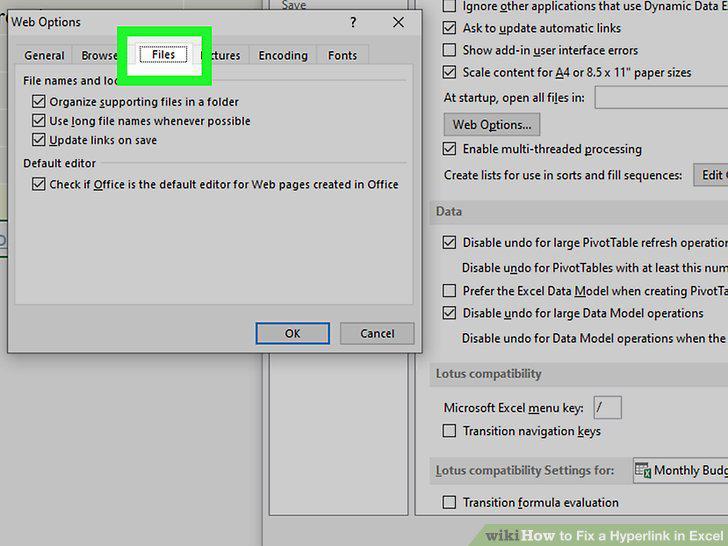
Click the Files tab.
11
Remove the checkmark from "Update links on save.
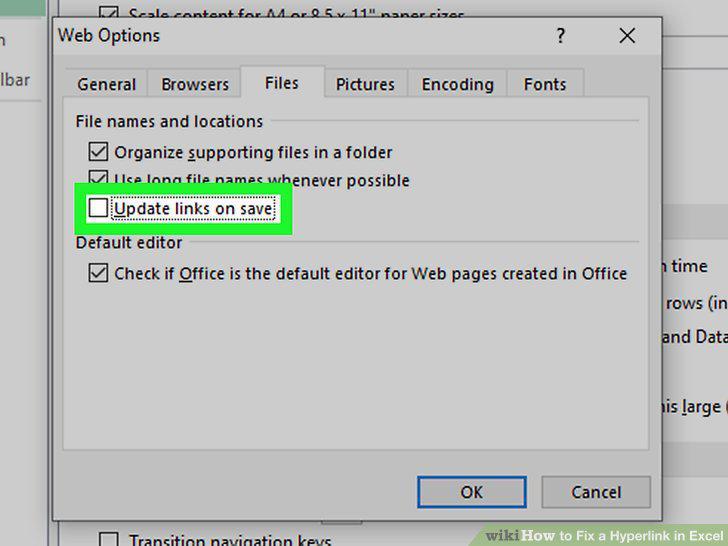
Remove the checkmark from "Update links on save.
12
Click OK until you've exited all Options windows.
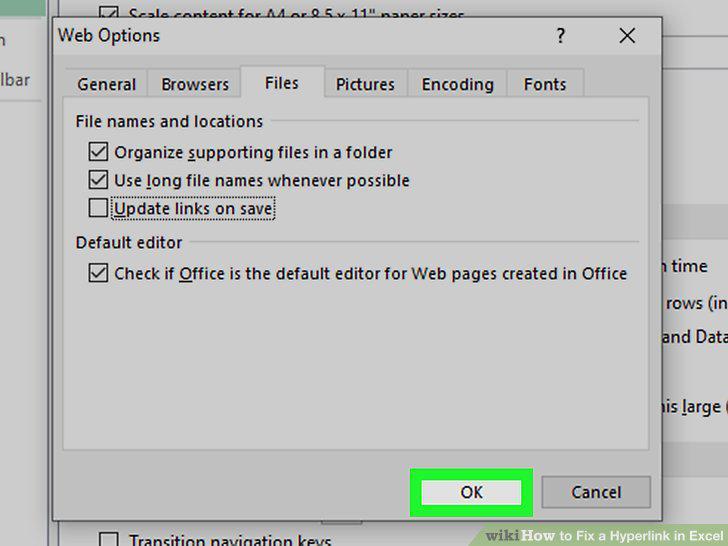
Click OK until you've exited all Options windows.
Comments (0)
No comments yet. Be the first to share your thoughts!