How to Create a Link
Go to the webpage to which you want to link.. Select the webpage's address.. Copy the address.
Steps
1
Go to the webpage to which you want to link.

Go to the webpage to which you want to link.
2
Select the webpage's address.

Select the webpage's address.
3
Copy the address.
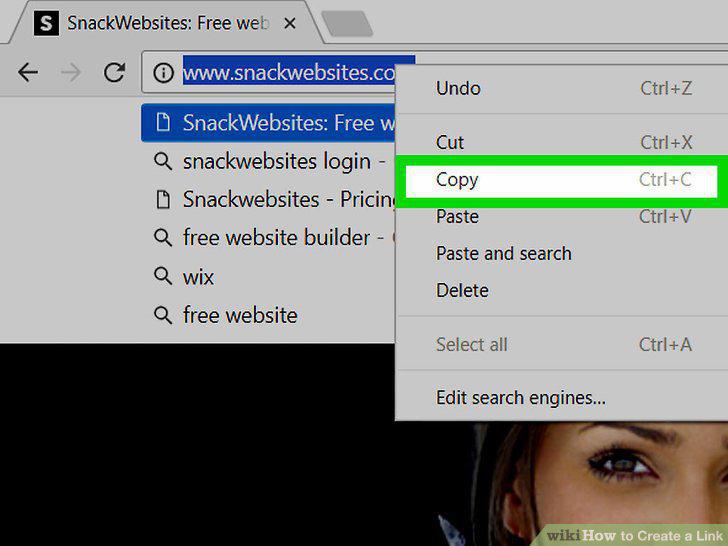
Copy the address.
4
Find a place to post the link.
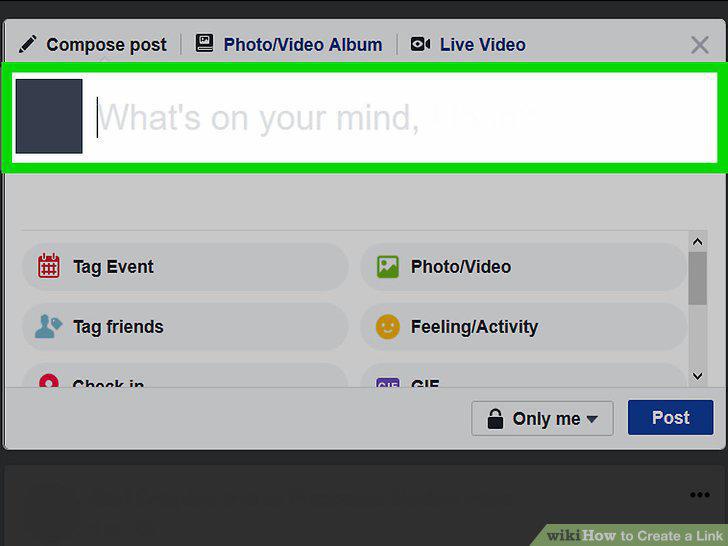
Find a place to post the link.
5
Paste your link.
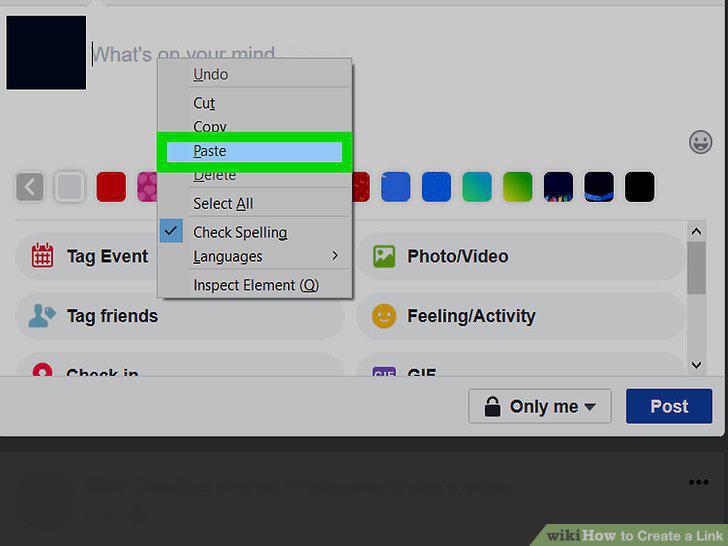
Paste your link.
6
Test your link.
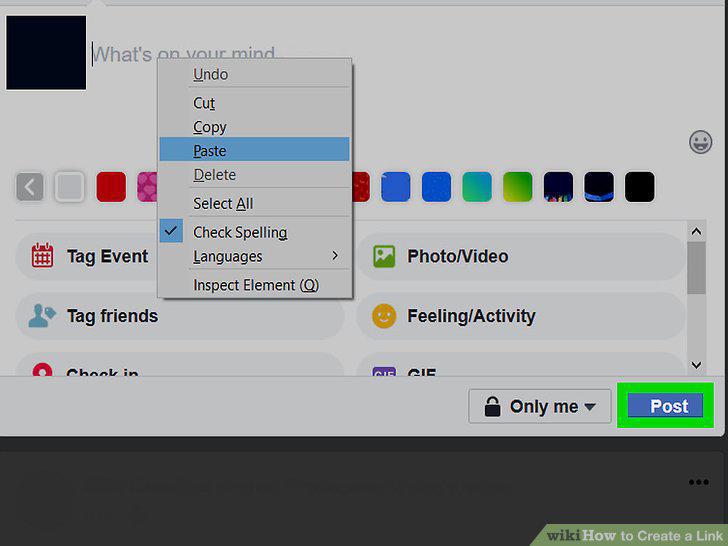
Test your link.
7
Copy a website's address
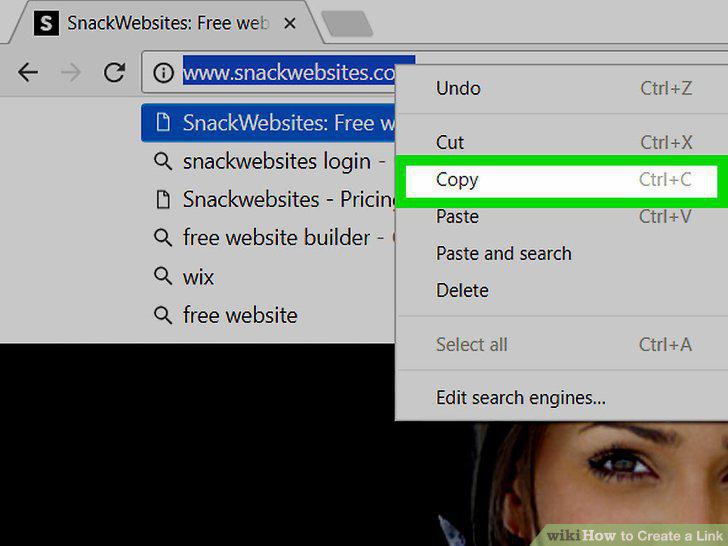
Copy a website's address
8
Open your preferred email on a computer.

Open your preferred email on a computer.
9
Open a new email window.
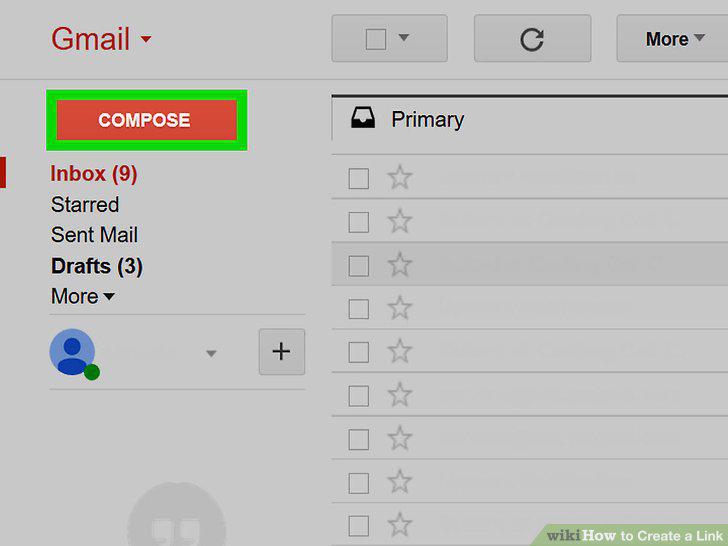
Open a new email window.
10
Click the email's body section.
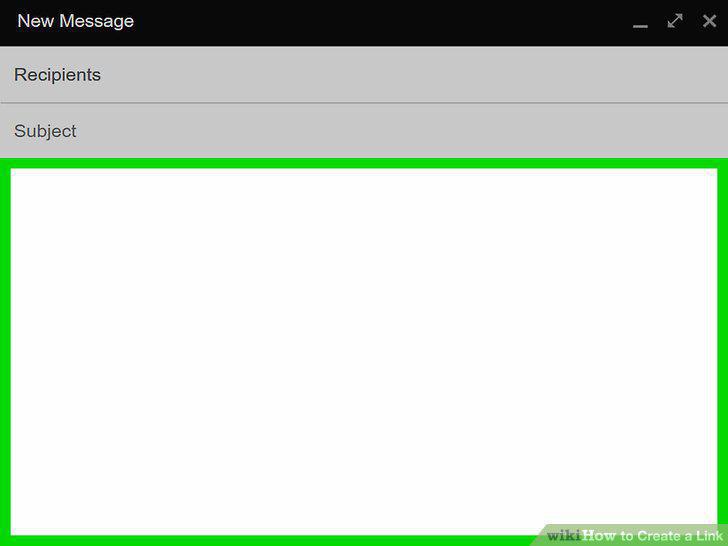
Click the email's body section.
11
Click the hyperlink icon.
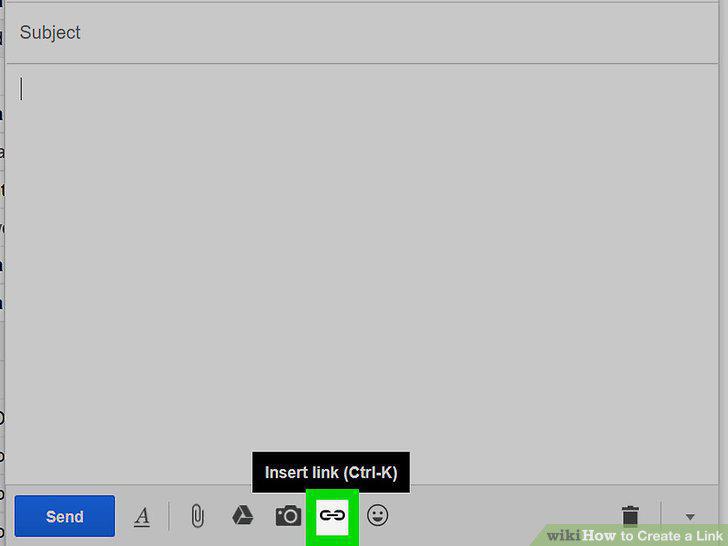
Click the hyperlink icon.
12
Paste in your link.
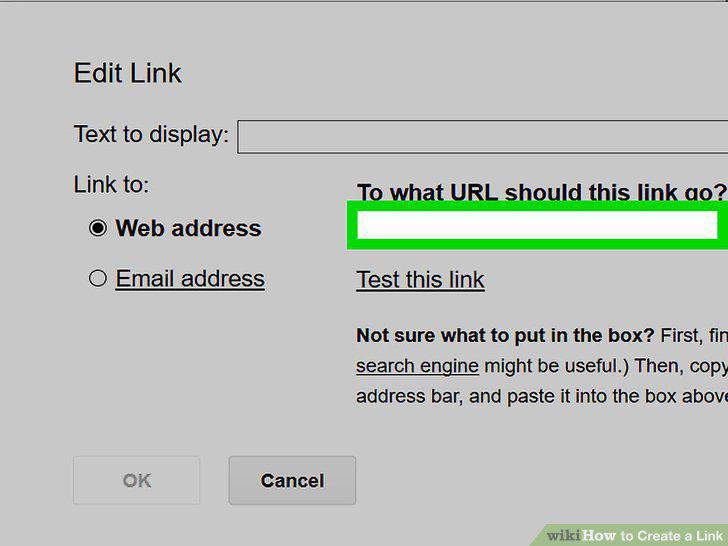
Paste in your link.
13
Enter your hyperlink's text.
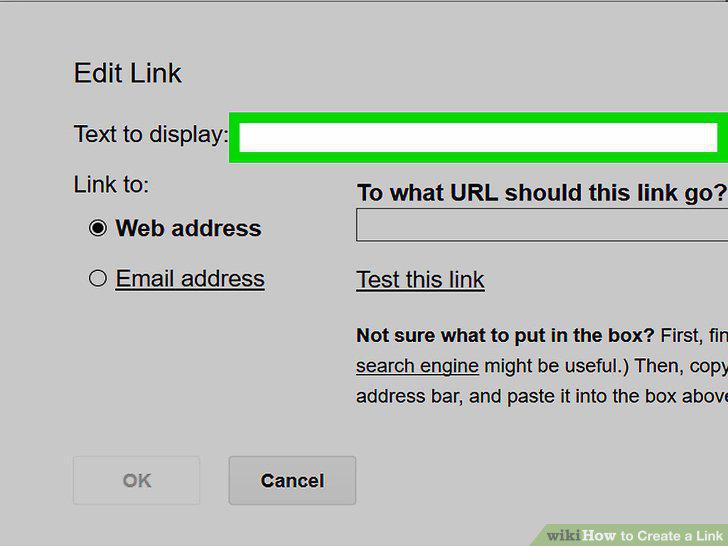
Enter your hyperlink's text.
14
Click OK or Save.
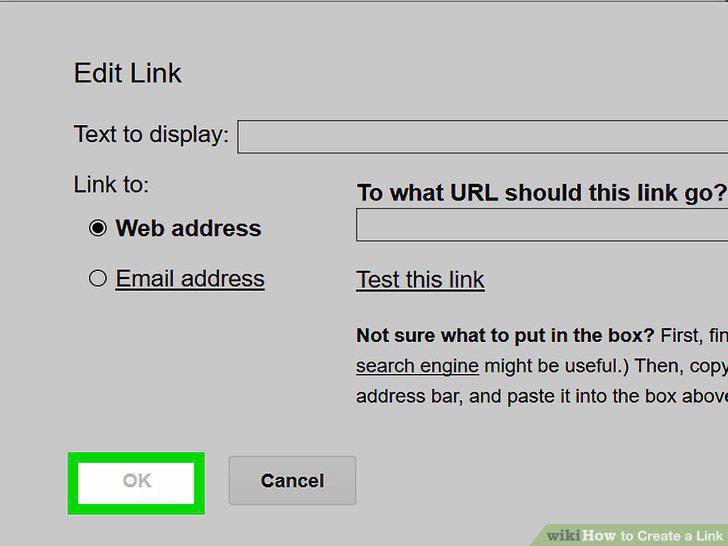
Click OK or Save.
15
Open a text editor.
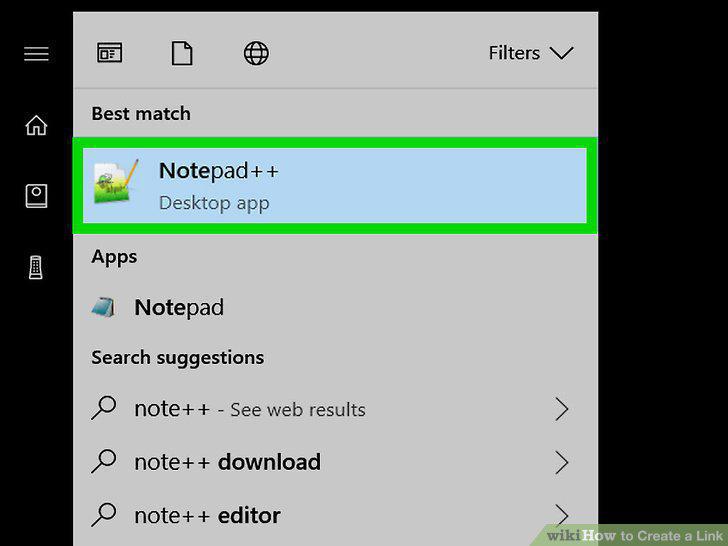
Open a text editor.
16
Make sure that the content is on your website.
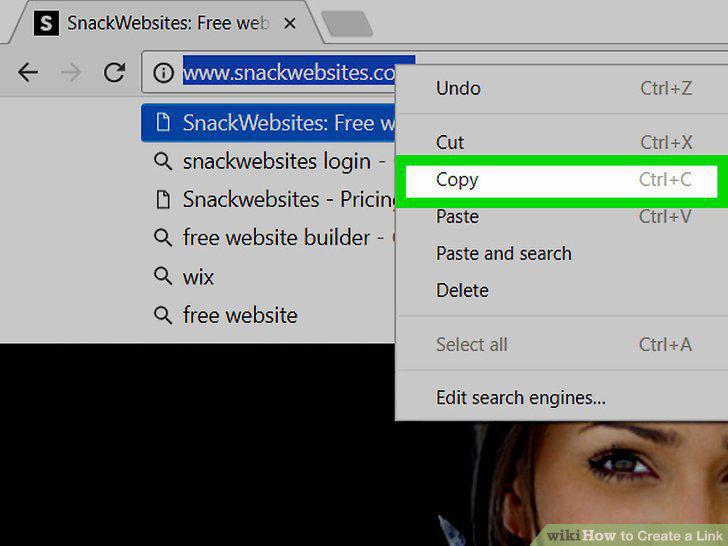
Make sure that the content is on your website.
17
Create your link text.
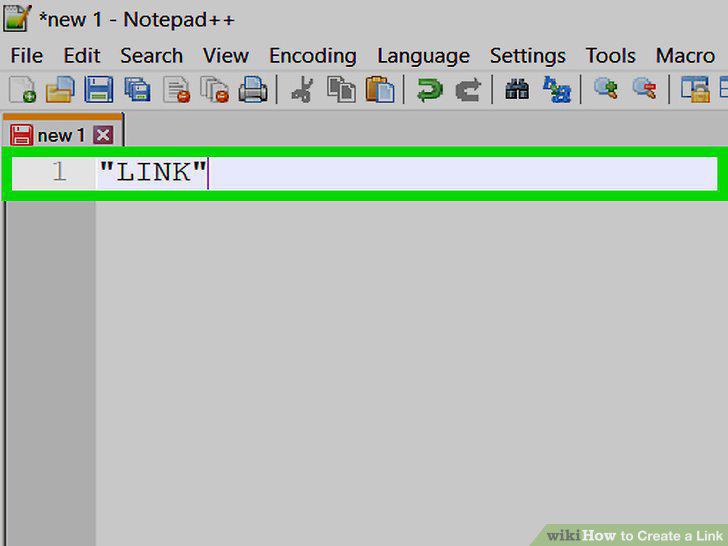
Create your link text.
18
Surround the link text with tags.
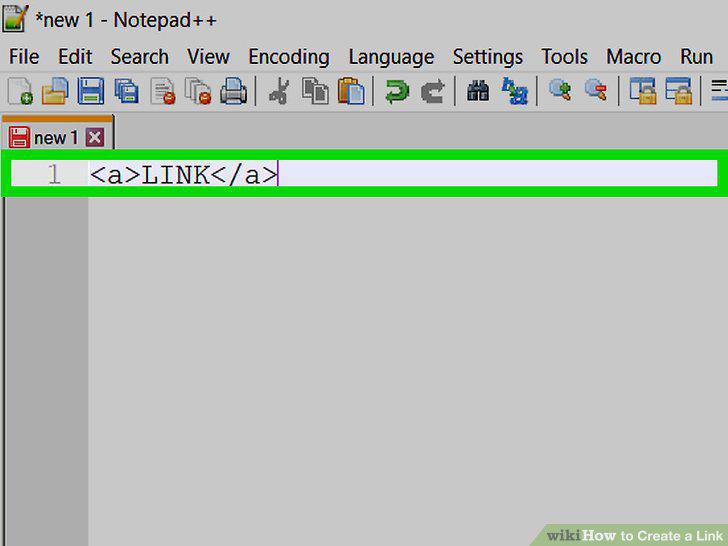
Surround the link text with tags.
19
Add the "href" attribute.
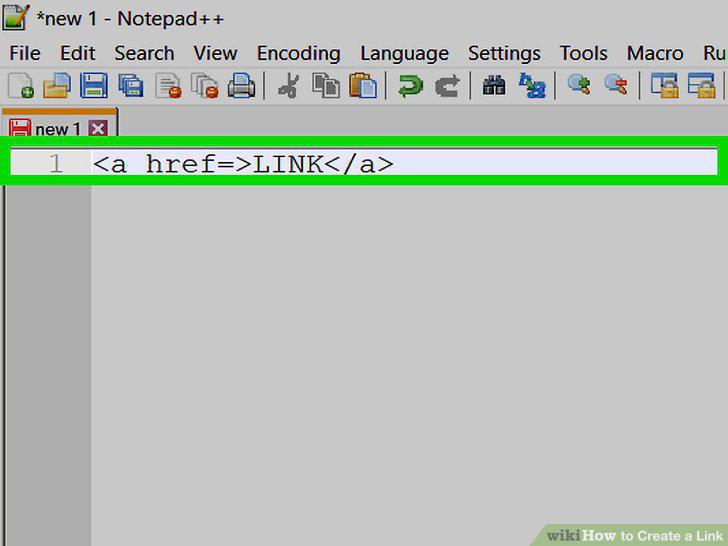
Add the "href" attribute.
20
Enter a website's address.
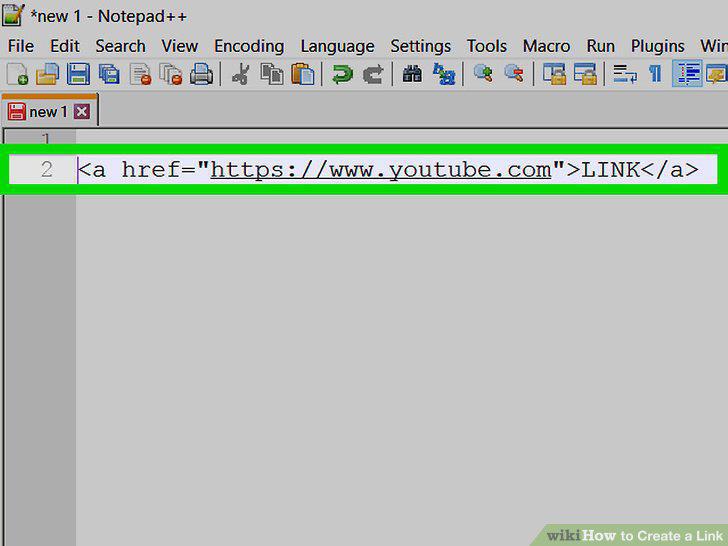
Enter a website's address.
21
Post your link.
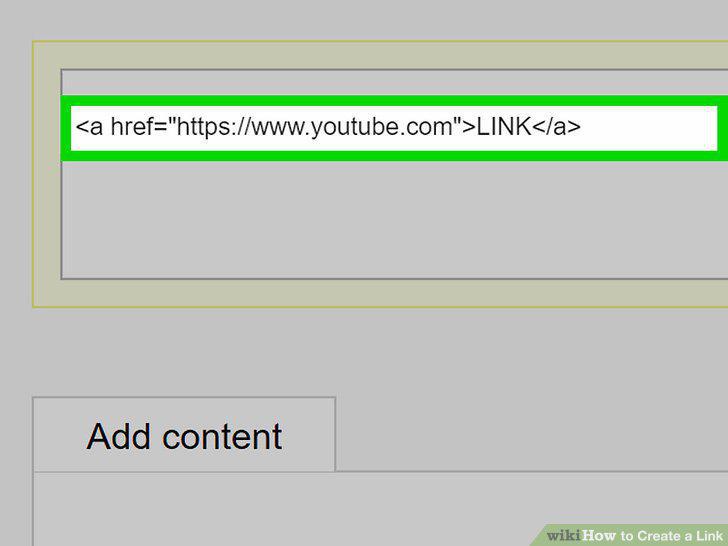
Post your link.
Comments (0)
No comments yet. Be the first to share your thoughts!