How to Enable a Fingerprint Reader in Windows 10
Connect your external fingerprint reader to your computer (if not built-in).. Open your Windows Settings .. Click Accounts.
Steps
1
Connect your external fingerprint reader to your computer (if not built-in).
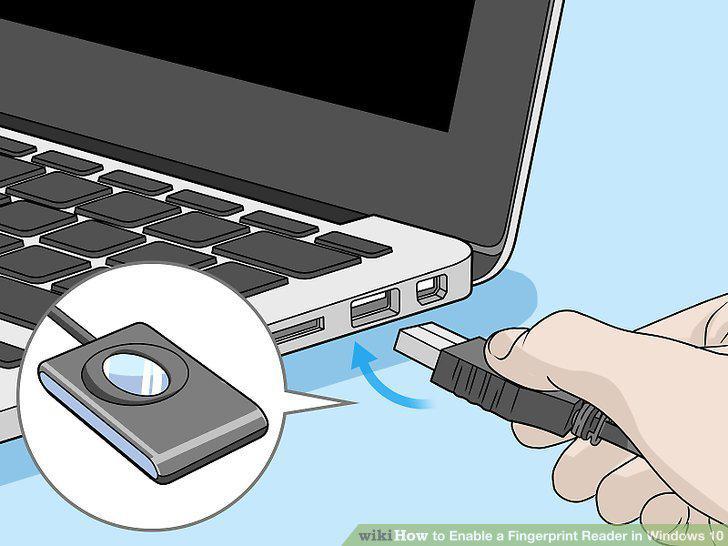
Connect your external fingerprint reader to your computer (if not built-in).
2
Open your Windows Settings .
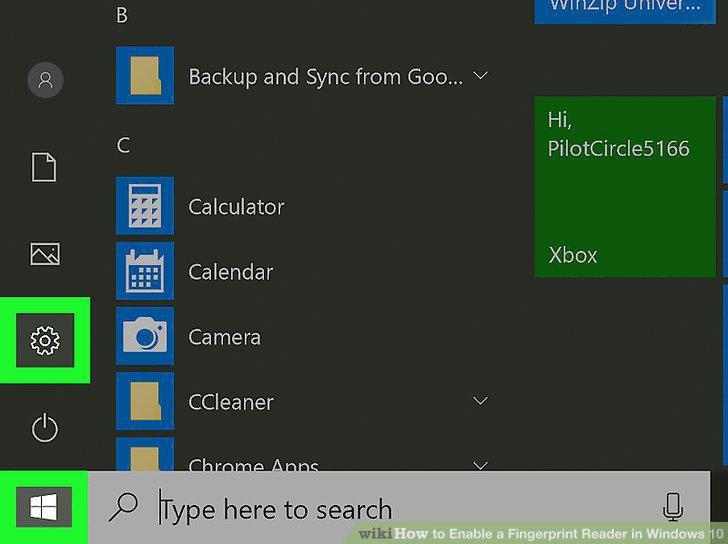
Open your Windows Settings .
3
Click Accounts.
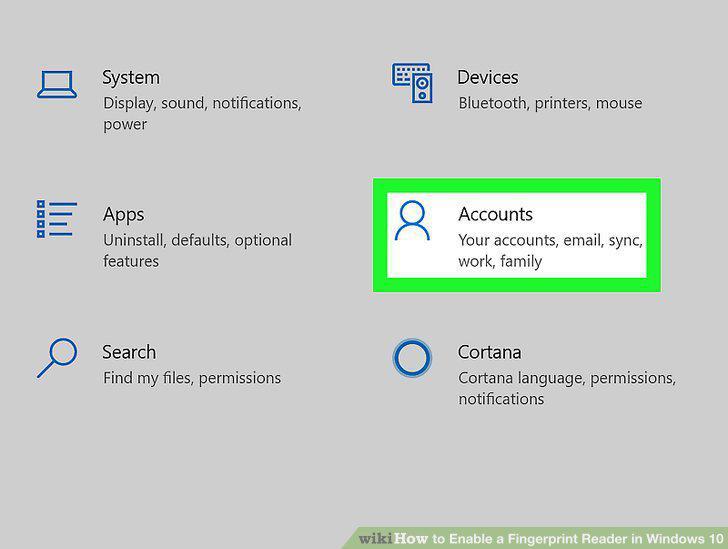
Click Accounts.
4
Click Sign-in options.
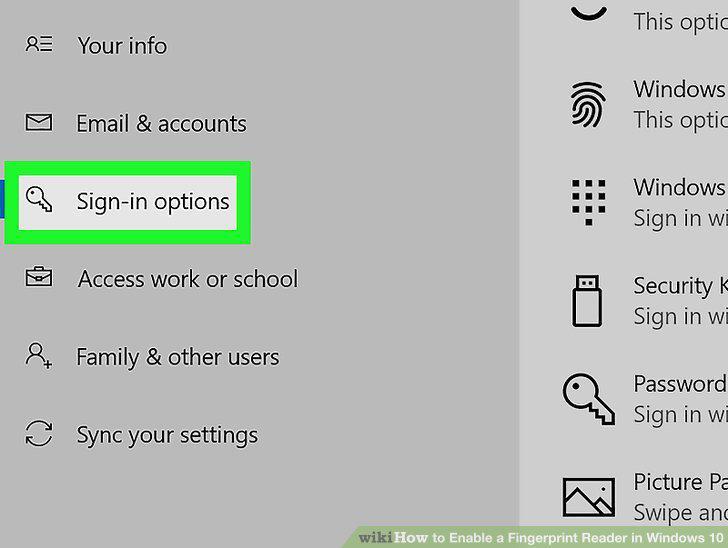
Click Sign-in options.
5
Click Windows Hello Fingerprint.
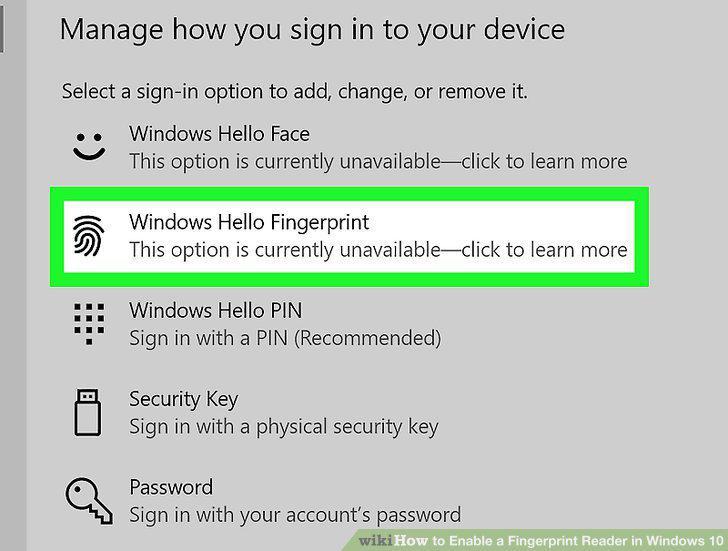
Click Windows Hello Fingerprint.
6
Click Set up.
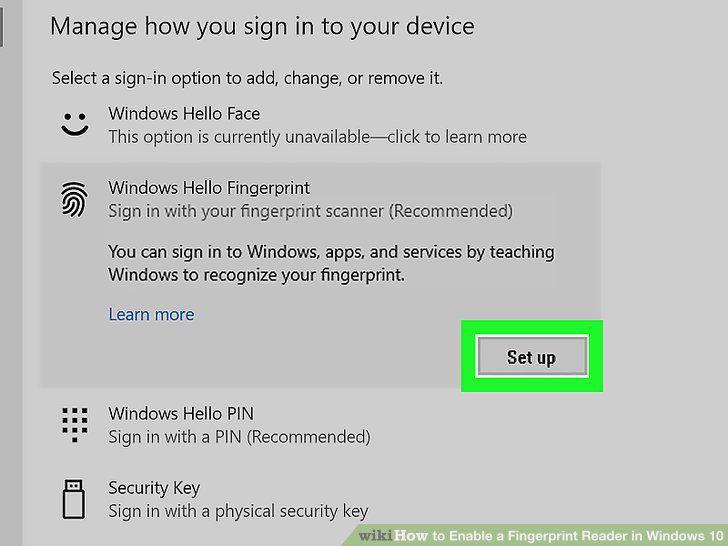
Click Set up.
7
Follow the on-screen instructions to set up your fingerprint log-in.
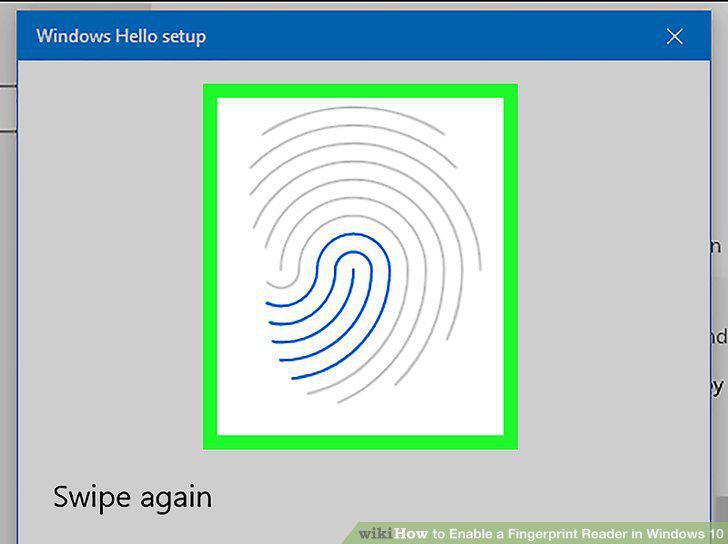
Follow the on-screen instructions to set up your fingerprint log-in.
Comments (0)
No comments yet. Be the first to share your thoughts!