How to Boost Microphone Volume on PC or Mac
Find and right-click the speaker icon on your taskbar.. Click Recording devices on the menu.. Select your microphone on the Recording list.
Steps
1
Find and right-click the speaker icon on your taskbar.
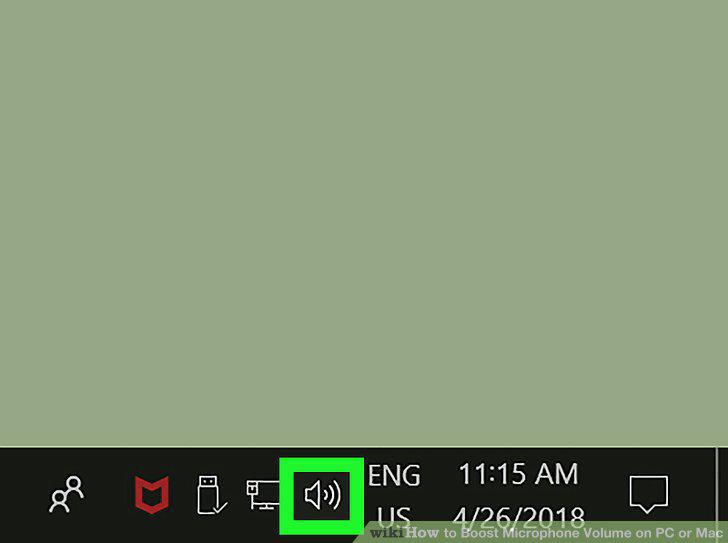
Find and right-click the speaker icon on your taskbar.
2
Click Recording devices on the menu.
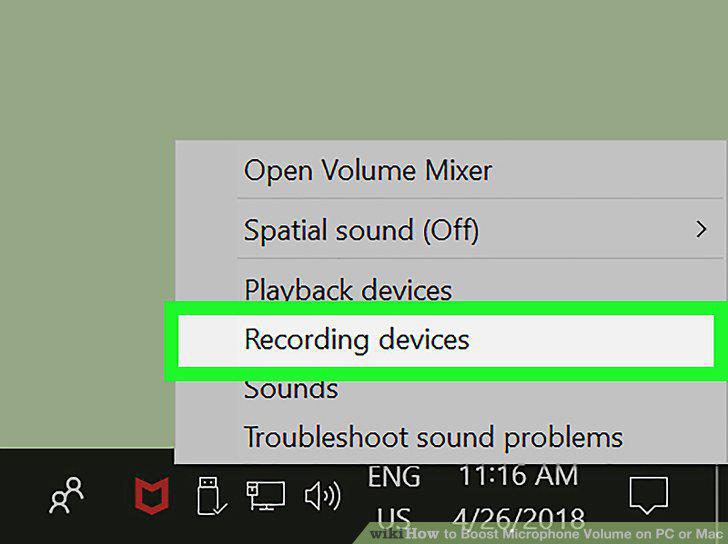
Click Recording devices on the menu.
3
Select your microphone on the Recording list.
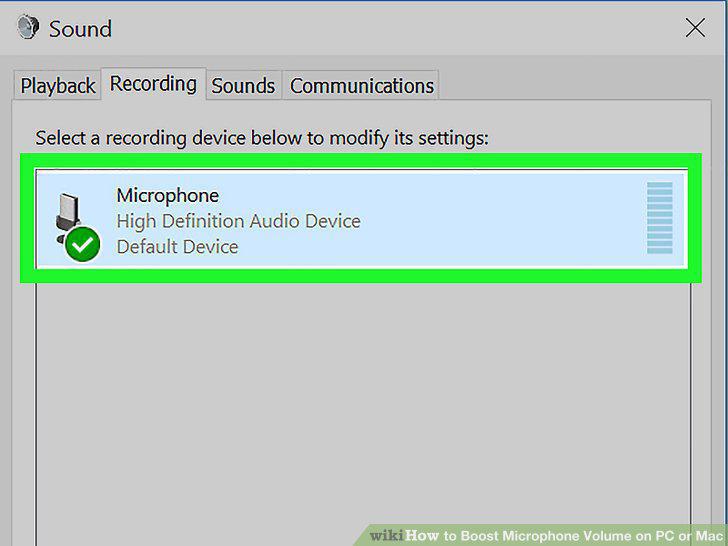
Select your microphone on the Recording list.
4
Click the Properties button.
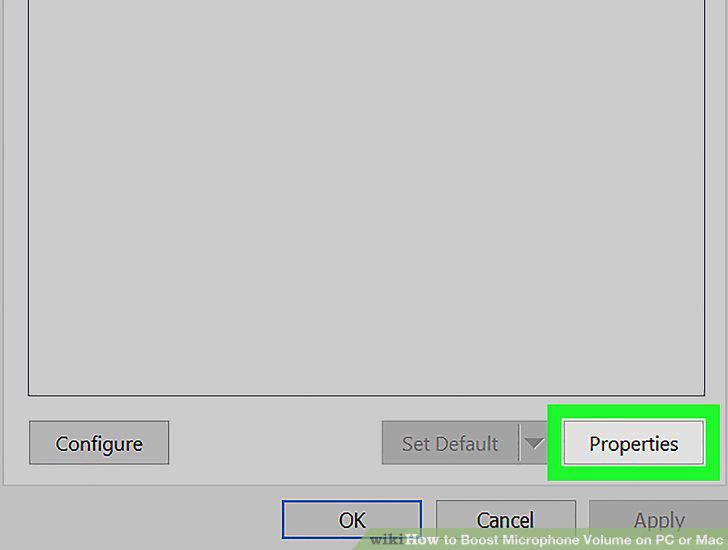
Click the Properties button.
5
Click the Levels tab.
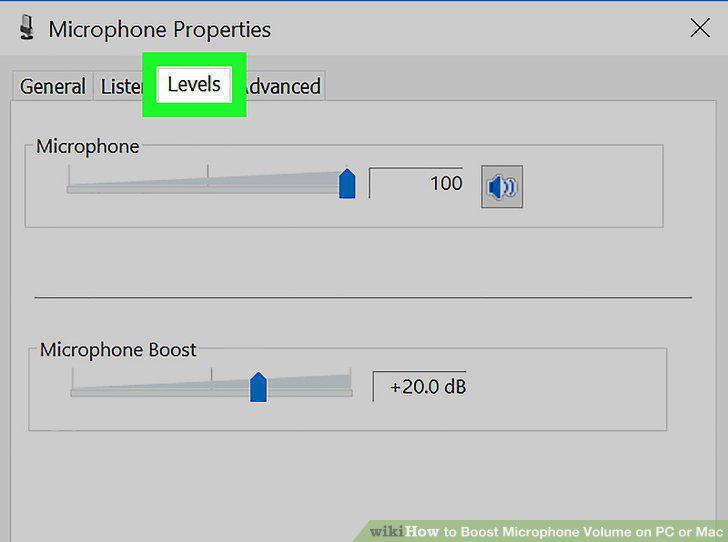
Click the Levels tab.
6
Drag the Microphone Boost slider to the right.
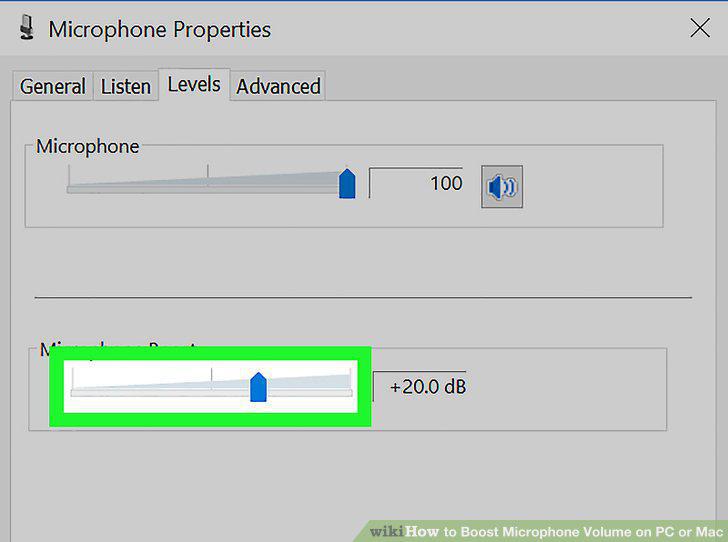
Drag the Microphone Boost slider to the right.
7
Click the OK button.
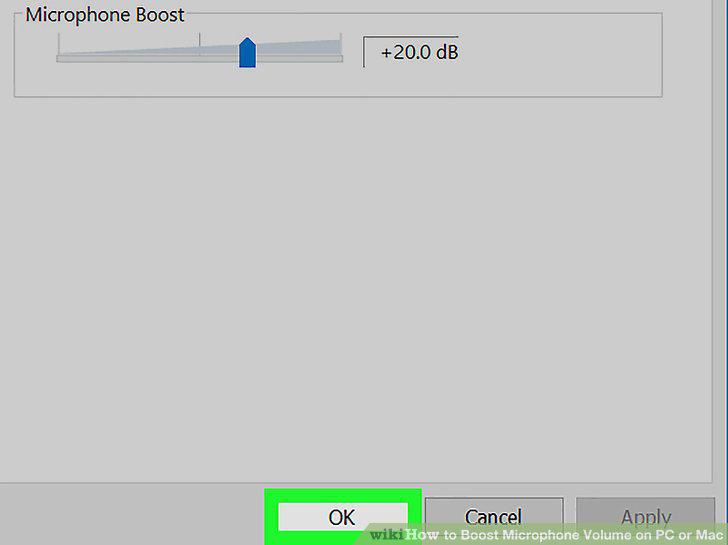
Click the OK button.
8
Click the OK button in the Sound window.
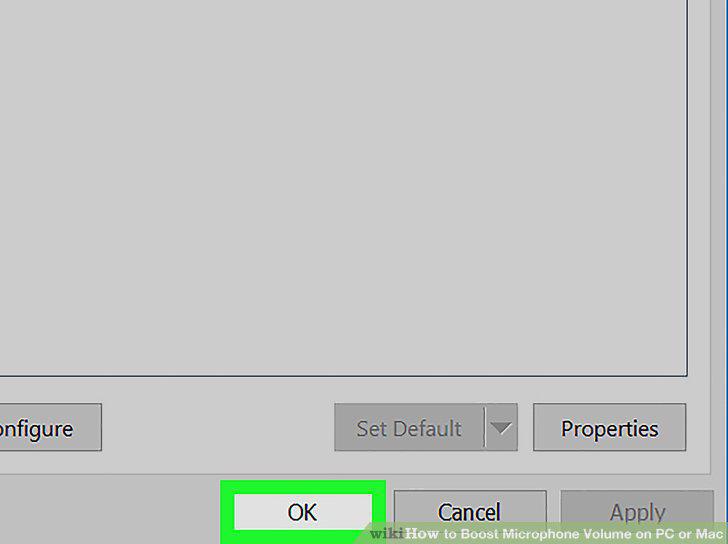
Click the OK button in the Sound window.
9
Click the Apple icon on your menu bar.
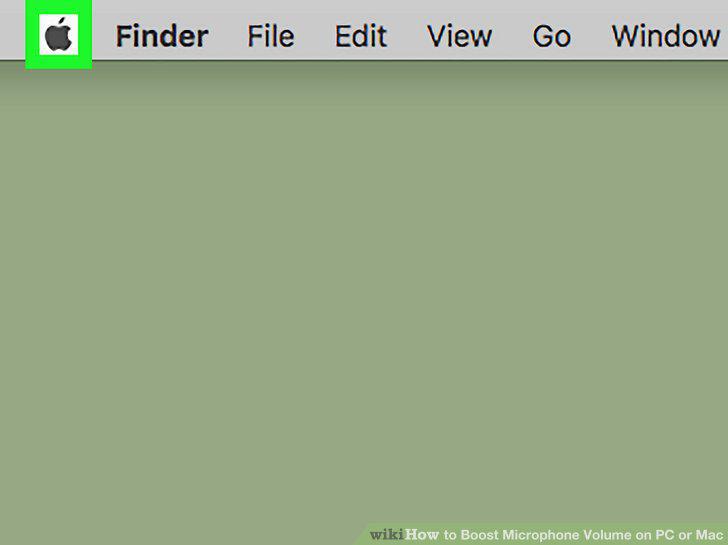
Click the Apple icon on your menu bar.
10
Click System Preferences on the menu.
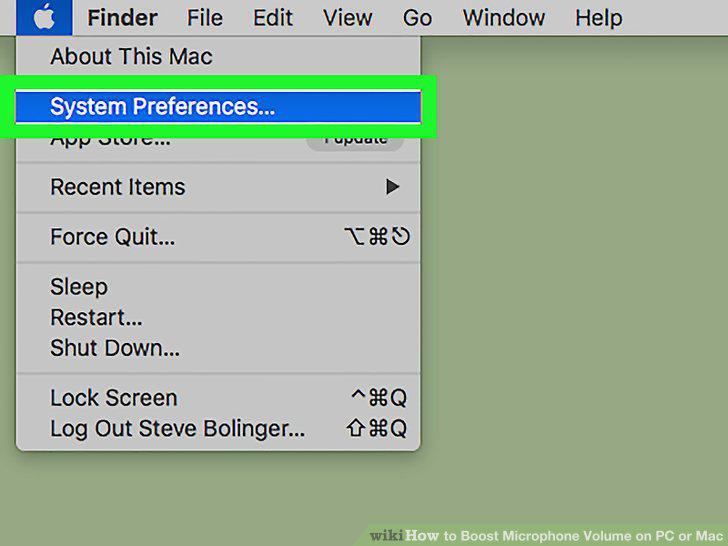
Click System Preferences on the menu.
11
Click Sound in System Preferences.
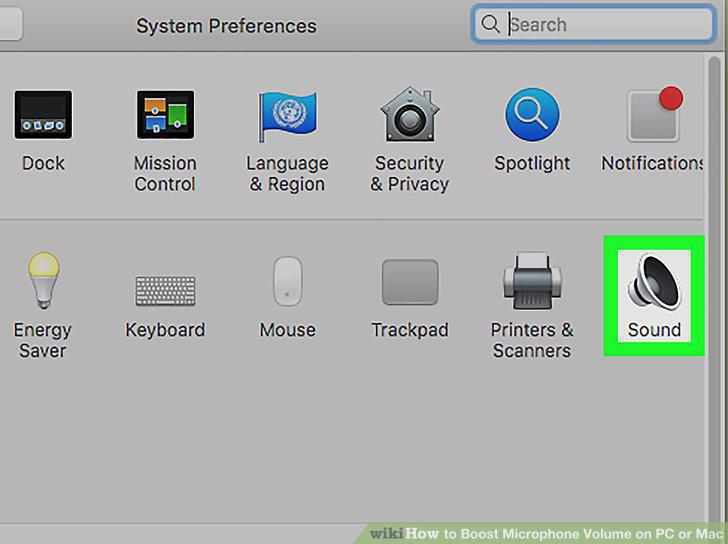
Click Sound in System Preferences.
12
Click the Input tab.
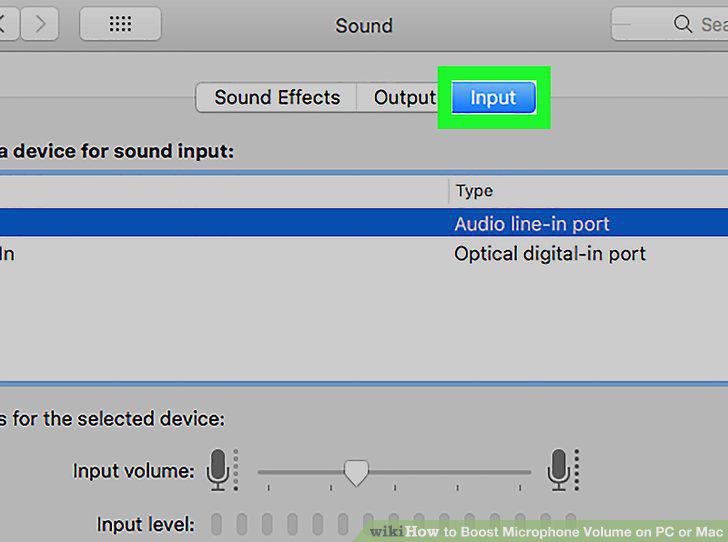
Click the Input tab.
13
Select your microphone on the Input menu.
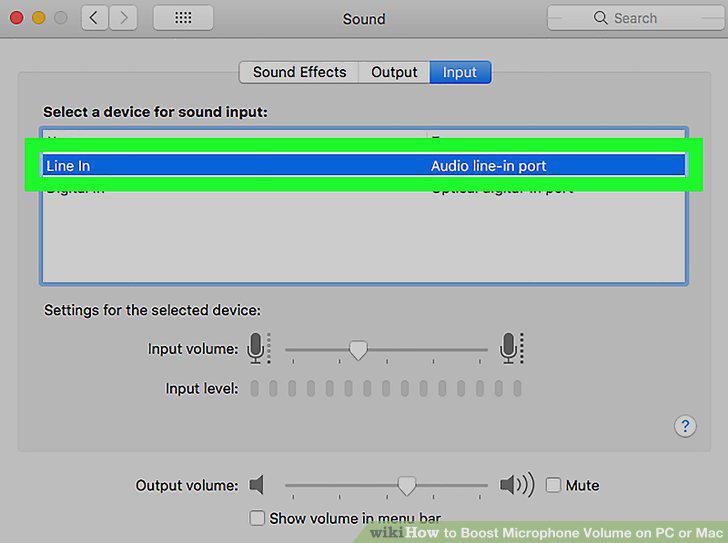
Select your microphone on the Input menu.
14
Slide the Input volume slider to the right.
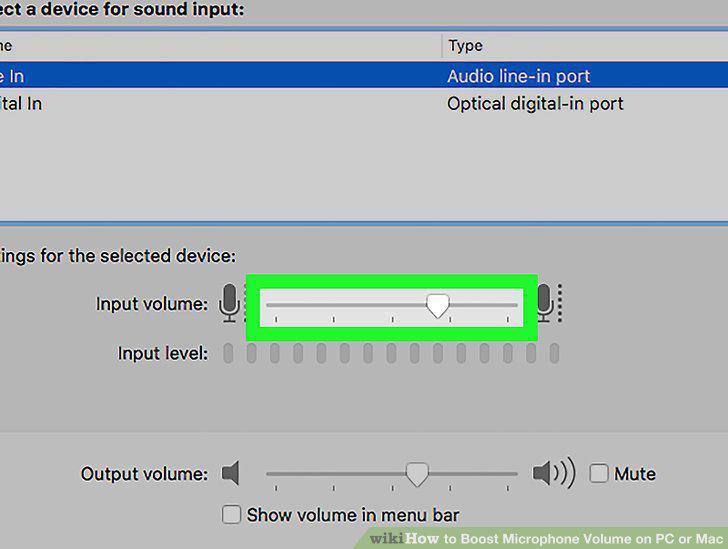
Slide the Input volume slider to the right.
Comments (0)
No comments yet. Be the first to share your thoughts!