How to Update Windows Phone
Plug your Windows Phone into a power source.. Swipe down from the top of the home screen.. Tap the All Settings tile.
Steps
1
Plug your Windows Phone into a power source.
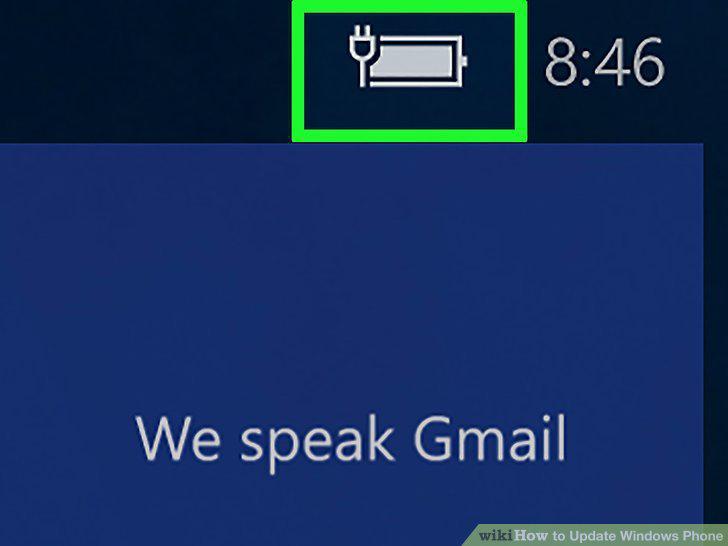
Plug your Windows Phone into a power source.
2
Swipe down from the top of the home screen.
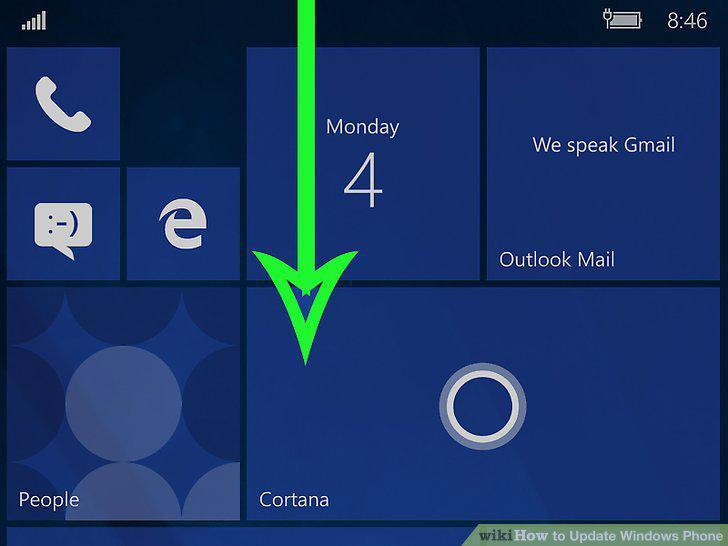
Swipe down from the top of the home screen.
3
Tap the All Settings tile.
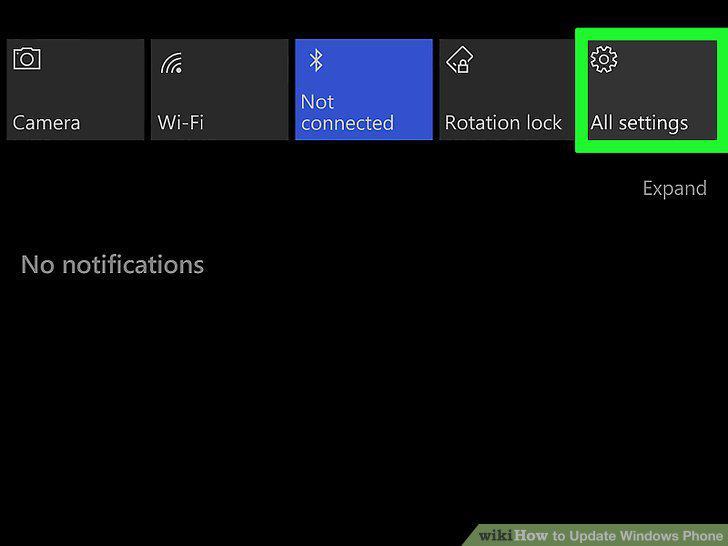
Tap the All Settings tile.
4
Scroll down and tap Update and security.
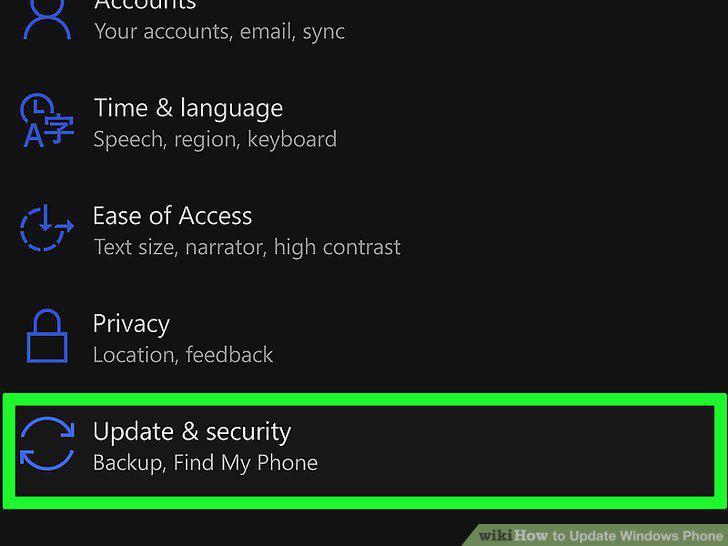
Scroll down and tap Update and security.
5
Tap Phone update.
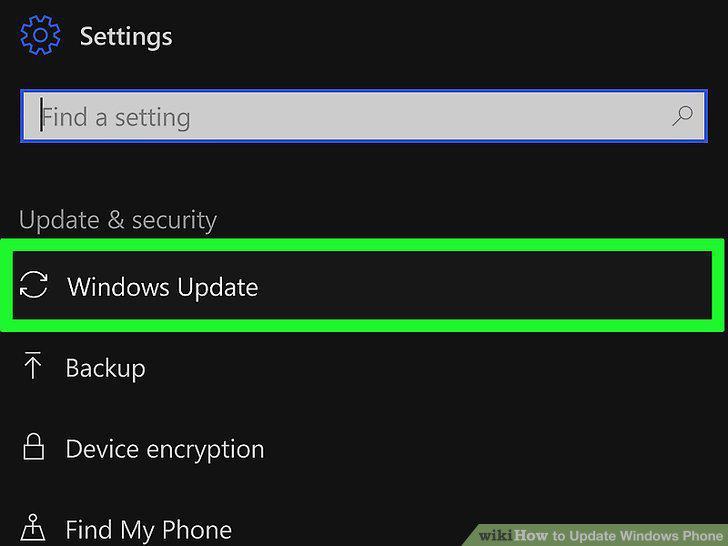
Tap Phone update.
6
Tap Check for updates.
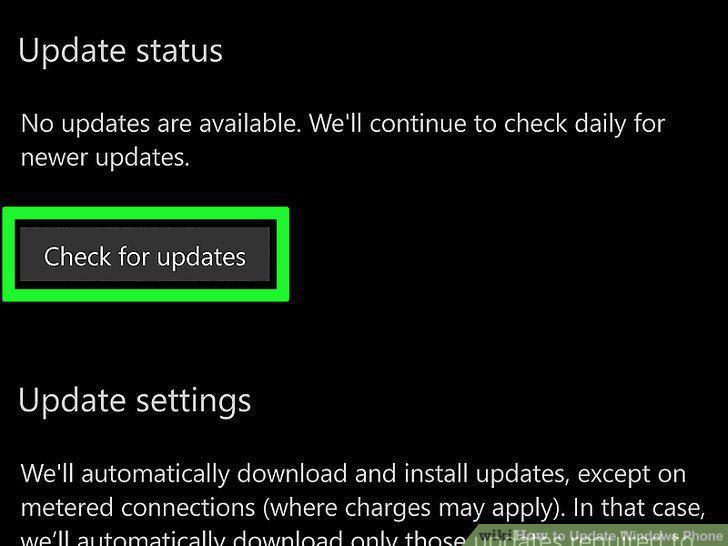
Tap Check for updates.
7
Tap the update and follow the on-screen instructions.
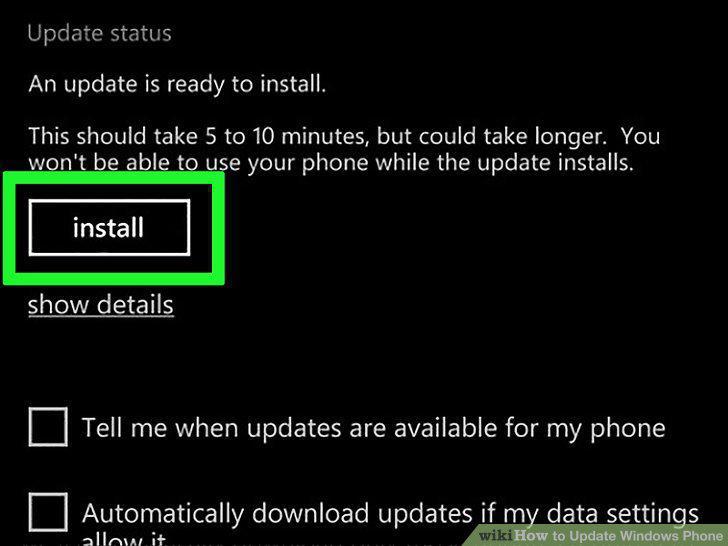
Tap the update and follow the on-screen instructions.
8
Plug your Windows Phone into a power source.
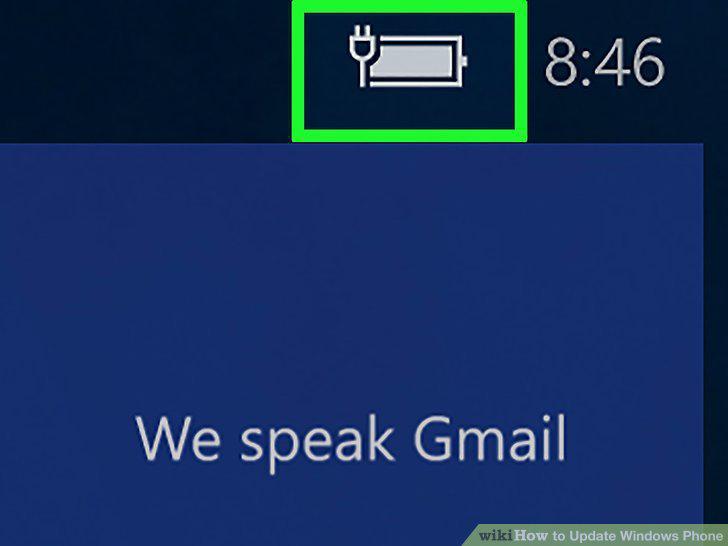
Plug your Windows Phone into a power source.
9
Swipe left across the home screen.
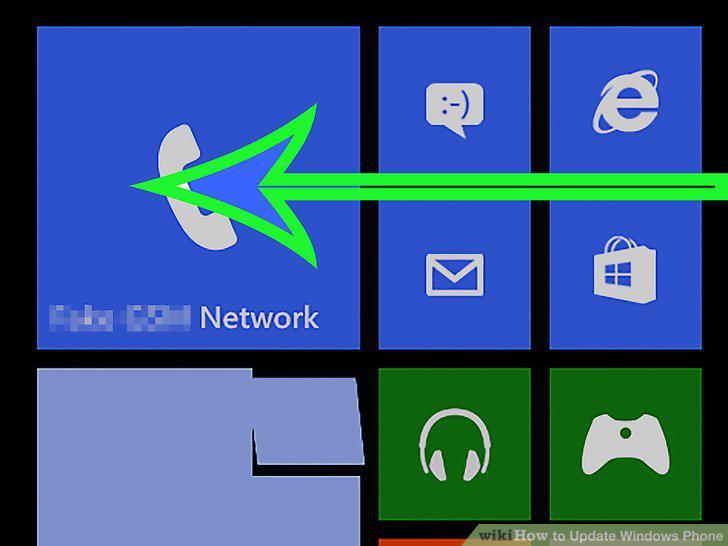
Swipe left across the home screen.
10
Scroll down and tap settings.
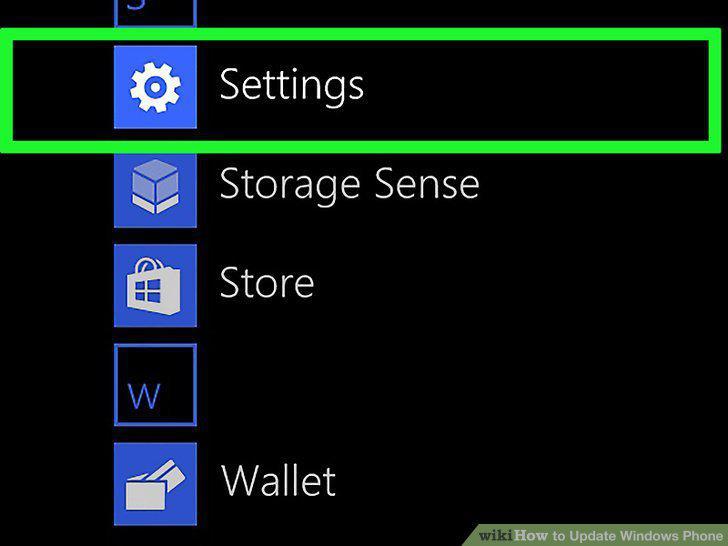
Scroll down and tap settings.
11
Tap phone update.
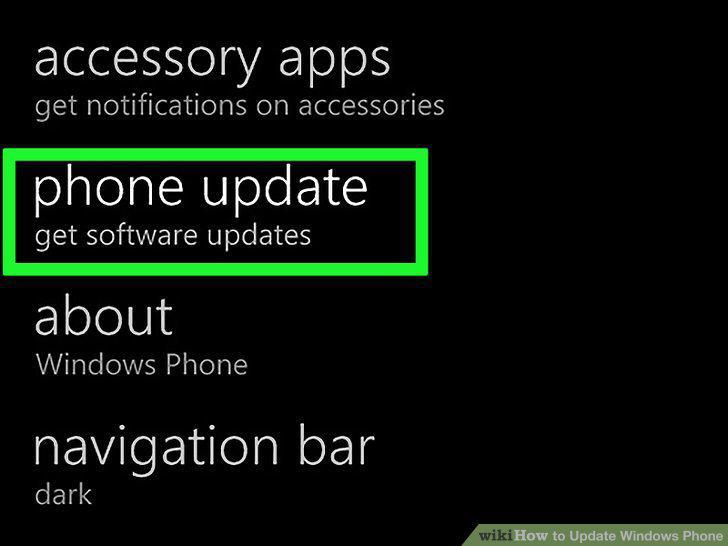
Tap phone update.
12
Tap check for updates.
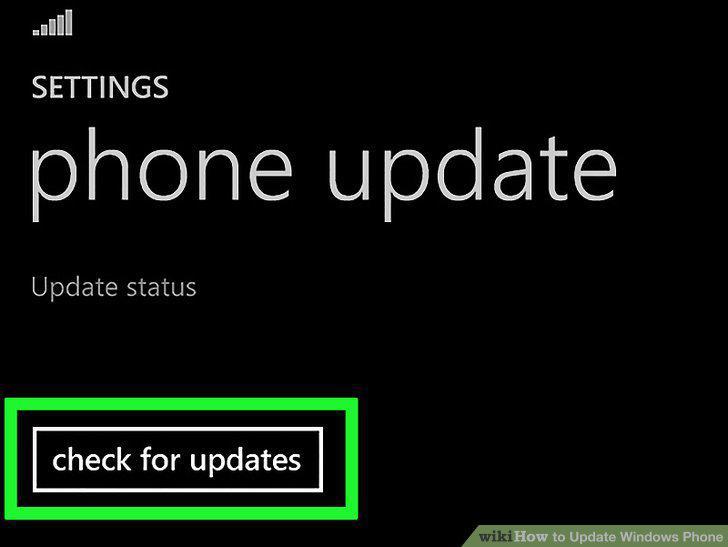
Tap check for updates.
13
Tap install to update your Windows Phone.
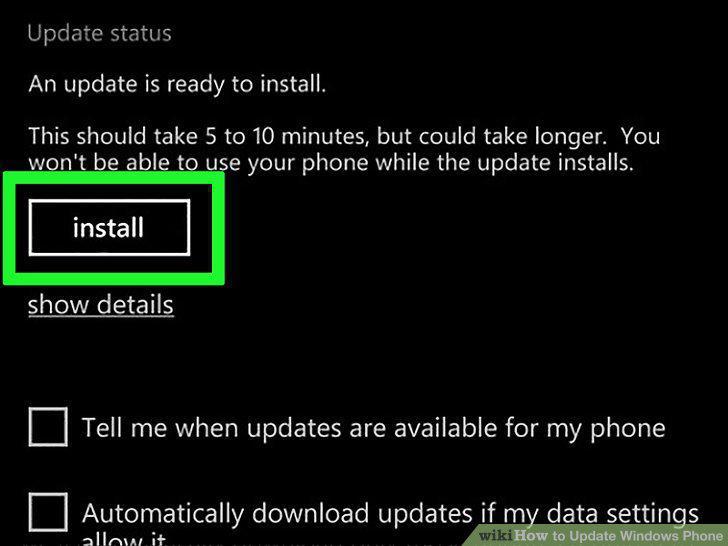
Tap install to update your Windows Phone.
Comments (0)
No comments yet. Be the first to share your thoughts!