How to Set a Screen Saver on PC or Mac
Click the menu.. Type screen saver into the search bar.. Click Turn screen saver on or off.
Steps
1
Click the menu.
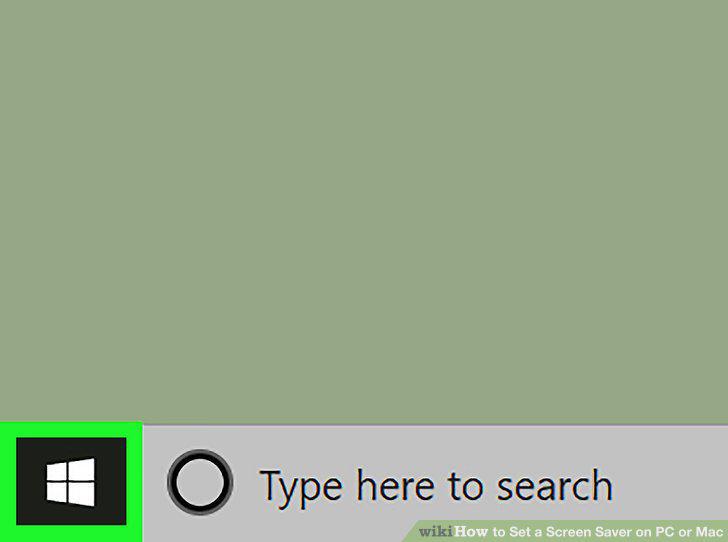
Click the menu.
2
Type screen saver into the search bar.
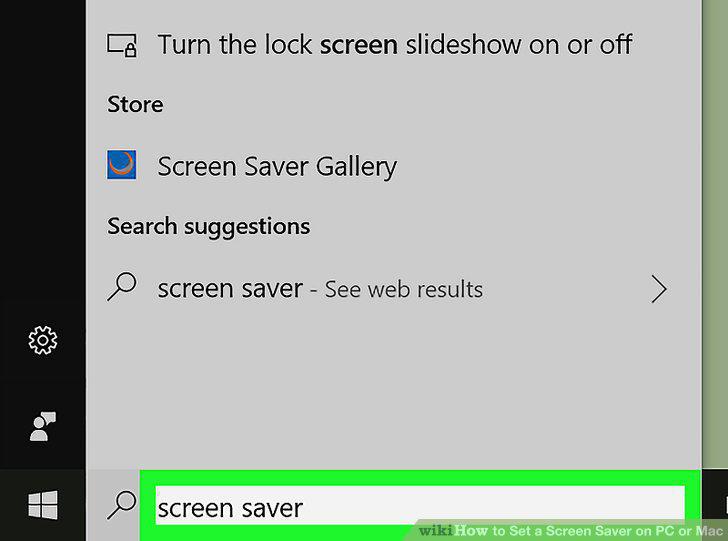
Type screen saver into the search bar.
3
Click Turn screen saver on or off.
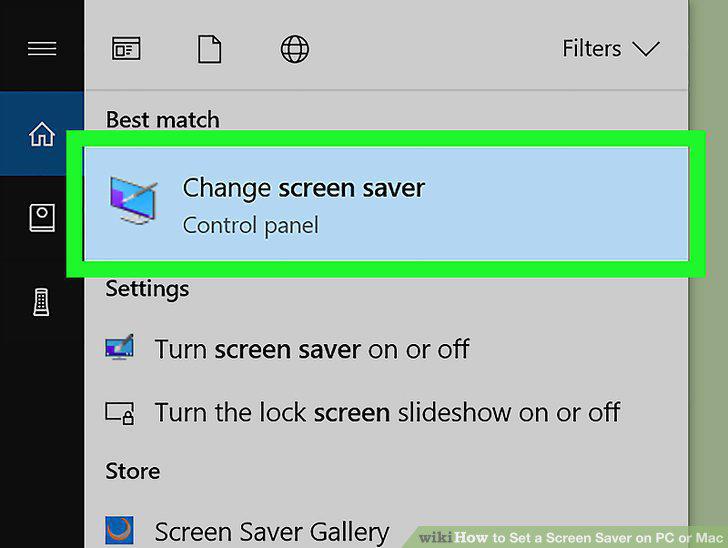
Click Turn screen saver on or off.
4
Select a screen saver from the drop-down menu.
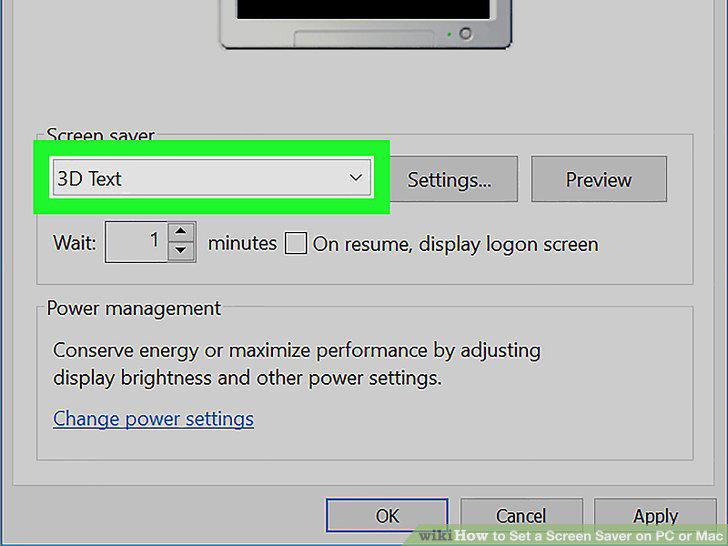
Select a screen saver from the drop-down menu.
5
Click Preview.
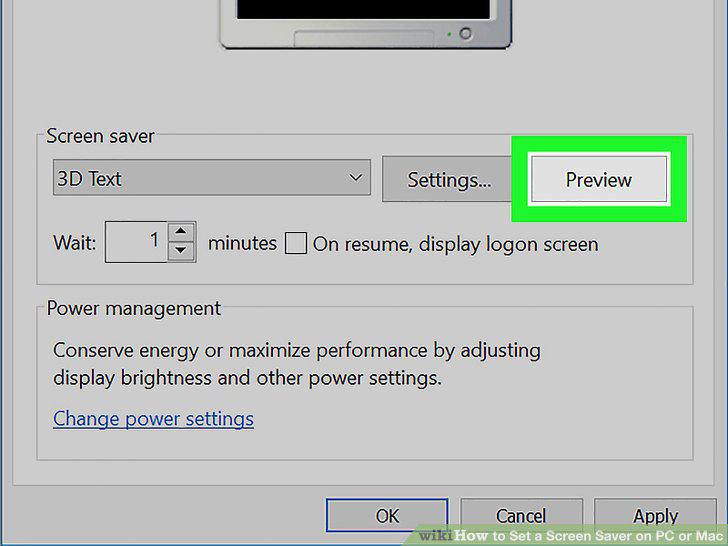
Click Preview.
6
Select when to turn on the screen saver.
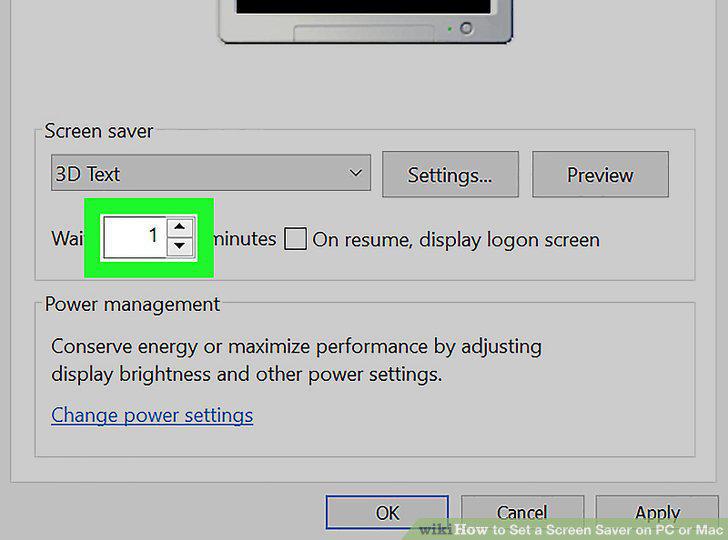
Select when to turn on the screen saver.
7
Select whether to log in to unlock the screen saver.
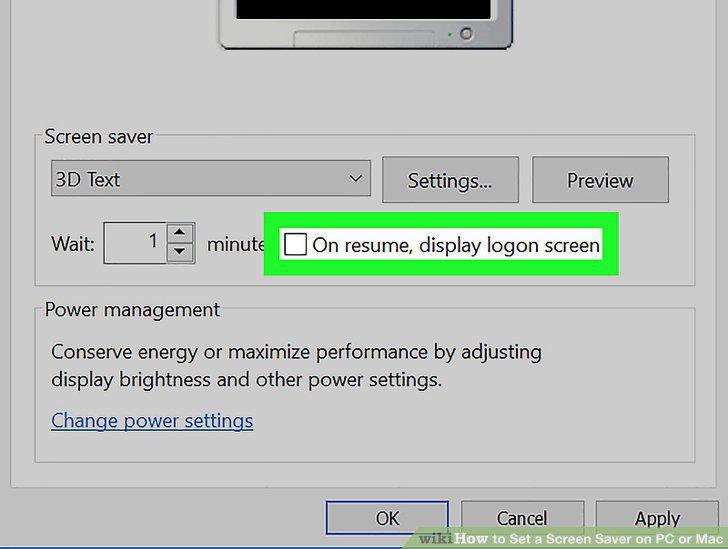
Select whether to log in to unlock the screen saver.
8
Click Apply.
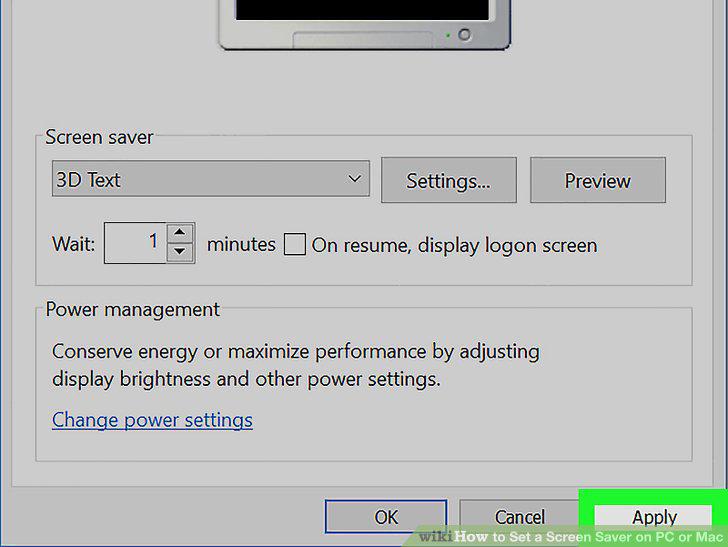
Click Apply.
9
Click OK.
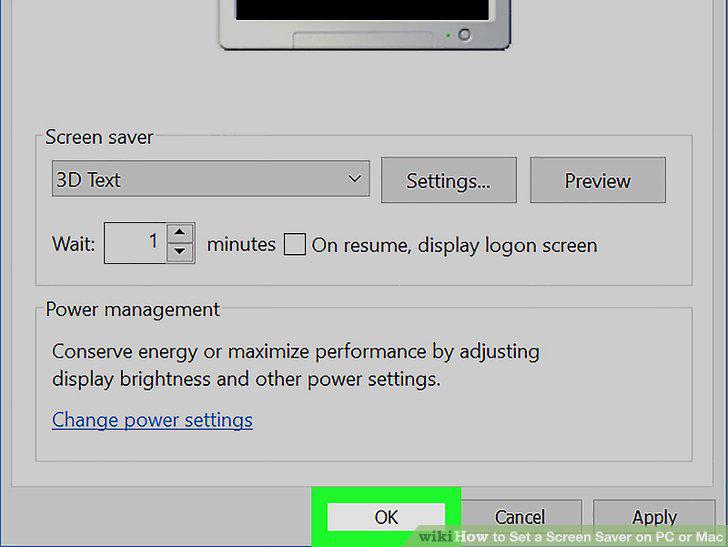
Click OK.
10
Click the menu.
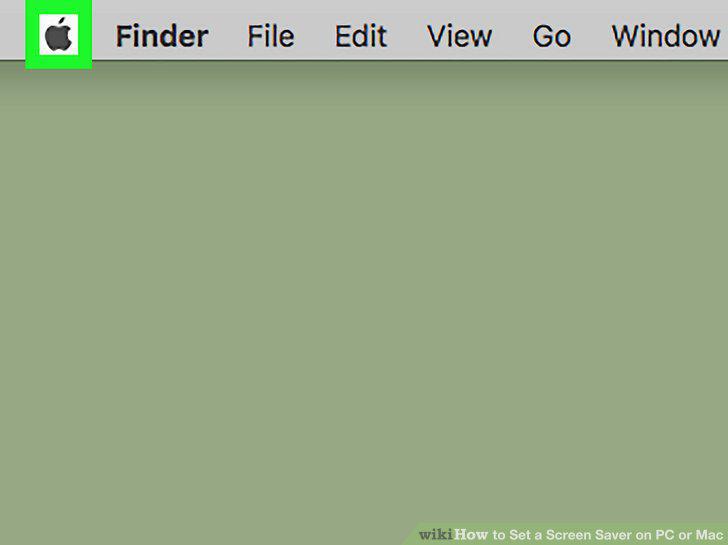
Click the menu.
11
Click System Preferences.
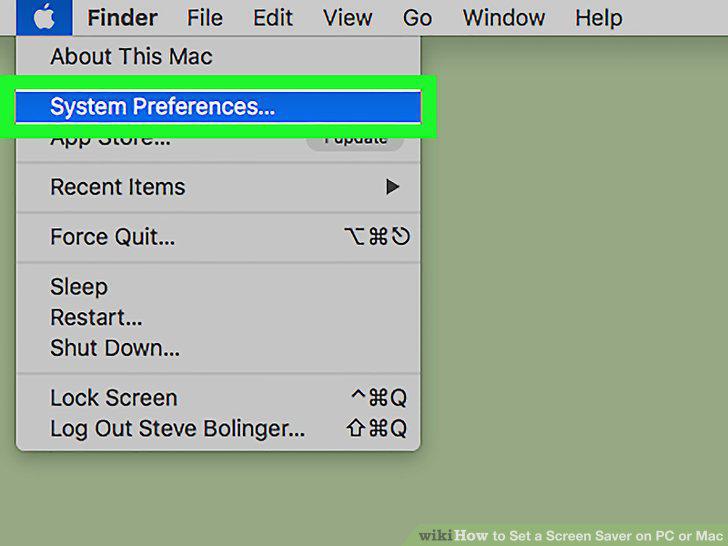
Click System Preferences.
12
Click Desktop & Screen Saver.
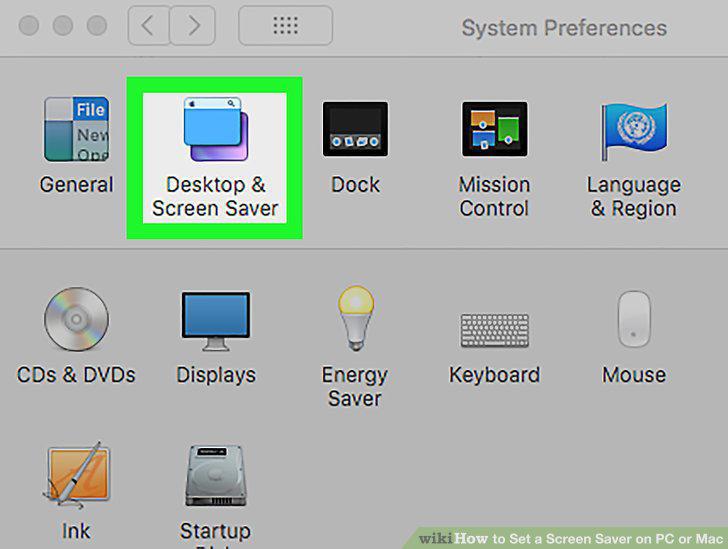
Click Desktop & Screen Saver.
13
Click the Screen Saver tab.
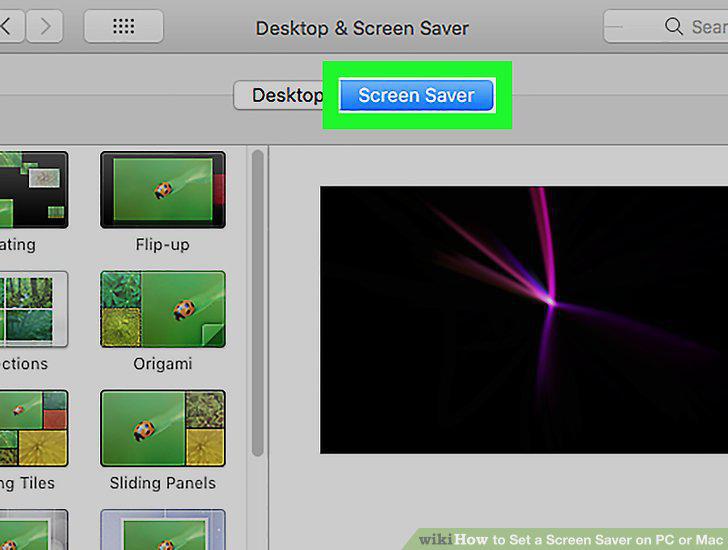
Click the Screen Saver tab.
14
Select a screen saver.
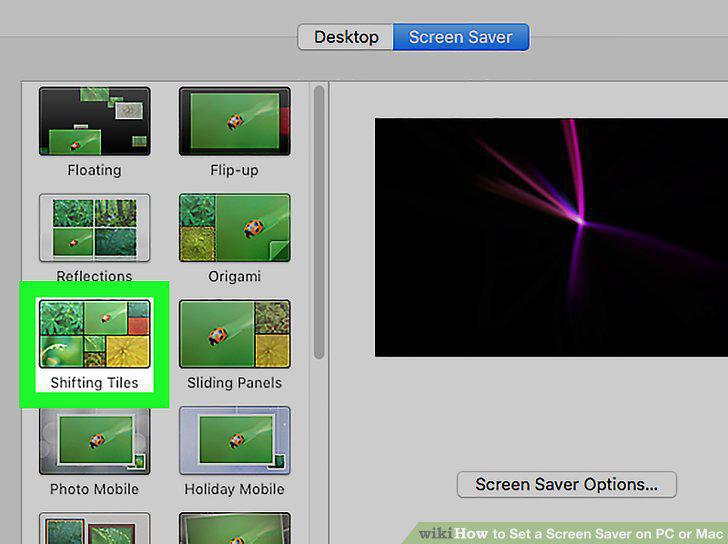
Select a screen saver.
15
Select when to turn on the screen saver.
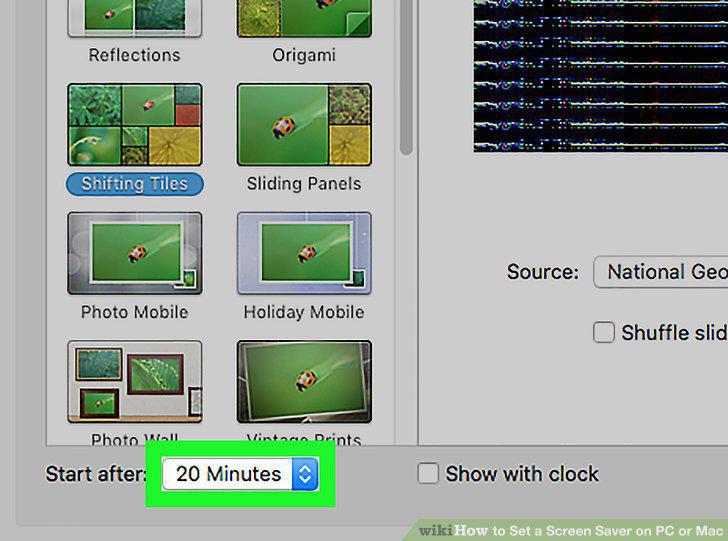
Select when to turn on the screen saver.
16
Require a password to unlock the screen saver.
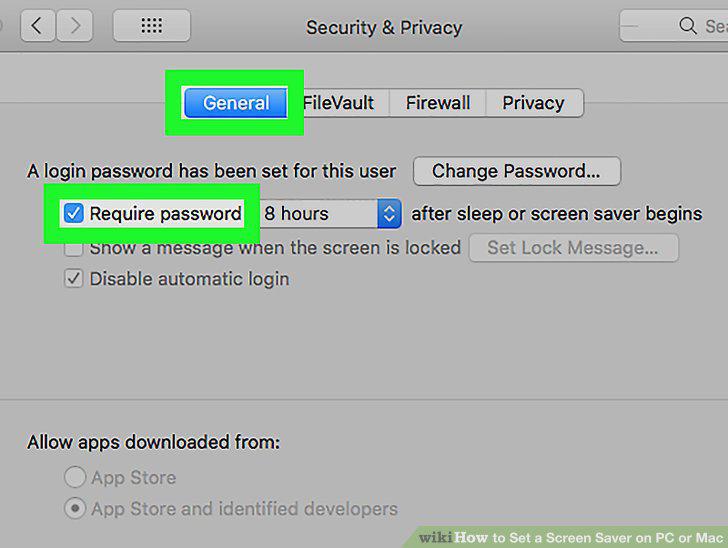
Require a password to unlock the screen saver.
Comments (0)
No comments yet. Be the first to share your thoughts!