How to Record Using Windows Sound Recorder
Use a built in microphone.. Research and purchase a new external Microphone.. Plug in the device.
Steps
1
Use a built in microphone.
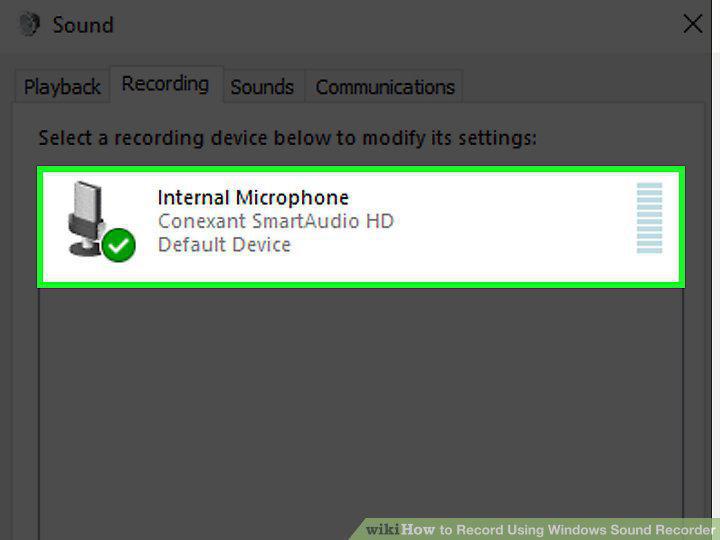
Use a built in microphone.
2
Research and purchase a new external Microphone.
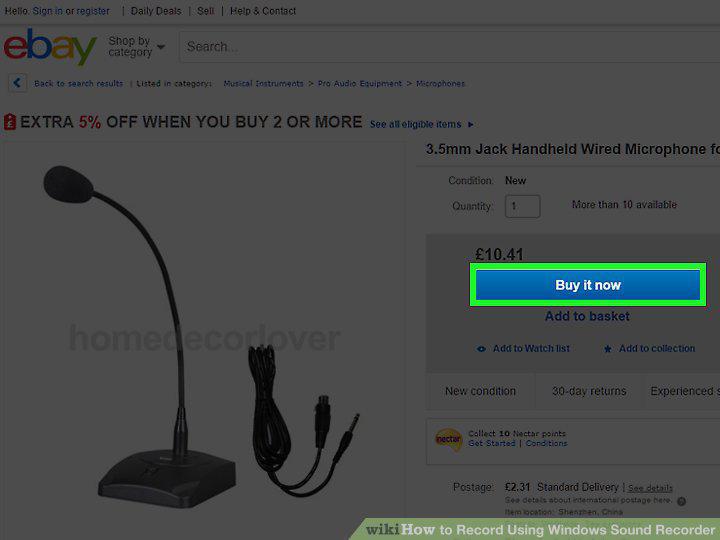
Research and purchase a new external Microphone.
3
Plug in the device.
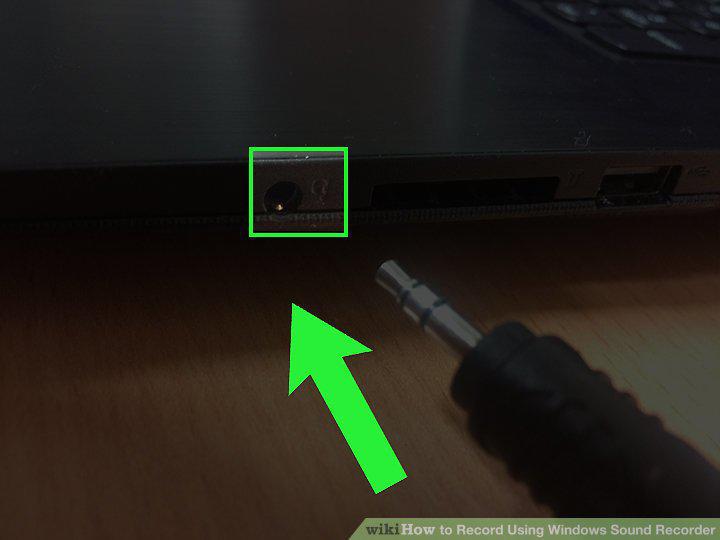
Plug in the device.
4
Enable the recording device.
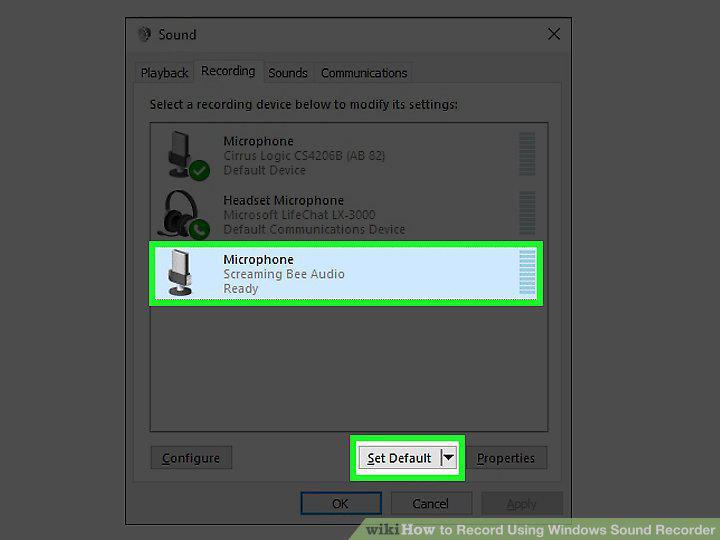
Enable the recording device.
5
Adjust the audio levels of your microphone.
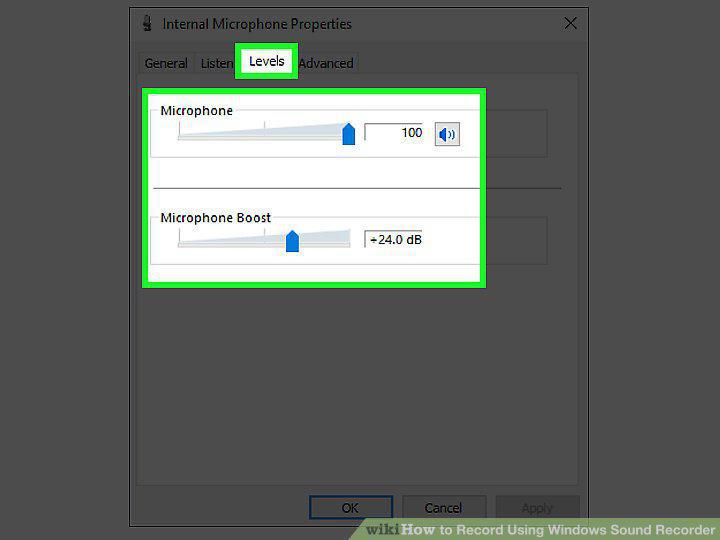
Adjust the audio levels of your microphone.
6
Open Windows Sound Recorder.
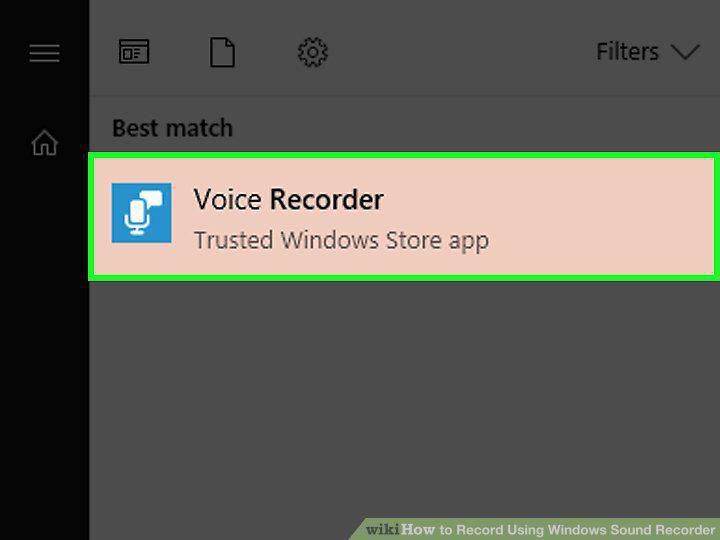
Open Windows Sound Recorder.
7
Record your audio.
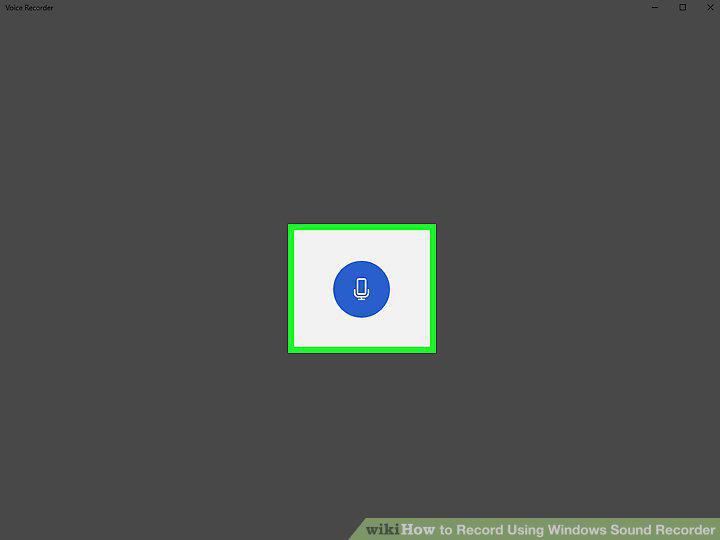
Record your audio.
8
Playback and listen to your audio.
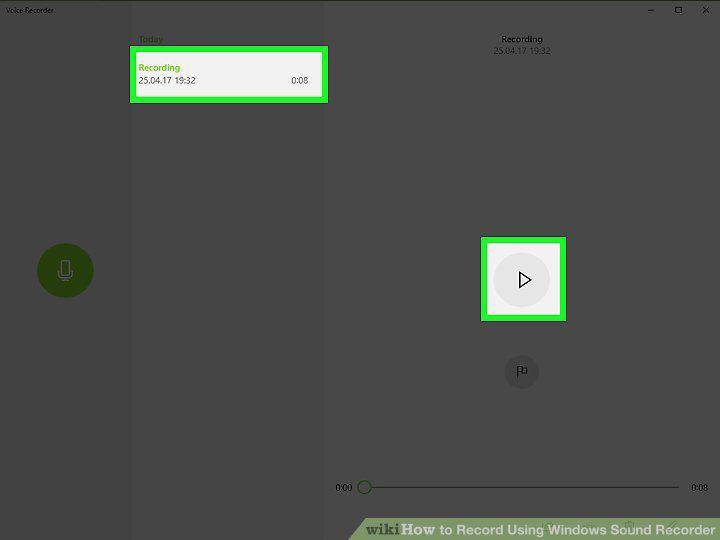
Playback and listen to your audio.
9
Save your file.
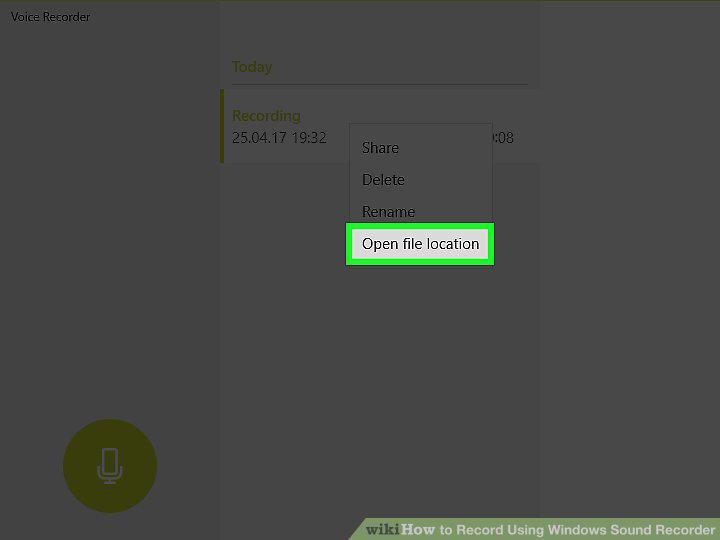
Save your file.
10
Use the command prompt to discreetly record audio.
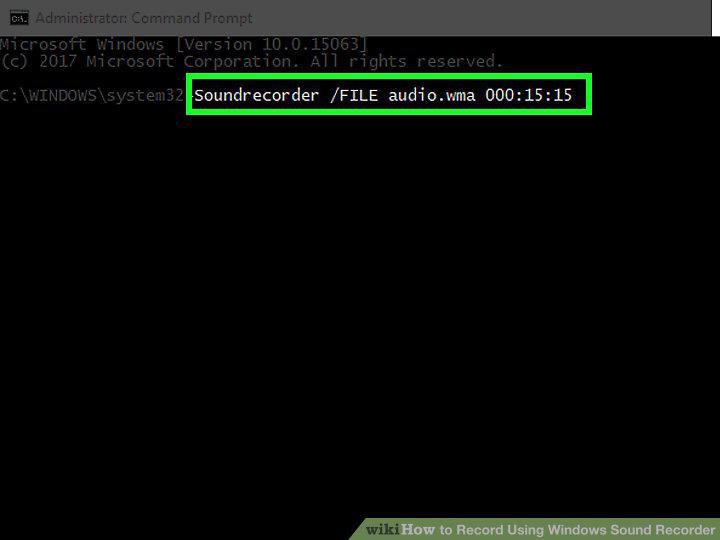
Use the command prompt to discreetly record audio.
Comments (0)
No comments yet. Be the first to share your thoughts!