How to Watch Neverthink
Open the Neverthink app on your Android, iPhone, or iPad.. Create an account.. Tap Remote to open your remote control (iPhone/iPad only).
Steps
Open the Neverthink app on your Android, iPhone, or iPad.
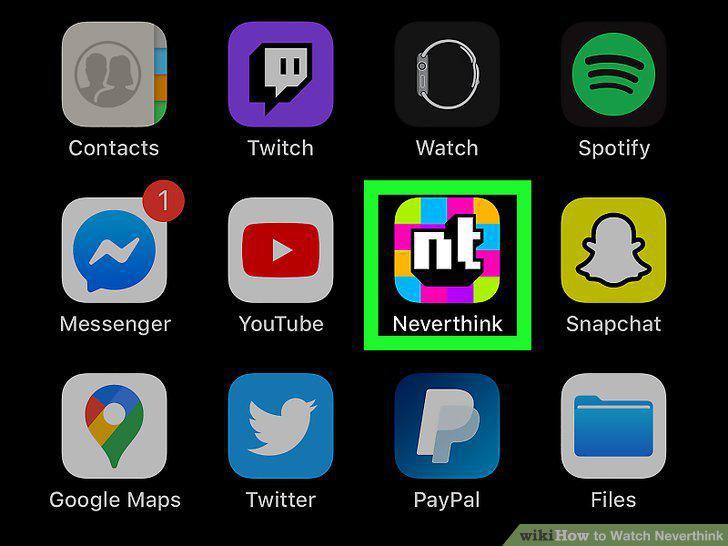
Open the Neverthink app on your Android, iPhone, or iPad.
Create an account.
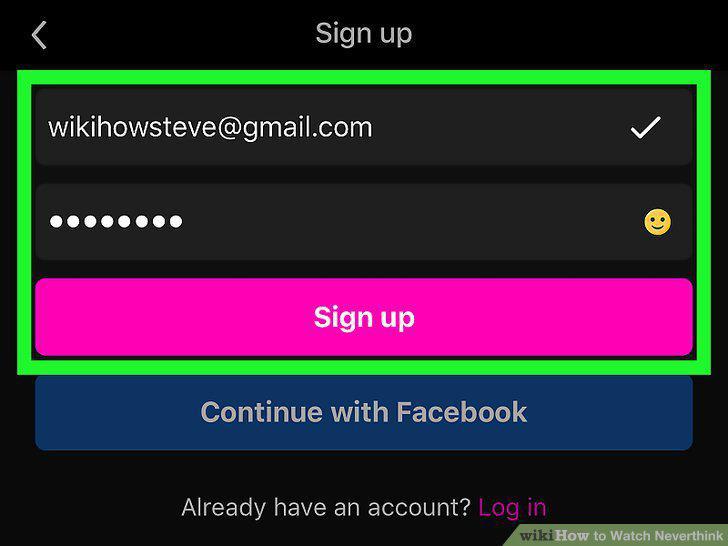
Create an account.
Tap Remote to open your remote control (iPhone/iPad only).
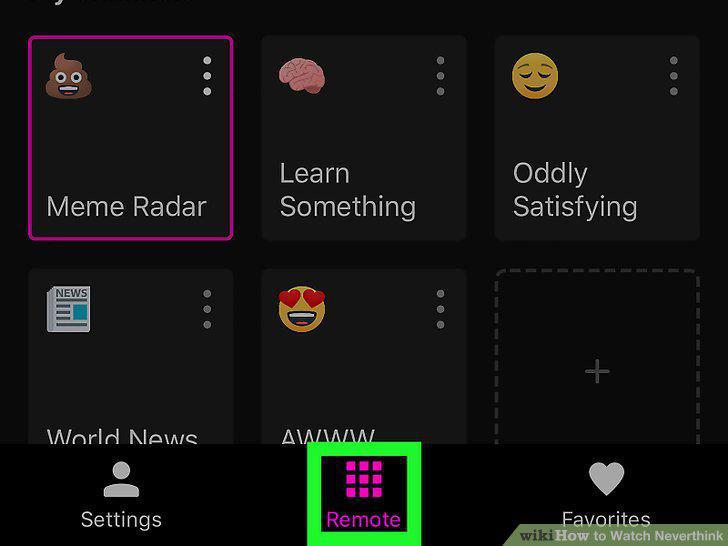
Tap Remote to open your remote control (iPhone/iPad only).
Tap a channel to start watching.
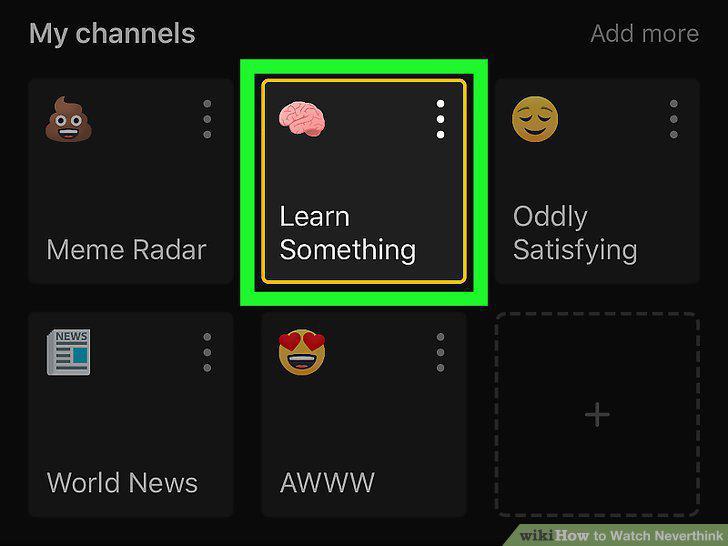
Tap a channel to start watching.
Tap the video to use the video player controls.
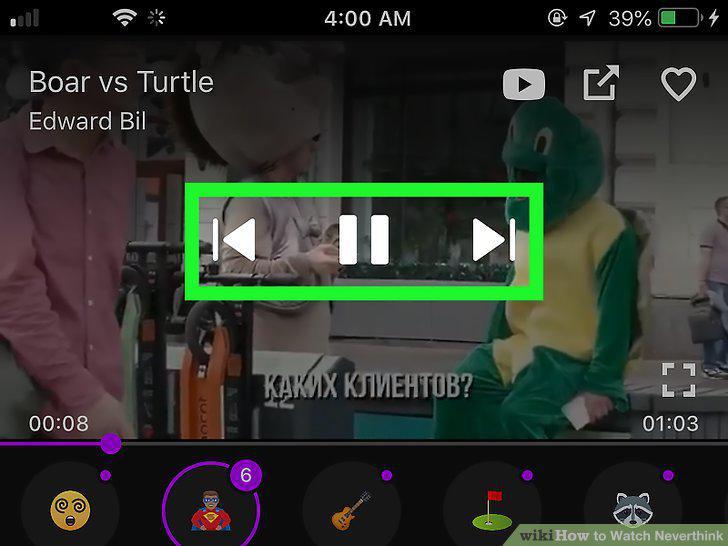
Tap the video to use the video player controls.
Go to https://www.neverthink.tv in your web browser.
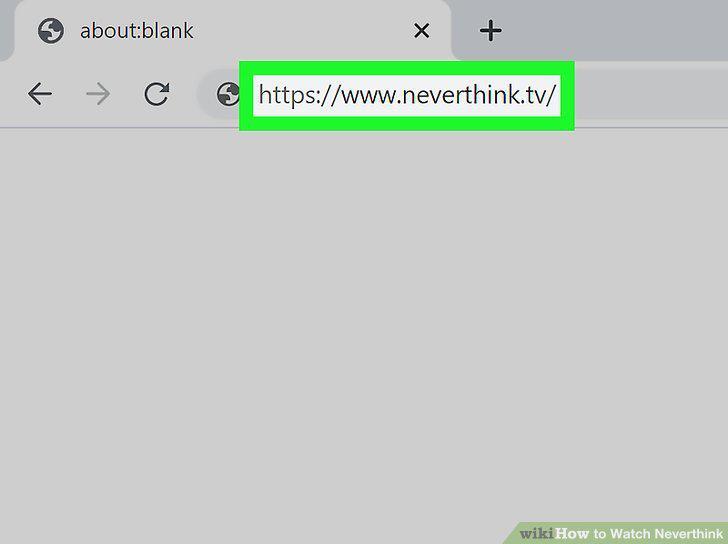
Go to https://www.neverthink.tv in your web browser.
Create an account.
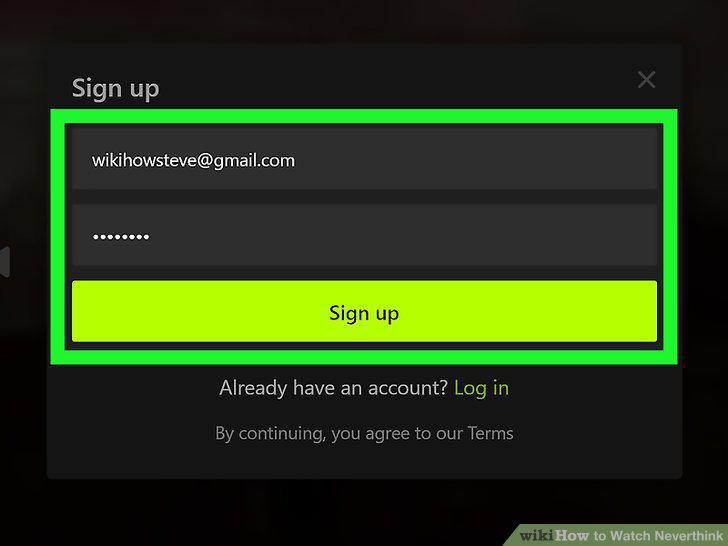
Create an account.
Click the Remote tab to open your remote control.
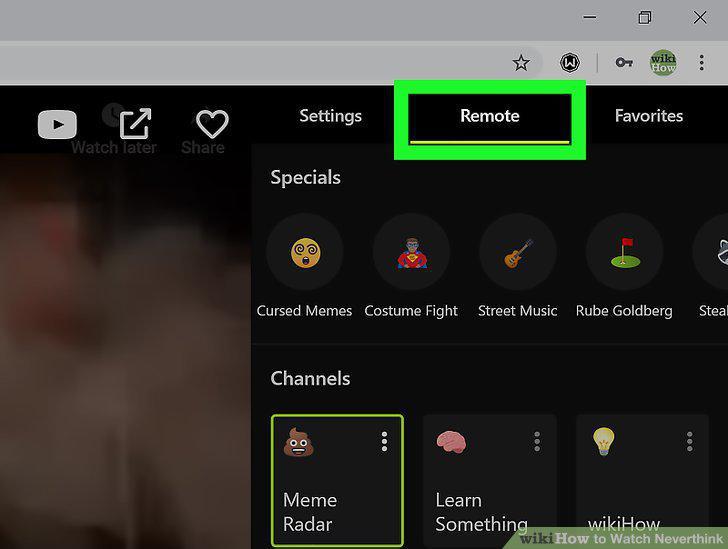
Click the Remote tab to open your remote control.
Click a channel to start watching.
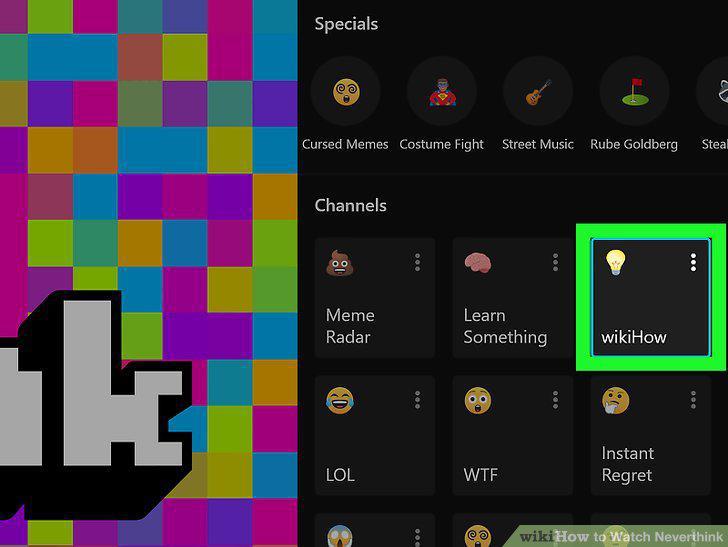
Click a channel to start watching.
Hover the cursor over the video to access the video player controls.
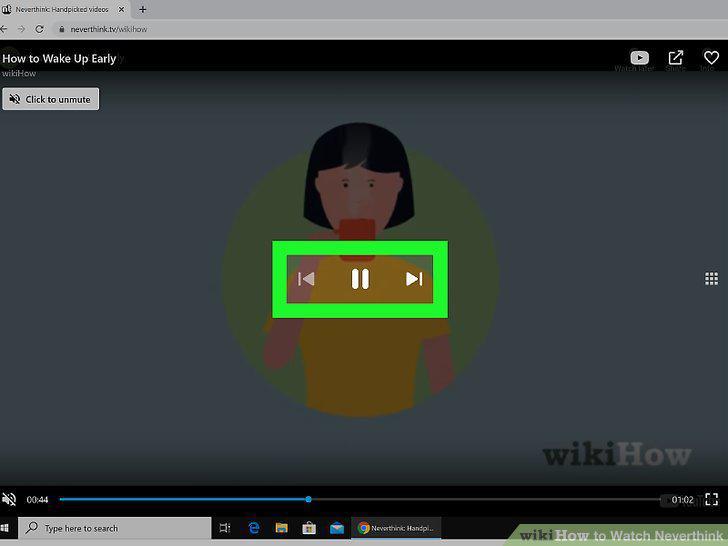
Hover the cursor over the video to access the video player controls.
Install the Neverthink app from your TV's app store.
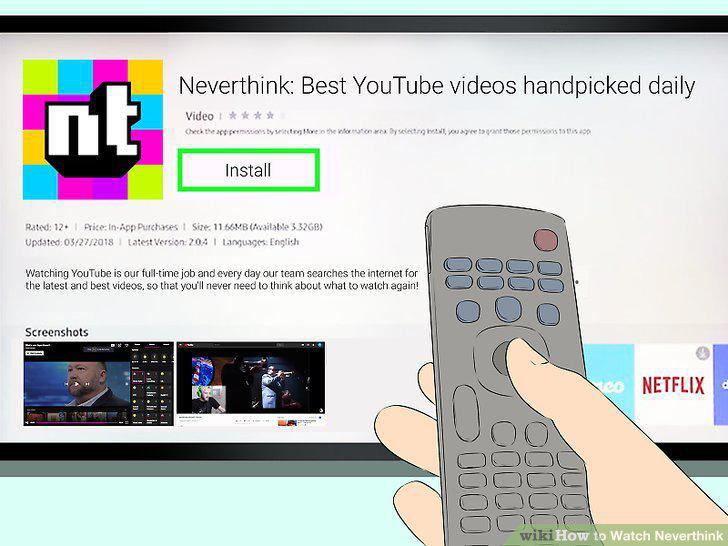
Install the Neverthink app from your TV's app store.
Open Neverthink from your TV's Apps menu.
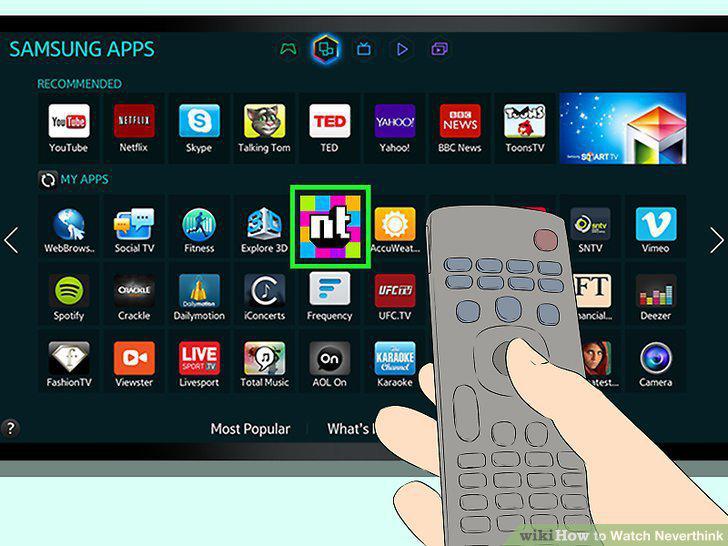
Open Neverthink from your TV's Apps menu.
Browse for a channel.
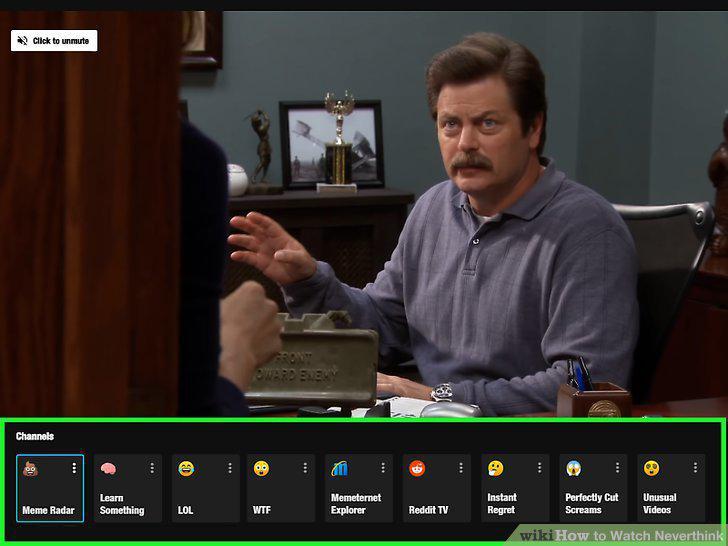
Browse for a channel.
Use your Smart TV's remote control to control playback.
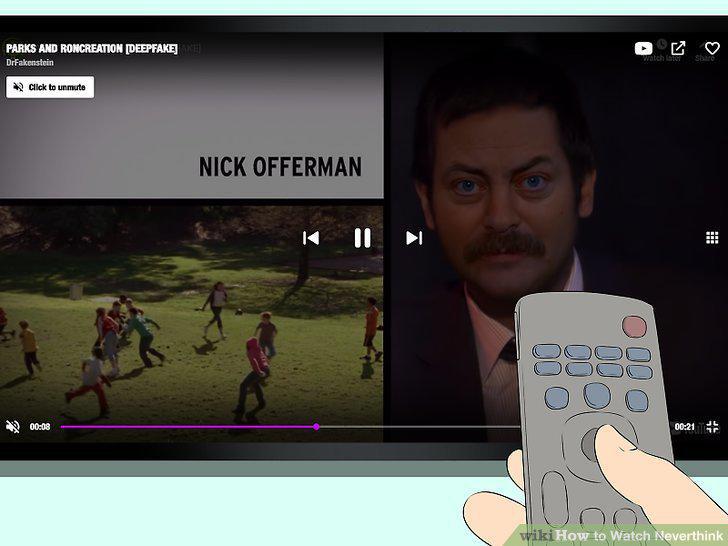
Use your Smart TV's remote control to control playback.
Open Neverthink on your phone or tablet.
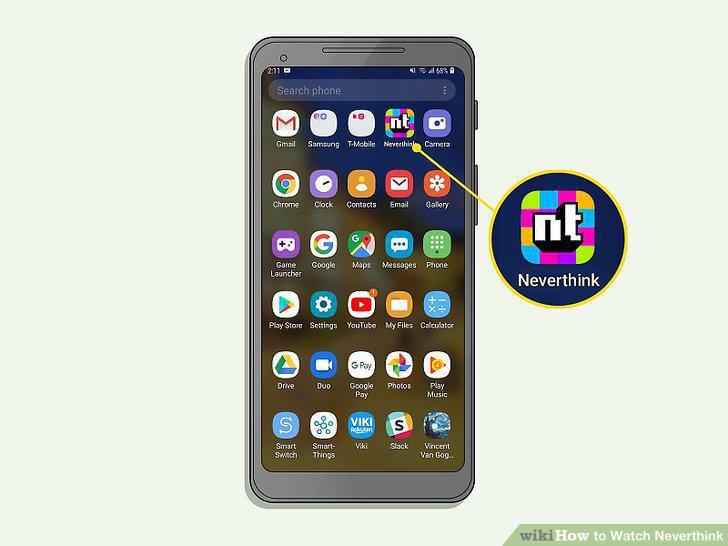
Open Neverthink on your phone or tablet.
Tap the video to bring up the screen controls (mobile).
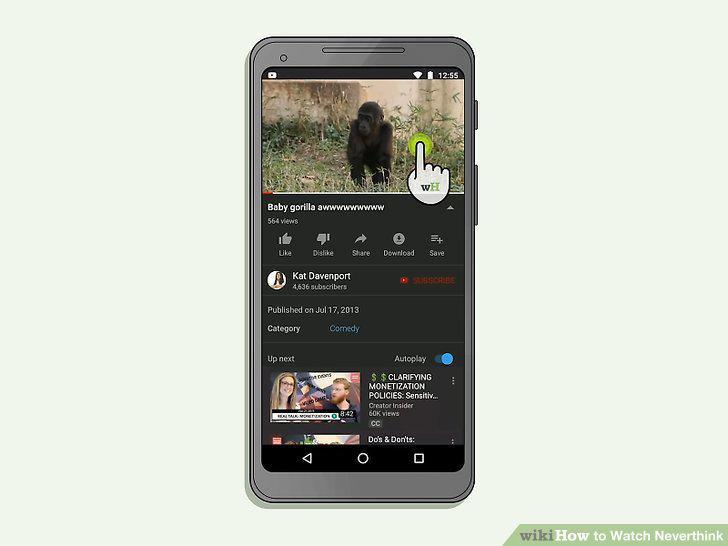
Tap the video to bring up the screen controls (mobile).
Tap Cast or .
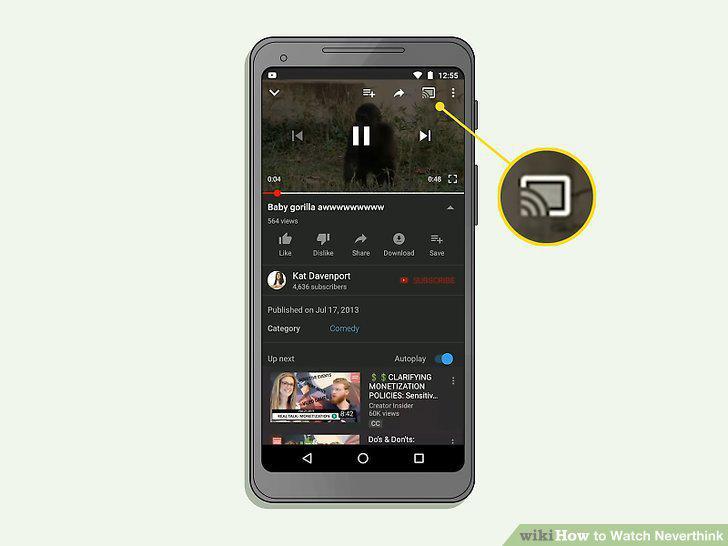
Tap Cast or .
Click your Chromecast to start casting.
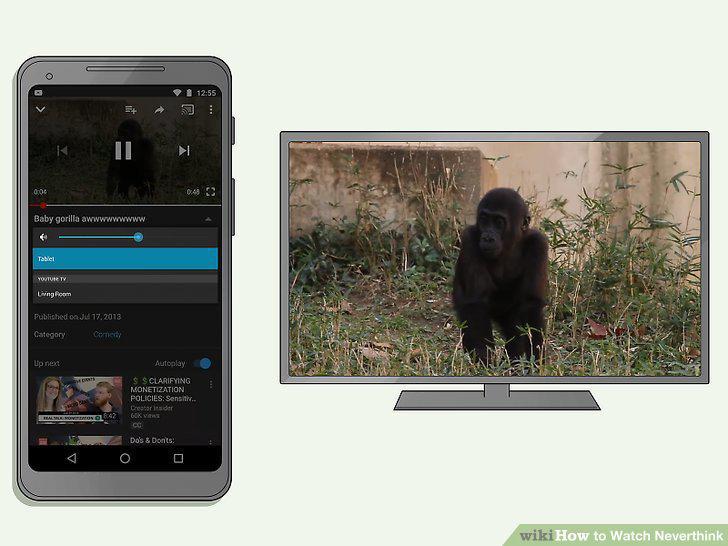
Click your Chromecast to start casting.
Comments (0)
No comments yet. Be the first to share your thoughts!