How to Mute a Group Chat on Skype on PC or Mac
Open the Skype app on your computer.. Click a group chat on the left panel.. Click the group name at the top of the conversation.
Steps
1
Open the Skype app on your computer.

Open the Skype app on your computer.
2
Click a group chat on the left panel.
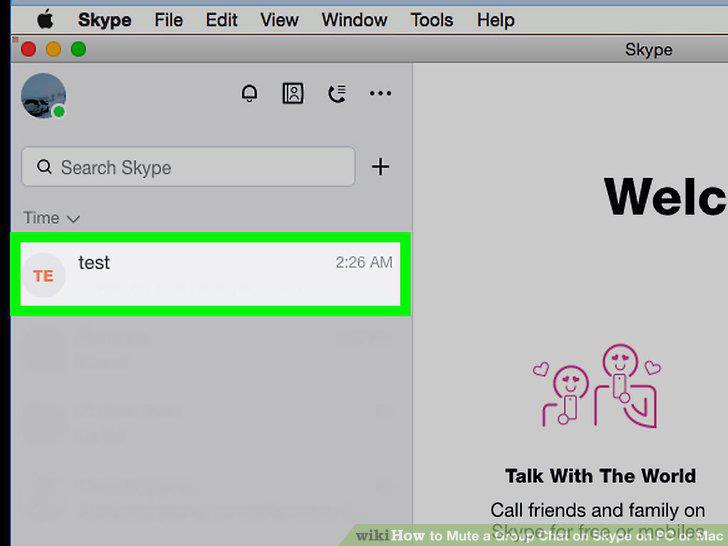
Click a group chat on the left panel.
3
Click the group name at the top of the conversation.
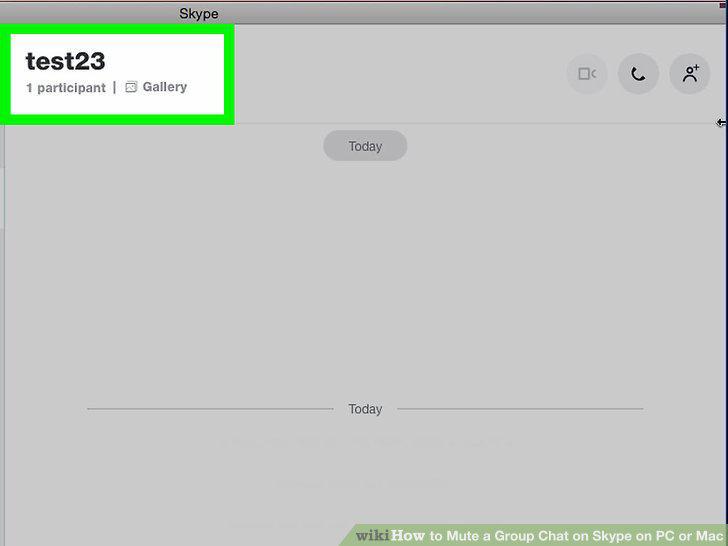
Click the group name at the top of the conversation.
4
Scroll down to the GROUP SETTINGS section.
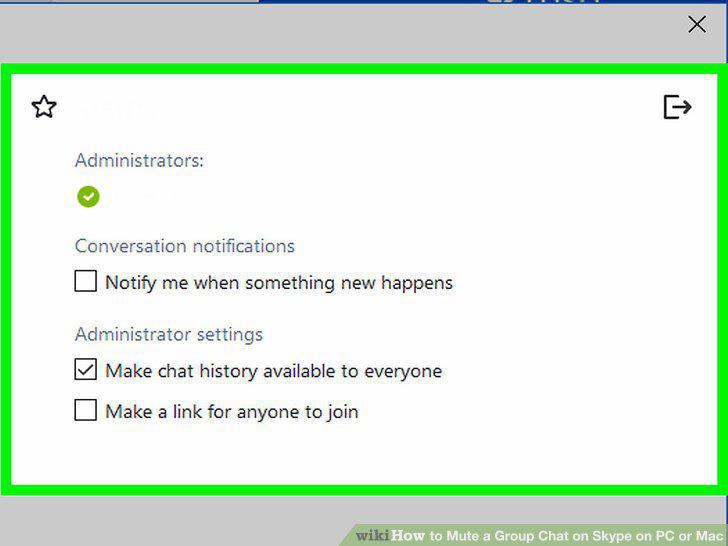
Scroll down to the GROUP SETTINGS section.
5
Slide the Notifications switch to .
Slide the Notifications switch to .
6
Open the Skype app on your computer.

Open the Skype app on your computer.
7
Click the RECENT button.
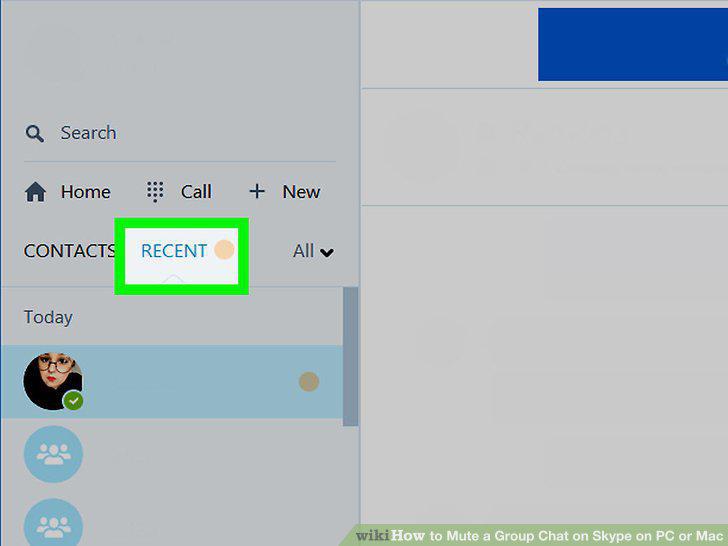
Click the RECENT button.
8
Click a group chat.
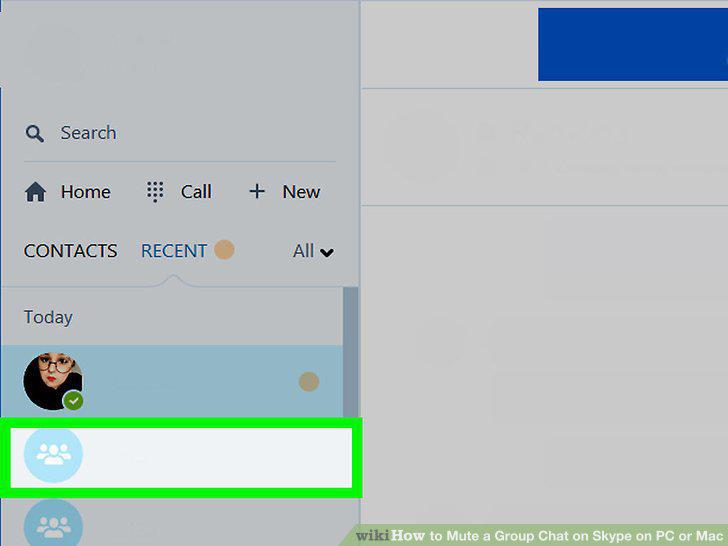
Click a group chat.
9
Click the group picture at the top.
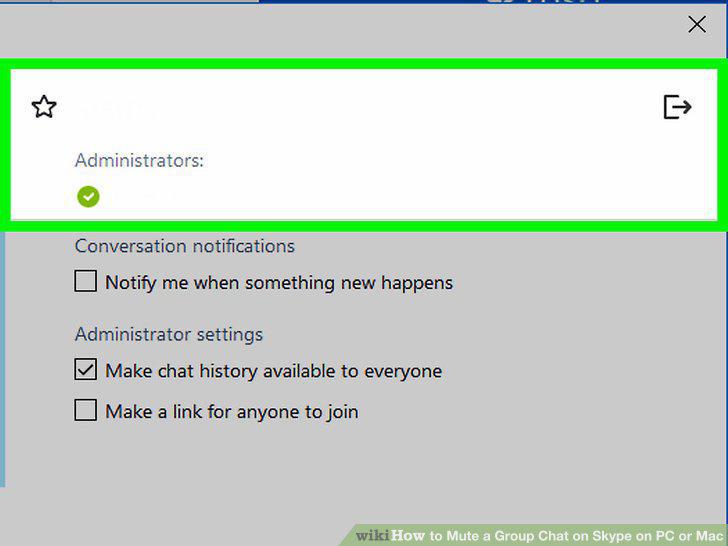
Click the group picture at the top.
10
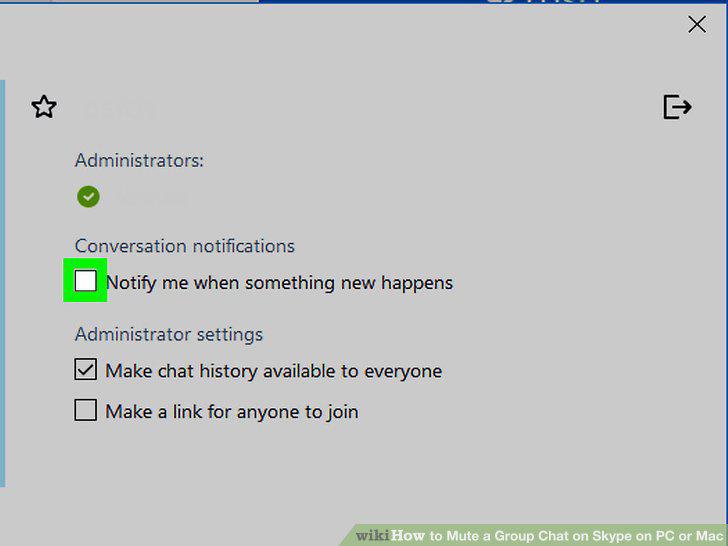
Uncheck the Notify me when something new happens box.
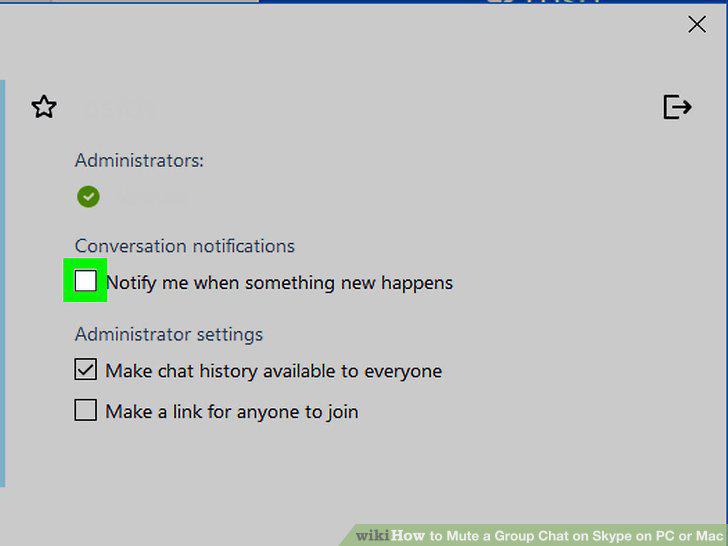
Uncheck the Notify me when something new happens box.
Comments (0)
No comments yet. Be the first to share your thoughts!