How to Grant Access to Your Gmail Account (Email Delegation)
Login to your Gmail account.. Tap the settings icon.. Tap to open "Settings".
Steps
1
Login to your Gmail account.
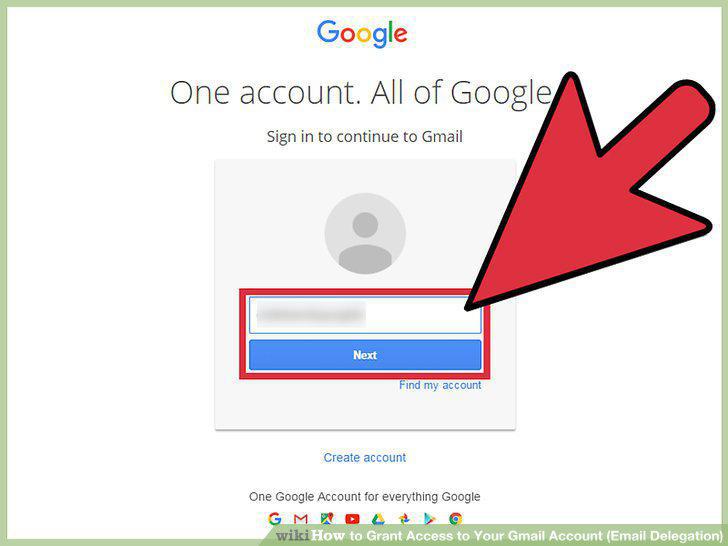
Login to your Gmail account.
2
Tap the settings icon.
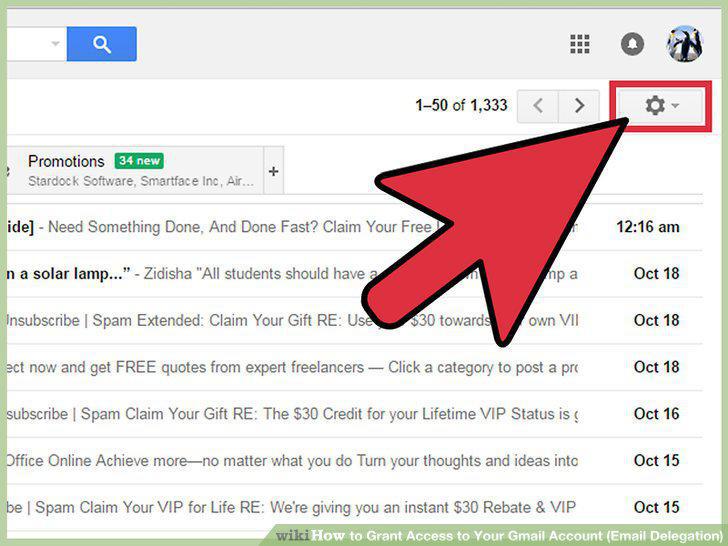
Tap the settings icon.
3
Tap to open "Settings".
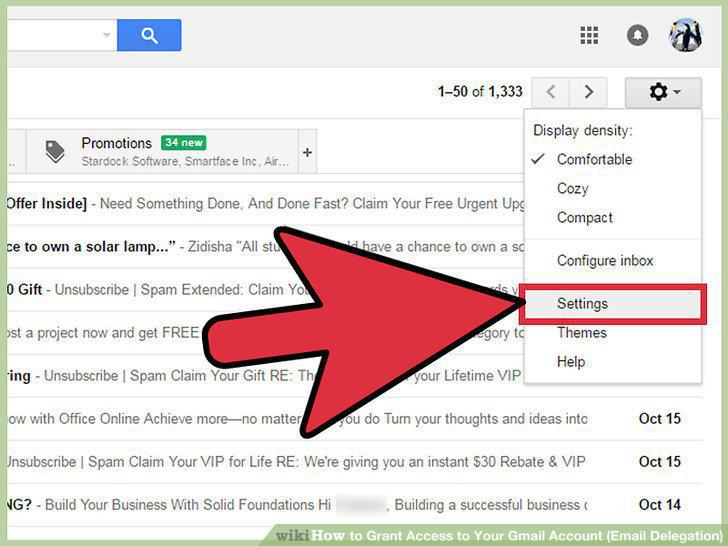
Tap to open "Settings".
4
Tap on the "Accounts and Import" tab.
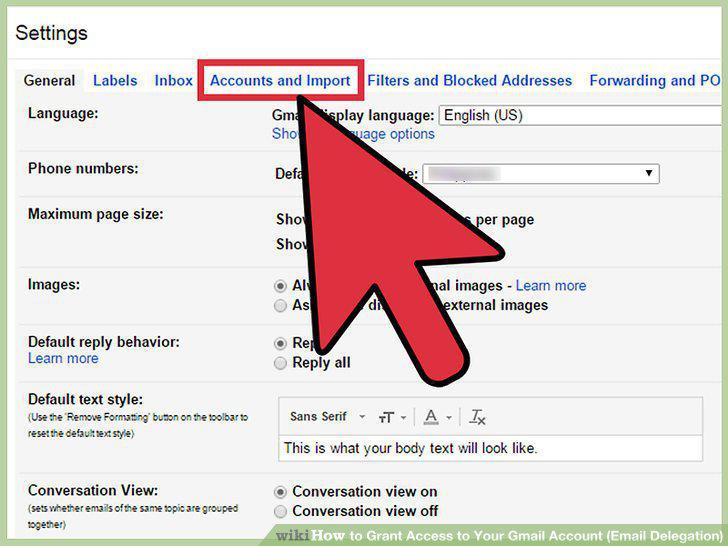
Tap on the "Accounts and Import" tab.
5
Tap "Add another account".
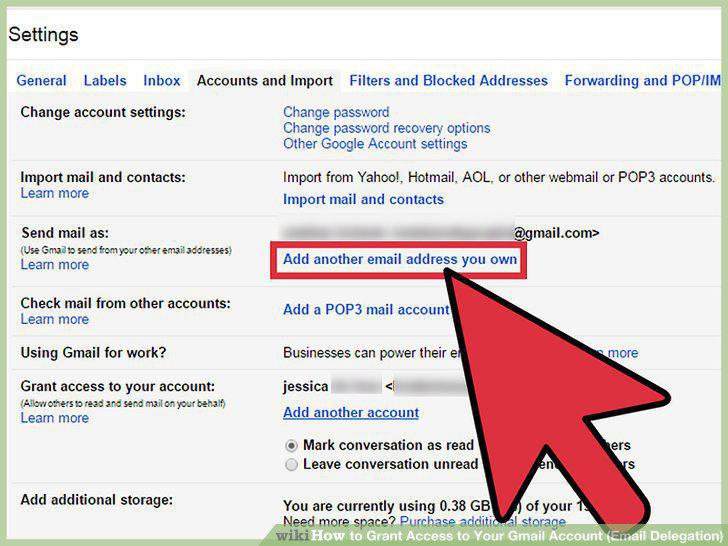
Tap "Add another account".
6
Enter the delegate's Gmail address.
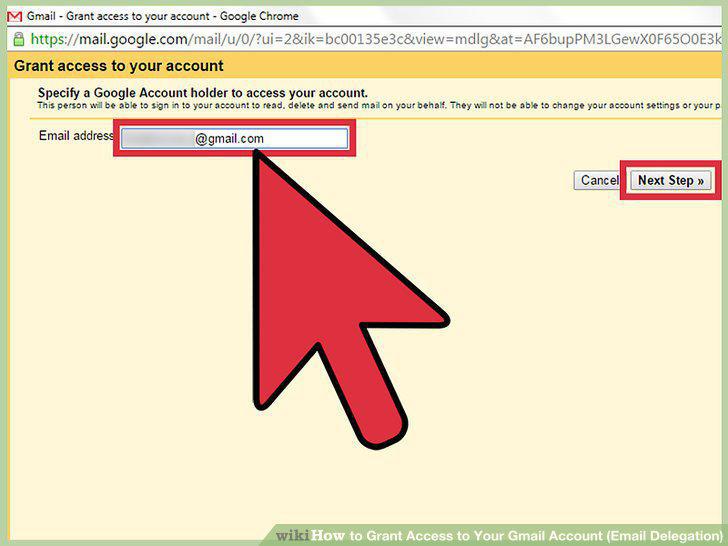
Enter the delegate's Gmail address.
7
Select "Send email to grant access".
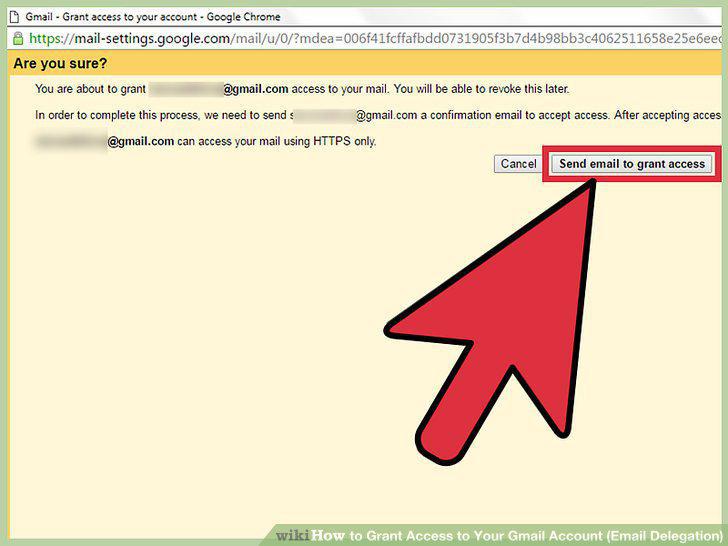
Select "Send email to grant access".
8
Login to your Gmail account.
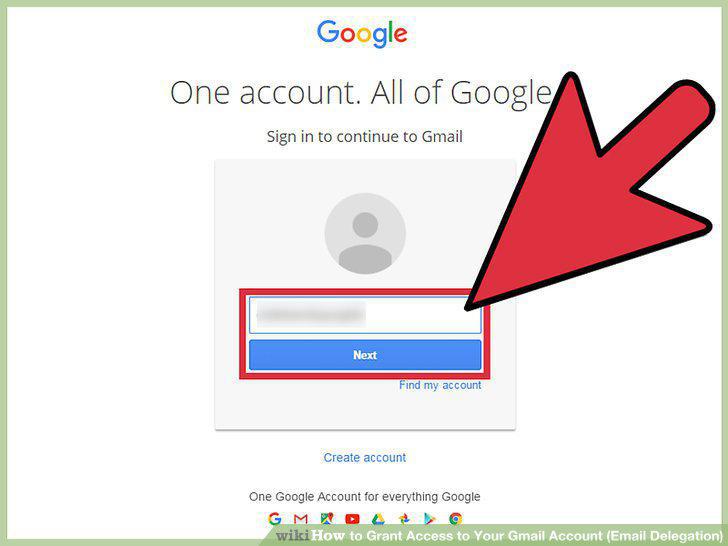
Login to your Gmail account.
9
Click on the e-mail sent by the Gmail Team.
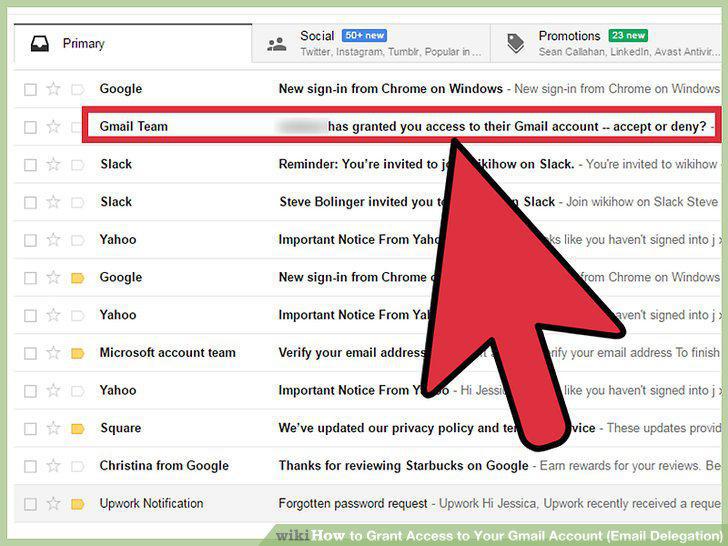
Click on the e-mail sent by the Gmail Team.
10
Tap on the confirmation link provided.
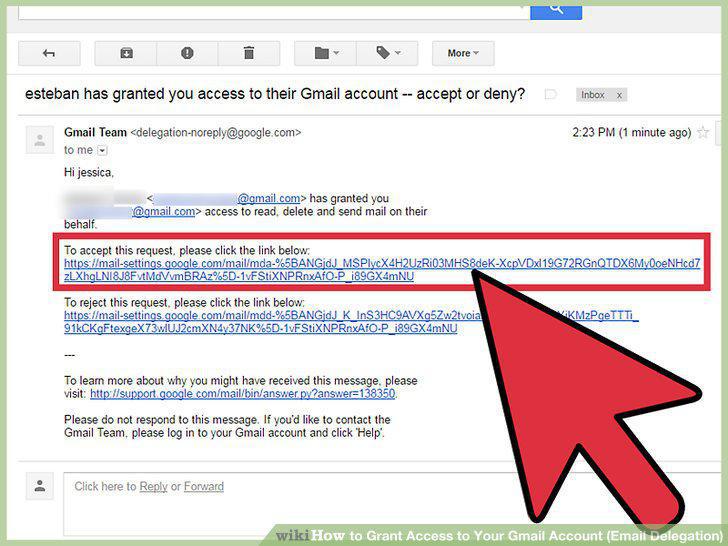
Tap on the confirmation link provided.
11
Click on your profile picture.
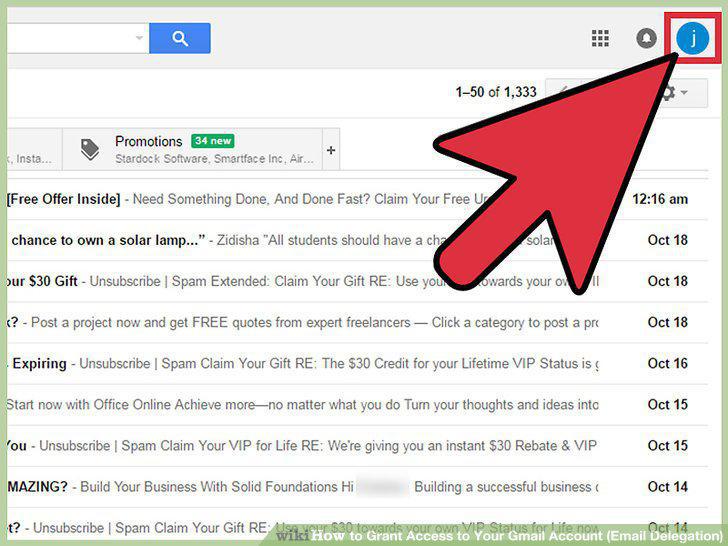
Click on your profile picture.
12
Tap on the delegated account.
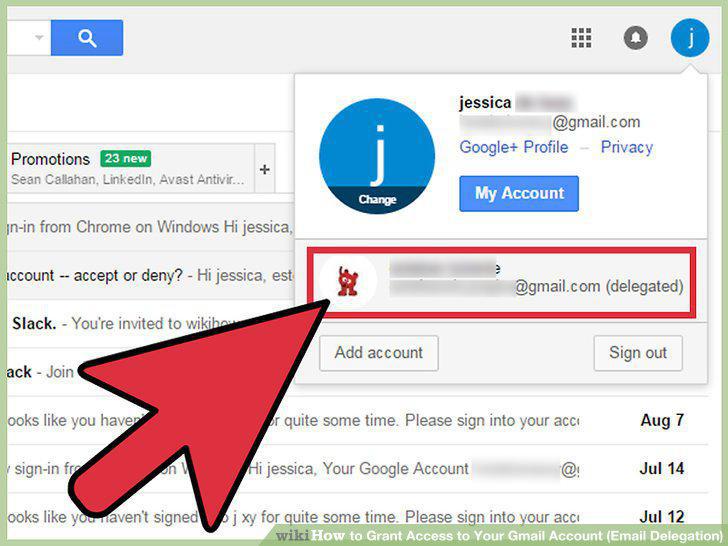
Tap on the delegated account.
Comments (0)
No comments yet. Be the first to share your thoughts!