How to Publish on VSCO on iPhone or iPad
Tap to open the VSCO app.. Tap the Studio icon at the bottom of the screen.. Tap to select a photo to publish.
Steps
1
Tap to open the VSCO app.
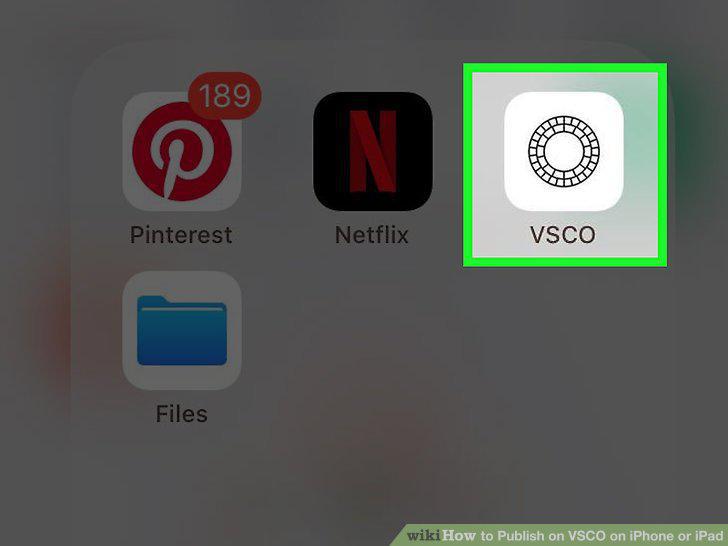
Tap to open the VSCO app.
2
Tap the Studio icon at the bottom of the screen.
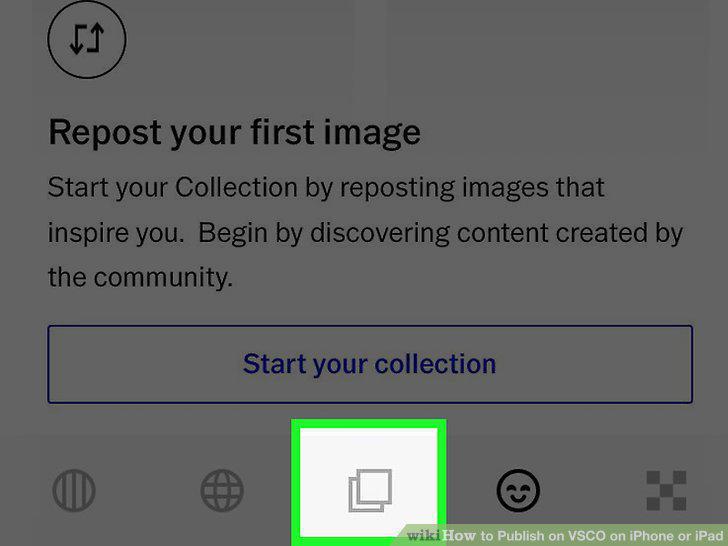
Tap the Studio icon at the bottom of the screen.
3
Tap to select a photo to publish.
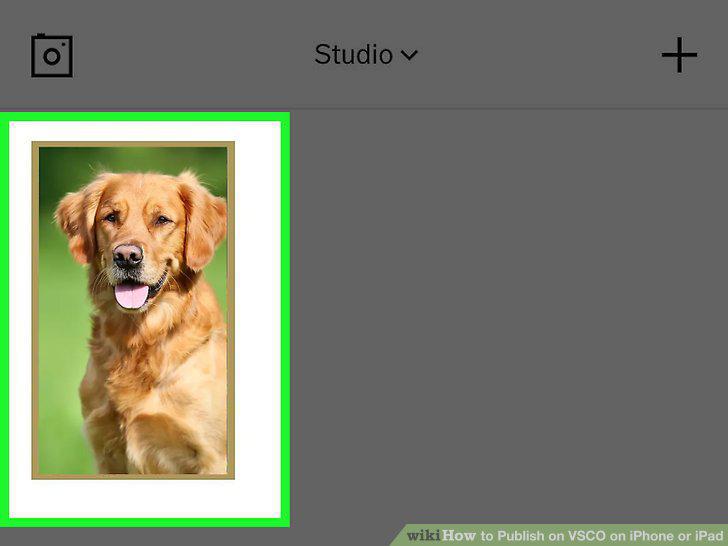
Tap to select a photo to publish.
4
Tap the publish icon.
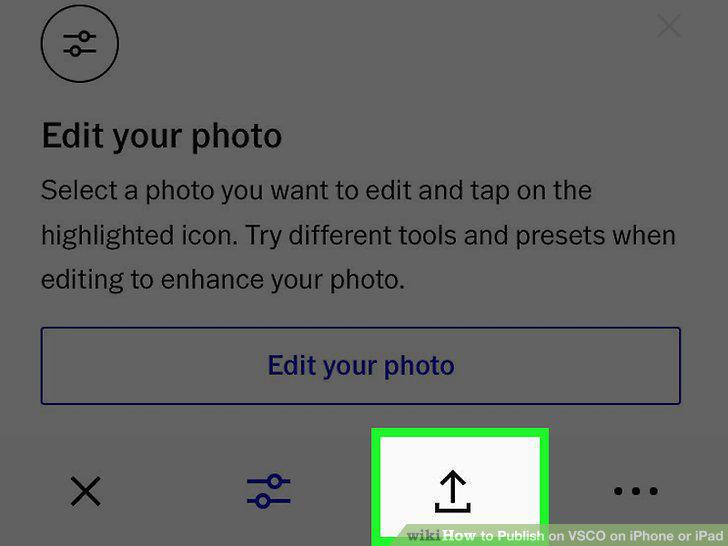
Tap the publish icon.
5
Add a caption under the photo (optional).

Add a caption under the photo (optional).
6
Tap the checkmark in the upper right corner.
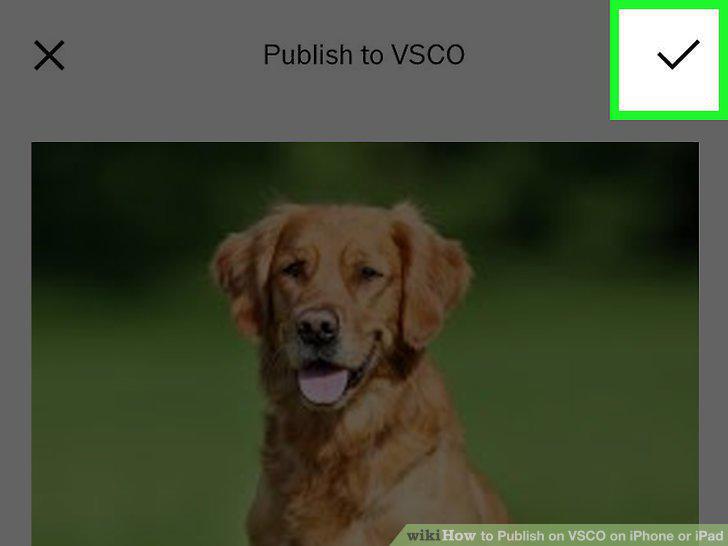
Tap the checkmark in the upper right corner.
Comments (0)
No comments yet. Be the first to share your thoughts!