How to Use Shapes on Facetime on iPhone or iPad
Connect to a FaceTime video call.. Tap the screen.. Tap the effects button.
Steps
1
Connect to a FaceTime video call.
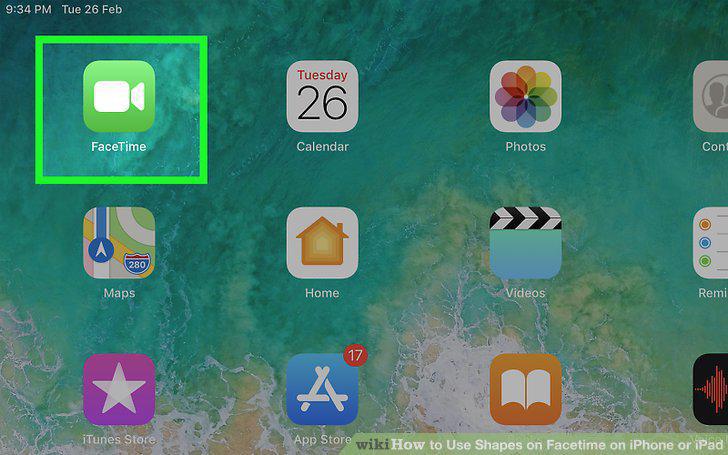
Connect to a FaceTime video call.
2
Tap the screen.
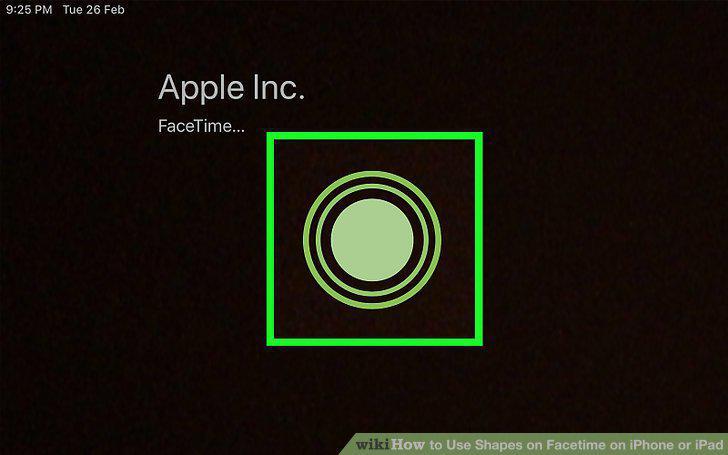
Tap the screen.
3
Tap the effects button.
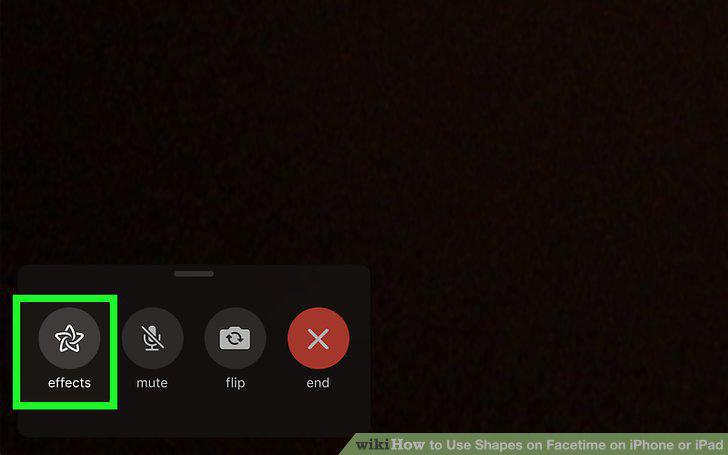
Tap the effects button.
4
Tap the red squiggly line.
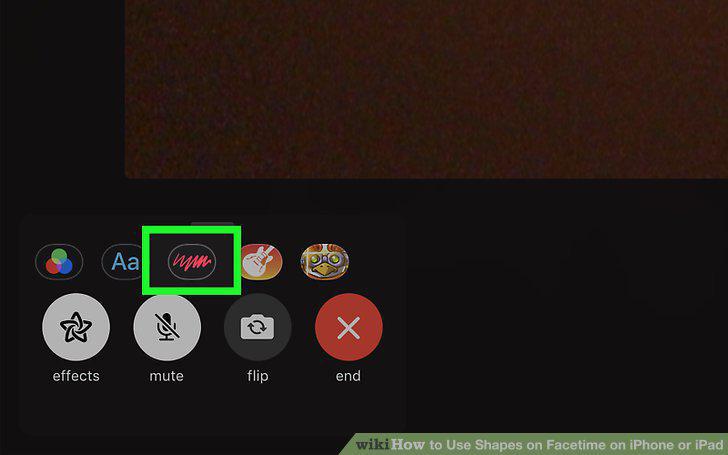
Tap the red squiggly line.
5
Tap a shape you want to use.
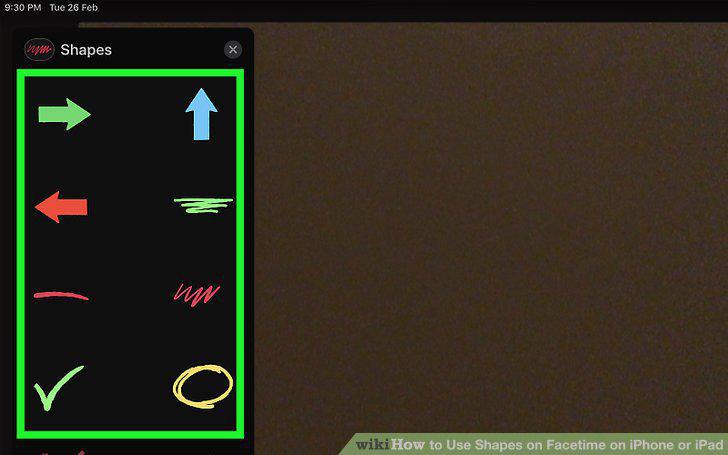
Tap a shape you want to use.
6
Drag the shape to the desired position in the video.
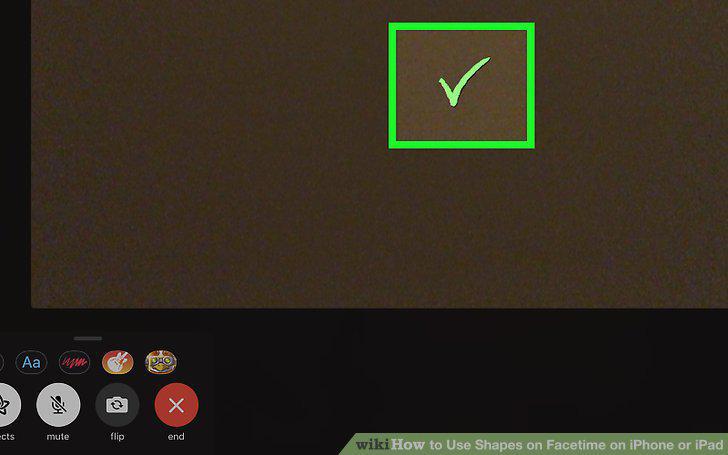
Drag the shape to the desired position in the video.
7
Select additional shapes (optional).
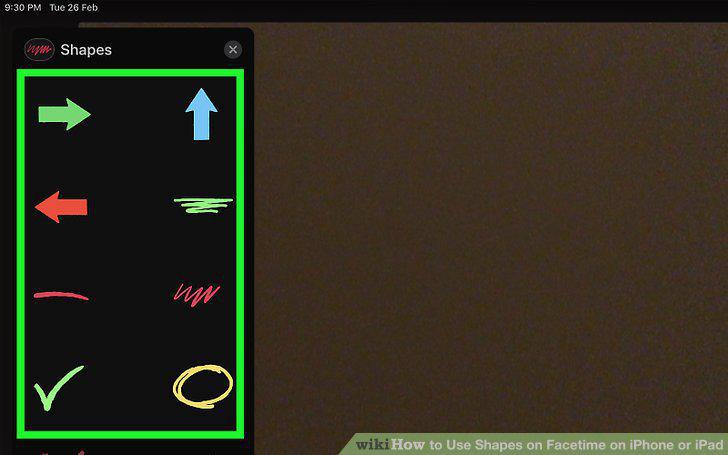
Select additional shapes (optional).
8
Tap Done.
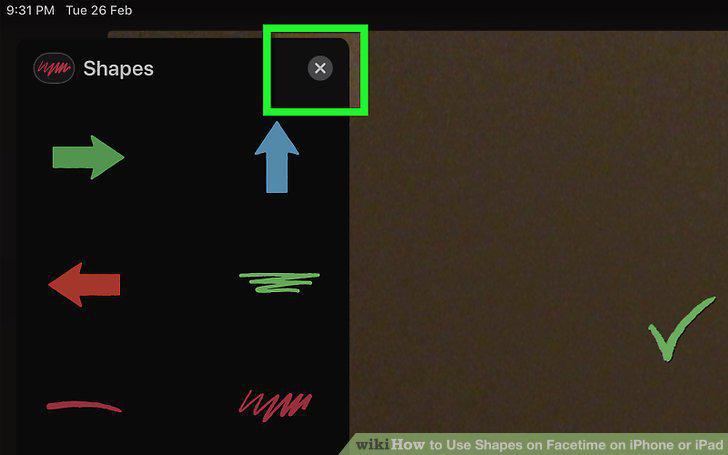
Tap Done.
Comments (0)
No comments yet. Be the first to share your thoughts!