How to Downgrade Windows 8 to Windows 7
Check your version of Windows 8 to see if you qualify for downgrade rights.. Obtain a valid Windows 7 Professional product key.. Ensure that your computer has Windows 7 drivers available.
Steps
Check your version of Windows 8 to see if you qualify for downgrade rights.
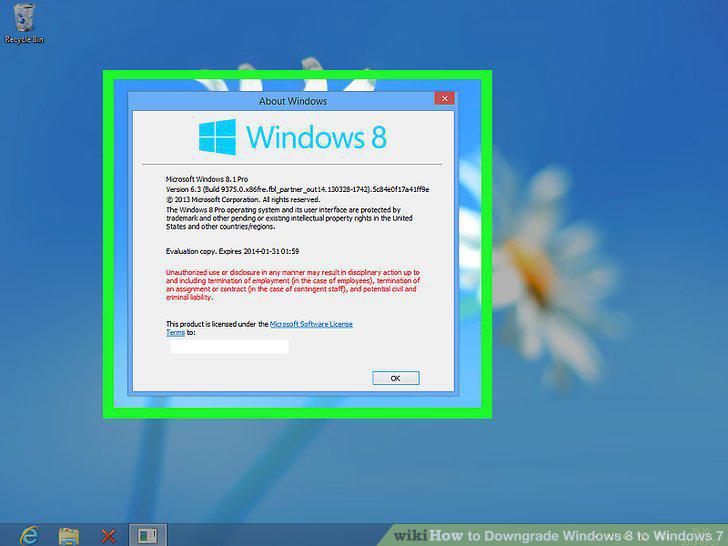
Check your version of Windows 8 to see if you qualify for downgrade rights.
Obtain a valid Windows 7 Professional product key.
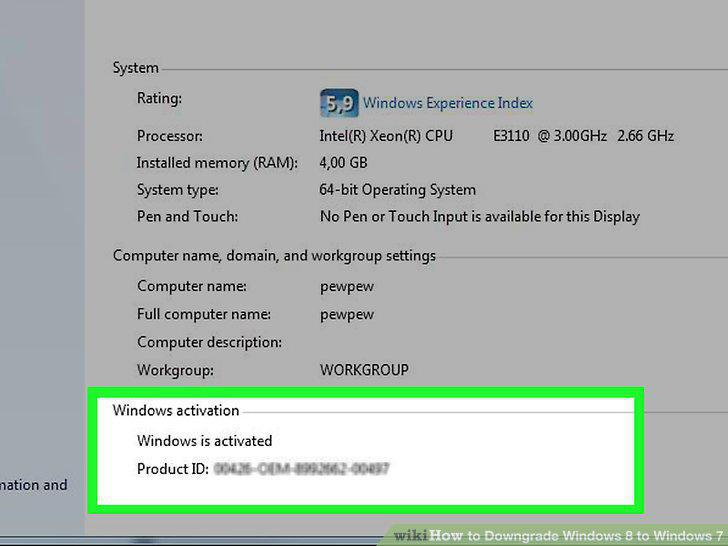
Obtain a valid Windows 7 Professional product key.
Ensure that your computer has Windows 7 drivers available.
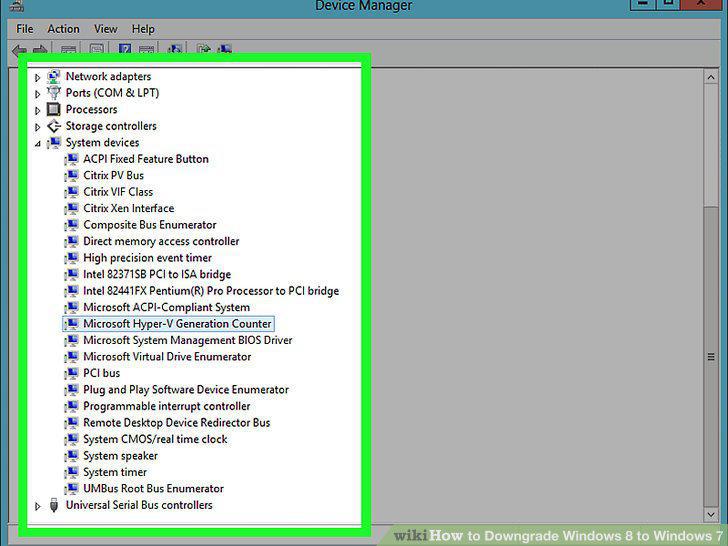
Ensure that your computer has Windows 7 drivers available.
Make a driver disk (optional).
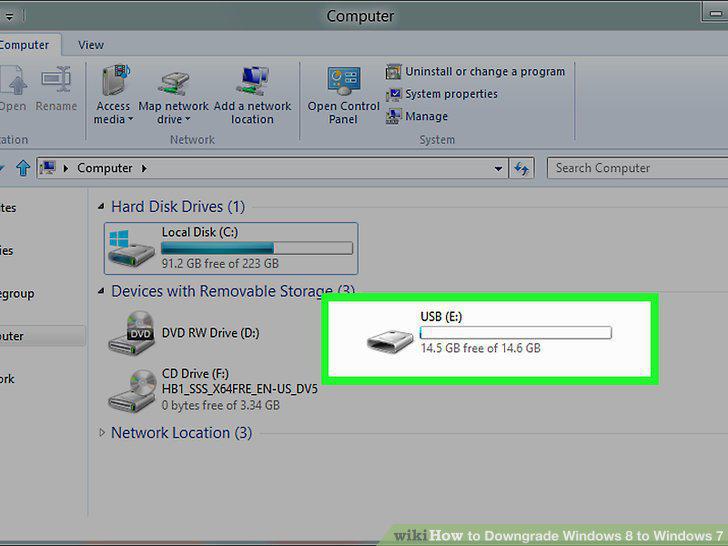
Make a driver disk (optional).
Find or make a Windows 7 Professional installation disc.
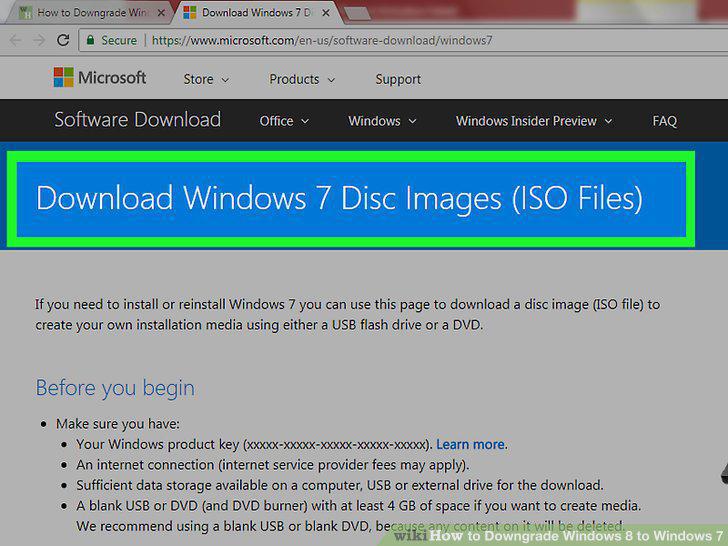
Find or make a Windows 7 Professional installation disc.
Back up all of your important files.
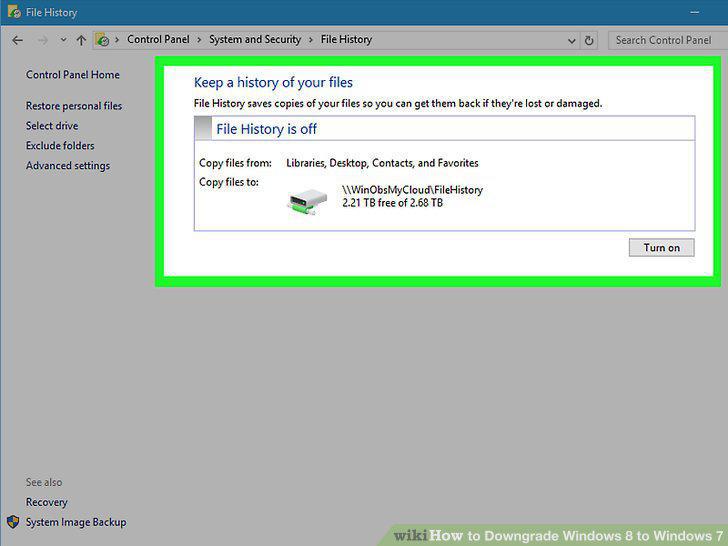
Back up all of your important files.
Enable the legacy boot function in the UEFI settings menu.
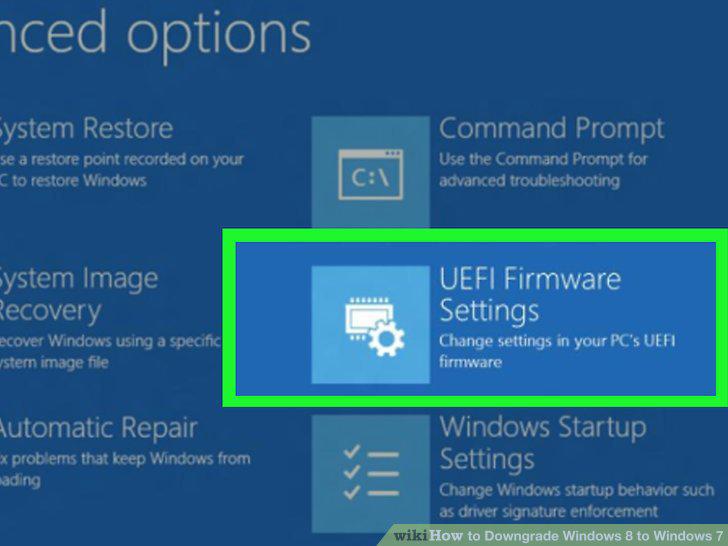
Enable the legacy boot function in the UEFI settings menu.
Insert the Windows 7 installation disc or USB drive and reboot.
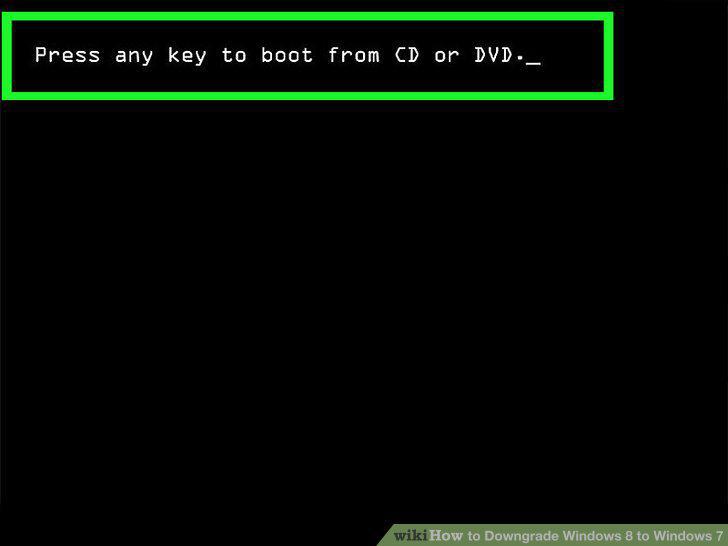
Insert the Windows 7 installation disc or USB drive and reboot.
Boot from the disc or drive.
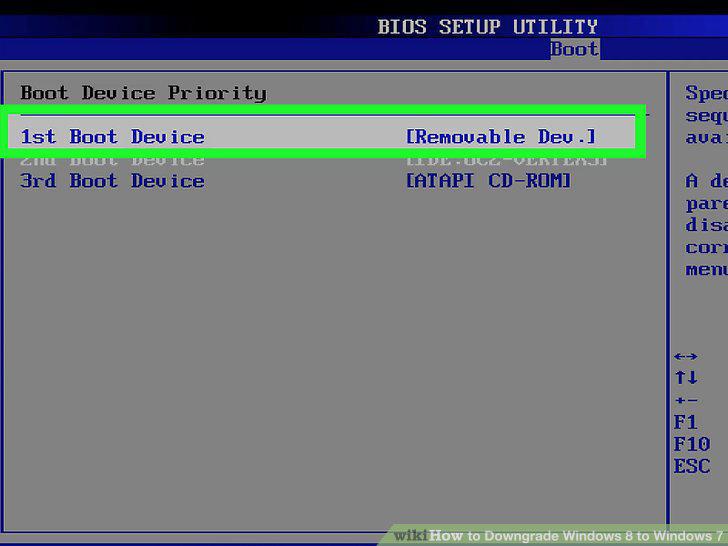
Boot from the disc or drive.
Start the Windows 7 installation process.
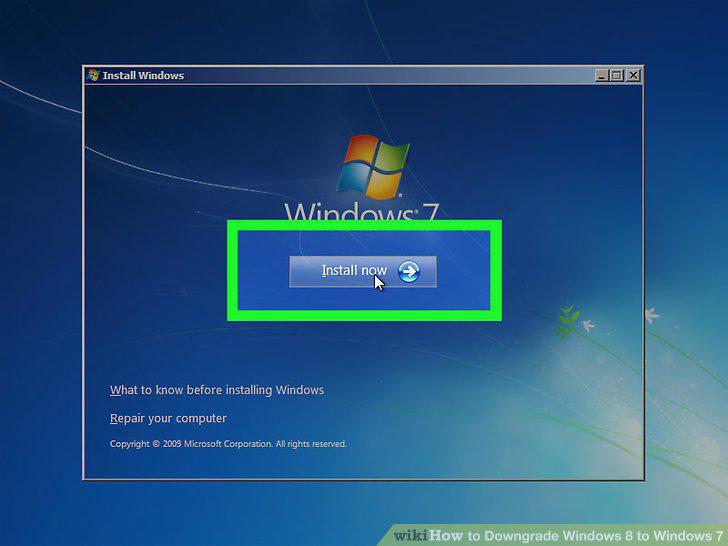
Start the Windows 7 installation process.
Proceed through the Windows 7 installation.
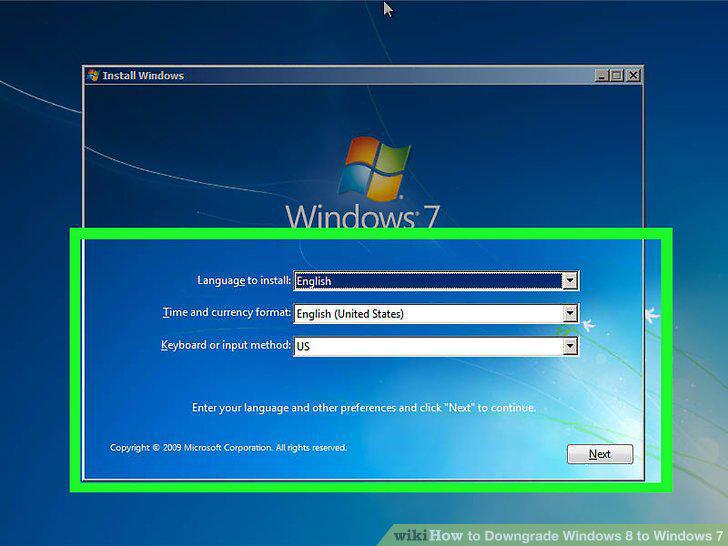
Proceed through the Windows 7 installation.
Select the drive that has Windows 8 installed when prompted.
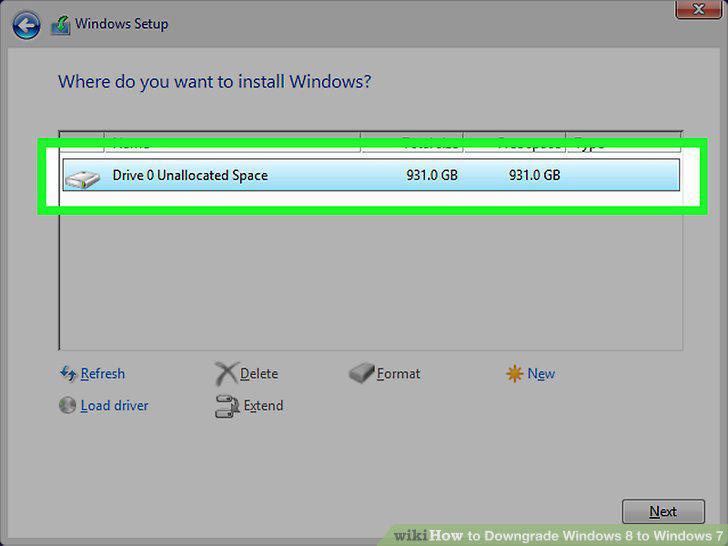
Select the drive that has Windows 8 installed when prompted.
Enter the Windows 7 Professional key you found when prompted.
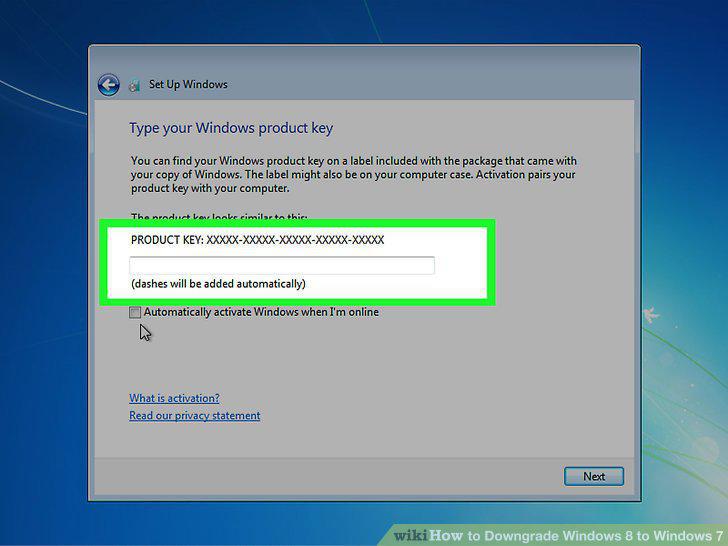
Enter the Windows 7 Professional key you found when prompted.
Complete the installation and load the desktop.
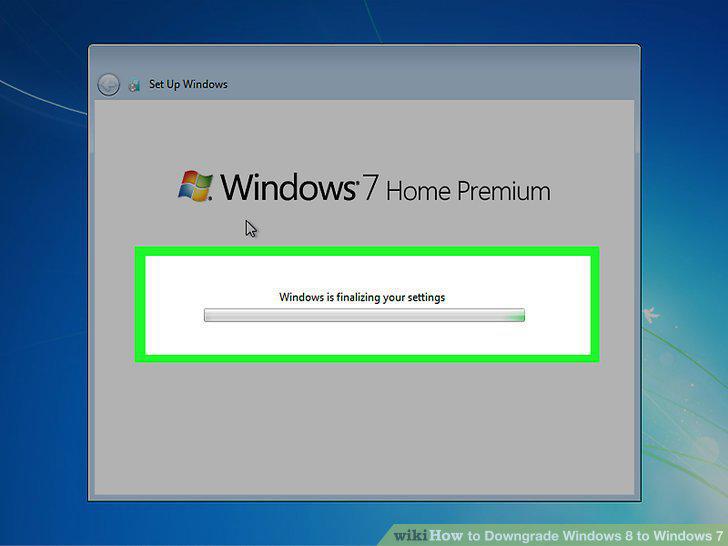
Complete the installation and load the desktop.
Open the Activation window if it doesn't open automatically.
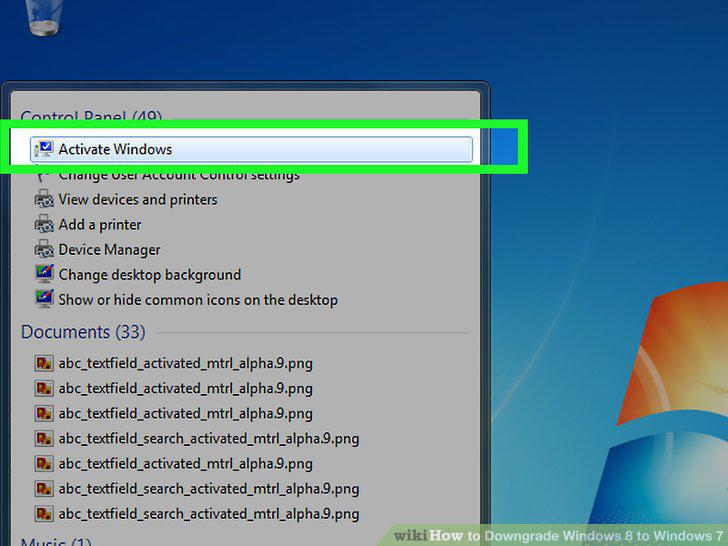
Open the Activation window if it doesn't open automatically.
Call the phone number that appears if activation fails.
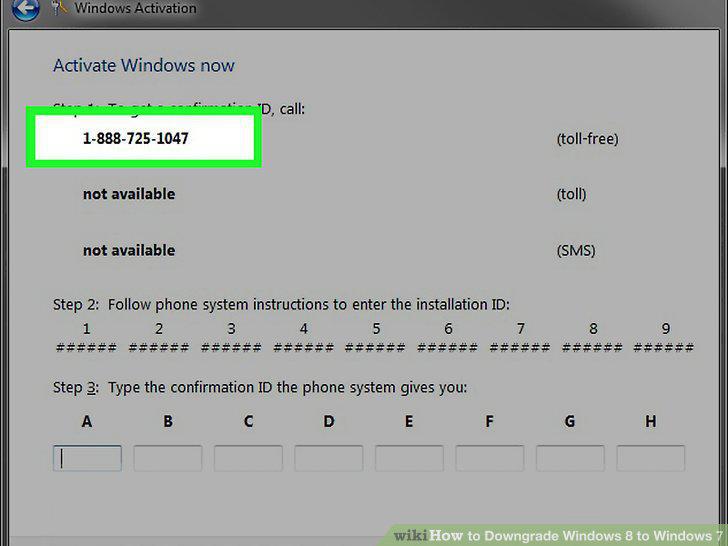
Call the phone number that appears if activation fails.
Enter the code provided by Microsoft to activate Windows.
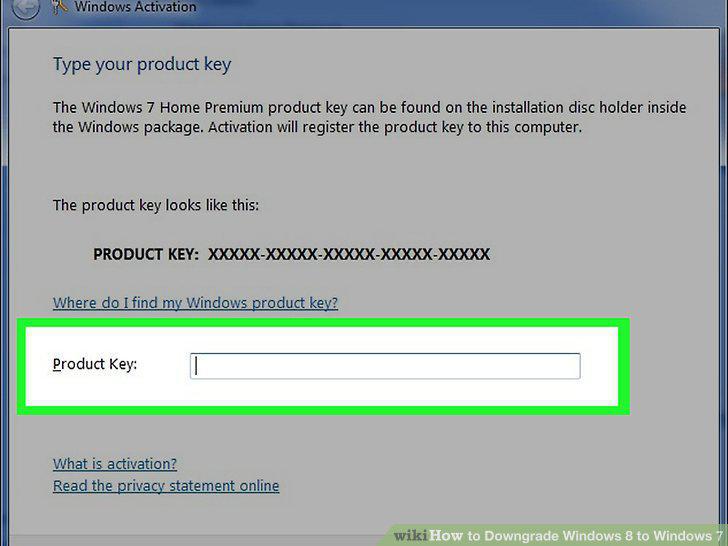
Enter the code provided by Microsoft to activate Windows.
Install your drivers.
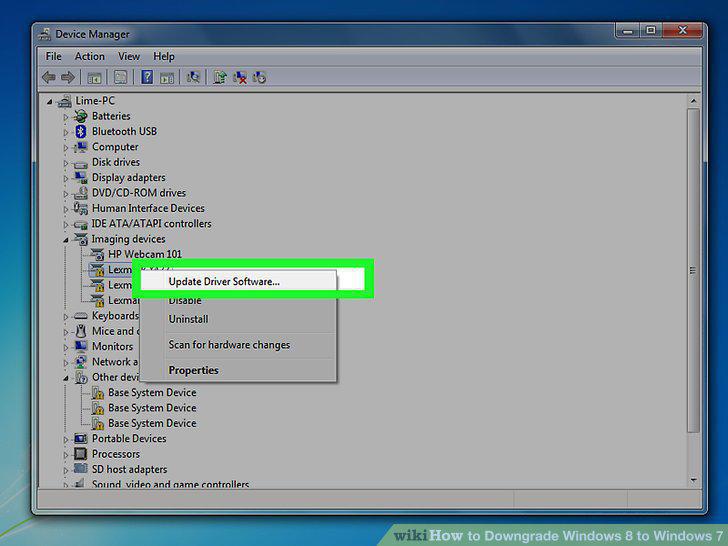
Install your drivers.
Comments (0)
No comments yet. Be the first to share your thoughts!