How to Connect PC to Bluetooth
Turn on the Bluetooth device.. Make the Bluetooth accessory discoverable.. Click the Action Center icon.
Steps
1
Turn on the Bluetooth device.
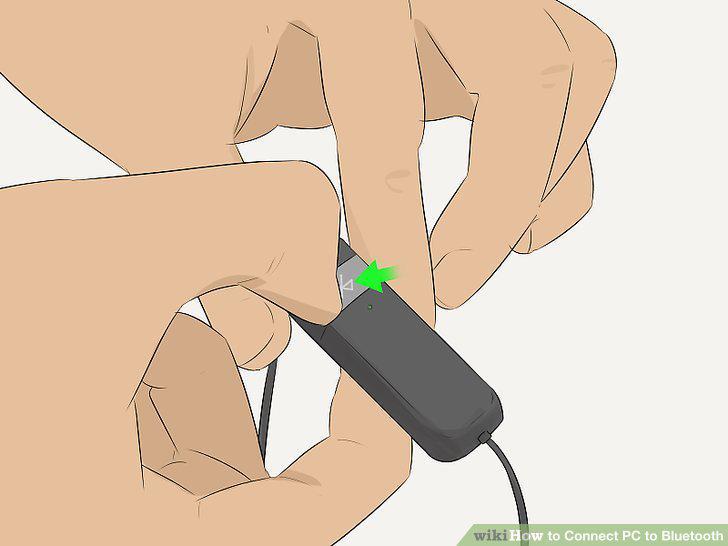
Turn on the Bluetooth device.
2
Make the Bluetooth accessory discoverable.
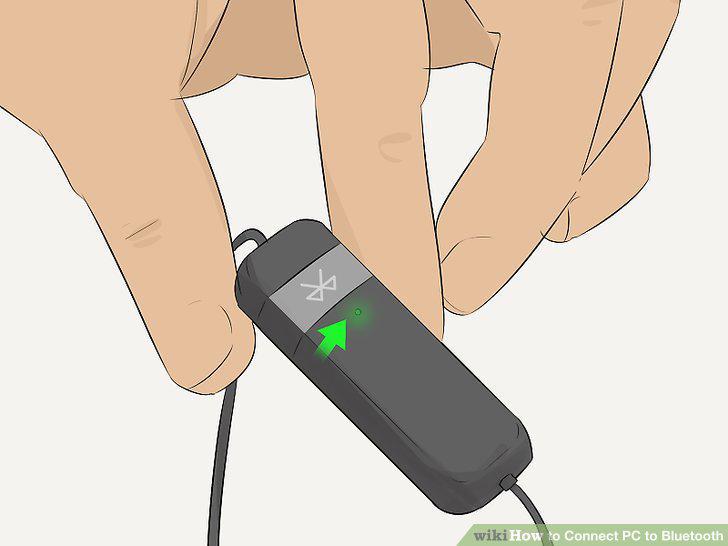
Make the Bluetooth accessory discoverable.
3
Click the Action Center icon.
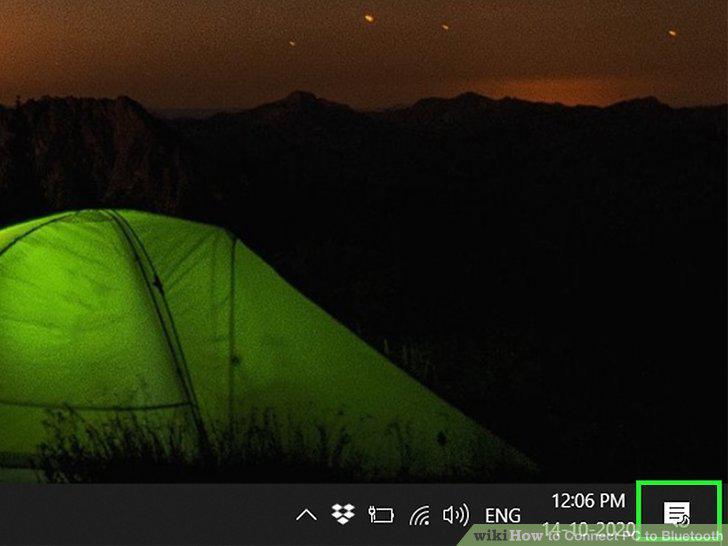
Click the Action Center icon.
4
Click the Bluetooth icon to toggle it on.
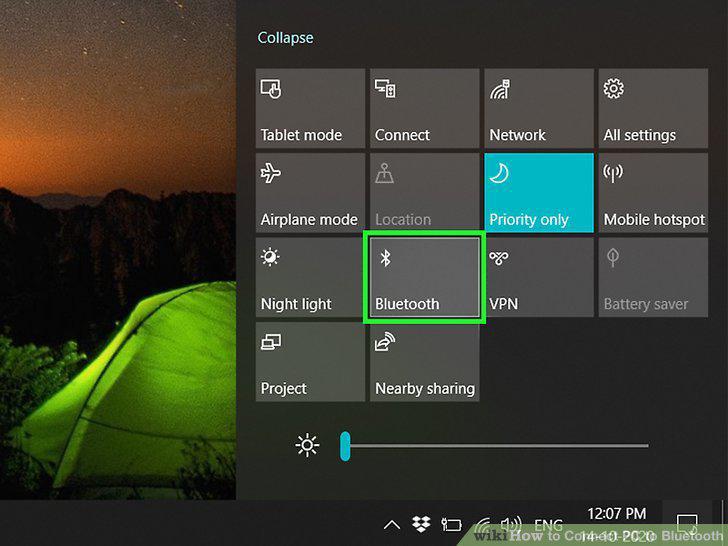
Click the Bluetooth icon to toggle it on.
5
Click the Connect tile.
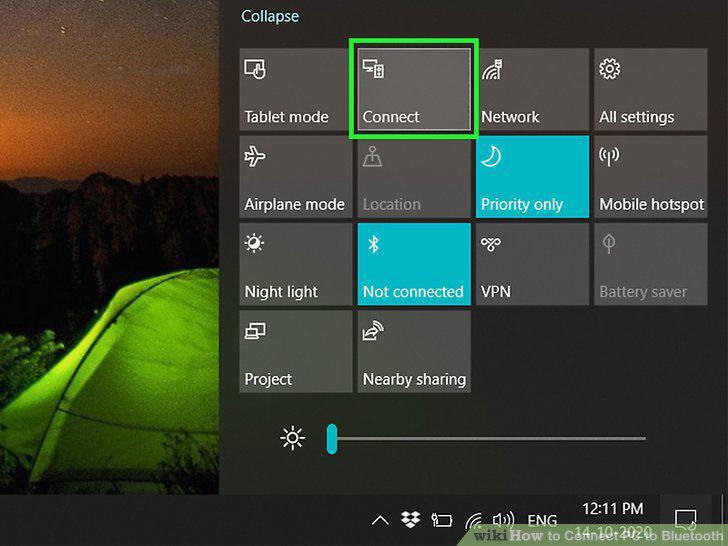
Click the Connect tile.
6
Click your Bluetooth device.
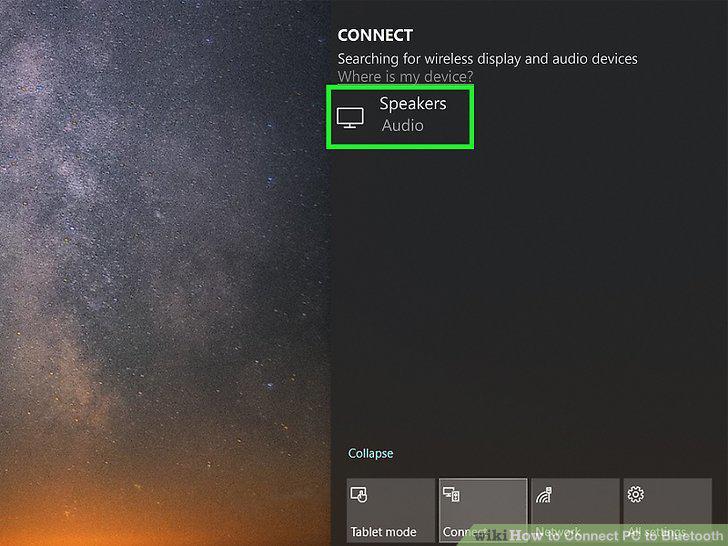
Click your Bluetooth device.
7
Turn on the Bluetooth device.
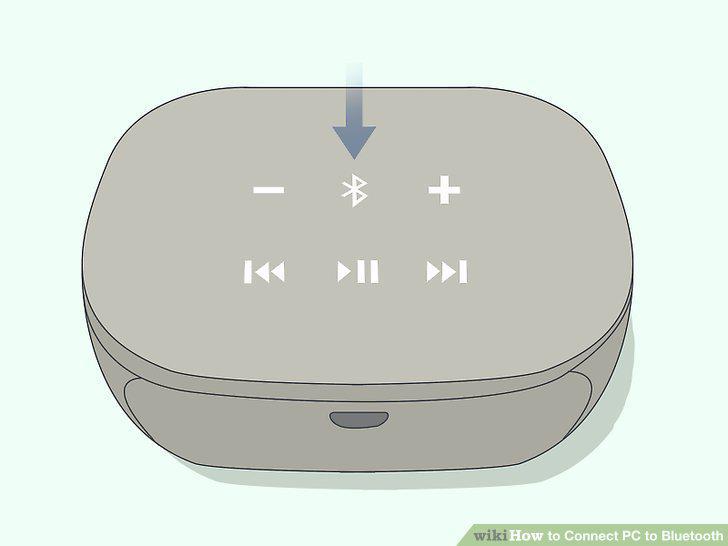
Turn on the Bluetooth device.
8
Make the Bluetooth accessory discoverable.
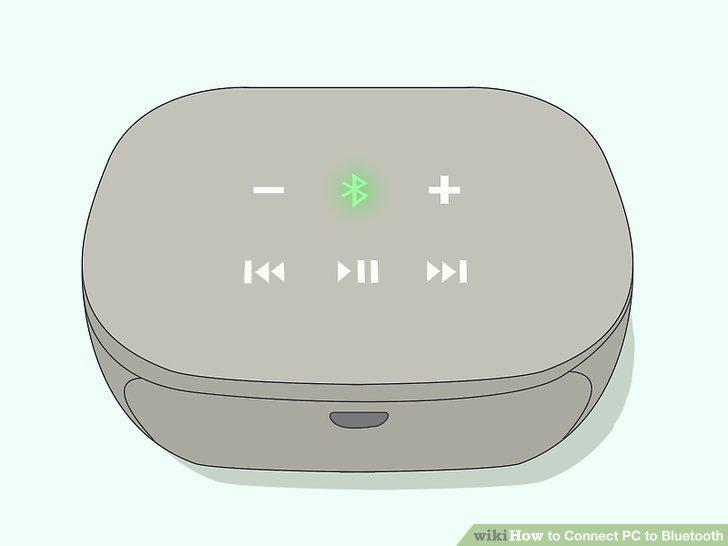
Make the Bluetooth accessory discoverable.
9
Click the Start button.
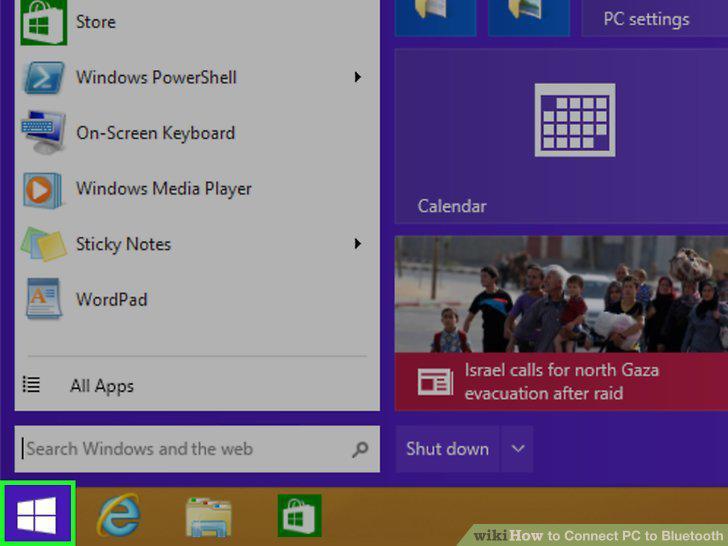
Click the Start button.
10
Type Bluetooth into the search bar.
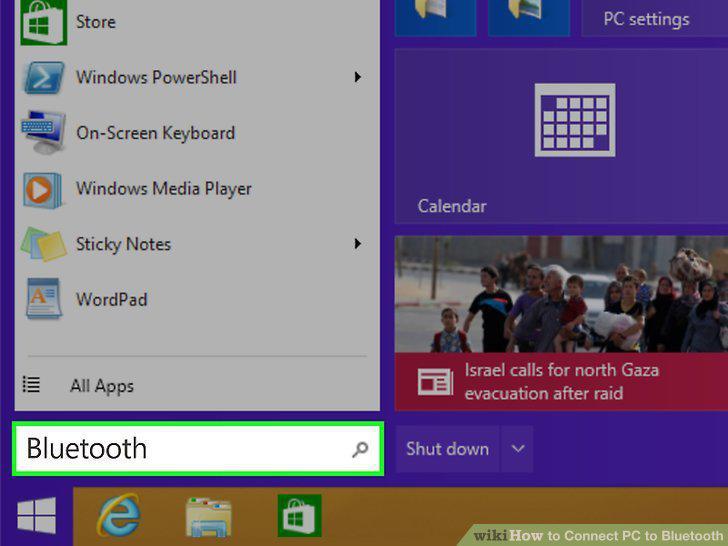
Type Bluetooth into the search bar.
11
Click Bluetooth settings in the search results.
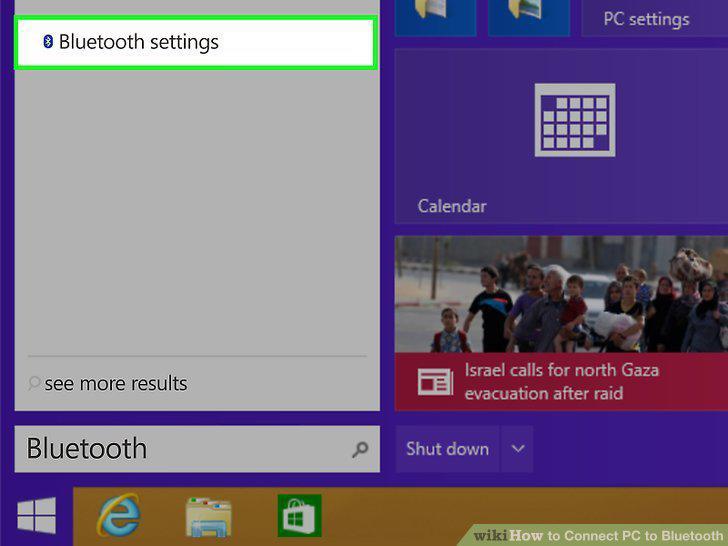
Click Bluetooth settings in the search results.
12
Slide the "Bluetooth" slider to the On (blue) position.
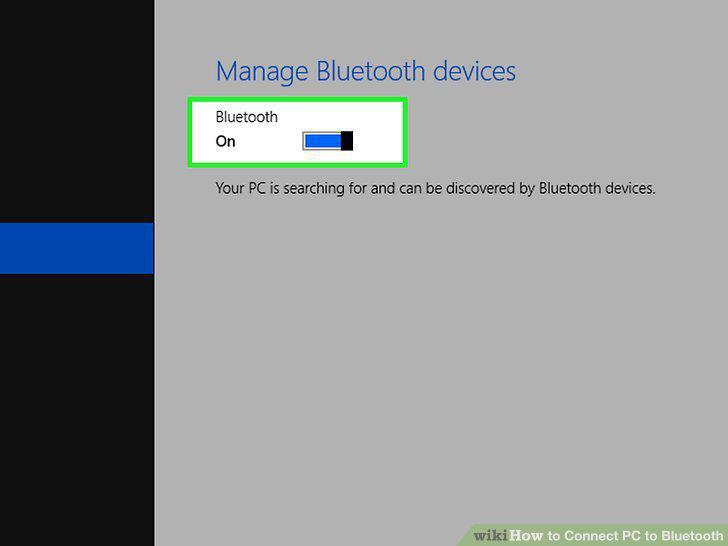
Slide the "Bluetooth" slider to the On (blue) position.
13
Click the Bluetooth device.
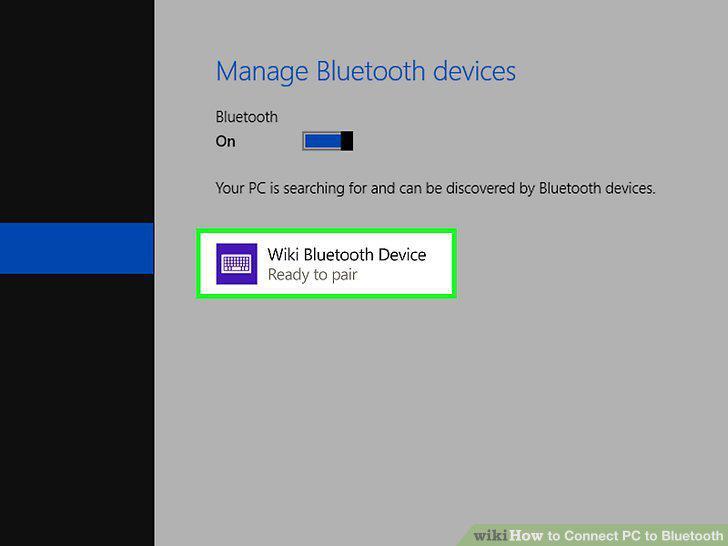
Click the Bluetooth device.
14
Click Pair.
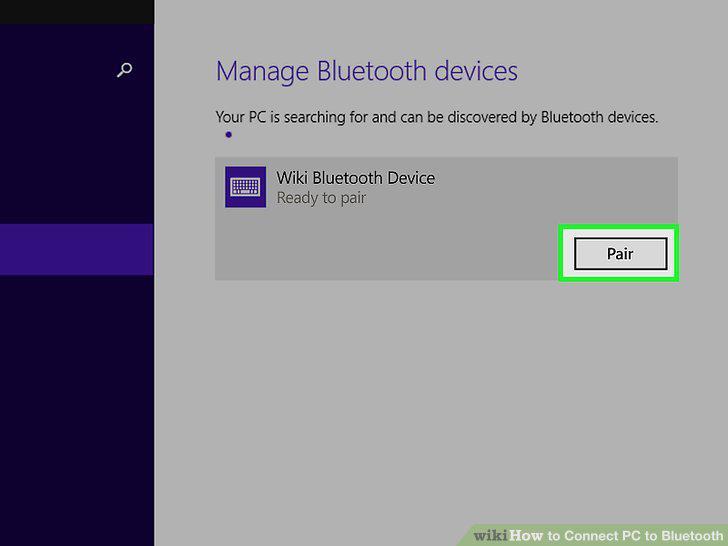
Click Pair.
15
Turn on the Bluetooth device.
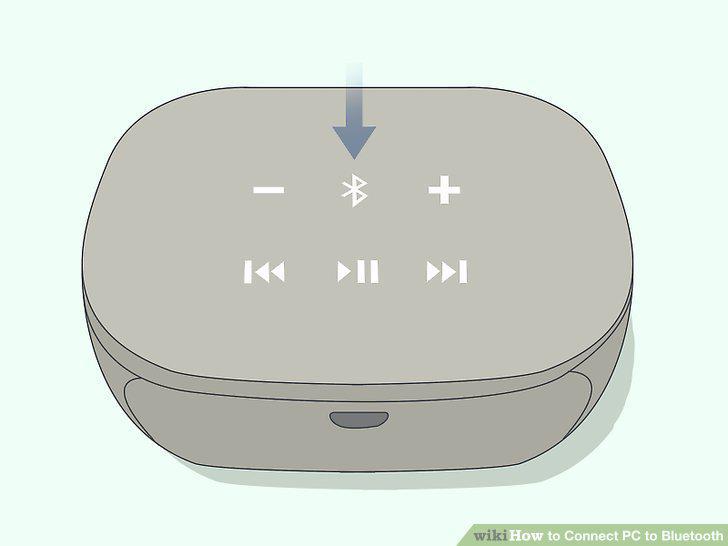
Turn on the Bluetooth device.
16
Make the Bluetooth accessory discoverable.
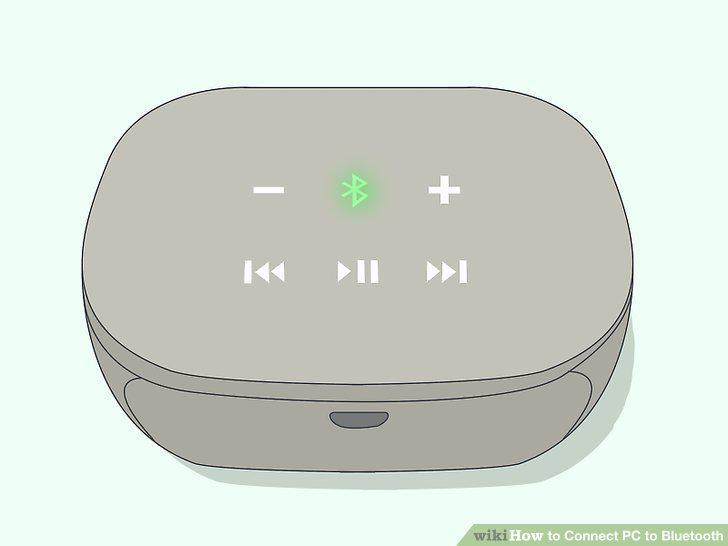
Make the Bluetooth accessory discoverable.
17
Open your PC's Control Panel.
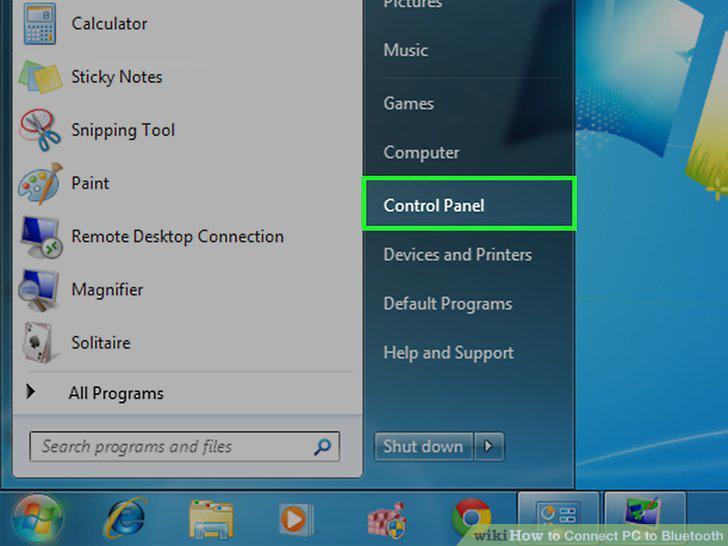
Open your PC's Control Panel.
18
Click Add a device under "Hardware and Sound.
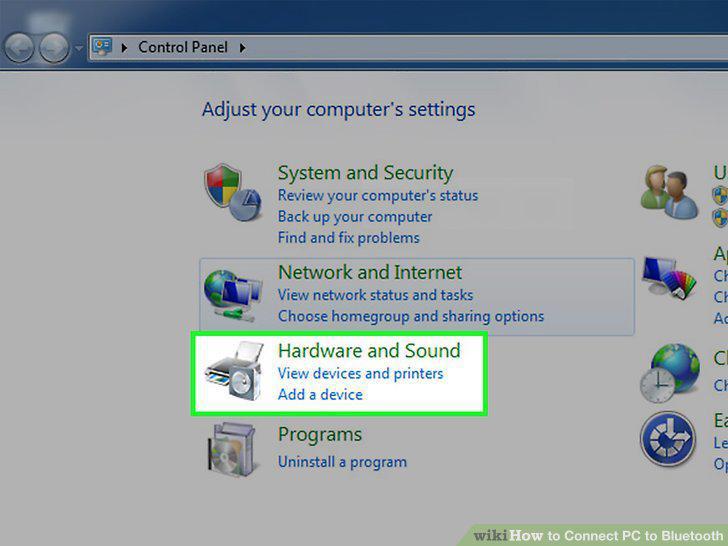
Click Add a device under "Hardware and Sound.
19
Click the device and select Next.
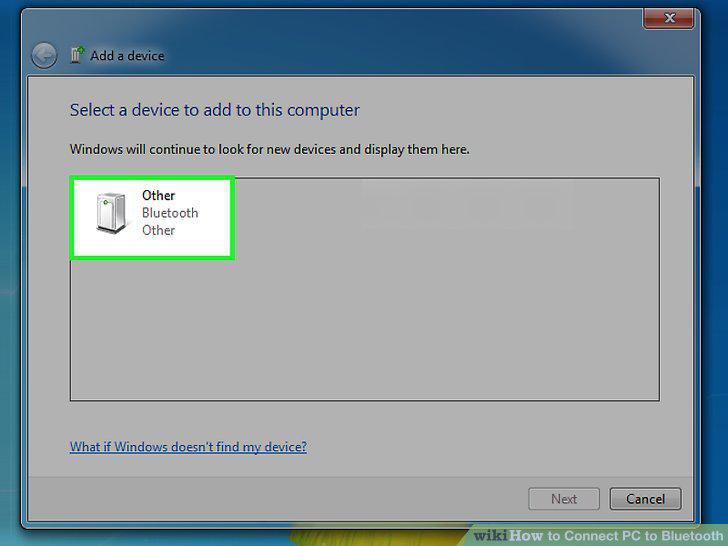
Click the device and select Next.
Comments (0)
No comments yet. Be the first to share your thoughts!