How to Use the Magic Wand Selection in Photoshop
Open Photoshop.. Open a Photoshop file.. Click and hold the quick select tool.
Steps
1
Open Photoshop.
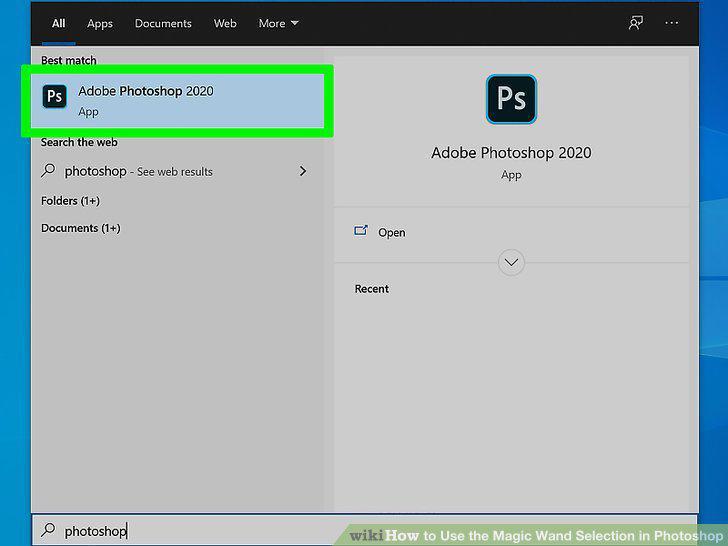
Open Photoshop.
2
Open a Photoshop file.
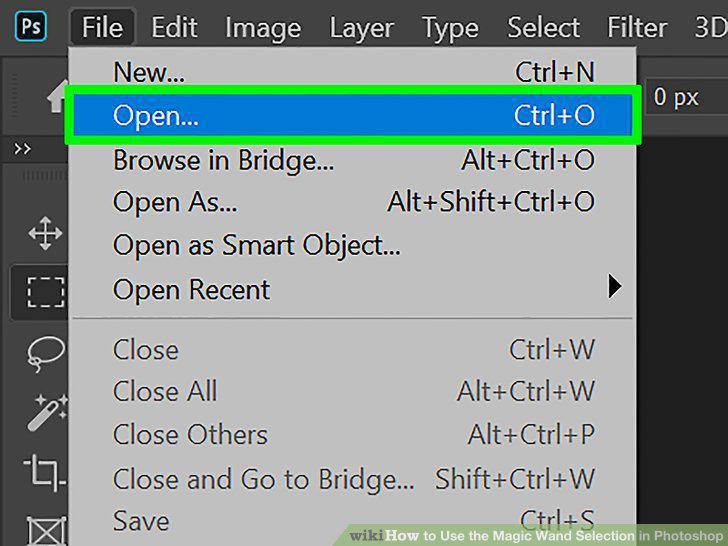
Open a Photoshop file.
3
Click and hold the quick select tool.
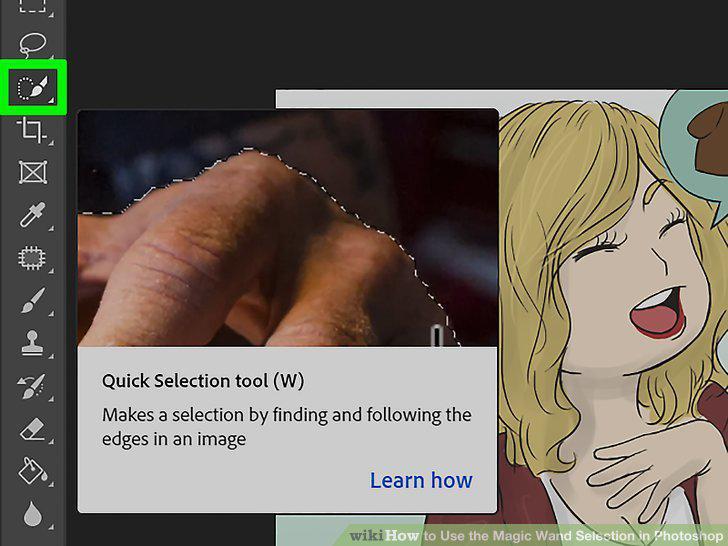
Click and hold the quick select tool.
4
Click the magic wand tool.
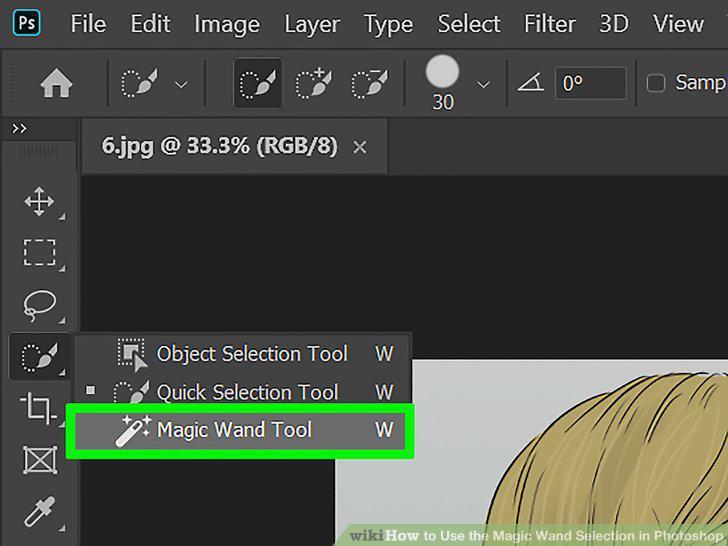
Click the magic wand tool.
5
Set the tolerance.
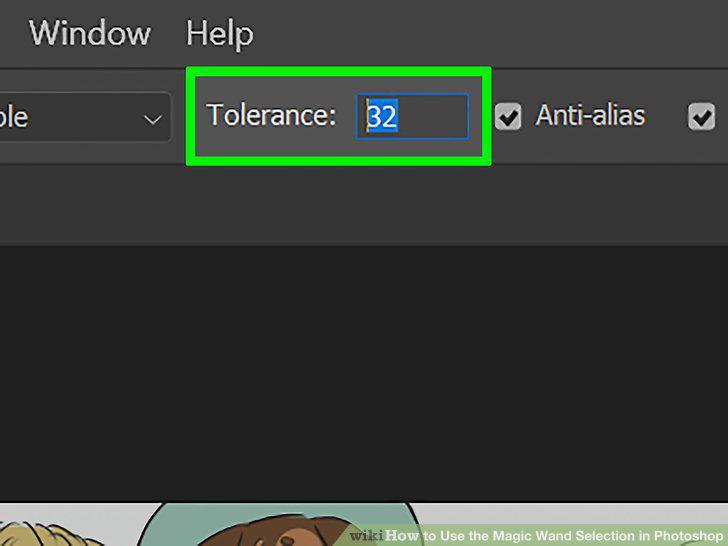
Set the tolerance.
6
Turn "Contiguous" off (optional).
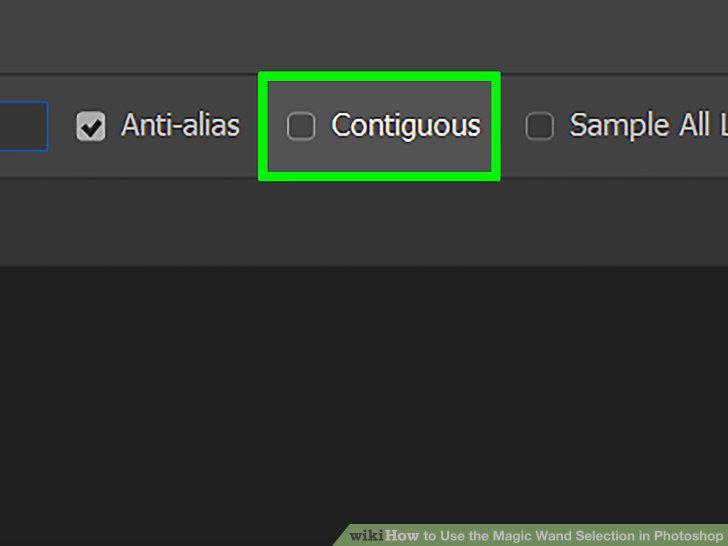
Turn "Contiguous" off (optional).
7
Turn "Anti-alias" off (optional).
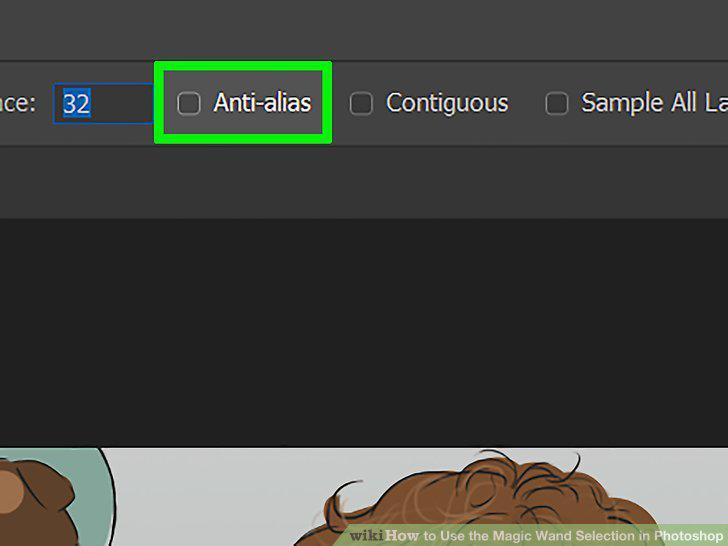
Turn "Anti-alias" off (optional).
8
Turn "Sample All Layers" on (optional).
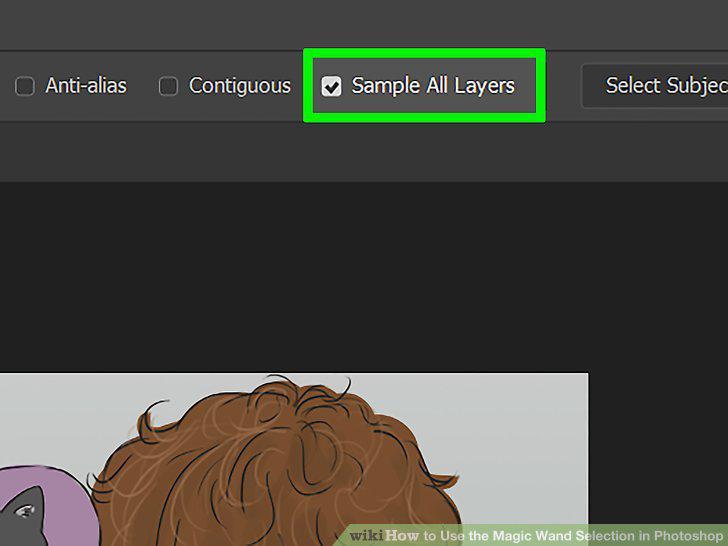
Turn "Sample All Layers" on (optional).
9
Click to make a selection.
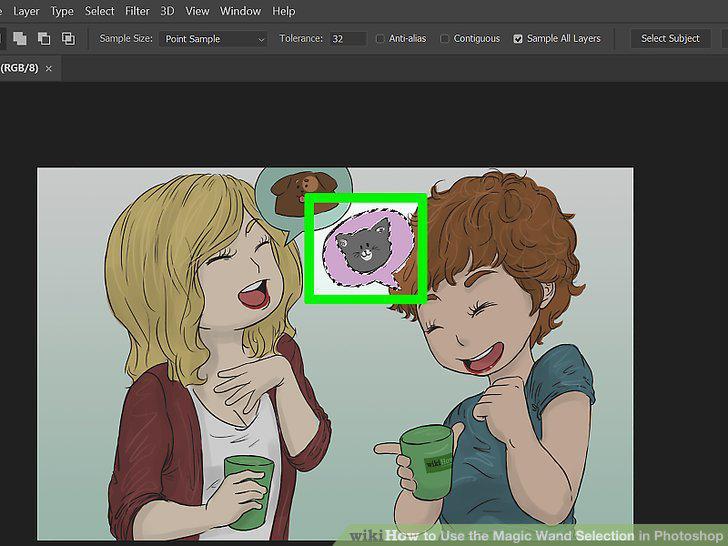
Click to make a selection.
10
Add to or subtract from the selection.
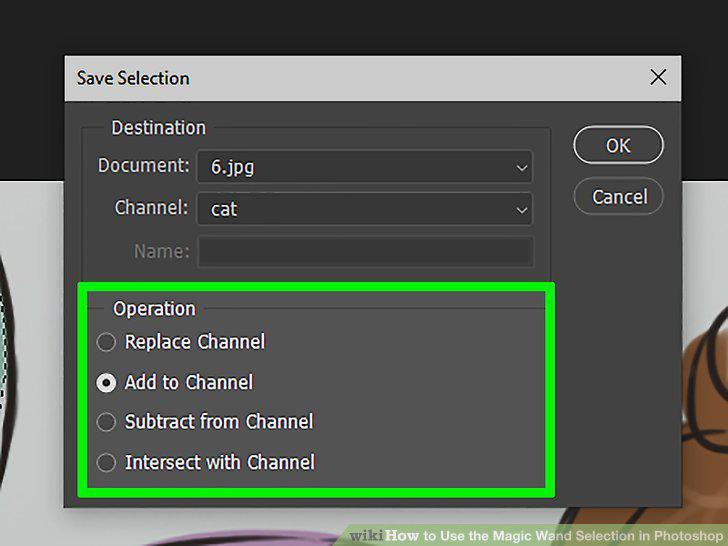
Add to or subtract from the selection.
Comments (0)
No comments yet. Be the first to share your thoughts!