How to Change Location Settings in Windows 8
Click the "File Explorer" icon.. Click the "Desktop" option.. Double-click the "Control Panel" option.
Steps
Click the "File Explorer" icon.
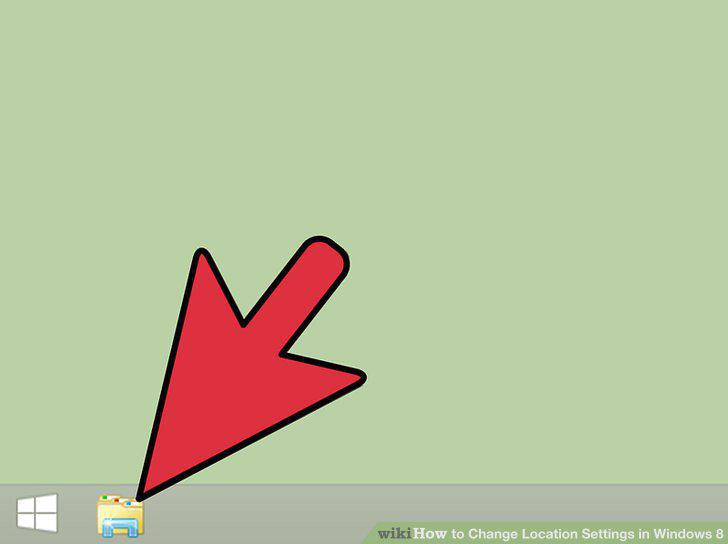
Click the "File Explorer" icon.
Click the "Desktop" option.
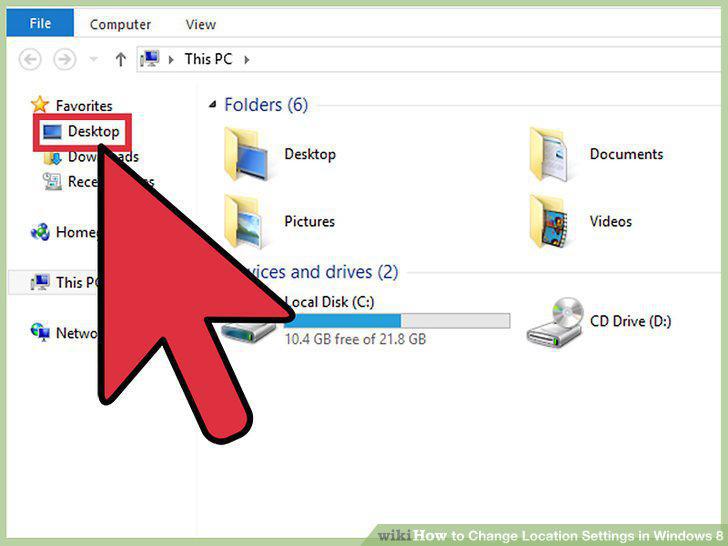
Click the "Desktop" option.
Double-click the "Control Panel" option.
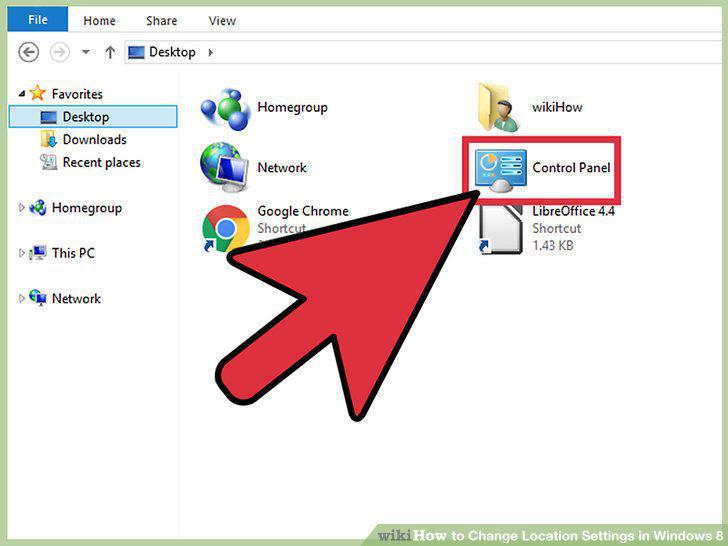
Double-click the "Control Panel" option.
Double-click the "Clock, Language, and Region" option.
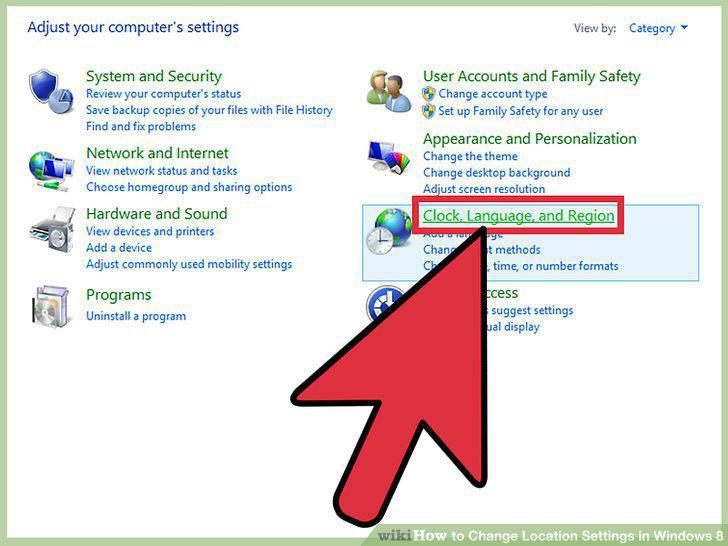
Double-click the "Clock, Language, and Region" option.
Click "Change Location" under the "Region" section.
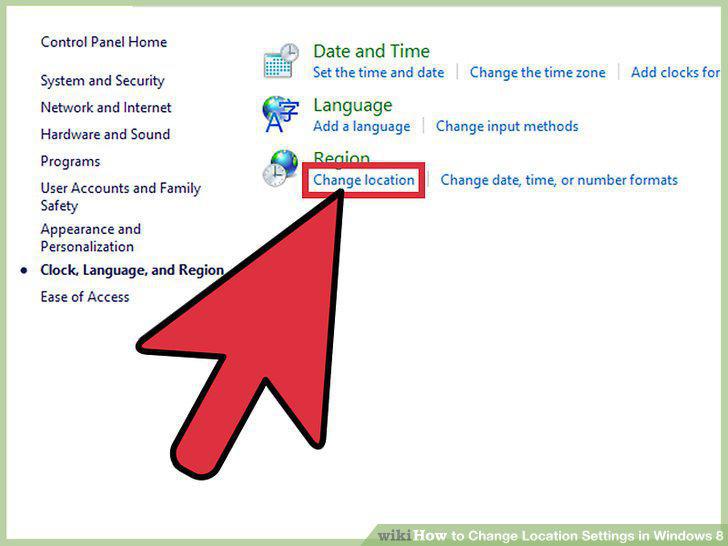
Click "Change Location" under the "Region" section.
Click the "Location" tab.
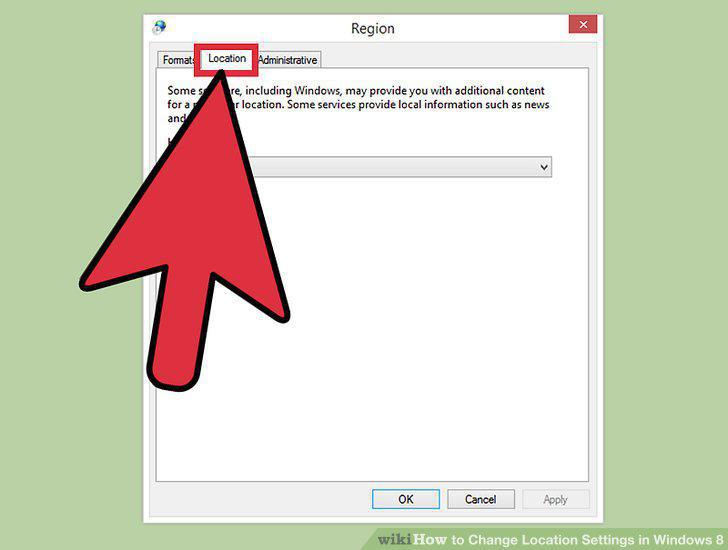
Click the "Location" tab.
Click the field under "Home location".
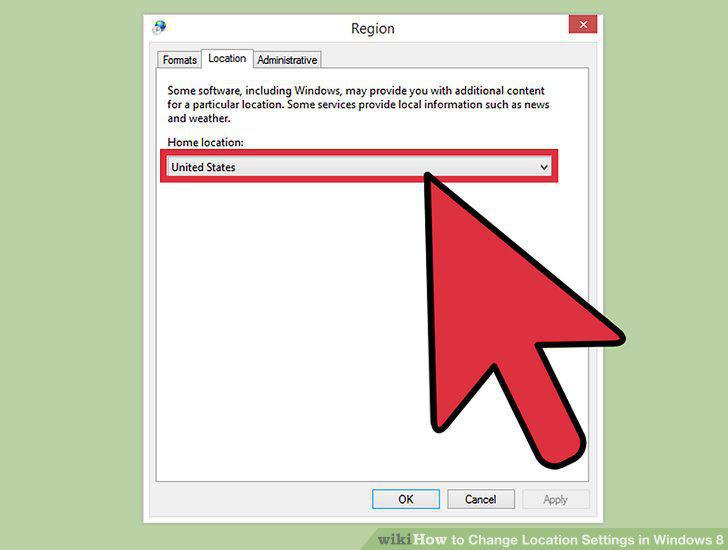
Click the field under "Home location".
Select your country of residence.
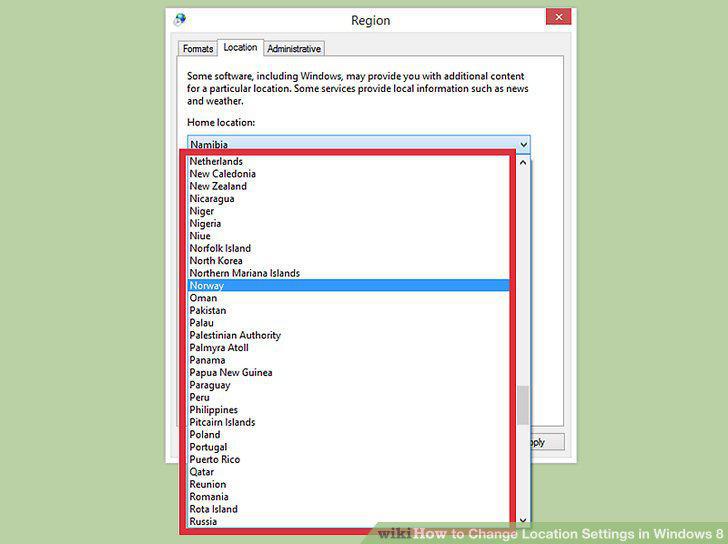
Select your country of residence.
Click "OK" to confirm your changes.
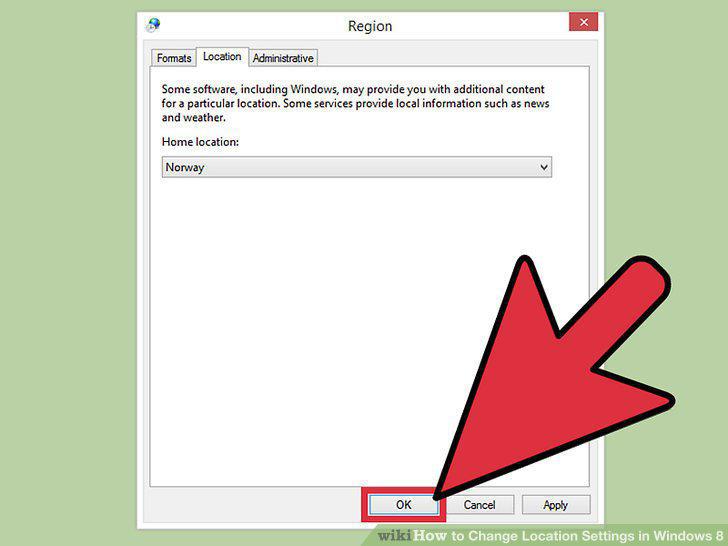
Click "OK" to confirm your changes.
Make sure you are logged onto your preferred wifi network.
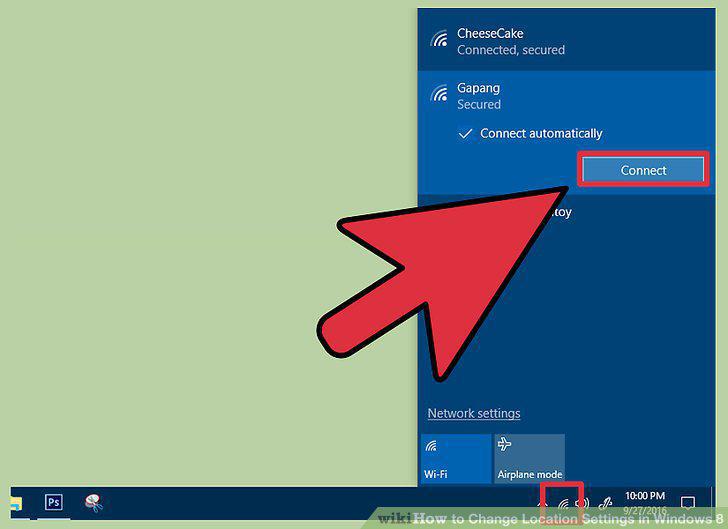
Make sure you are logged onto your preferred wifi network.
Click the wifi symbol in the lower right-hand corner of your screen.
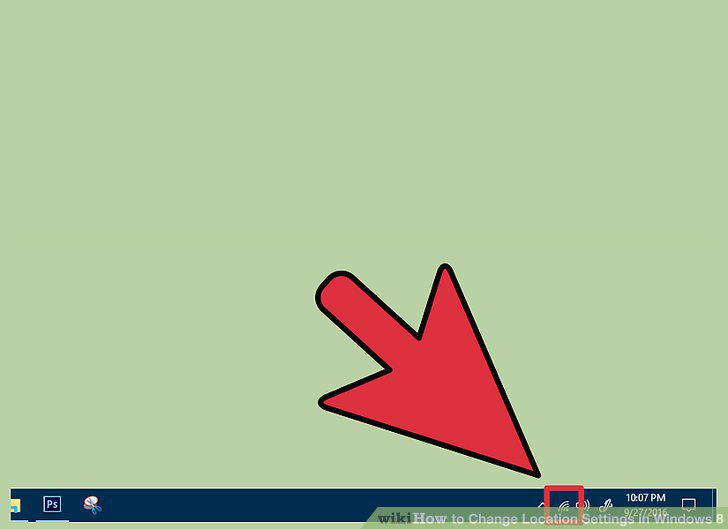
Click the wifi symbol in the lower right-hand corner of your screen.
Right-click your chosen network.
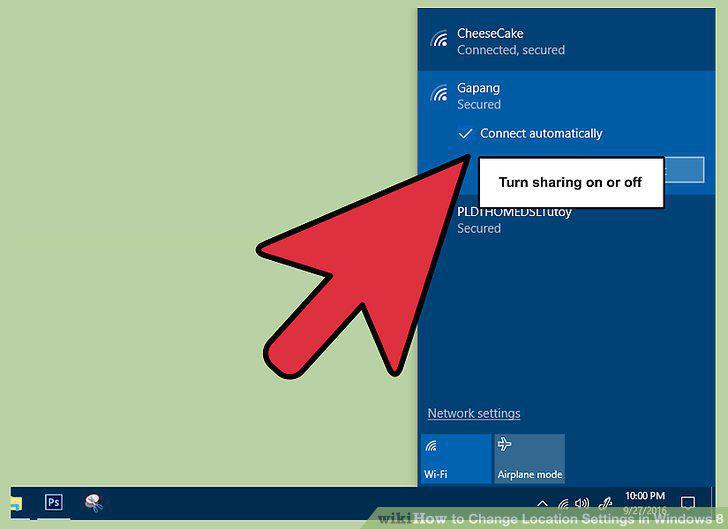
Right-click your chosen network.
Click "Turn sharing on or off".
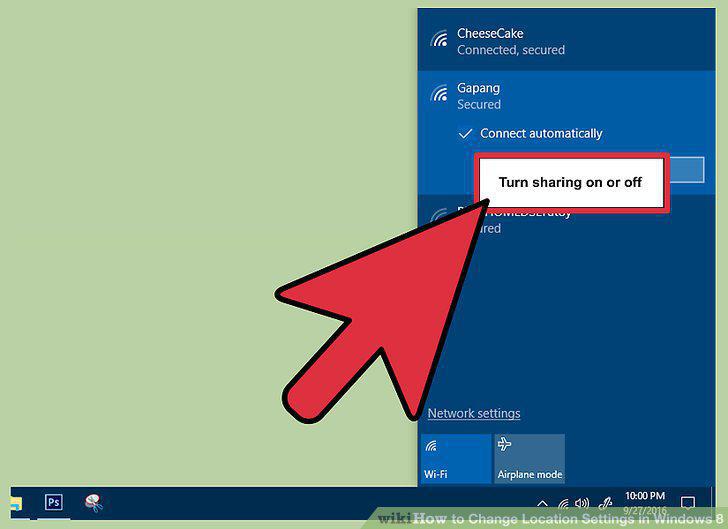
Click "Turn sharing on or off".
Review your options.
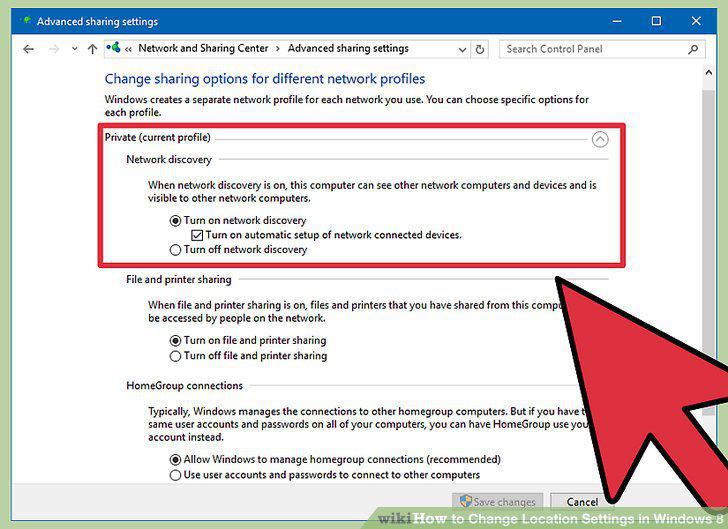
Review your options.
Return to your desktop.
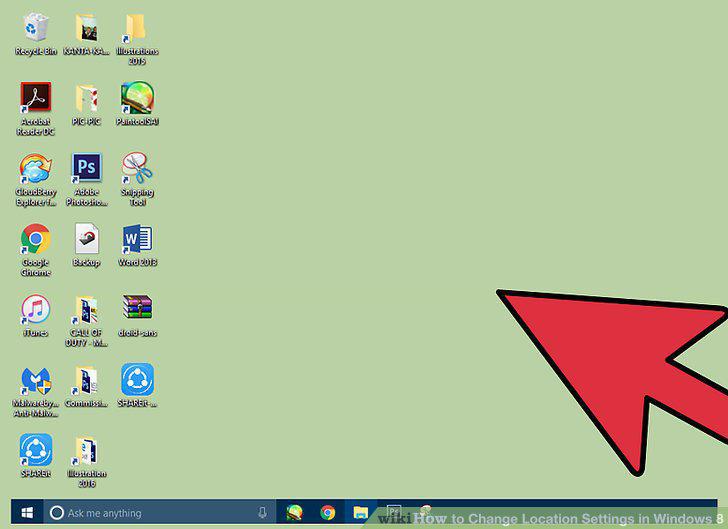
Return to your desktop.
Click the "File Explorer" icon.
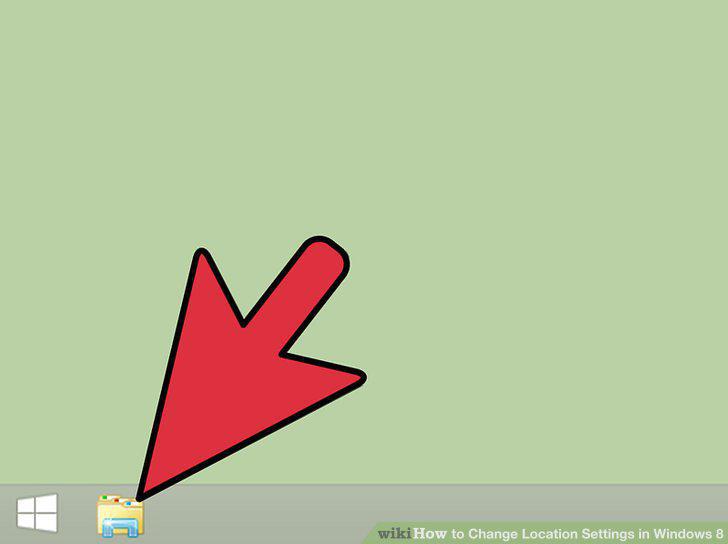
Click the "File Explorer" icon.
Click the "Desktop" option.
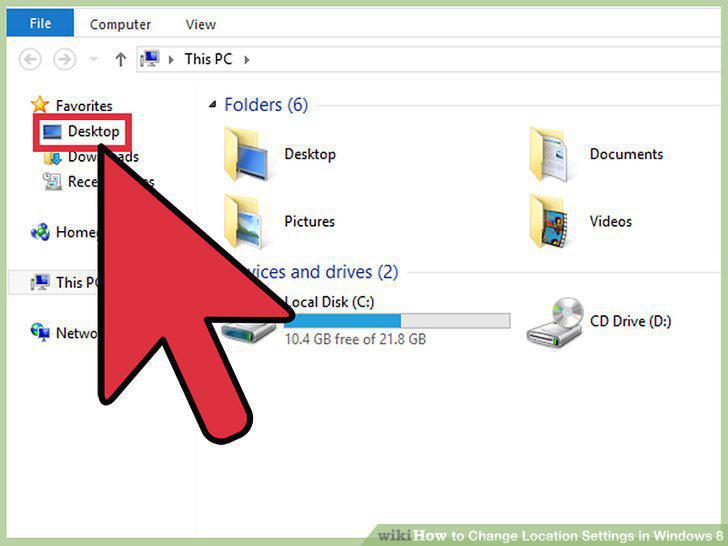
Click the "Desktop" option.
Double-click the "Control Panel" option.
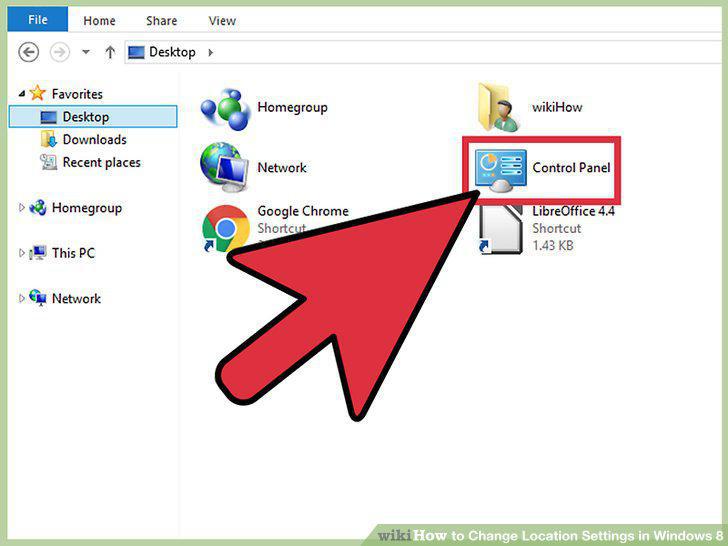
Double-click the "Control Panel" option.
Double-click the "Location Settings" option.
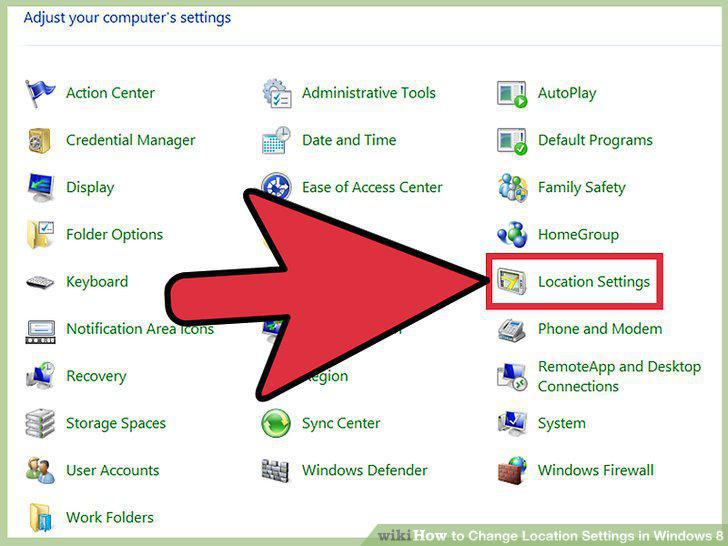
Double-click the "Location Settings" option.
Click the box next to "Turn on the Windows Location platform".
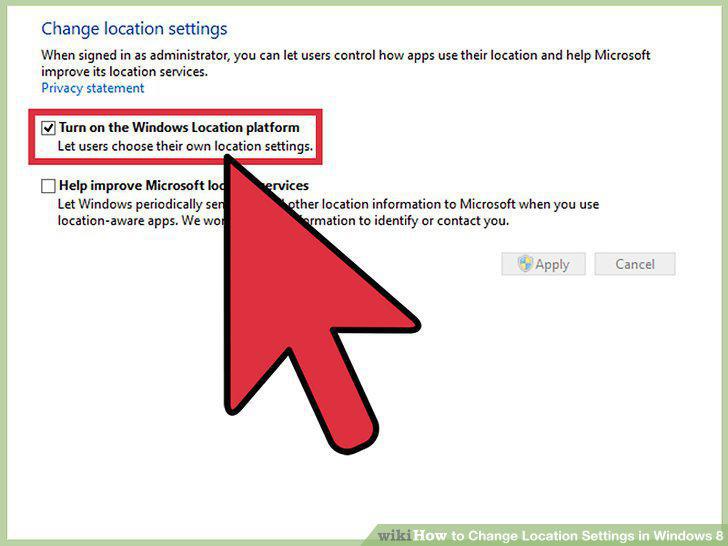
Click the box next to "Turn on the Windows Location platform".
Click "Apply" to confirm your changes.
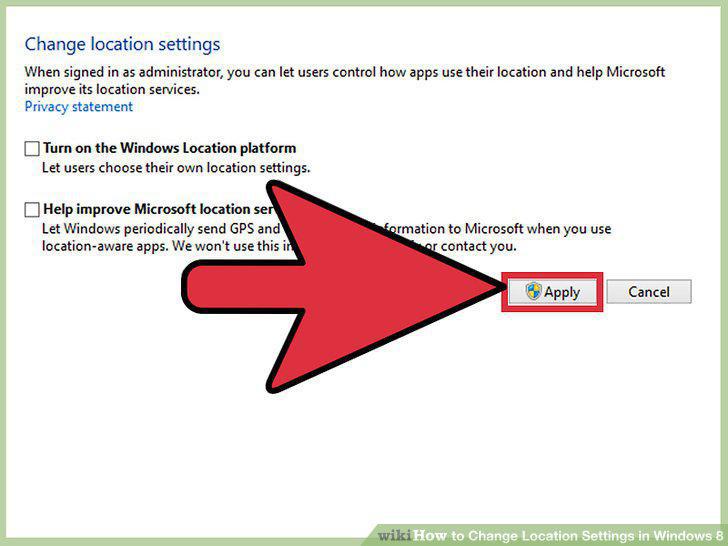
Click "Apply" to confirm your changes.
Comments (0)
No comments yet. Be the first to share your thoughts!