How to Get a Still Image from a Video on iPhone or iPad
Start playing a video.. Tap the center of the video.. Tap to pause the video.
Steps
1
Start playing a video.
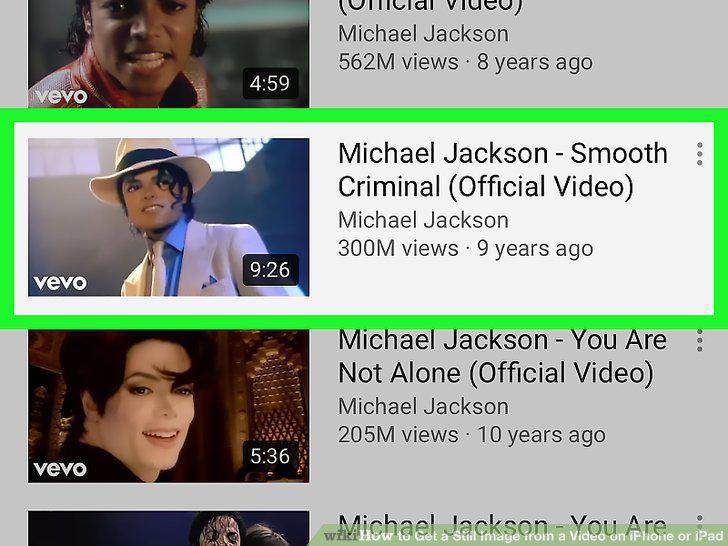
Start playing a video.
2
Tap the center of the video.
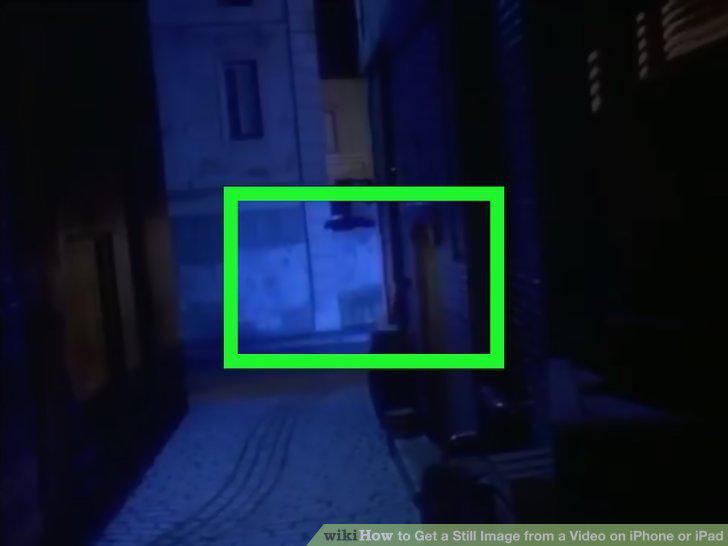
Tap the center of the video.
3
Tap to pause the video.
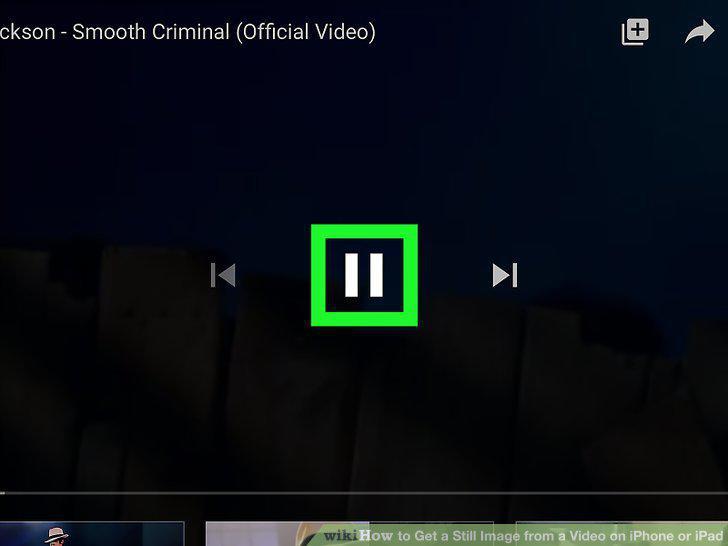
Tap to pause the video.
4
Drag the playhead to the frame you want to capture.

Drag the playhead to the frame you want to capture.
5
Wait for the playback controls to disappear.

Wait for the playback controls to disappear.
6
Take a screenshot.
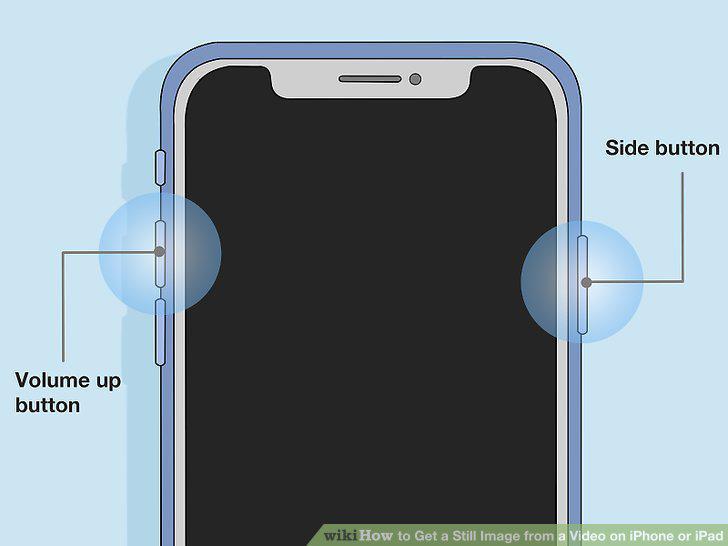
Take a screenshot.
7
Locate the screenshot.
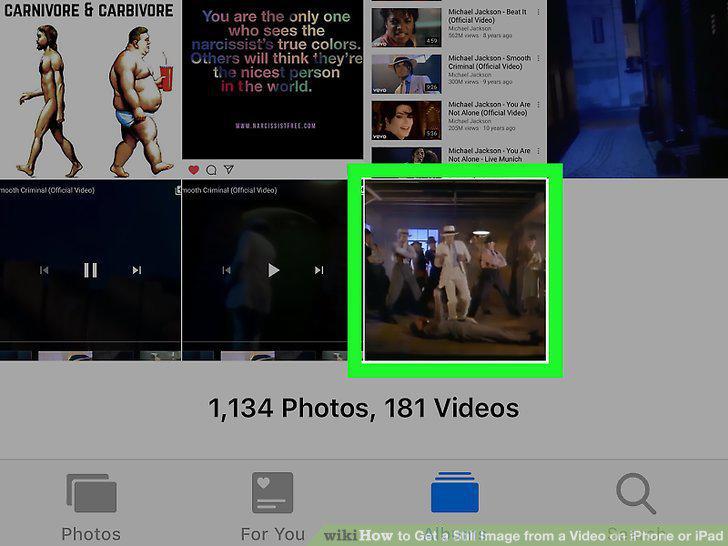
Locate the screenshot.
8
Open the App Store .

Open the App Store .
9
Tap Search It's the tab in the lower-right corner of the App Store.

Tap Search It's the tab in the lower-right corner of the App Store.
10
Type Frame Grabber in the search bar.
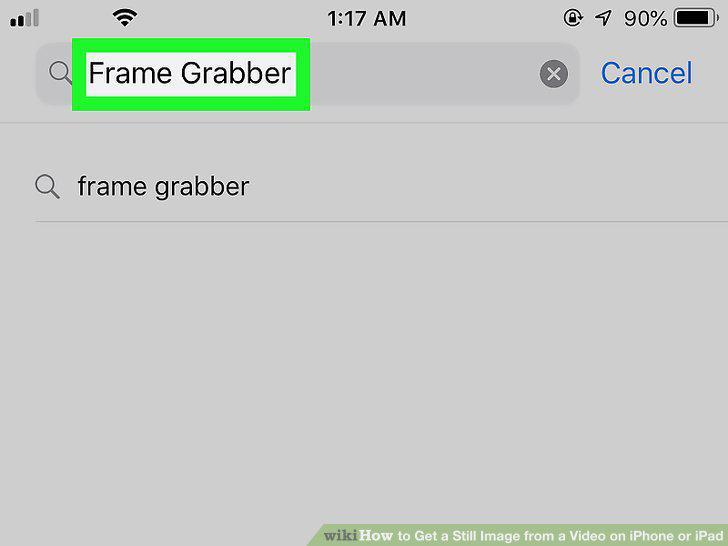
Type Frame Grabber in the search bar.
11
Tap GET next to Frame Grabber.
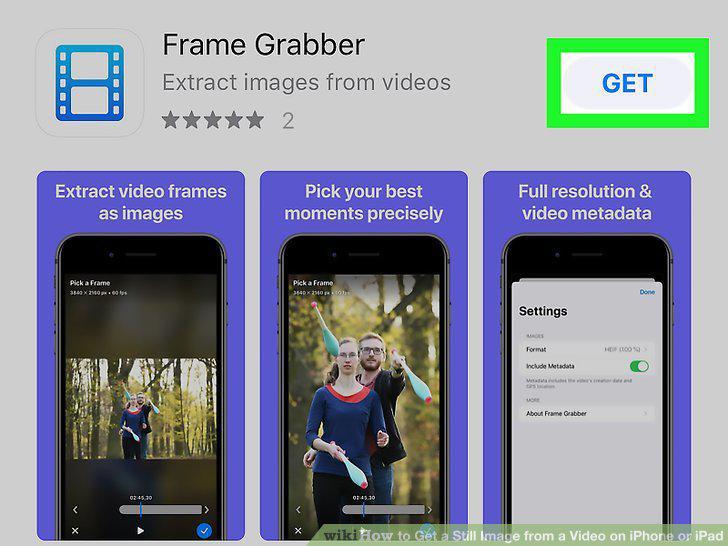
Tap GET next to Frame Grabber.
12
Open Frame Grabber.
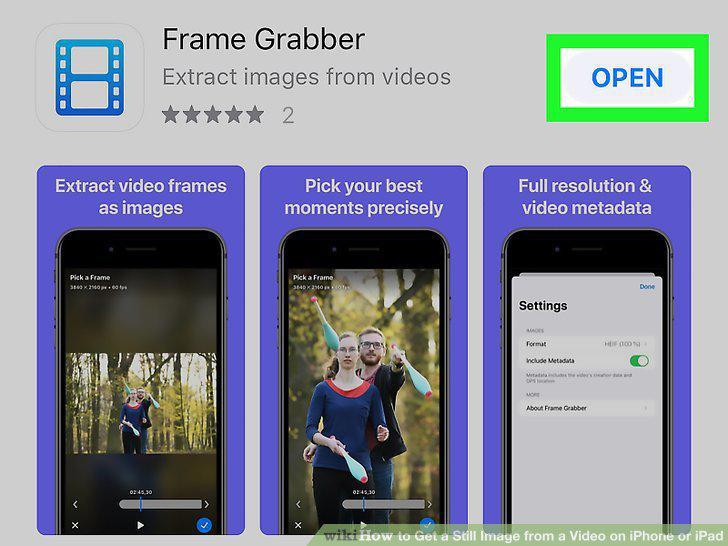
Open Frame Grabber.
13
Tap a video.
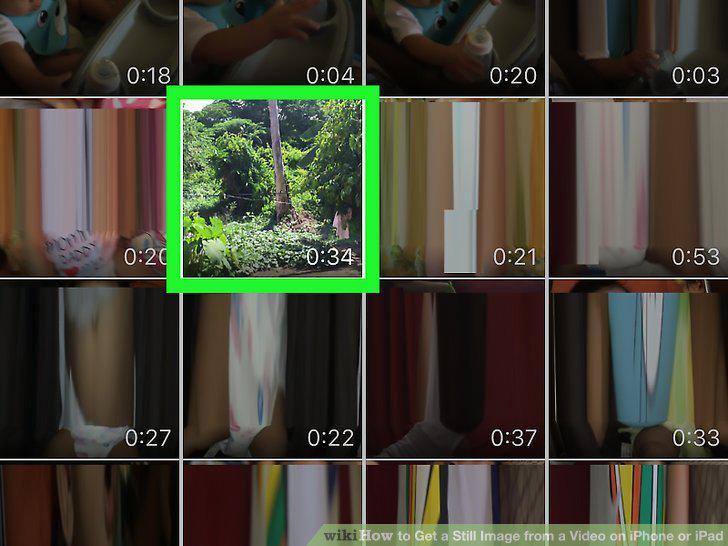
Tap a video.
14
Drag the white bar at the bottom to the frame you want to capture.
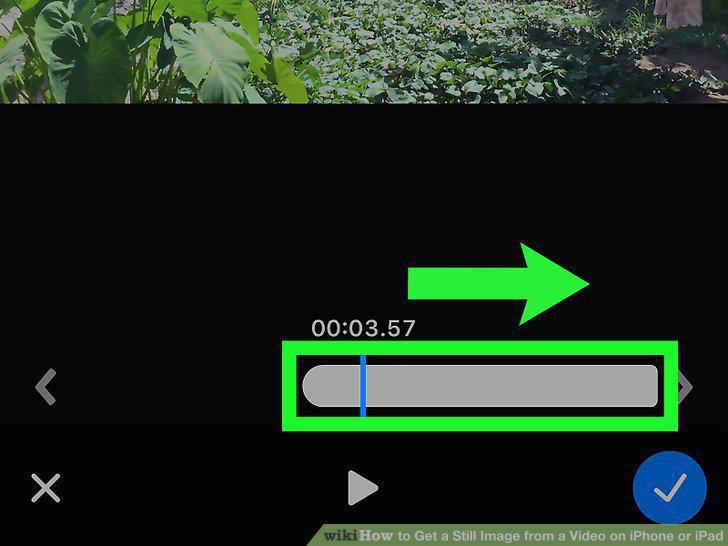
Drag the white bar at the bottom to the frame you want to capture.
15
Tap the checkmark icon.
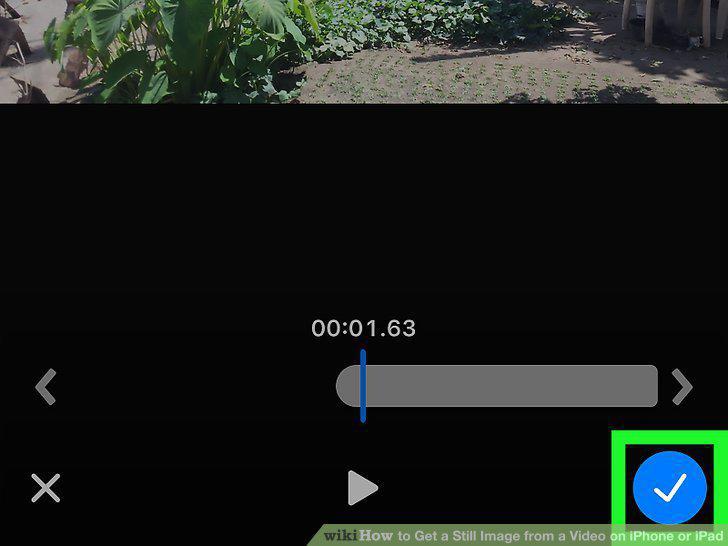
Tap the checkmark icon.
16
Tap an option.
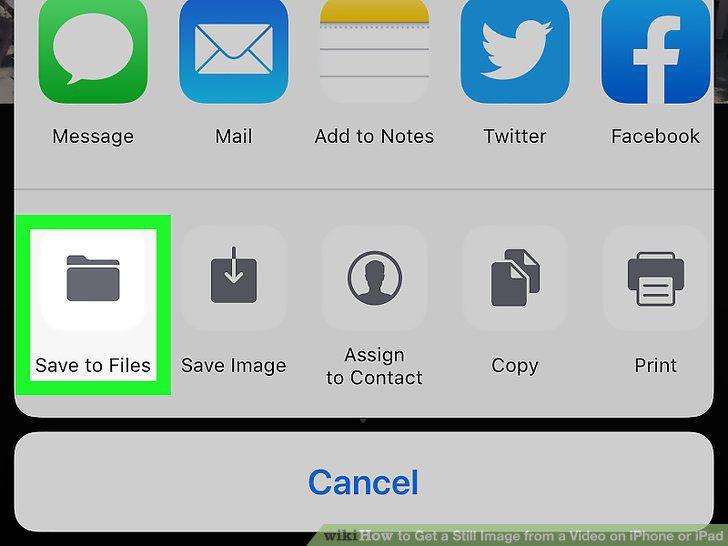
Tap an option.
Comments (0)
No comments yet. Be the first to share your thoughts!