How to Manage Your Passwords
Determine whether you need a password manager.. Try your web browser's password manager first.. Consider a non-browser password manager.
Steps
1
Determine whether you need a password manager.
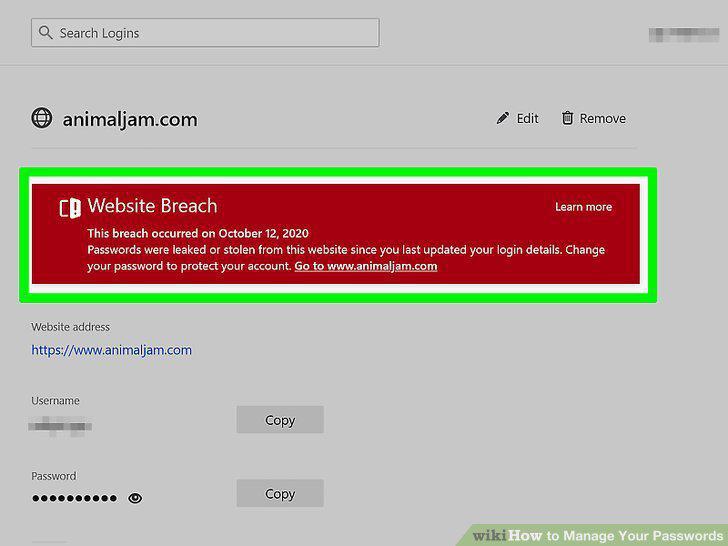
Determine whether you need a password manager.
2
Try your web browser's password manager first.
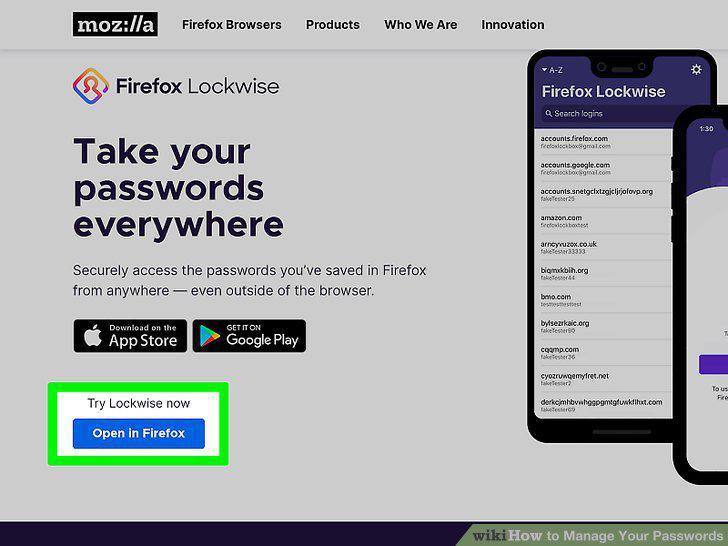
Try your web browser's password manager first.
3
Consider a non-browser password manager.
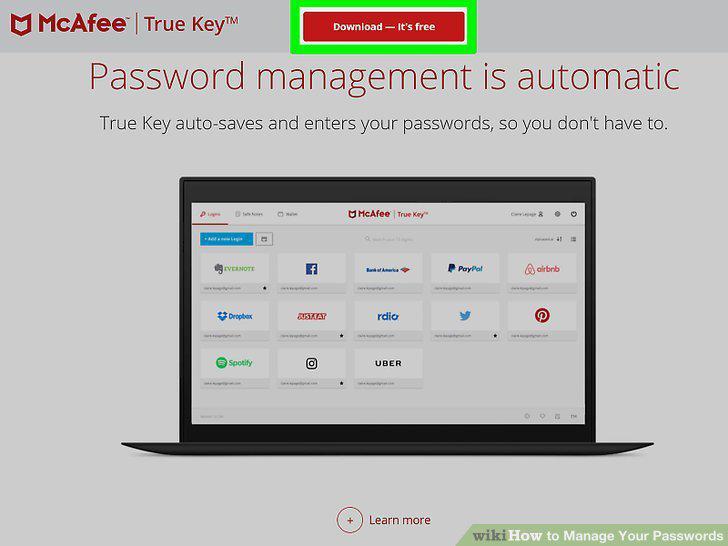
Consider a non-browser password manager.
4
Install the password manager software on all of your devices.
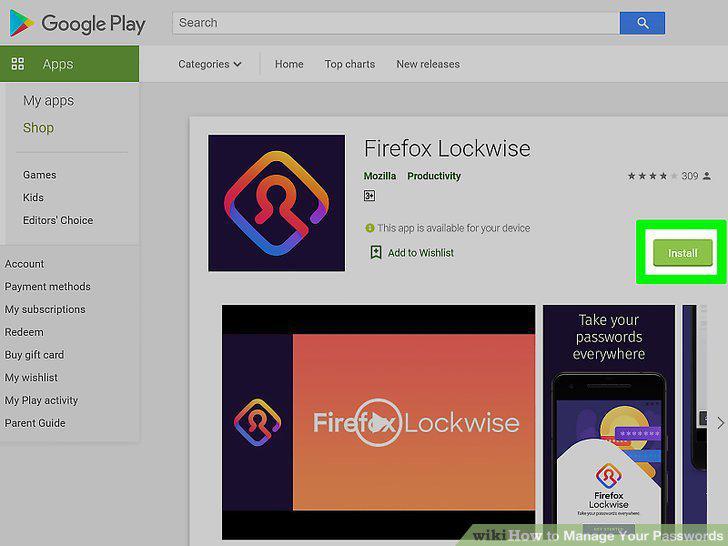
Install the password manager software on all of your devices.
5
Use Two-Factor Authentication whenever available.
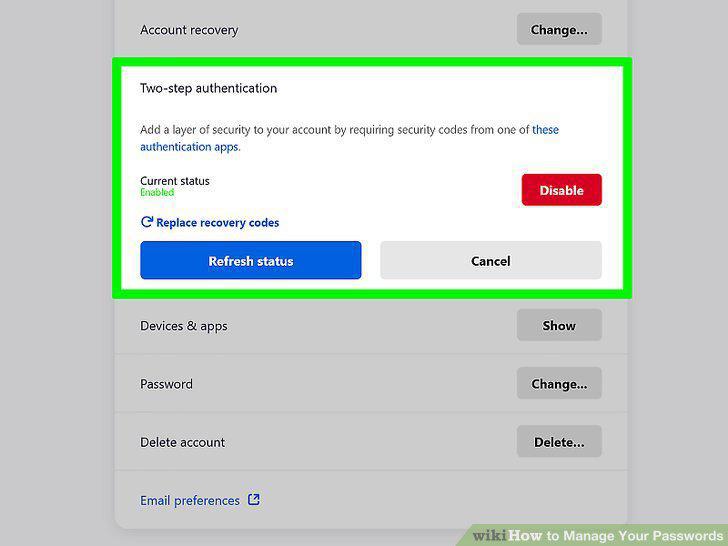
Use Two-Factor Authentication whenever available.
6
Use long passwords.
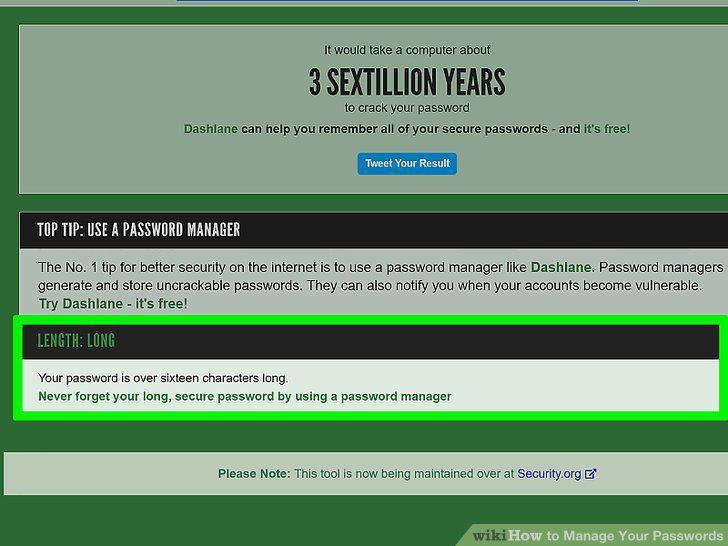
Use long passwords.
7
Avoid using easy-to-identify words and numbers in passwords.
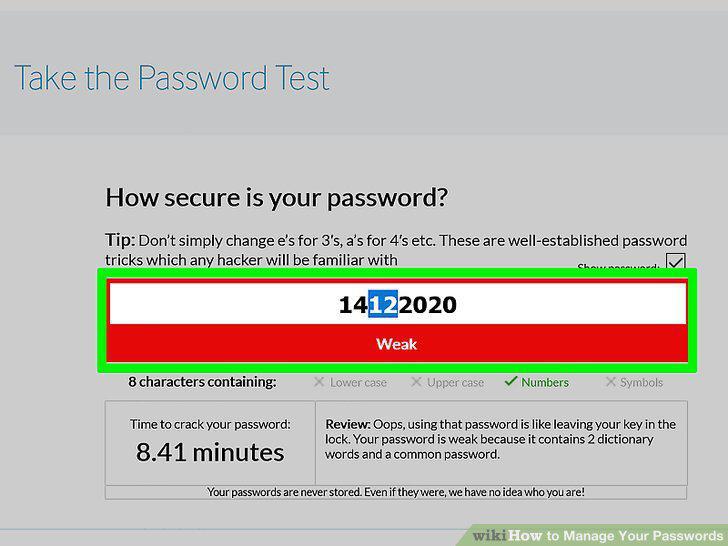
Avoid using easy-to-identify words and numbers in passwords.
8
Use a mix of letters (capital and lowercase), numbers, and special characters.
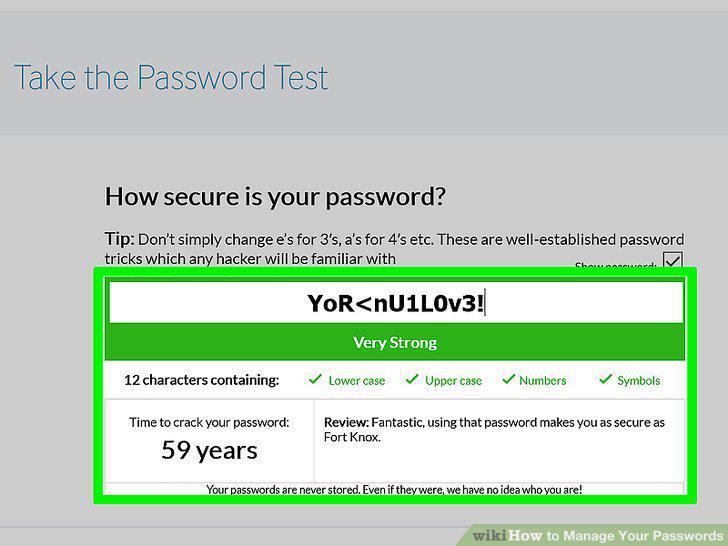
Use a mix of letters (capital and lowercase), numbers, and special characters.
9
Use a unique password for each application.
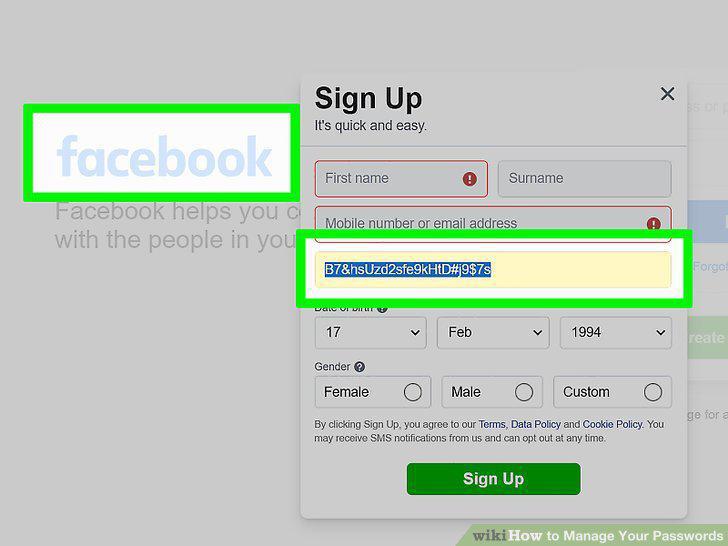
Use a unique password for each application.
10
Change your passwords frequently.
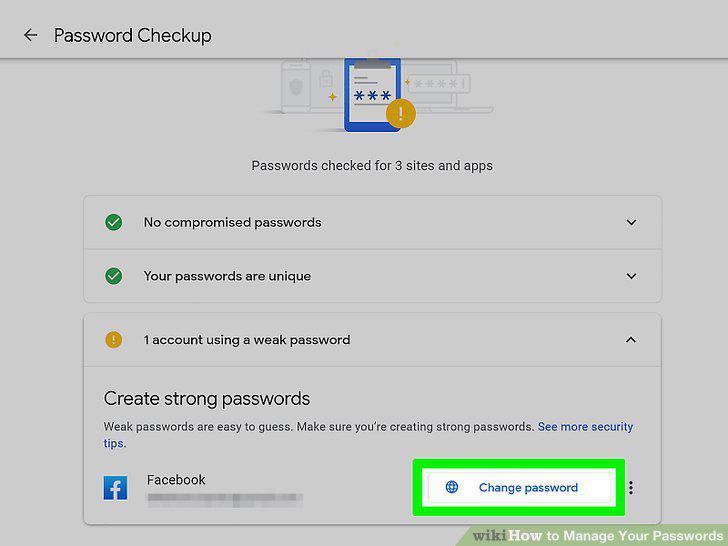
Change your passwords frequently.
11
Determine whether you need a "password backup.
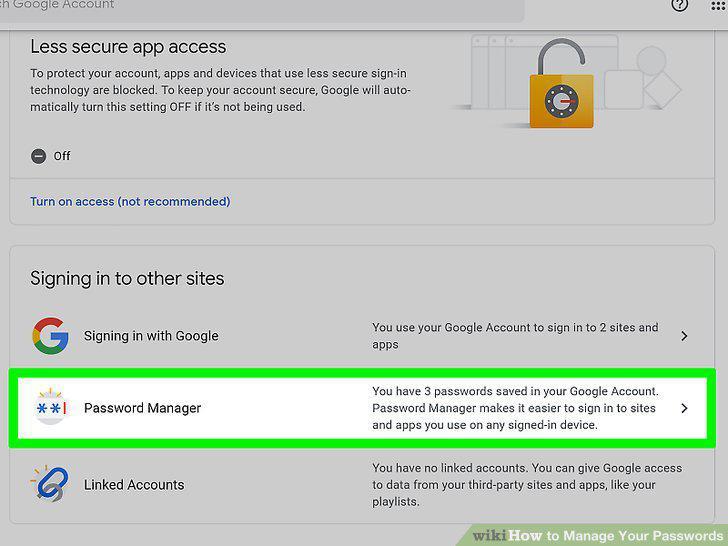
Determine whether you need a "password backup.
Comments (0)
No comments yet. Be the first to share your thoughts!