How to Log Out of Netflix on Windows 8
Open your browser and type netflix.com.. Click your account name in the upper-right corner.. Select "Sign out of Netflix" to log out immediately.
Steps
1
Open your browser and type netflix.com.
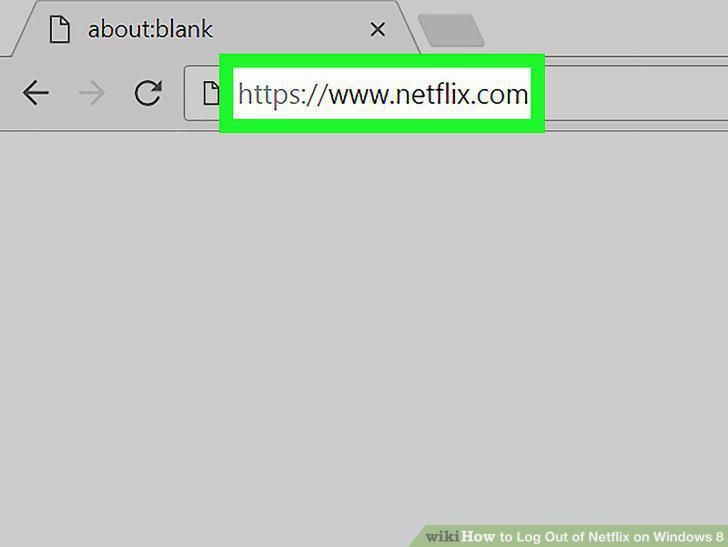
Open your browser and type netflix.com.
2
Click your account name in the upper-right corner.
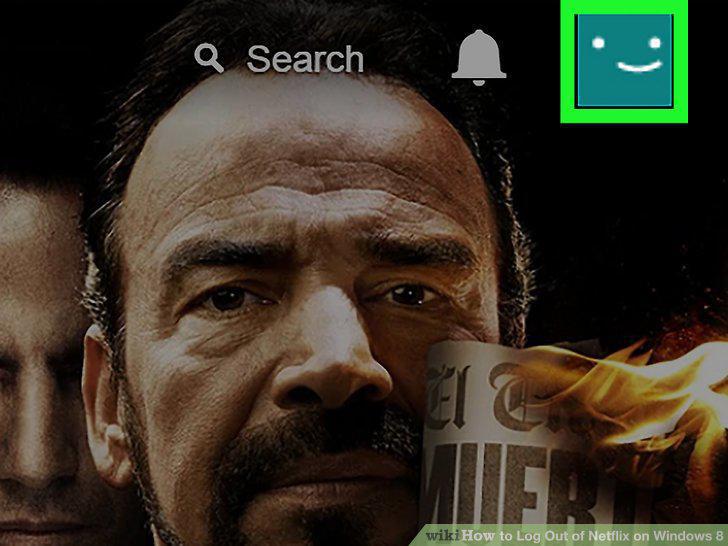
Click your account name in the upper-right corner.
3
Select "Sign out of Netflix" to log out immediately.
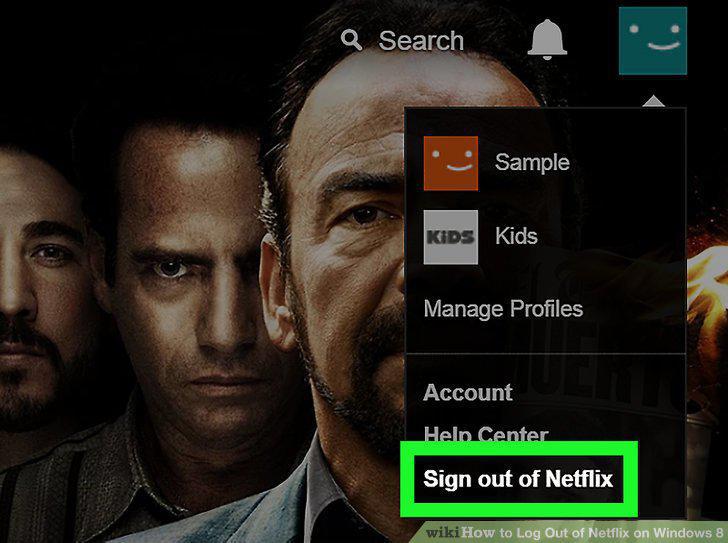
Select "Sign out of Netflix" to log out immediately.
4
Select "Your Account" if you want to log out everywhere.
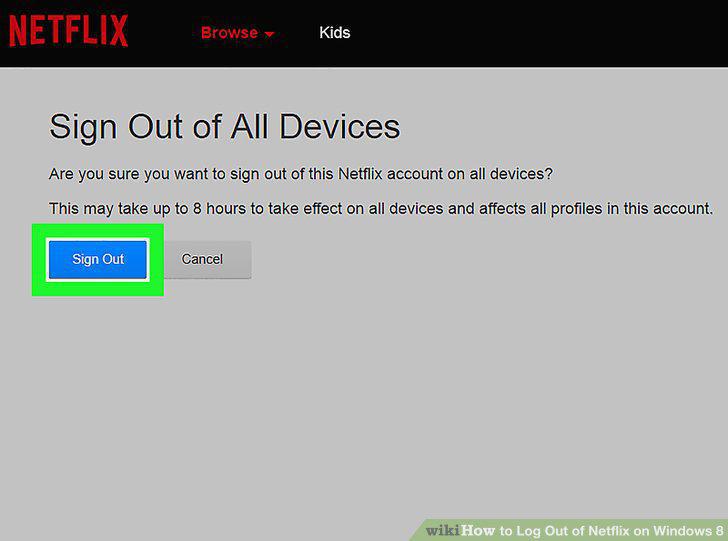
Select "Your Account" if you want to log out everywhere.
5
Clear your cookies and cache if you can't sign out.
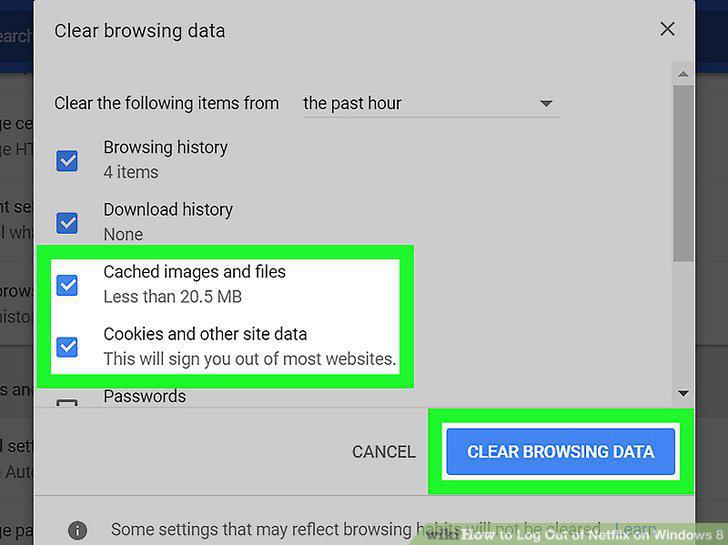
Clear your cookies and cache if you can't sign out.
6
Open the Start screen.
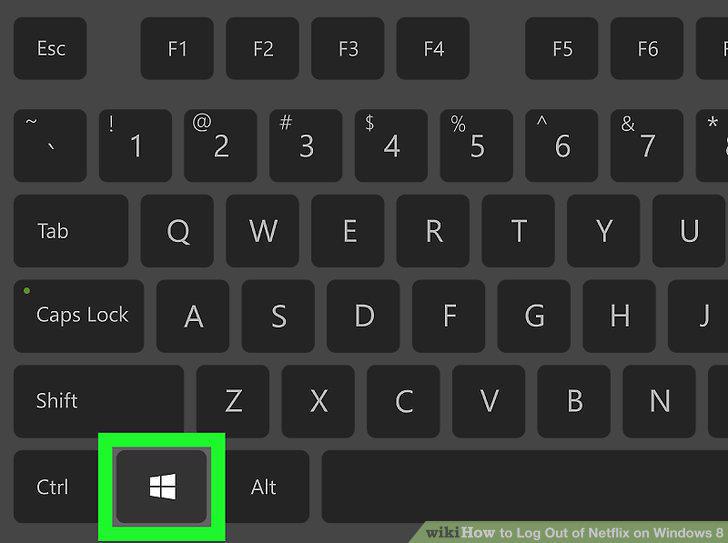
Open the Start screen.
7
Open the Netflix app.
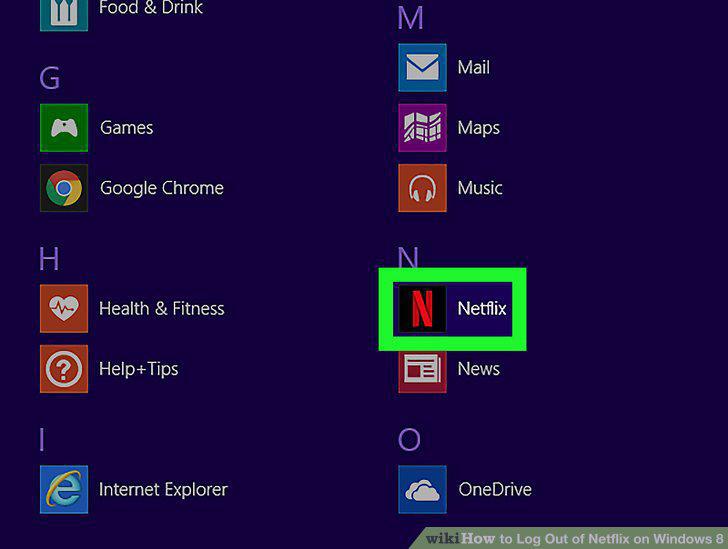
Open the Netflix app.
8
Search for Netflix if you can't find it.
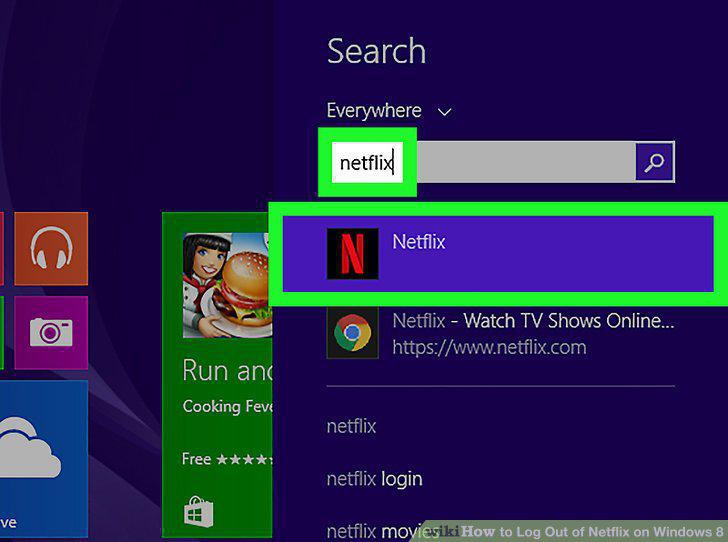
Search for Netflix if you can't find it.
9
Open the Charms bar in the Netflix app.
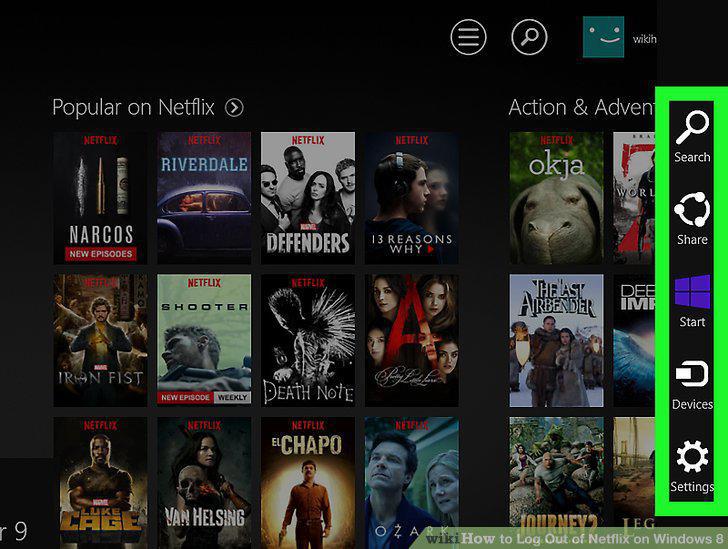
Open the Charms bar in the Netflix app.
10
Tap or click the "Settings" button.
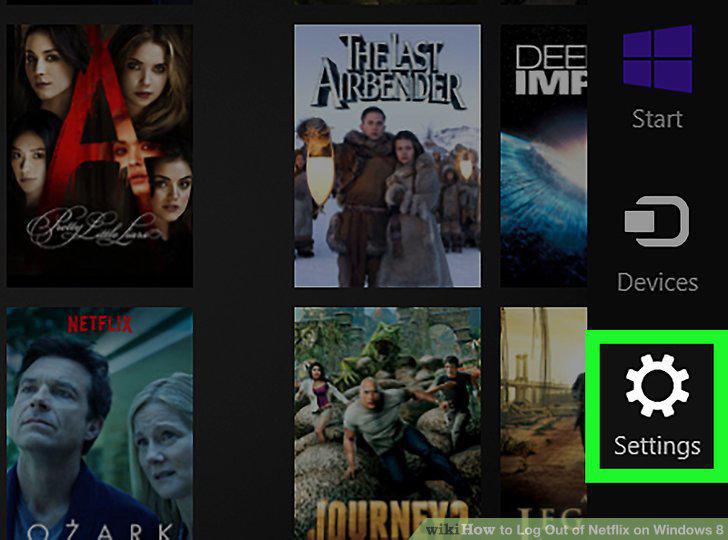
Tap or click the "Settings" button.
11
Select "Sign out."
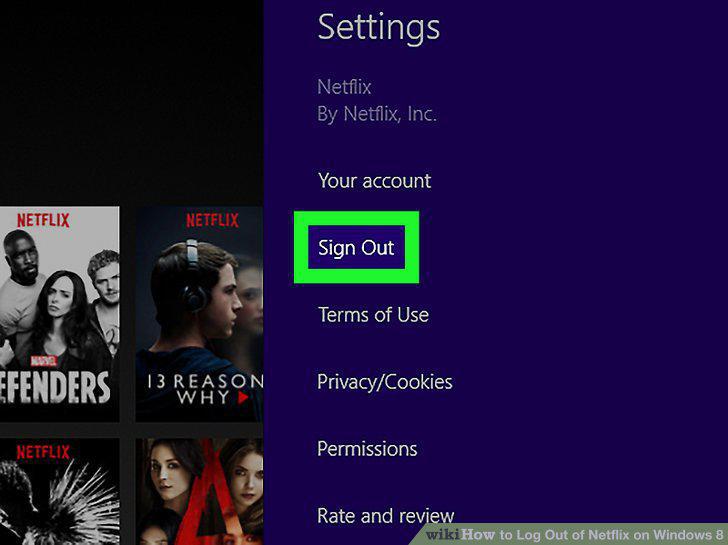
Select "Sign out."
12
Confirm that you want to sign out.
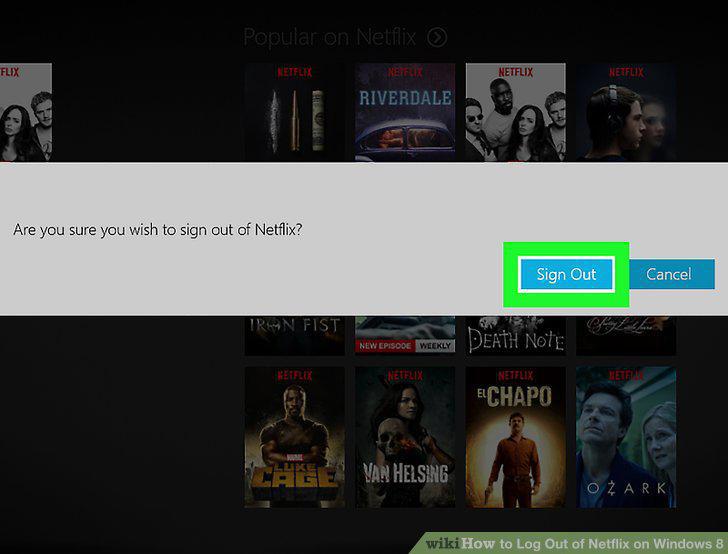
Confirm that you want to sign out.
Comments (0)
No comments yet. Be the first to share your thoughts!