How to Pay for Apps on iPhone or iPad
Open the Settings app on your iPhone or iPad.. Tap your name at the top.. Tap iTunes & App Store on the "Apple ID" menu.
Steps
1
Open the Settings app on your iPhone or iPad.
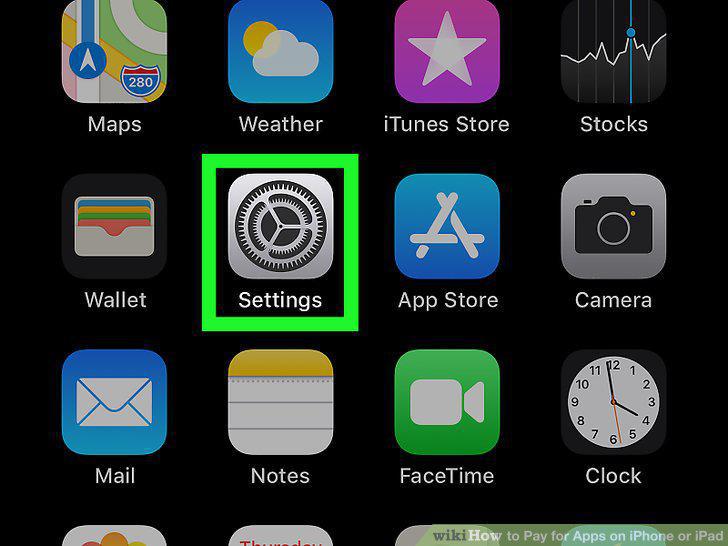
Open the Settings app on your iPhone or iPad.
2
Tap your name at the top.
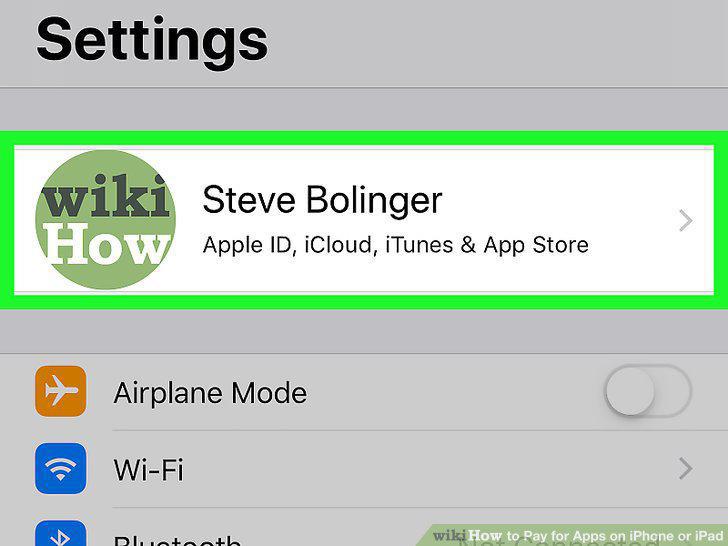
Tap your name at the top.
3
Tap iTunes & App Store on the "Apple ID" menu.
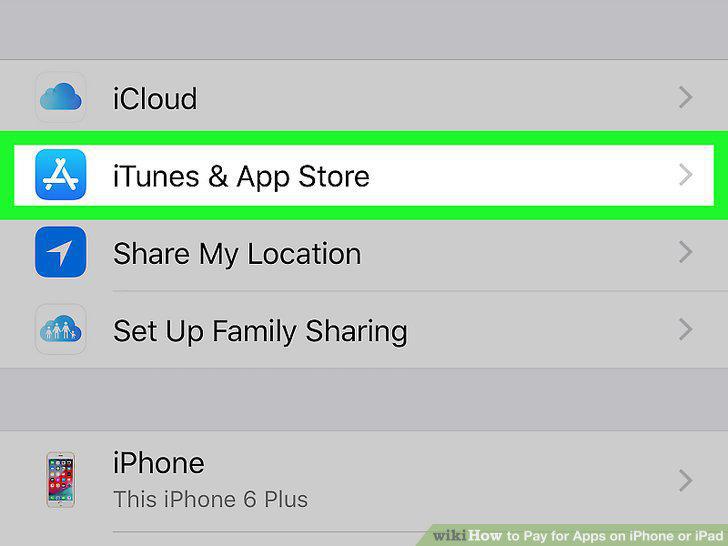
Tap iTunes & App Store on the "Apple ID" menu.
4
Tap your Apple ID at the top.
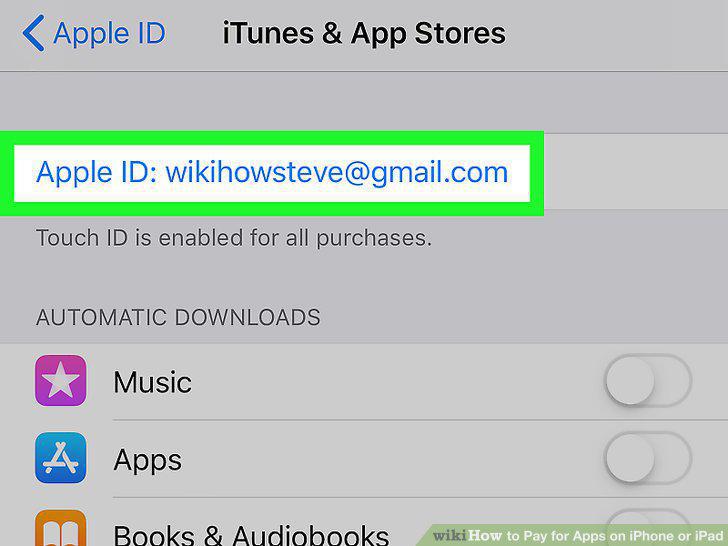
Tap your Apple ID at the top.
5
Tap View Apple ID in the pop-up.
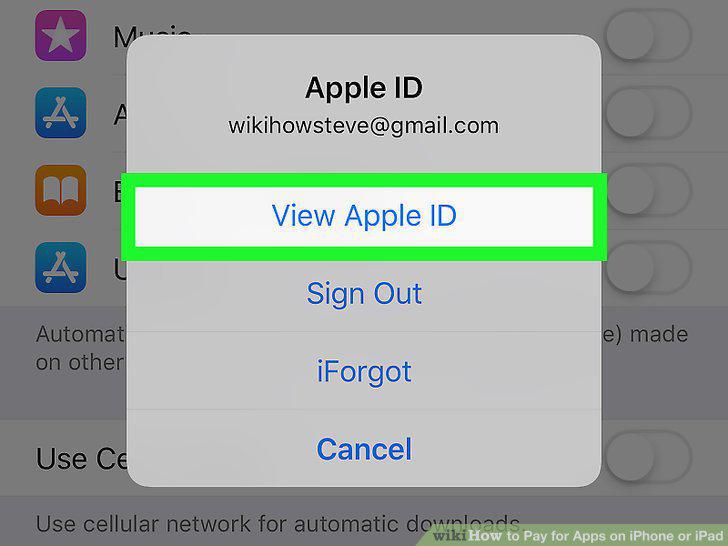
Tap View Apple ID in the pop-up.
6
Tap Manage Payments.
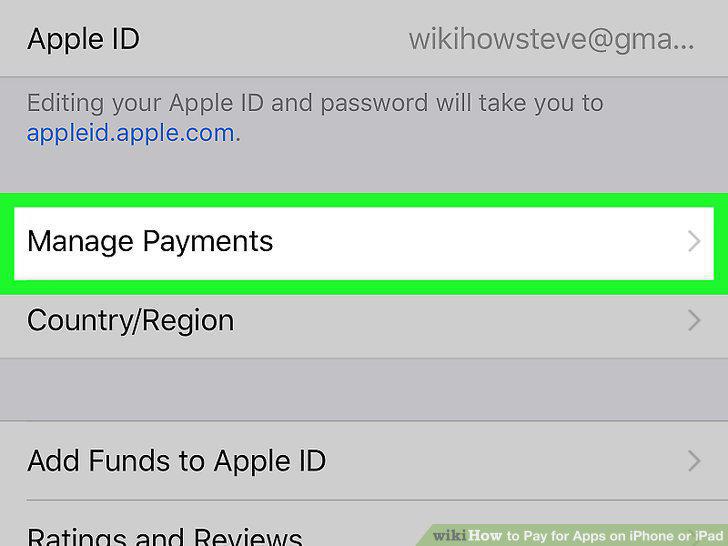
Tap Manage Payments.
7
Tap Add Payment Method at the bottom.
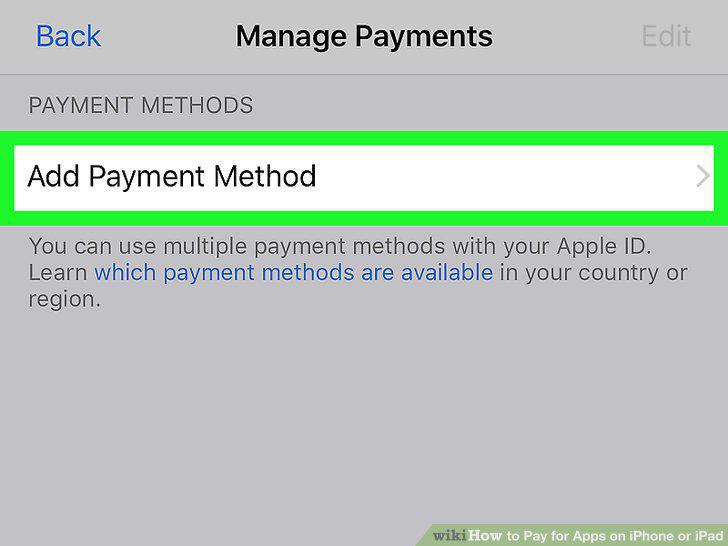
Tap Add Payment Method at the bottom.
8
Select the type of your new payment method.
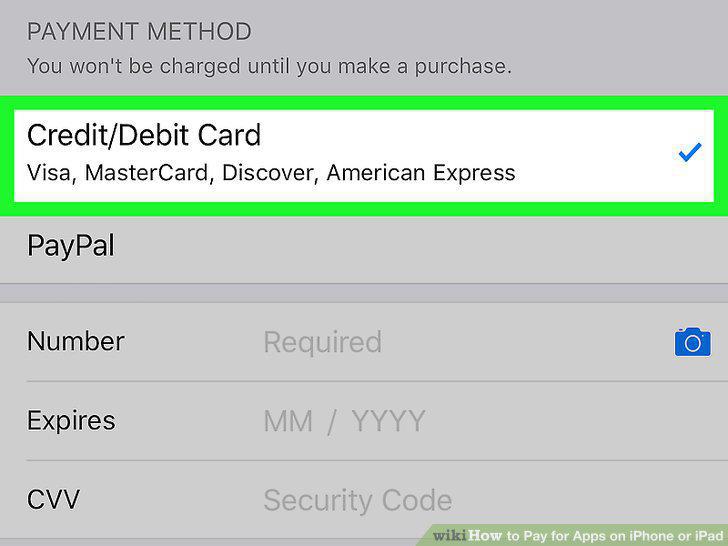
Select the type of your new payment method.
9
Enter your payment information.
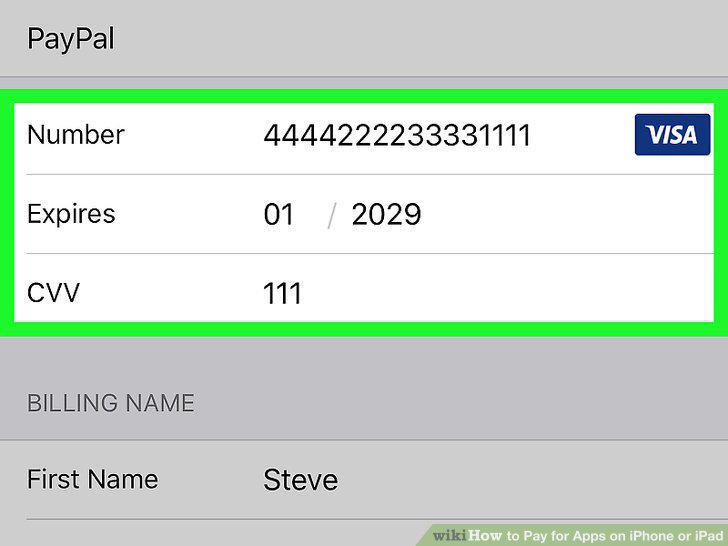
Enter your payment information.
10
Tap Done on the top-right.
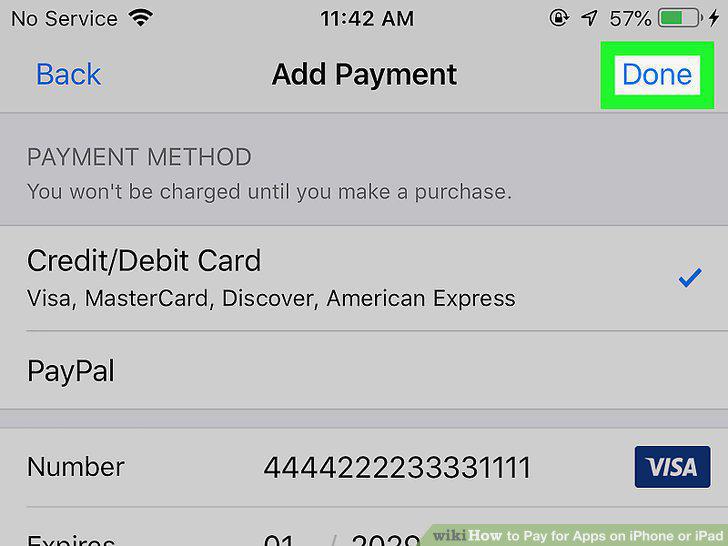
Tap Done on the top-right.
11
Open the App Store on your iPhone or iPad.
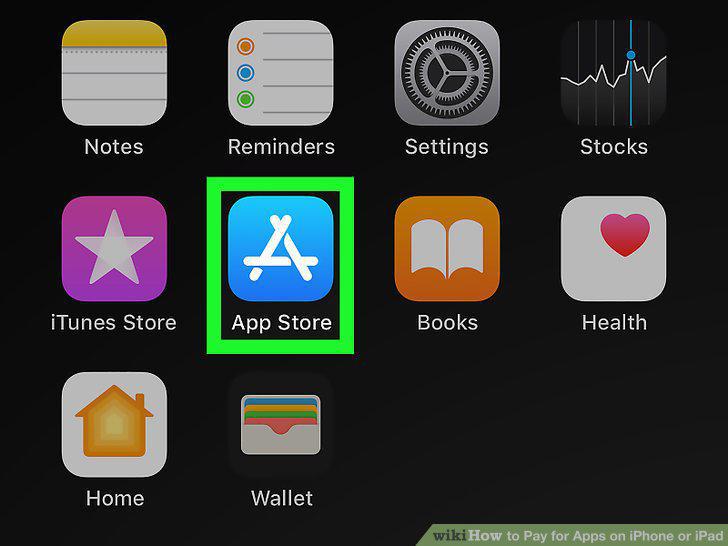
Open the App Store on your iPhone or iPad.
12
Find the app you want to buy.
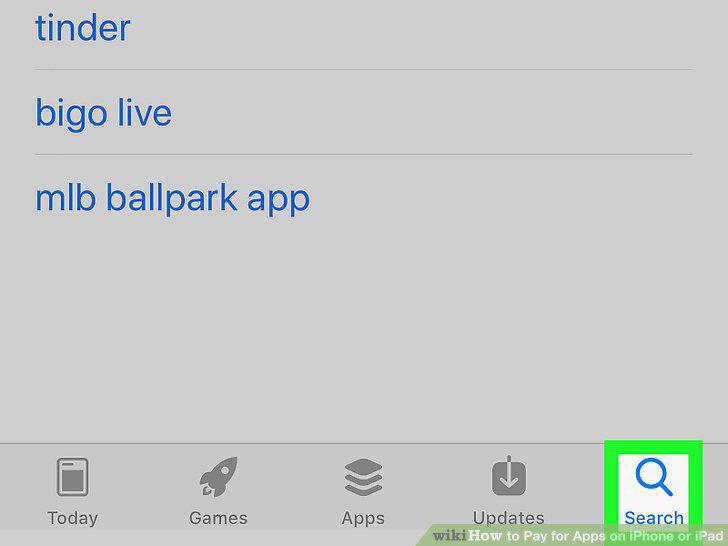
Find the app you want to buy.
13
Tap the app's price tag button.
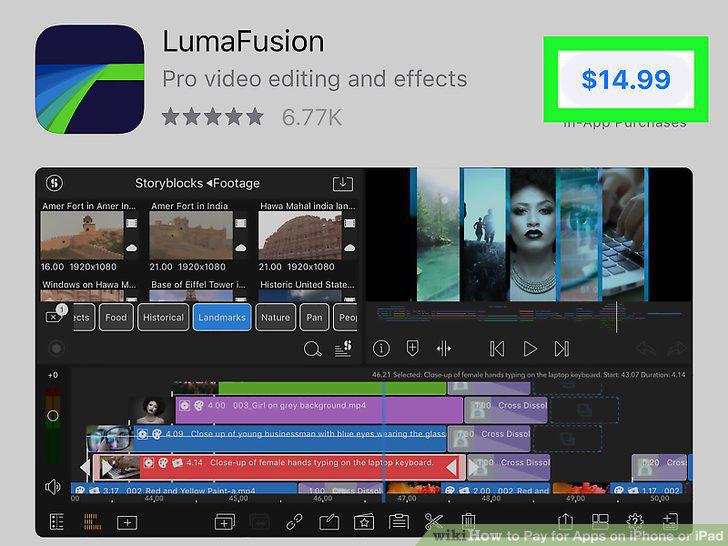
Tap the app's price tag button.
14
Tap Purchase in the confirmation pop-up.
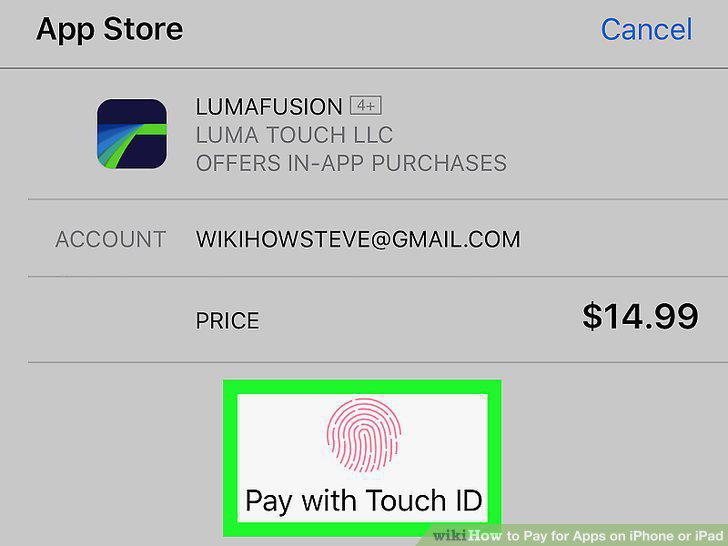
Tap Purchase in the confirmation pop-up.
Comments (0)
No comments yet. Be the first to share your thoughts!