How to Delete Archived Messages on Facebook
Navigate to Facebook.. Click your "Messages" tab.. Click the "See All" option.
Steps
1
Navigate to Facebook.
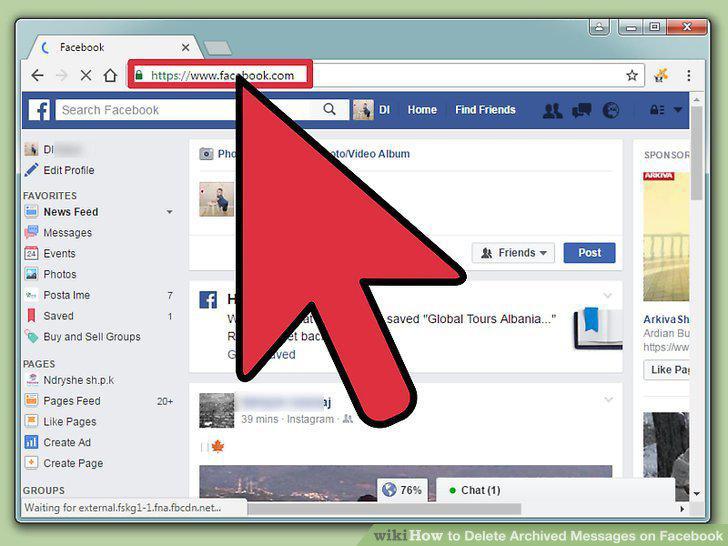
Navigate to Facebook.
2
Click your "Messages" tab.
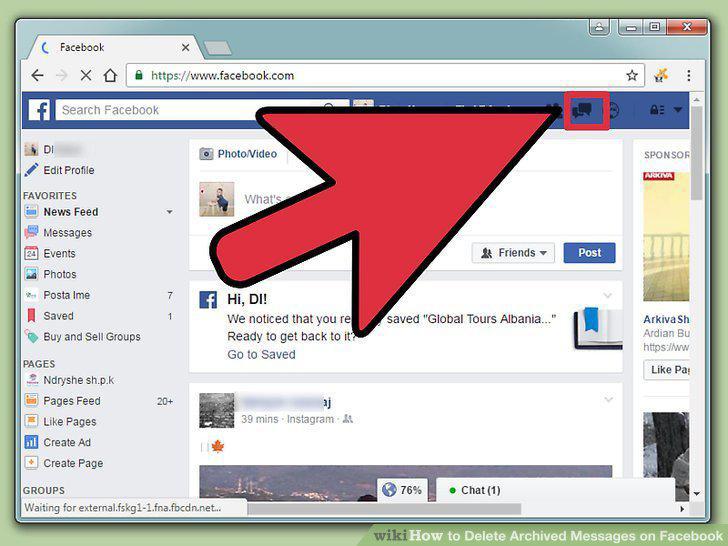
Click your "Messages" tab.
3
Click the "See All" option.
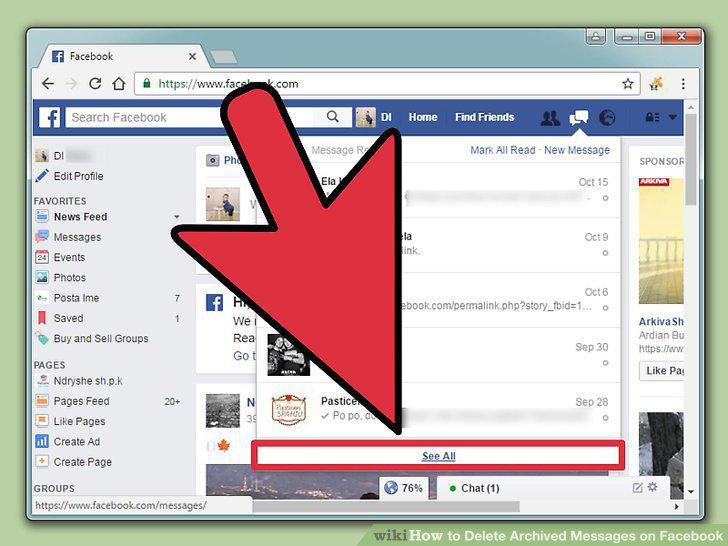
Click the "See All" option.
4
Click the "More" option.
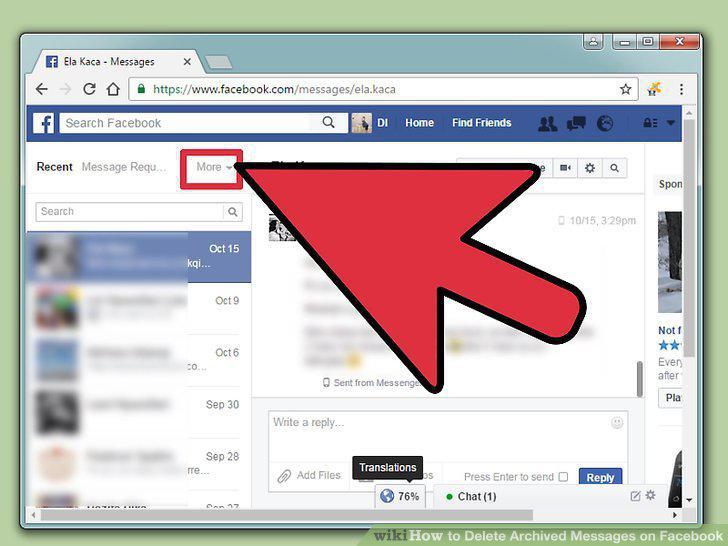
Click the "More" option.
5
Click the "Archived" option.
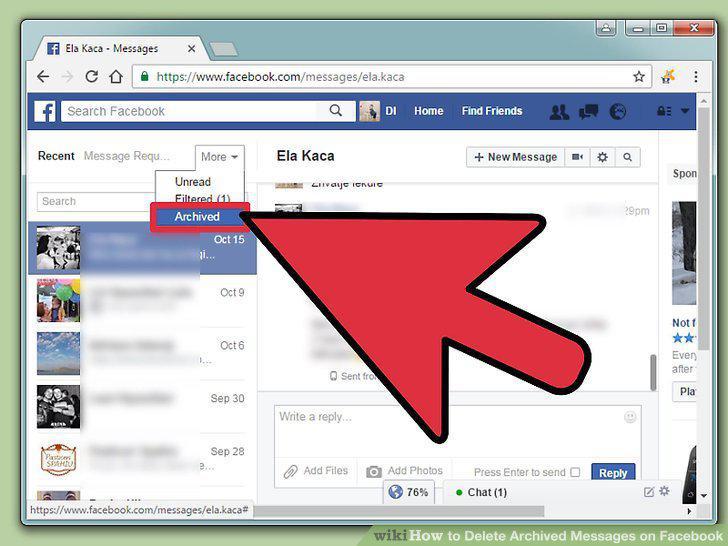
Click the "Archived" option.
6
Click on a conversation you wish to delete.
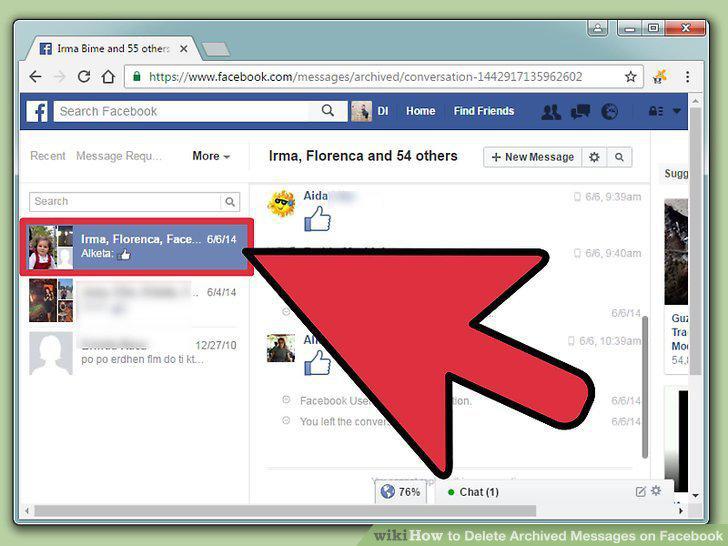
Click on a conversation you wish to delete.
7
Click the gear icon in the top right corner of the message.
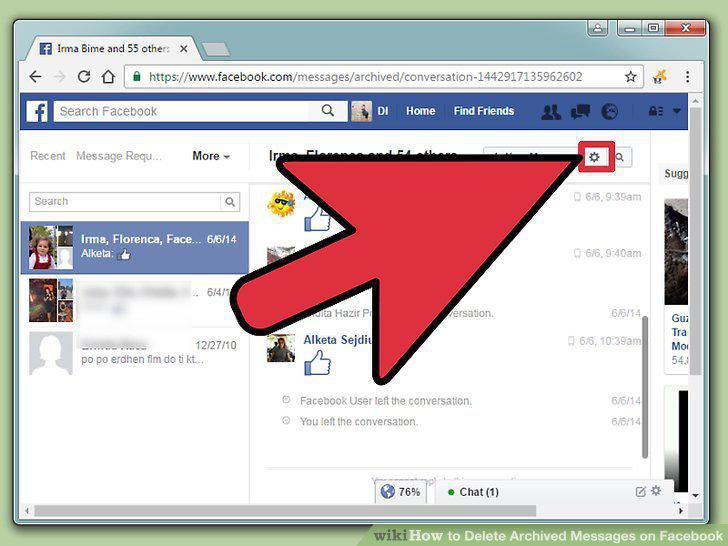
Click the gear icon in the top right corner of the message.
8
Click the "Delete Conversation" option.
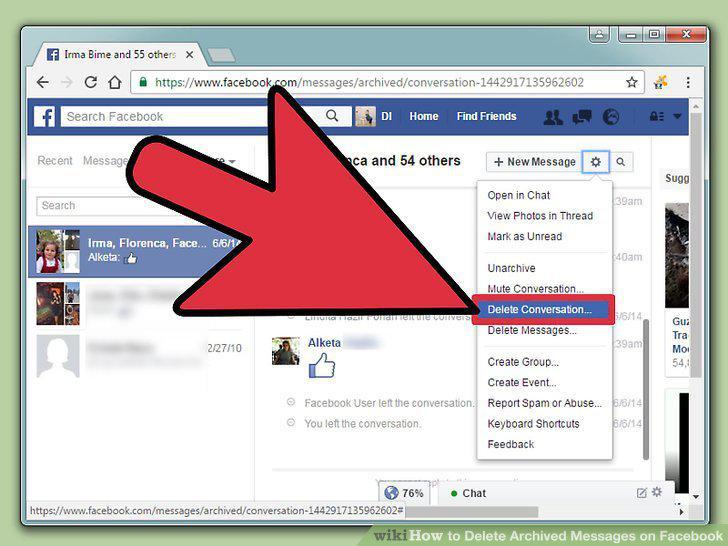
Click the "Delete Conversation" option.
9
Click "Delete Conversation" on the pop-up window.
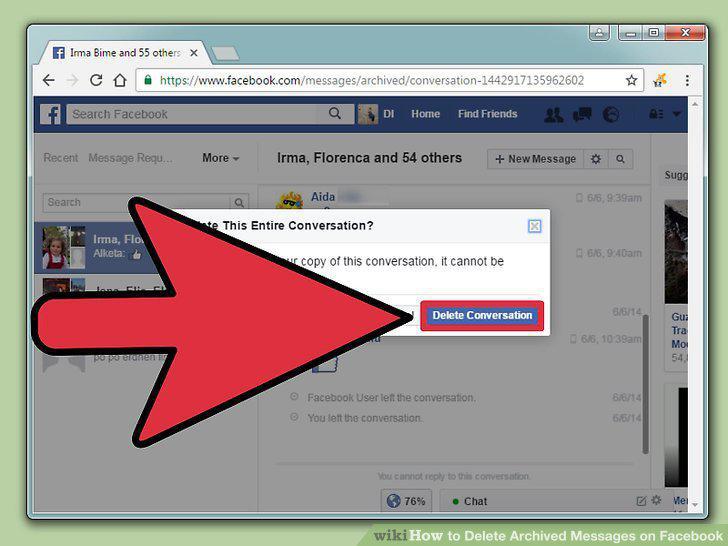
Click "Delete Conversation" on the pop-up window.
Comments (0)
No comments yet. Be the first to share your thoughts!