How to Create a Resume in Microsoft Word
Use a pre-installed template in Word.. Download a resume template in Word.. Download a template directly from Office Online.
Steps
1
Use a pre-installed template in Word.
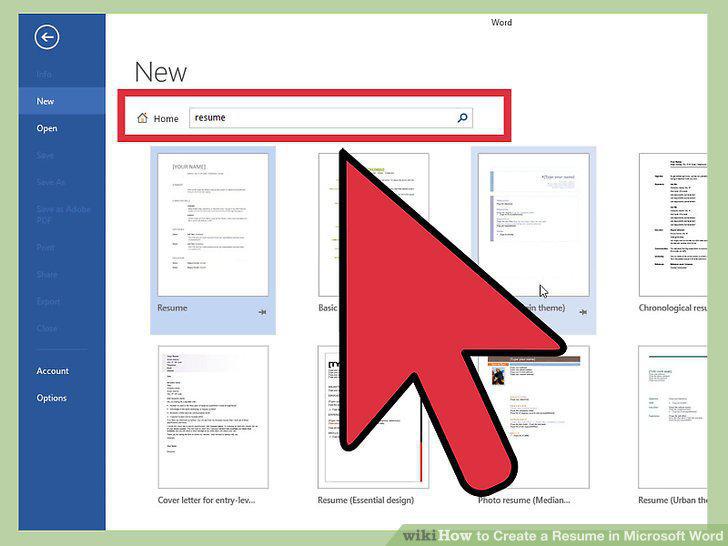
Use a pre-installed template in Word.
2
Download a resume template in Word.
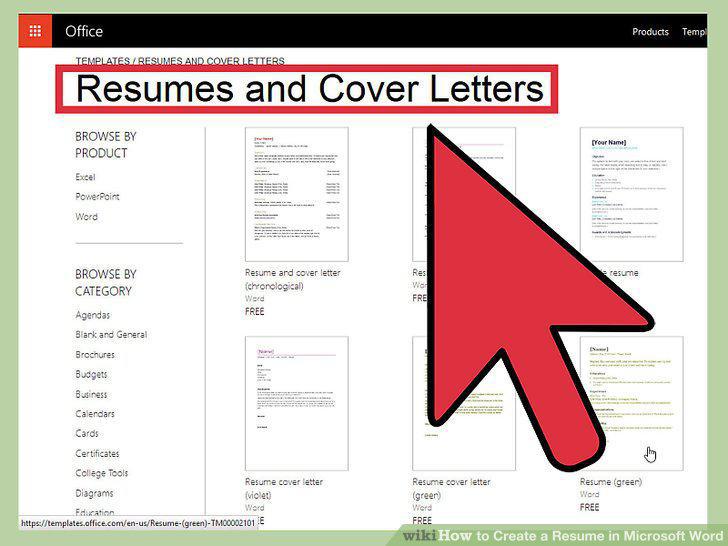
Download a resume template in Word.
3
Download a template directly from Office Online.
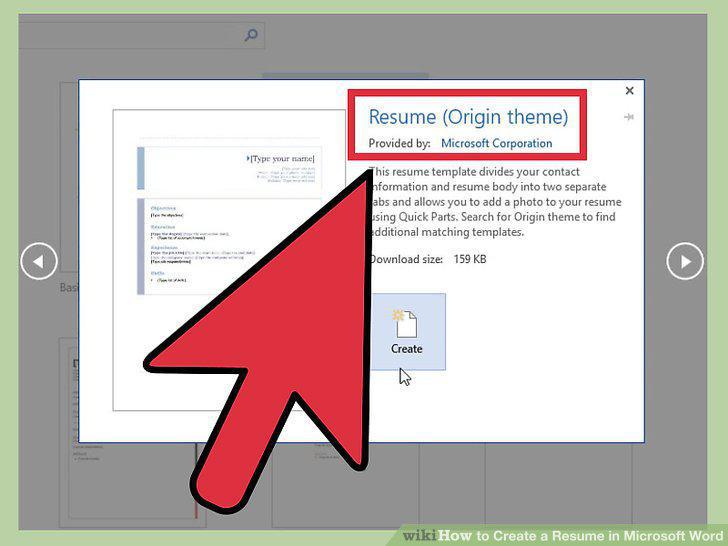
Download a template directly from Office Online.
4
Complete the template.
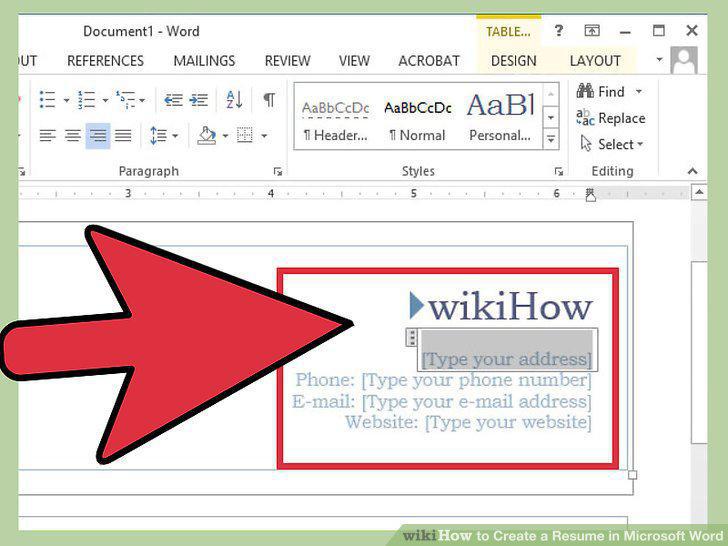
Complete the template.
5
Create a resume with the wizard (Word 2003 only).
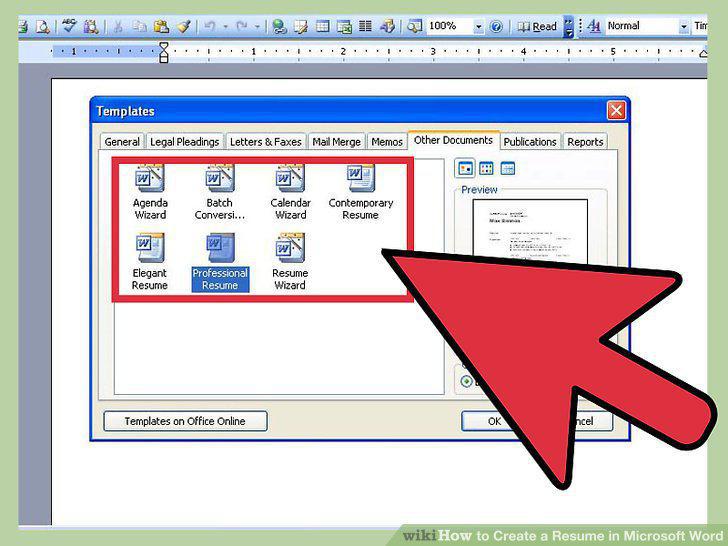
Create a resume with the wizard (Word 2003 only).
6
Know what to include.
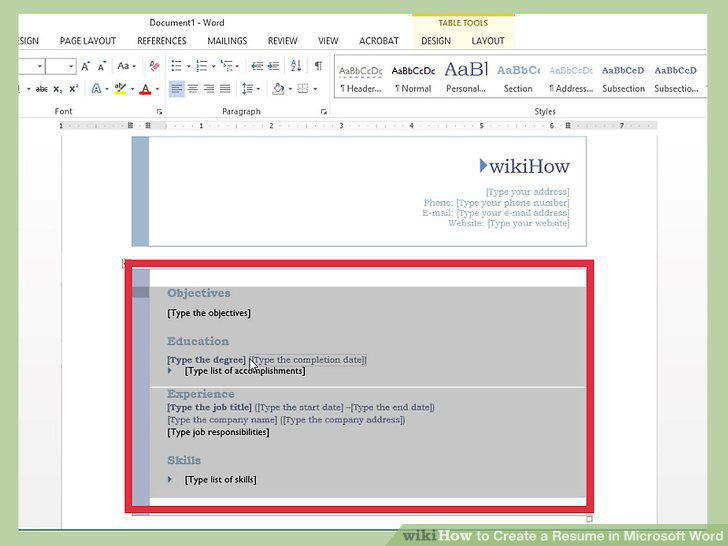
Know what to include.
7
Consider a chronological resume.
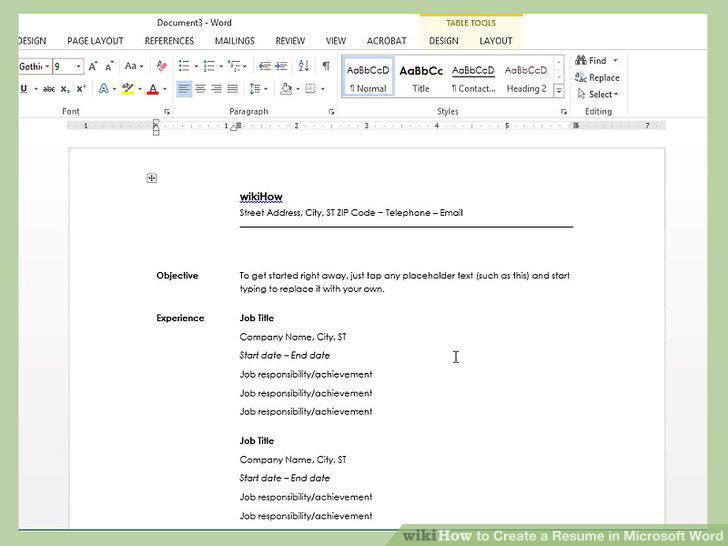
Consider a chronological resume.
8
Be wary of a functional resume.
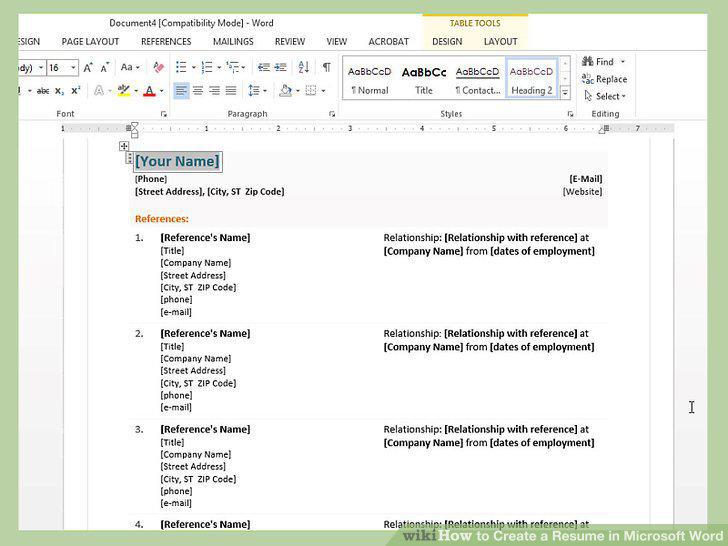
Be wary of a functional resume.
9
Try a combination resume.
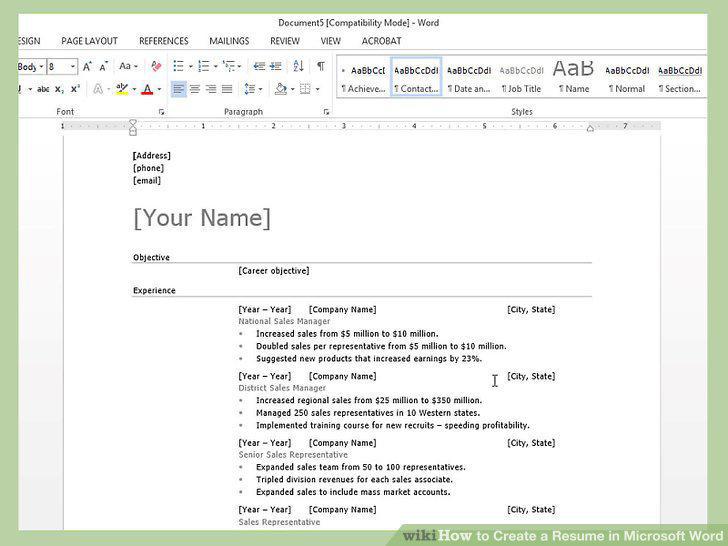
Try a combination resume.
10
Consider a CV.
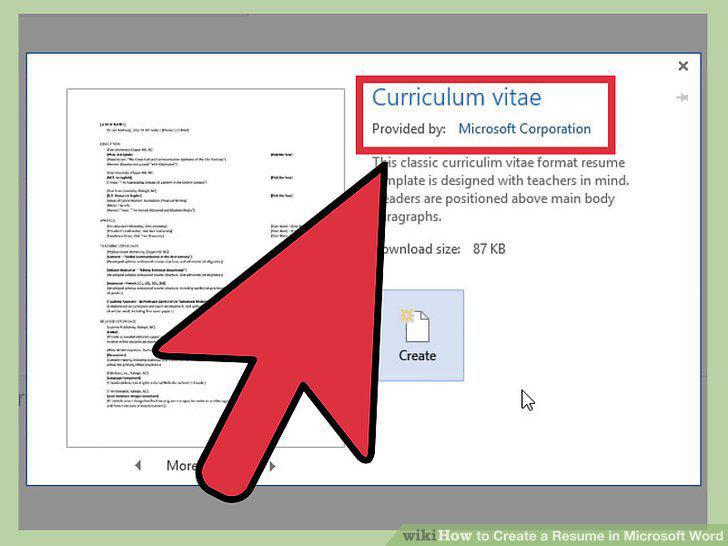
Consider a CV.
11
Complete your contact information.
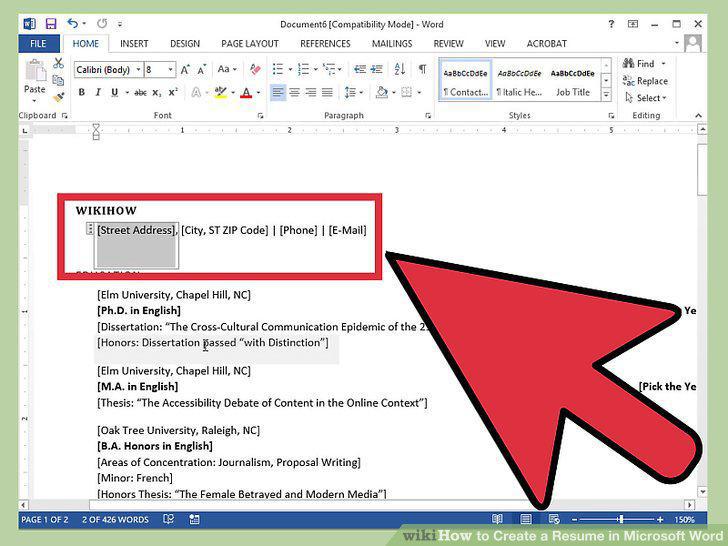
Complete your contact information.
12
Consider including an objective.
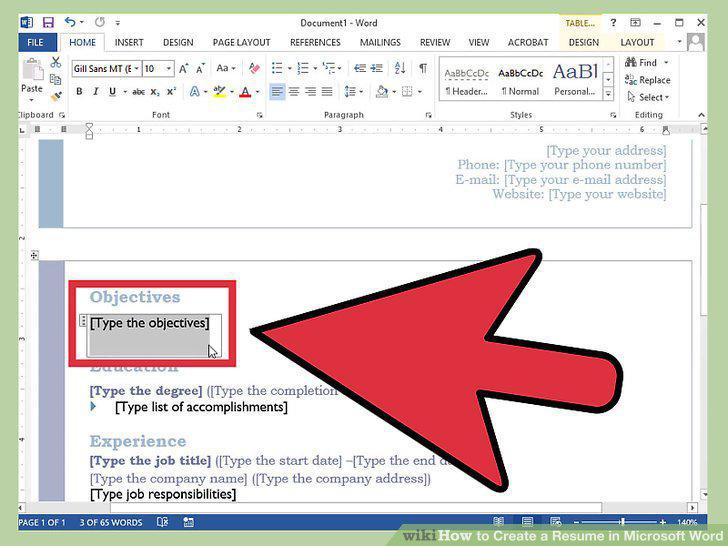
Consider including an objective.
13
Outline your education and qualifications.
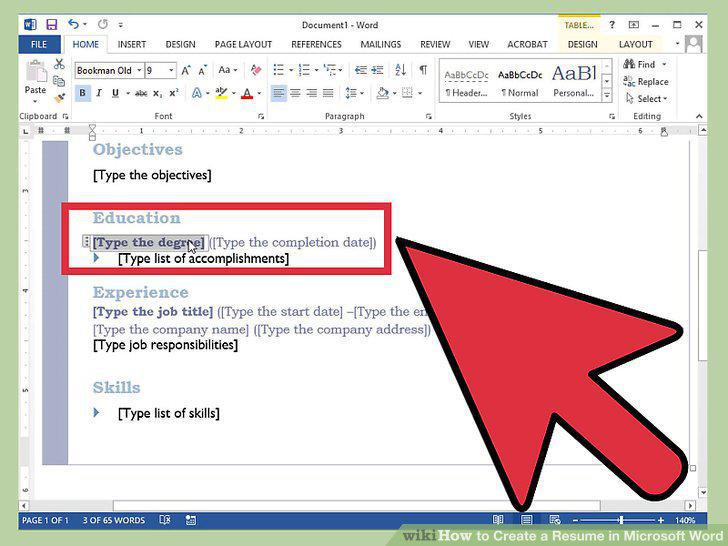
Outline your education and qualifications.
14
Detail your work experience.
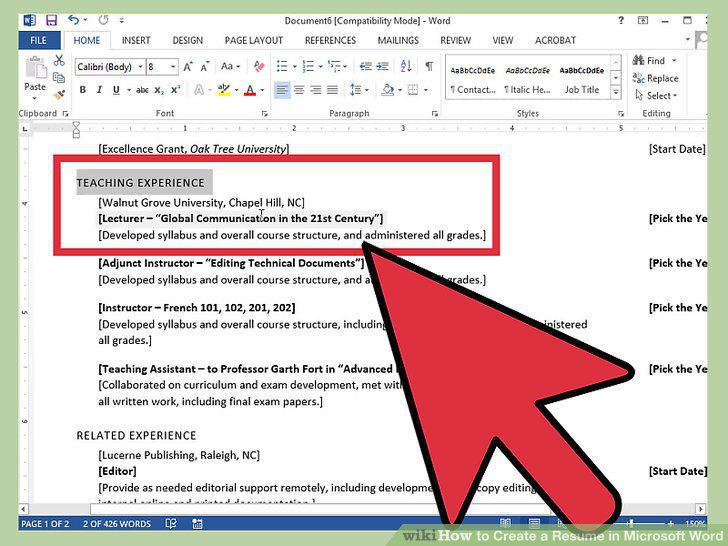
Detail your work experience.
15
Have an extra skills section.
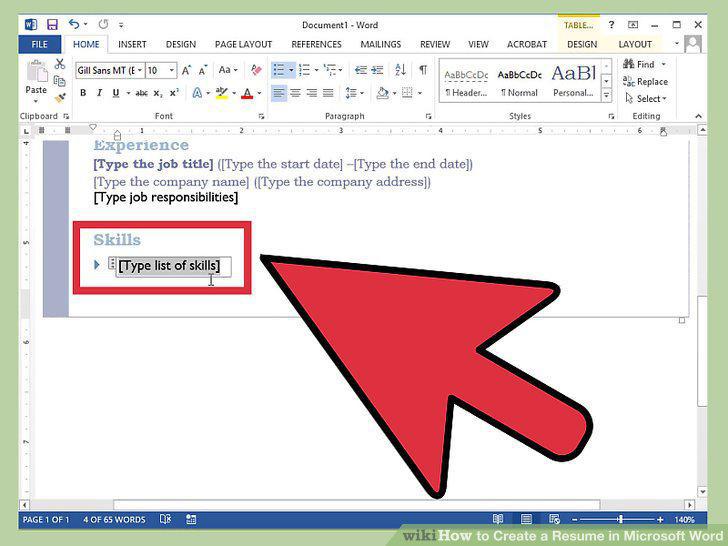
Have an extra skills section.
16
Consider adding references.
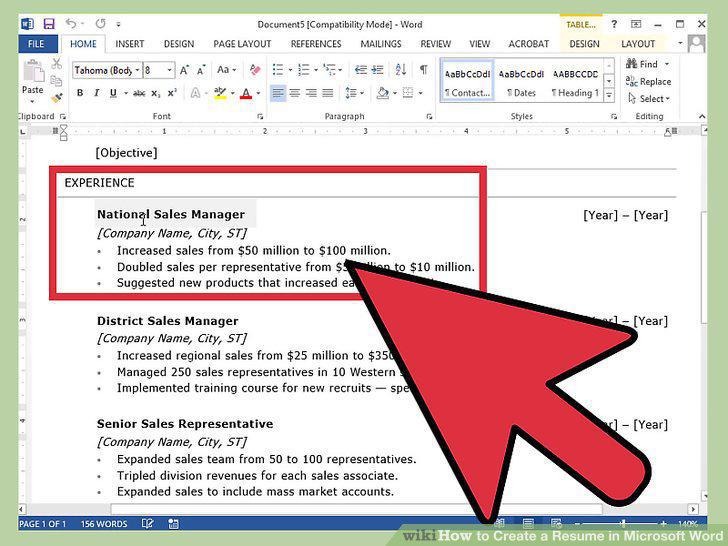
Consider adding references.
17
Make final format adjustments.
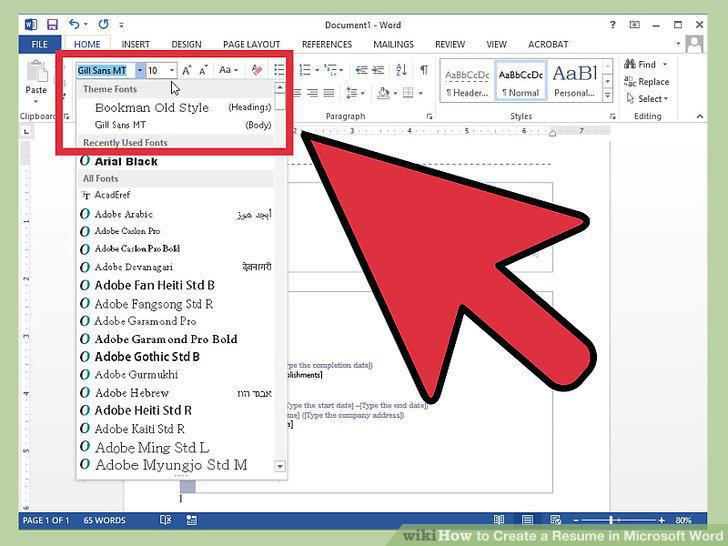
Make final format adjustments.
Comments (0)
No comments yet. Be the first to share your thoughts!