How to Use Swiping Gestures in Mail on an iPhone
Open the Mail app on your iPhone or iPad.. Pull down your email list to refresh your inbox.. Do a full swipe to the left on an email to delete or archive.
Steps
1
Open the Mail app on your iPhone or iPad.
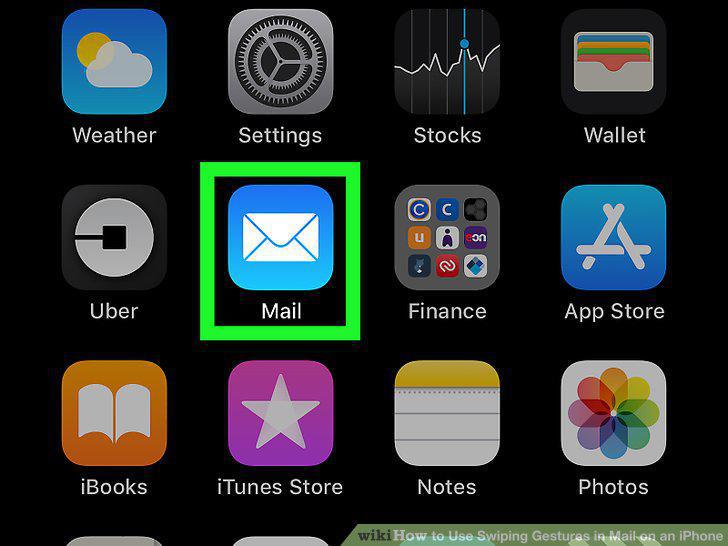
Open the Mail app on your iPhone or iPad.
2
Pull down your email list to refresh your inbox.
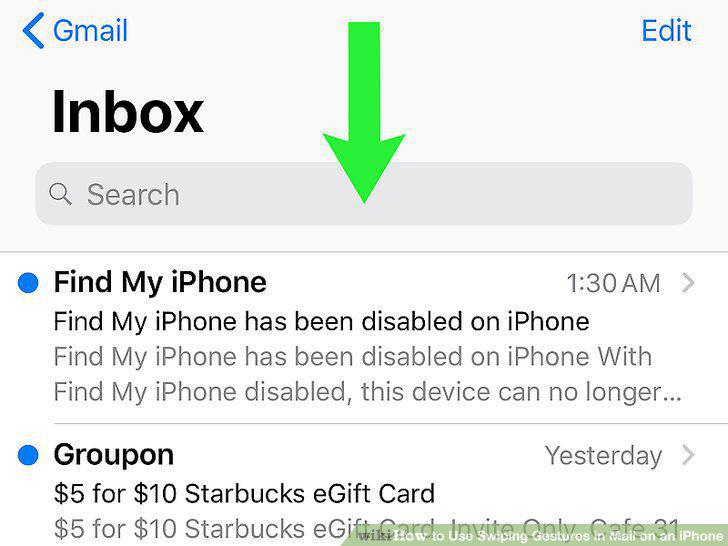
Pull down your email list to refresh your inbox.
3
Do a full swipe to the left on an email to delete or archive.
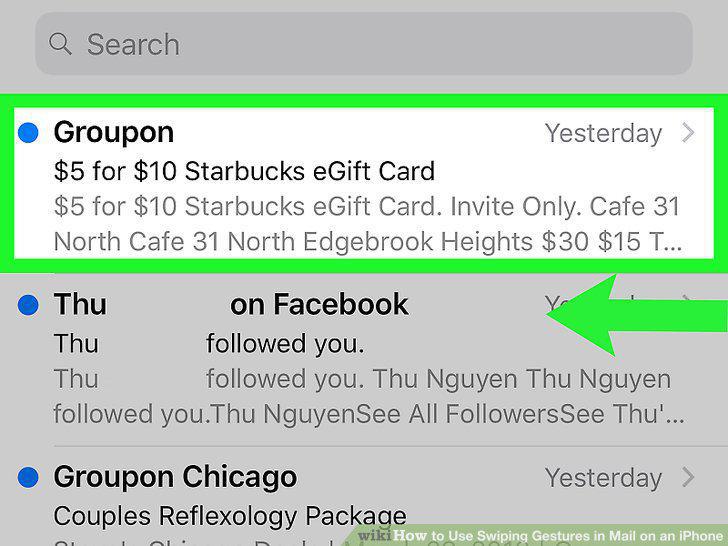
Do a full swipe to the left on an email to delete or archive.
4
Do a half swipe to the left to see your options.
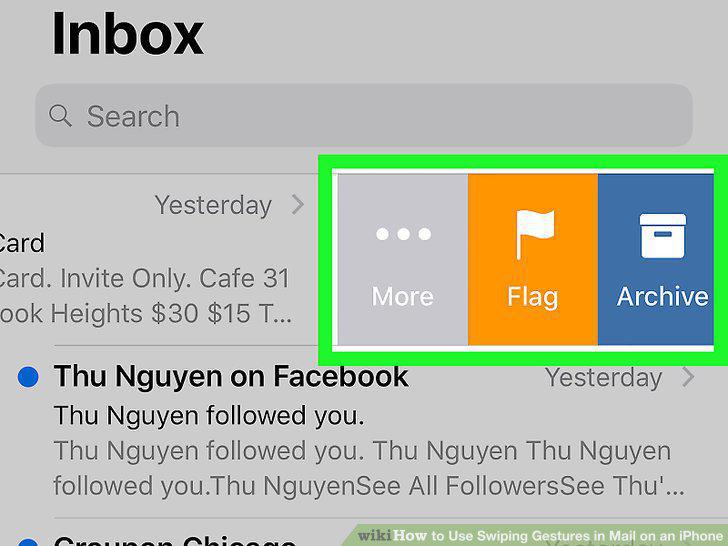
Do a half swipe to the left to see your options.
5
Do a full swipe to the right on an unread email to mark it as read.
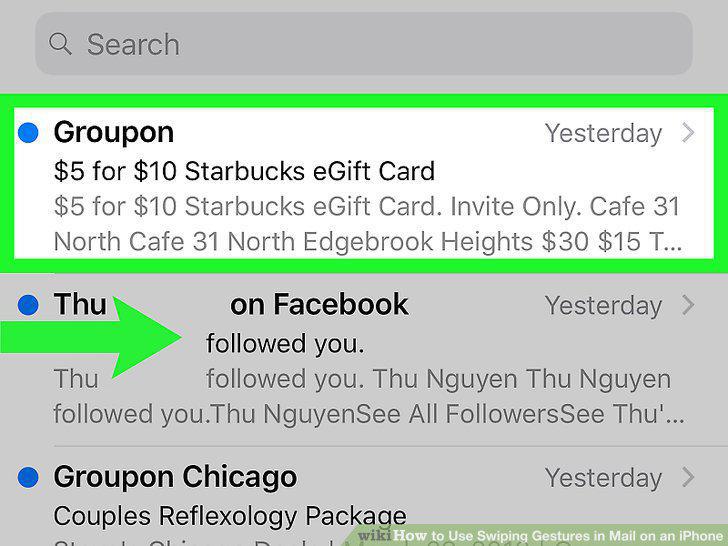
Do a full swipe to the right on an unread email to mark it as read.
6
Open your iPhone or iPad's Settings.
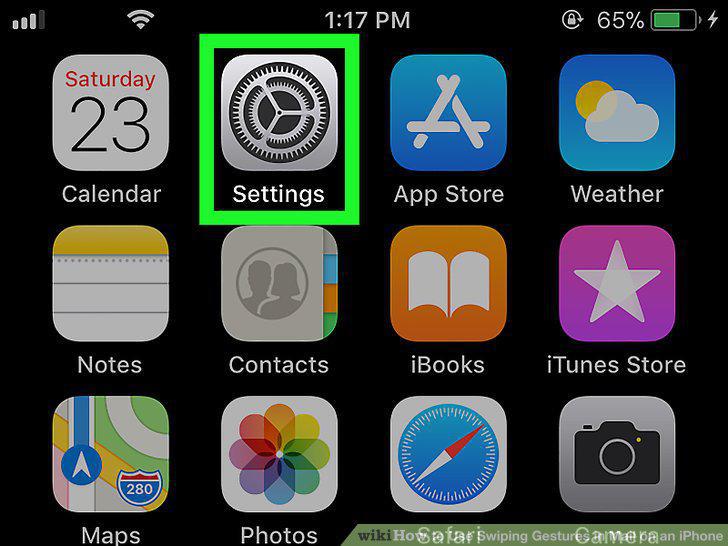
Open your iPhone or iPad's Settings.
7
Scroll down and tap Mail.
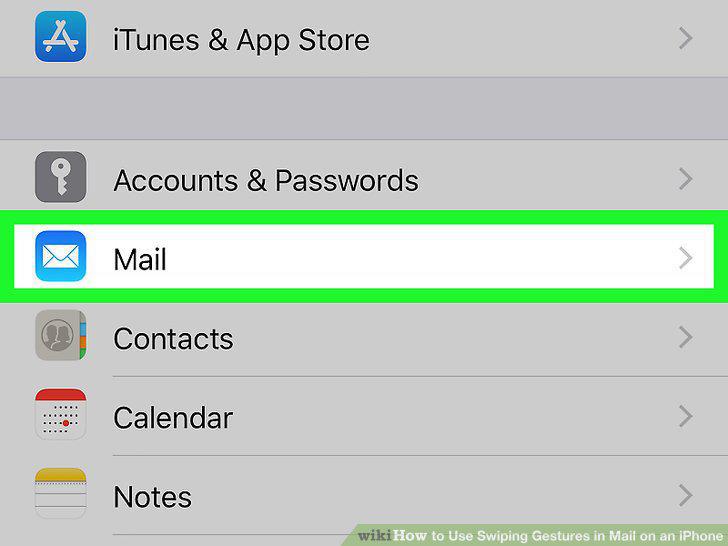
Scroll down and tap Mail.
8
Tap Swipe Options under MESSAGE LIST.
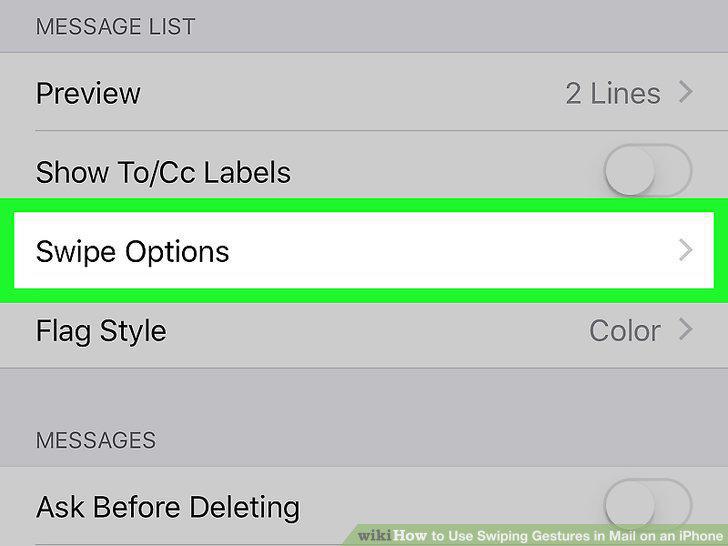
Tap Swipe Options under MESSAGE LIST.
9
Tap Swipe Left.
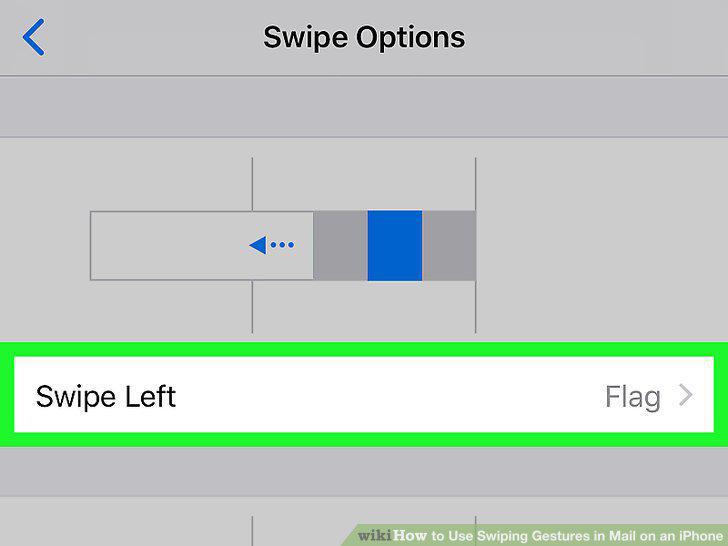
Tap Swipe Left.
10
Tap the back button.
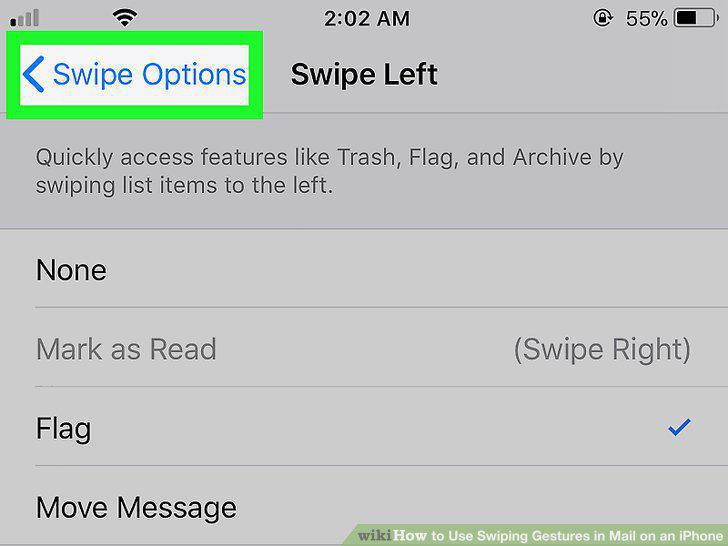
Tap the back button.
11
Tap Swipe Right.
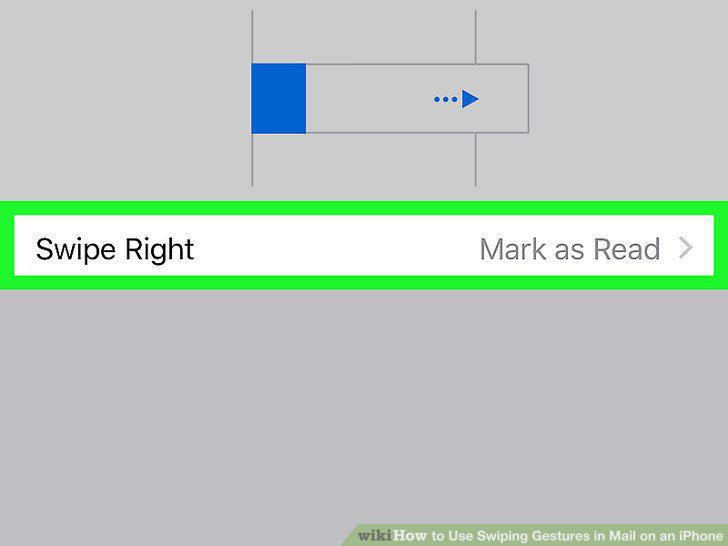
Tap Swipe Right.
12
Tap the back button on the top-left.
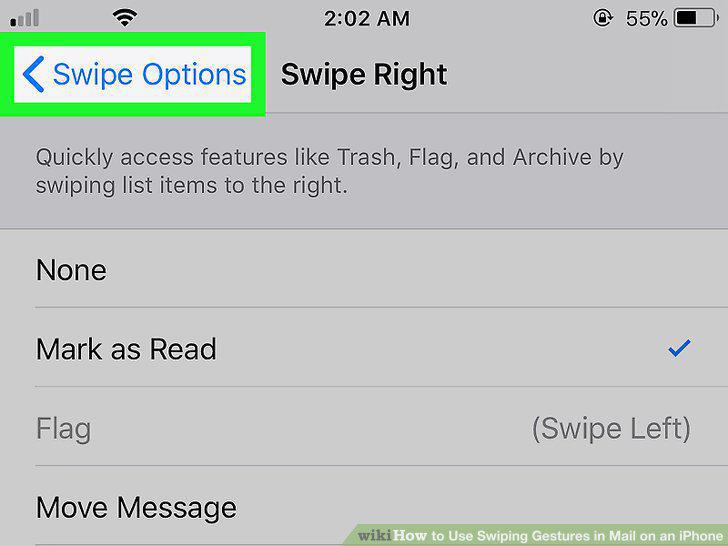
Tap the back button on the top-left.
Comments (0)
No comments yet. Be the first to share your thoughts!