How to Enable iMessage on PC or Mac
Open a new Finder window.. Click Appications.. Click the "Messages" app.
Steps
1
Open a new Finder window.
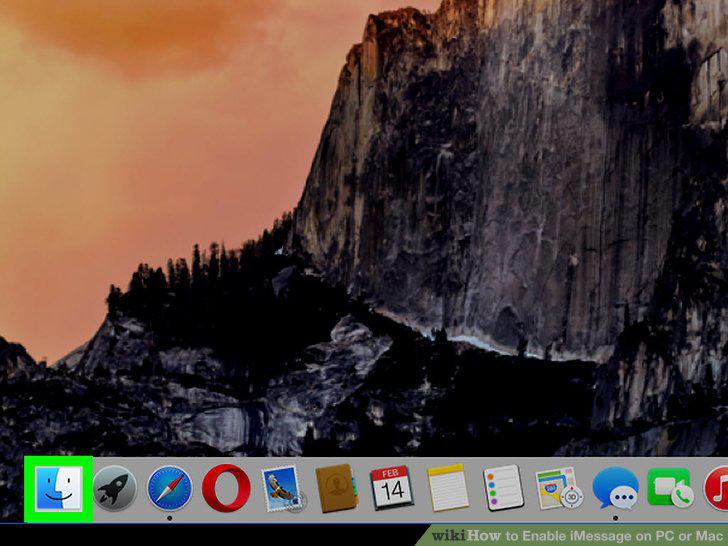
Open a new Finder window.
2
Click Appications.
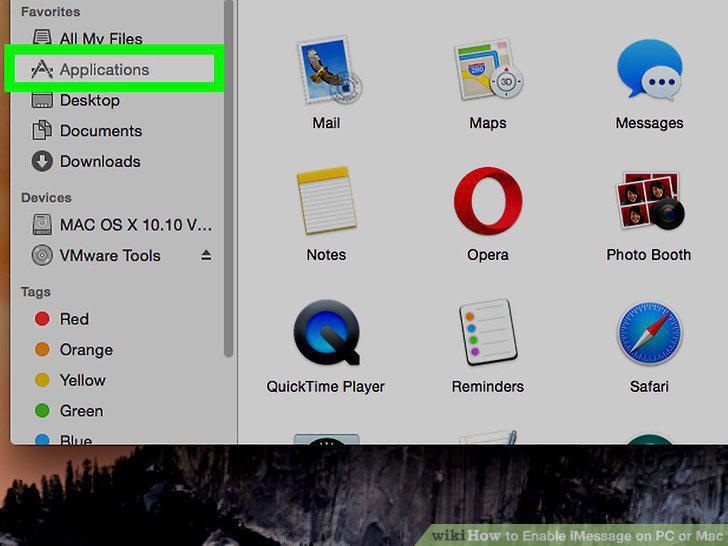
Click Appications.
3
Click the "Messages" app.
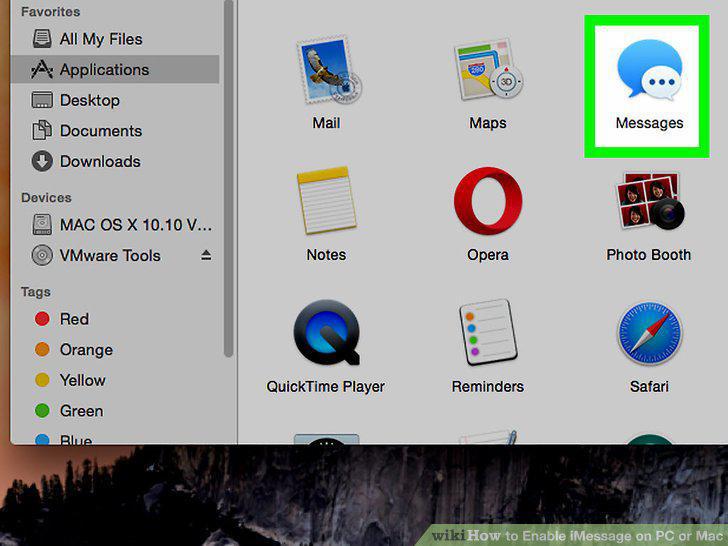
Click the "Messages" app.
4
Click Messages.
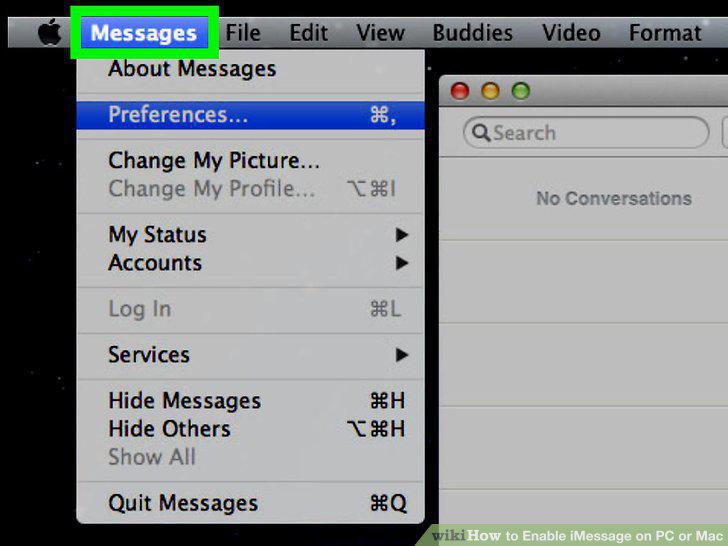
Click Messages.
5
Click Preferences.
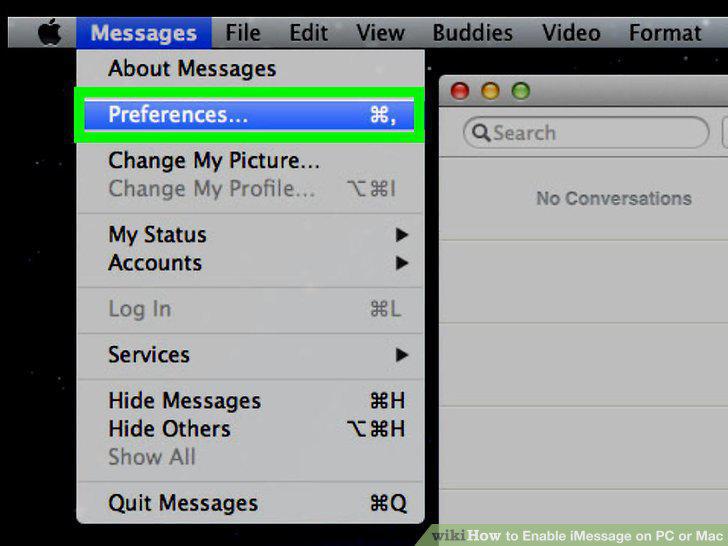
Click Preferences.
6
Click Accounts.
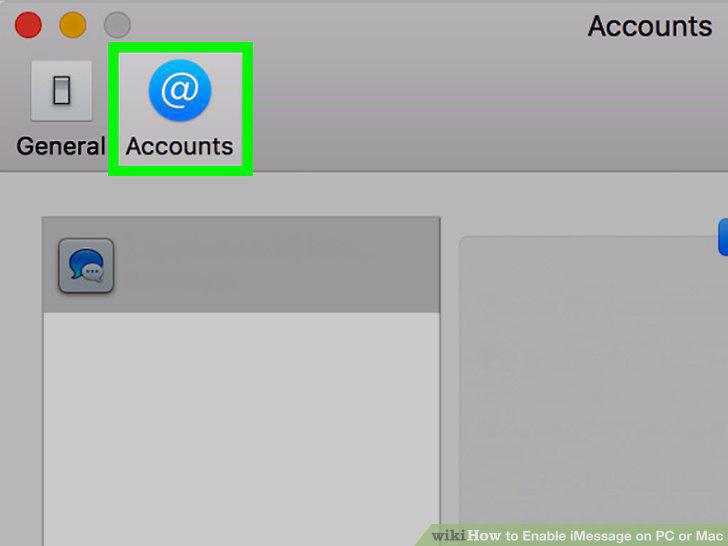
Click Accounts.
7
Click the account you want to use with iMessage.
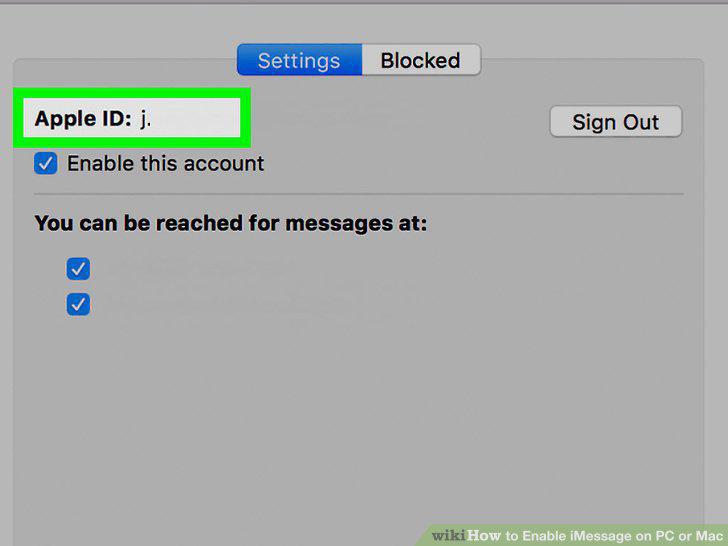
Click the account you want to use with iMessage.
8
Click the checkbox for "Enable this account" to turn on iMessage on your Mac.
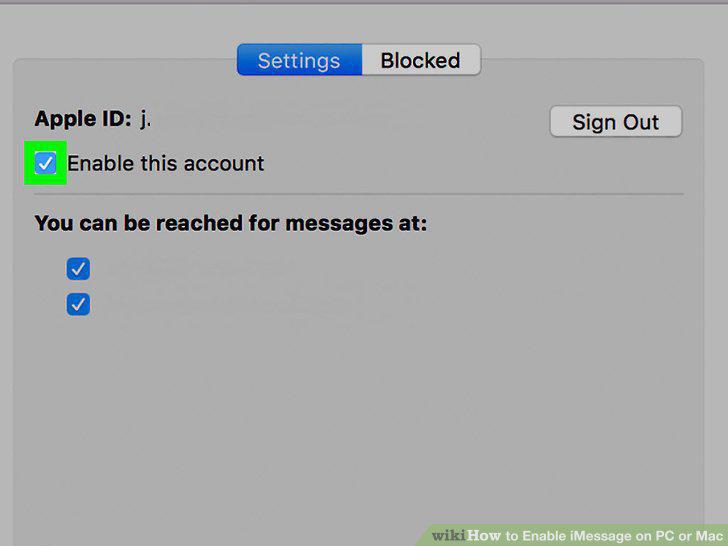
Click the checkbox for "Enable this account" to turn on iMessage on your Mac.
Comments (0)
No comments yet. Be the first to share your thoughts!