How to Find Elevation on Google Maps on iPhone or iPad
Open Google Maps on your iPhone or iPad.. Tap the map icon.. Tap Terrain.
Steps
1
Open Google Maps on your iPhone or iPad.
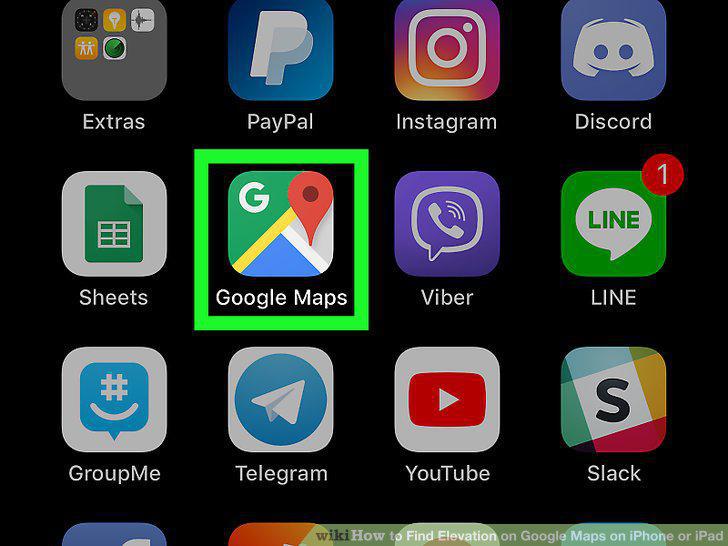
Open Google Maps on your iPhone or iPad.
2
Tap the map icon.
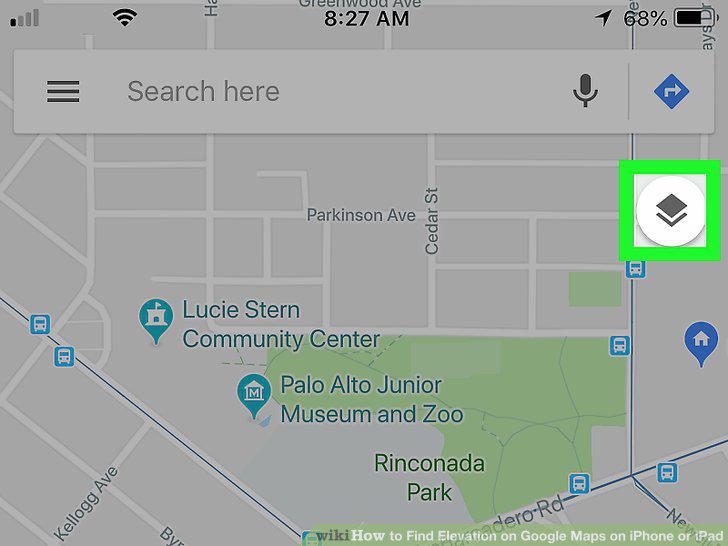
Tap the map icon.
3
Tap Terrain.
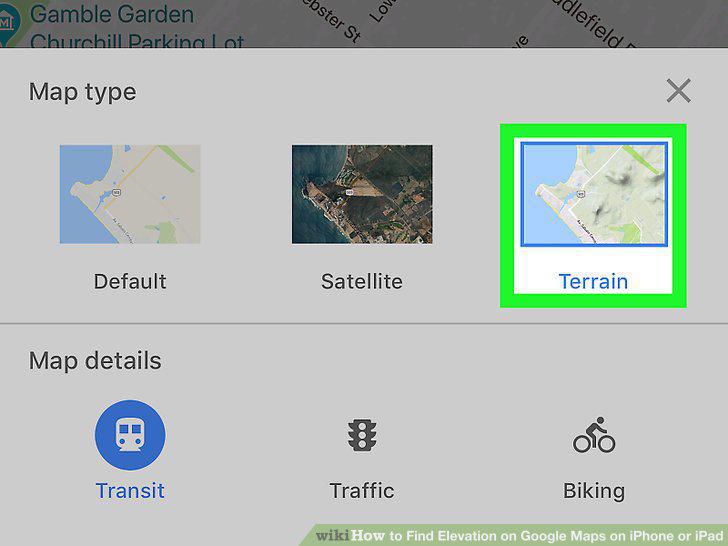
Tap Terrain.
4
Tap the X.
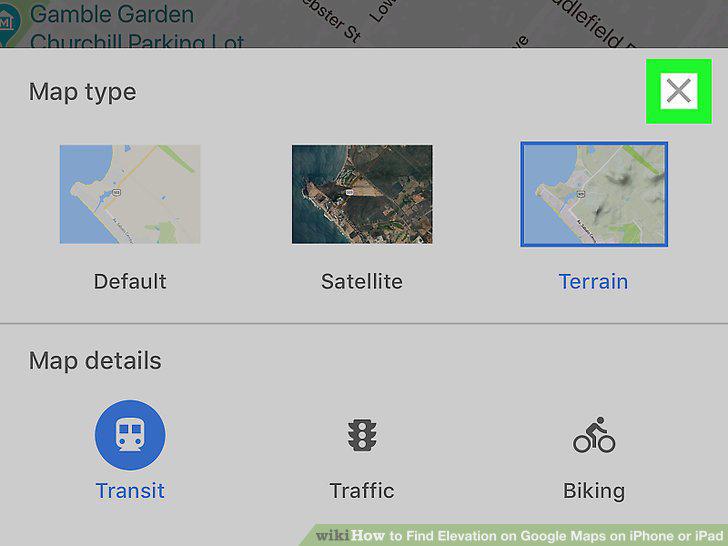
Tap the X.
5
Go to a location in the map.
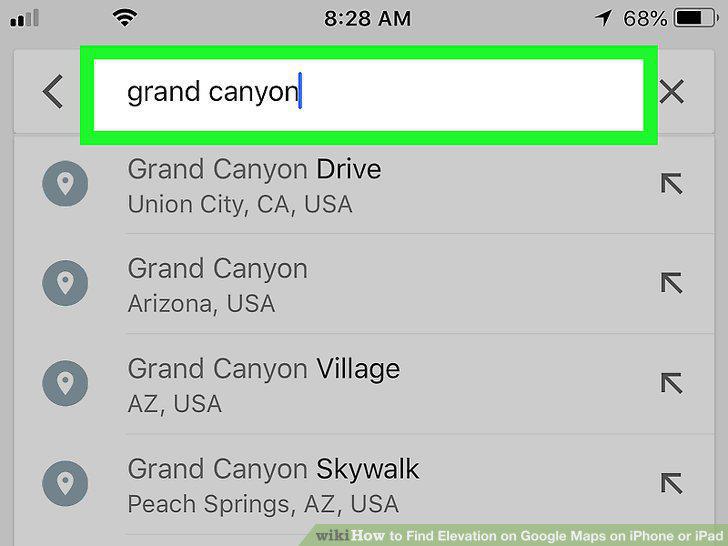
Go to a location in the map.
6
Zoom in far enough to see the contour lines.
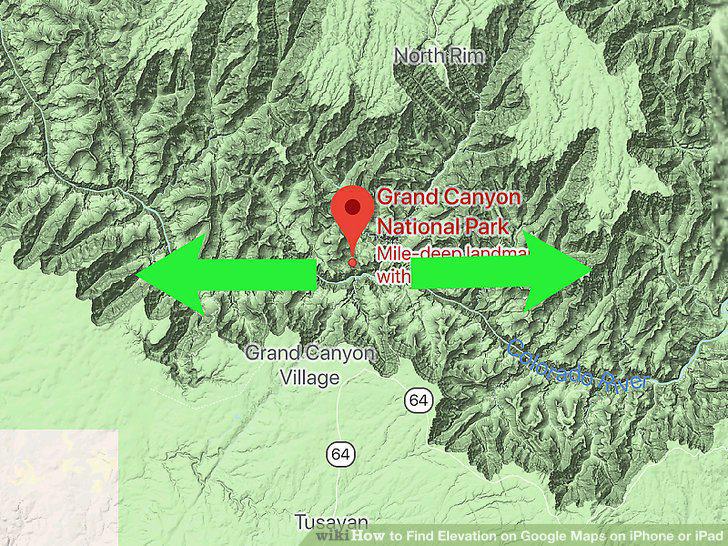
Zoom in far enough to see the contour lines.
7
Find the elevation.
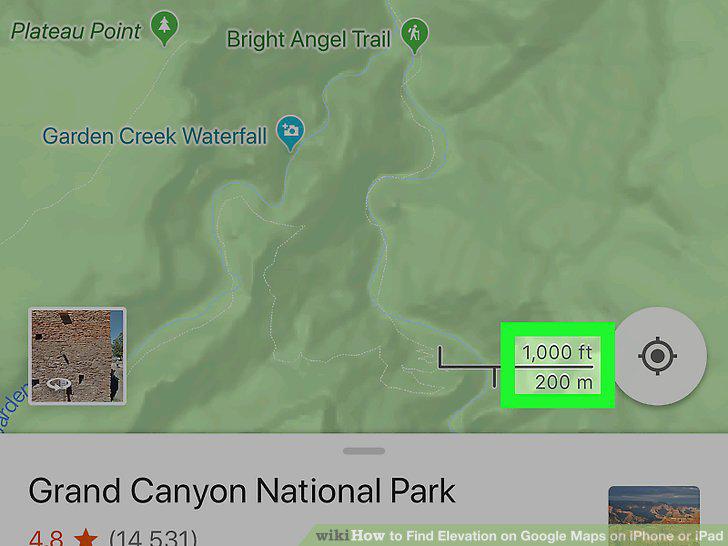
Find the elevation.
Comments (0)
No comments yet. Be the first to share your thoughts!